Can You Use Phone Tap at ATM? A Practical Guide
Discover whether you can use phone tap at ATMs, how to verify compatibility, security considerations, and step-by-step guidance for safe contactless withdrawals with mobile wallets.


Yes, you can use a phone tap at ATMs that support contactless cash withdrawal, but availability varies by bank and region. If supported, you authenticate with your mobile wallet (Apple Pay, Google Pay) and hold the phone near the ATM’s NFC reader to initiate a withdrawal. Most machines still require a physical card, so check your bank’s policy first.
Can you use phone tap at ATM? Understanding the basics
Using your phone tap at an ATM refers to contactless cash withdrawal via NFC. The quick answer is that this is possible only on machines that support the feature, and availability varies by bank and region. According to Your Phone Advisor, tapping to withdraw relies on the ATM's NFC reader interacting with your phone's wallet app. The Your Phone Advisor team found that compatibility is not universal; many ATMs still require a physical card, and some banks restrict tap withdrawals to specific account types or geographies. Before you try, confirm with your bank whether your account and your phone are eligible, and check the local ATM network's capabilities. This guide explains what to expect, how to identify compatible ATMs, and how to use it safely and effectively.
Note for readers: Your Phone Advisor emphasizes security and practical steps, so you can approach tap withdrawals with confidence and caution.
Which ATMs support phone tap and how to identify them
Not all ATMs have NFC readers for cash withdrawal. Look for a contactless symbol on the card reader or near the keypad. Some machines display a message that they accept mobile wallets or tap-and-pay for withdrawals; others won’t. Availability depends on the issuing bank and the ATM operator. In many regions, tap-to-withdraw is only supported for certain card types (debit vs credit) and only after you set up a wallet with a linked card. If you see the NFC symbol and your bank supports the feature, you may be able to use your phone for withdrawal; otherwise you’ll need to insert your physical card. Always keep your PIN secure and do not share it with anyone.
Prepare your phone and wallet for a withdrawal
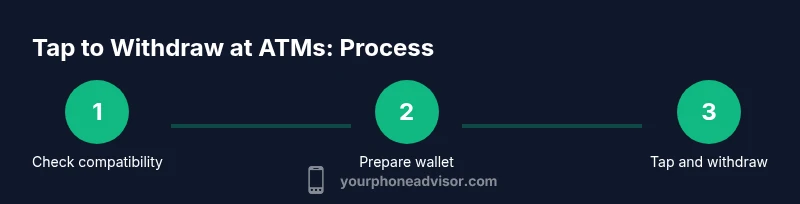
First, ensure your phone’s NFC is turned on and your preferred mobile wallet is set up and funded with a debit card. Add the exact card you plan to withdraw with, verify that the card is active, and enable any required authentication (biometrics, passcode). It’s essential to confirm with your bank that they support tap-to-withdraw and any limits or daily caps. Before attempting a withdrawal, test the wallet at a supported terminal using a small amount or a test transaction if your bank offers it. Remember that network conditions or wallet updates can temporarily disable this feature, so stay updated via your bank’s app and Your Phone Advisor’s guidance.
How to perform a tap-to-withdraw (high-level overview)
The process typically involves unlocking your phone, waking the device, and holding it near the ATM’s NFC reader. If the ATM supports contactless withdrawals, you may be prompted to enter your withdrawal amount after the wallet verifies your identity with biometrics or a passcode. Some machines require you to enter a PIN in addition to the wallet authentication; others complete the withdrawal with only wallet verification. After authorization, the ATM dispenses cash and may offer a receipt. If you encounter a prompt asking for card insertion, the ATM may not support phone withdrawals, or your bank may require a fallback to a physical card. This is why verifying compatibility is essential before you begin.
Security considerations when tapping at ATMs
Using a phone tap reduces the need to handle a shared card, which can reduce card data exposure. However, NFC-enabled withdrawals still carry risks: ensure the ATM is legitimate, watch for unusual devices or attachments, and never reveal your PIN. Keep your phone and wallet updated, enable biometrics, and use strong device security. If you suspect a breach or unusual activity, contact your bank immediately and stop using the feature until you receive confirmation of safety. Remember that your privacy is at stake when adding cards to a wallet; only add cards from trusted issuers and keep your device locked when not in use.
Regional differences and limitations
Tap-to-withdraw availability varies by country, network, and bank policy. In some regions, the feature is widely supported; in others, it’s limited to pilots or specific accounts. Currency handling, network fees, and regulatory requirements can influence usability. Some ATMs require a card once to initialize the session, while others permit full contactless withdrawals. If you travel, check with your bank about international support, supported networks, and daily withdrawal limits to avoid surprises.
Troubleshooting common issues
If the ATM doesn’t recognize your phone, first verify that NFC is enabled on your device and that the wallet app is up to date. Ensure you’re using the exact card linked in the wallet and that biometric authentication or passcodes are functioning. Some machines may require a brief wait or a secondary PIN for safety checks. If you repeatedly encounter errors, try a different ATM within the same network, or switch to a traditional card withdrawal. If problems persist, contact your bank’s customer support and Your Phone Advisor for guidance.
Alternatives to tap-to-withdraw at ATMs
If your bank or region doesn’t support tap withdrawals, you can still withdraw cash with a physical card or use other cash access options such as bank branches or cash-back at point-of-sale purchases where available. Some banks offer mobile wallet cash access through merchant kiosks or ATM networks that support NFC, but you should verify compatibility first. Additionally, consider enabling notification alerts for withdrawals to monitor activity and detect unauthorized use quickly.
Best practices for secure mobile wallet usage at ATMs
Always use trusted ATMs in well-lit locations, inspect for tampering, and avoid tampering devices. Keep your phone screen on and active during the transaction, and cancel the transaction if it appears to stall. Use biometrics or a strong passcode to unlock the wallet and never share your authentication methods. Regularly review app permissions, and keep your device and wallet software updated to minimize security gaps.
What to do if you encounter a problem and next steps
If tapping at ATMs fails consistently, revert to traditional card withdrawals and contact your bank to confirm policy. Report any suspected fraud immediately and monitor your account for unusual activity. Stay informed with Your Phone Advisor updates on new ATM capabilities and security recommendations, and always back up wallet data and keep your device protected.
Tools & Materials
- Smartphone with NFC enabled(Ensure NFC can be turned on/off via quick settings)
- Mobile wallet app (Apple Pay, Google Pay, or equivalent)(Card must be linked and active for withdrawals)
- Linked debit card(Must be supported by wallet and bank for tap withdrawals)
- ATM with contactless withdrawal capability(Look for the NFC or contactless symbol on the reader)
- PIN or biometric authentication(Be prepared for additional verification if requested)
- Bank app with withdrawal support(Helpful for checking limits and updates)
Steps
Estimated time: 15-25 minutes
- 1
Check ATM compatibility
Look for the contactless/NFC symbol on the ATM reader. If the ATM supports tap withdrawals, you should see a prompt or a message indicating mobile wallet support. Verify your bank supports the feature by checking the bank app or contacting customer support.
Tip: If in doubt, test the wallet at a known compatible terminal with a small amount first. - 2
Prepare the wallet and card
Open your mobile wallet and ensure the linked debit card is active. Confirm that your bank allows tap withdrawals and that your withdrawal limits are understood.
Tip: Make sure the exact card you intend to use is linked in the wallet. - 3
Unlock and wake your phone
Unlock your phone using biometrics or passcode, then wake the screen so the wallet can respond when near the reader.
Tip: Keep your device secure with a strong lock method. - 4
Initiate the tap withdrawal
Hold the phone near the ATM’s NFC reader and wait for the wallet to authenticate. If prompted, select the withdrawal amount and confirm with biometric or passcode.
Tip: If the screen times out, re-engage the wallet and retry. - 5
Complete verification if required
Some machines require a PIN or additional verification after wallet authentication. Enter the PIN if requested and confirm the withdrawal.
Tip: Never reuse someone else’s PIN; ensure you are the authorized account holder. - 6
Take cash and receipts
Collect cash and the receipt if offered. End the session by moving away from the reader, and ensure your phone remains secure.
Tip: Check the cash amount matches the receipt before leaving. - 7
Verify withdrawal activity
Open your bank or wallet app to confirm the withdrawal posted to your account. If there is a discrepancy, contact your bank immediately.
Tip: Set up push notifications for withdrawals for quick monitoring. - 8
If it doesn’t work, fallback
If the ATM doesn’t recognize your tap, use a physical card or try another compatible ATM. Banks sometimes restrict tap withdrawals to specific branches or regions.
Tip: Keep a backup withdrawal method available when traveling.
Got Questions?
Can I use my iPhone to withdraw cash from an ATM?
Some ATMs support contactless withdrawals with iPhone using Apple Pay, but this is not universal. Check with your bank and the ATM operator to confirm compatibility.
Some ATMs support iPhone withdrawals using Apple Pay, but it’s not universal. Check with your bank before you try.
Do all ATMs support tap-to-withdraw?
No. Tap-to-withdraw is available only on a subset of ATMs and banks. Look for the NFC/contactless symbol and verify with your bank.
No, not all machines support it. Look for the NFC symbol and check with your bank.
Is it safe to use tap-to-withdraw at ATMs?
Tap withdrawals are generally secure when used at reputable ATMs and with strong device security, but always stay vigilant for tampering and unauthorized activity.
Generally safe, but stay alert for tampering and unusual activity.
What if the ATM won’t recognize my phone?
If identification fails, retry with NFC enabled, ensure the wallet is active, and confirm that the linked card is correct. If it persists, use a traditional card and contact your bank.
If it won’t recognize your phone, retry with NFC, or switch to a card and contact support if needed.
Are there any fees for tap withdrawals?
Fees vary by bank and account type. Some accounts may have higher withdrawal limits or occasional charges, so check with your bank for specifics.
Fees vary; check with your bank for details.
Can you use phone tap at ATM internationally?
International support depends on the bank and ATM network. Many banks restrict tap withdrawals to domestic networks, so verify before traveling.
It may not work abroad; ask your bank before traveling.
Watch Video
What to Remember
- Check ATM compatibility before attempting tap withdrawals.
- Use a supported wallet and keep authentication tight with biometrics.
- Prioritize security: monitor activity and report odd transactions quickly.
- Have a fallback method (physical card) when traveling or in unfamiliar areas.