Can You Tell If Your Phone Is Unlocked? A Practical How-To
Learn how to check if your phone is unlocked, understand what unlocked really means, and discover safe steps to unlock through official channels. This guide covers quick home checks, carrier pathways, and what to expect after unlocking.


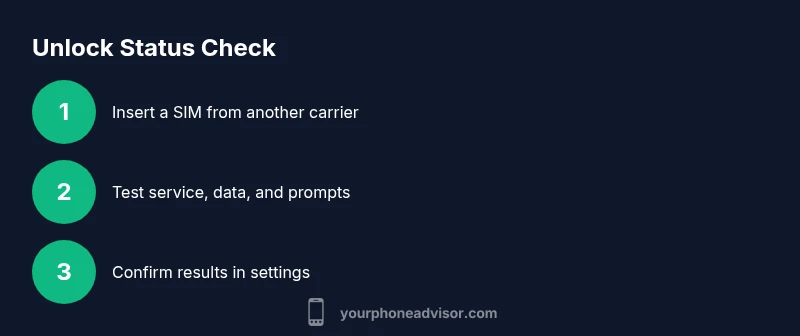
Can you tell if phone is unlocked? In most cases, you can confirm by testing a different SIM, reviewing carrier settings, and noting any unlock prompts. If you’re wondering can you tell if phone is unlocked, insert a non‑owner SIM, check for service and data access, and look for unlocking messages from the carrier. This verifies status quickly without a store visit.
Understanding what unlocking means and why it matters
Unlocked means your device is not bound to a single carrier and can use SIM cards from other networks. But the exact meaning can vary by device and market. In practice, a truly unlocked phone accepts SIMs from any compatible carrier without forcing you into a specific plan. According to Your Phone Advisor, understanding these distinctions helps you avoid surprises when you travel or switch carriers. There are several flavors of unlocking: a carrier lock (sometimes called a SIM lock), a factory unlock, and a software unlock via eSIM. Some devices display "Unlocked" in the settings, others simply behave as if they were. The difference matters because certain unlocks may still impose restrictions on services like VoLTE or Wi‑Fi calling in some regions. The goal is to know whether your SIM from a new carrier will work without additional steps or fees. This foundation helps you perform the checks in the following sections with confidence.
Quick in-device checks you can run
- Insert a SIM card from a different carrier and observe whether the phone allows service without requesting a PIN, a carrier unlock code, or a payment gateway. If service appears immediately, you’re likely not locked to a single network.
- Look for any on-screen prompts related to unlocking or SIM restrictions. Some devices show a notification saying the SIM isn’t supported or that the device is locked to a specific network.
- Test basic network functions (calls, texts, mobile data) with the new SIM. If all three work, it’s a strong sign the device is either unlocked or already compatible with the new network. If data or voice fail, note the exact error or message to guide next steps.
- Confirm system settings reflect the new carrier’s network. On many phones, you’ll see the carrier name at the top of the status bar; inconsistent names can indicate a partial lock or a regional limitation. By performing these checks, you gain a practical sense of unlock status without external help.
Using official carrier tools
Carriers provide official paths to request or confirm unlock status. Start by visiting your carrier’s account portal or calling customer service. In many regions, you’ll need to meet eligibility criteria (such as contract completion, device ownership, or account in good standing) before they issue an unlock. When you request an unlock, note the expected processing time, which can range from immediate to several business days. After approval, you may receive instructions or an unlock code for older devices. Some newer devices unlock automatically once you confirm the request through your account. Always use official channels—third-party unlock services can void warranties or brick devices. This section helps you navigate the process with confidence and reduce the risk of scams.
OS-specific indicators: iPhone vs Android
iPhones and Android devices often display unlock status differently. On iOS, a device is typically unlocked when you insert a new SIM and the device connects to the new carrier without a SIM lock prompt. If you see a message asking for a SIM PIN or a service plan lock, the device may still be carrier-locked. Android devices vary by manufacturer, but most show a similar flow: insert a foreign SIM, wait for a network connection, and check for prompts in the status bar or the SIM settings. Some Android models also support eSIM management, which can introduce additional unlock steps. Understanding these OS-specific cues helps you avoid unnecessary calls to support and speeds up the verification process.
What you should know before unlocking: eligibility and timing
Before requesting an unlock, gather essential details: your device model, IMEI/MEID, current carrier, contract status (if applicable), and any outstanding balances. Carriers may deny unlock requests if you owe fees or if the device was reported stolen. In many markets, refurbished or pre-owned devices may have more restrictions. If you’re traveling soon or buying a used phone, consider the practical implications of unlock timing, such as if the unlock will apply immediately or require a reboot. Knowing these factors helps you plan your next steps and reduces the chance of locked devices becoming unusable after a transition.
The unlock process and what to expect
Official unlock processes vary by carrier and device. Some will unlock instantly through your account portal; others require manual approval and a waiting period. Instructions after approval often include reboot steps, inserting a new SIM, or updating carrier settings. If your device supports eSIM, you may also complete the unlock by activating a new eSIM profile from a different carrier. Always follow the exact steps provided by the carrier to avoid misconfigurations. After unlocking, your phone should connect to any compatible network as long as the new carrier supports your device’s bands and features.
After unlocking: what changes on your device
Once unlocked, you can freely switch SIMs without carrier constraints, which expands travel options and potential plan savings. Data speeds and supported bands should align with the new network, and services like VoLTE or Wi‑Fi calling should function consistently if supported by the new carrier. Some regions require updates to carrier settings or firmware to maximize compatibility, so a quick reboot after unlocking is a good practice. If a problem arises, recheck settings, verify the correct SIM is active, and consult the new carrier for any required provisioning.
Troubleshooting when status is unclear
If you’re unsure after running quick checks, take a systematic approach: reinsert the original SIM, verify if the unlock prompt persists, and check firmware updates. Compare results across multiple networks if possible. If still ambiguous, contact the original carrier to confirm unlocking status and request official documentation or a status code. Avoid services that promise instant unlocks; they can result in invalid IMEI records or warranty voids. A careful, documented approach usually resolves uncertainties without risk to your device.
Real-world scenarios: prepaid, postpaid, used devices
Prepaid devices are sometimes unlocked at purchase, but not always. Postpaid devices may have waiting periods tied to contract terms. Used or refurbished phones can carry residual locks from prior owners or carriers, making verification essential before buying. In all cases, rely on official carrier statements and verify with a live SIM test when possible. This practical approach ensures you understand the status and avoid later compatibility issues.
Signals, red flags, and quick checklist
- Inserting a foreign SIM yields immediate service without prompts. - Absence of SIM lock prompts when changing networks. - Carrier settings update smoothly after a reboot. - Warnings about SIM PIN or network unlock codes appear unexpectedly. - If you’re unsure, seek official channel support rather than third-party services. A clear, repeatable testing method minimizes risk and clarifies unlock status.
Tools & Materials
- A different SIM card from another carrier(Active and compatible with your phone’s SIM tray (nano, micro, or standard).)
- Phone charged and powered on(Keep device above 20% battery during testing to prevent interruptions.)
- SIM ejector tool or paperclip(Helpful for removing the SIM tray safely.)
- PIN or unlock code from the carrier (if prompted)(Only needed if the device requests a code after SIM insertion.)
- Record of device details (IMEI/MEID, current plan, account status)(Helpful if you plan to request an official unlock later.)
Steps
Estimated time: 8-12 minutes
- 1
Insert a SIM from a different carrier
Power off the device, insert a SIM card from another carrier, and power it back on. This tests whether the device accepts external network access without blocking prompts. You should see service or at least a carrier name appear without a PIN request.
Tip: If the tray is tight, use the SIM ejector tool gently to avoid damaging the tray. - 2
Observe for unlock prompts
Watch the screen for any unlock or SIM lock prompts during boot or after SIM insertion. If you see a prompt asking for an unlock code, the device is still restricted by lock policies.
Tip: Note the exact message text; it helps when contacting support. - 3
Test basic connectivity
Try making a call, sending a text, and using mobile data with the new SIM. If all functions work, it’s a strong signal of unlock status or broad compatibility.
Tip: If data fails, jot down error codes or messages to share with the carrier. - 4
Check carrier settings in the OS
Open the phone’s settings and navigate to cellular or network info to confirm the active carrier. Some devices will show a specific status like 'No SIM restrictions' or 'Unlocked' here.
Tip: On iOS, update carrier settings after testing; on Android, verify SIM status in Connections or Network settings. - 5
Reboot and re-test with original SIM
Power cycle the device and reinsert the original SIM to confirm no regressions. This also verifies the device still functions correctly with your primary network.
Tip: If issues appear, note whether they occur with both SIMs. - 6
If no clear result, use official channels
Contact the original carrier or device manufacturer to request an official unlock status or a formal unlock code, if applicable.
Tip: Always use official portals to avoid scams. - 7
Consider eSIM as an alternative test
If your device supports eSIM, try provisioning a second eSIM profile from another carrier. This can help confirm unlock status beyond physical SIM testing.
Tip: Ensure you have a backup of your eSIM before making changes. - 8
Document the results
Take screenshots of the network status, carrier messages, and settings. Documentation helps if you need to escalate with support.
Tip: Keep a dated log of tests and outcomes.
Got Questions?
How do I know if my phone is unlocked?
Insert a SIM from another carrier and test for service, data, and calls. If there are no unlock prompts and the new SIM works, your device is likely unlocked or compatible with that network.
Test with a different SIM and check for prompts; that will indicate unlock status.
Can I unlock my phone before finishing my contract?
Some carriers allow early unlocking with conditions like account status and device payments. Check official policies in your account or contact support for specifics.
Some carriers offer early unlocks; check your account or contact support for guidance.
Will unlocking affect my warranty?
Unlocking through official channels typically does not void warranties, but third-party services can. Always use the carrier or manufacturer’s process to stay compliant.
Official unlocks usually won’t void your warranty; avoid third-party services.
Can I unlock an iPhone with a carrier lock?
Yes, through the carrier or Apple’s official unlock process, depending on eligibility. Ensure you follow the official steps to prevent issues.
iPhones can be unlocked via official channels if eligible.
What if I can’t insert a different SIM?
If you can’t test with another SIM, use the carrier’s unlock portal or request formal confirmation from support. They can verify status from their side.
If you can’t test with another SIM, contact your carrier for confirmation.
Does unlocking work with eSIMs?
Yes, many devices support unlocking via eSIM profiles. You may need to remove the old profile and add a new one from a different carrier.
eSIM unlocks are possible; manage profiles to test with another carrier.
What signals should I expect after a successful unlock?
You should see the new carrier’s name, can make calls, and use data without prompts for an unlock code. If your device still forces a lock, recheck settings or contact support.
New carrier name appears, calls and data work without unlock prompts.
Watch Video
What to Remember
- Test with a foreign SIM to verify unlock status.
- Use official carrier channels for unlocking.
- OS cues differ by device; watch for prompts and settings clues.
- Document results to support any unlock request.
- Unlocked status expands carrier and plan options.