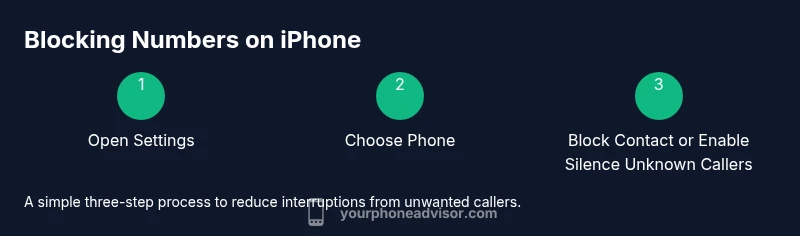
Block phone numbers on iPhone: A practical guide
Learn how to block phone numbers on iPhone, silence unknown callers, and manage blocked contacts. A practical, educator-friendly guide with step-by-step instructions, tips, and troubleshooting for better call control in iOS.


Goal: Block unwanted callers on iPhone. You can block numbers directly in the Phone app, add specific contacts to the Blocked section, and enable Silence Unknown Callers to suppress calls from unknown numbers. This quick guide covers blocking specific numbers, recent calls, and managing your blocked list across iOS 14+.
Why blocking numbers on iPhone matters
According to Your Phone Advisor, blocking numbers on iPhone protects your privacy, reduces interruptions, and helps you regain control of your day. When you block a number, that caller is prevented from reaching you by voice, text, or FaceTime. This is especially valuable for telemarketers, spam callers, and potential scams. In addition to blocking specific numbers, iPhone offers a broader tool called Silence Unknown Callers that curtails calls from numbers not saved in your contacts. This combination lets you tailor your phoneside experience for safety and peace of mind. For many users, a thoughtful blocking setup dramatically lowers distraction while preserving the ability to answer important calls when they matter. As you implement these steps, you’ll gain confidence in how your device handles unwanted communication while staying in control of who can contact you.
Overview of blocking methods on iPhone
- Block a single number or contact from the Phone app or Contacts app.
- Block recent callers directly from the Recents list.
- Silence Unknown Callers to suppress calls from numbers not in your contacts.
- Review and manage your Blocked Contacts list in Settings > Phone > Blocked Contacts.
- Understand how blocking interacts with messages and FaceTime to keep your communications predictable.
Each method serves a slightly different use case. If you know a specific number that you want to stop, blocking that number directly is fastest. If you’re overwhelmed by unknown numbers, Silence Unknown Callers provides broader protection without having to manage each entry. The following sections walk you through practical, real-world steps.
Step-by-step for blocking a single number from the Phone app
Blocking a single number by contact is a precise and reliable method. You’ll point to the contact in your address book, or choose the number from within the Phone app, and the device will prevent future calls, texts, and FaceTime attempts from that contact. Take your time to verify the correct contact before confirming the block; incorrect blocks can be difficult to reverse if you block the wrong person. After blocking, you’ll typically see that the contact cannot reach you, and you won’t be disturbed by their attempts to contact you via standard channels.
Tip: If you don’t yet have the person saved as a contact, save the number first, then add it to Blocked Contacts to keep it organized. This approach helps avoid accidental blocks and makes it easier to unblock later if needed.
Step-by-step for blocking a number from Recents
Recents provides a quick route to block recently dialed numbers. Open the Phone app, go to Recents, tap the information icon next to the number, and select Block this Caller. This method is helpful when you don’t want to search your Contacts to find the number. Once blocked, future attempts from that number are blocked consistently across calls, texts, and FaceTime.
Why this works: It captures numbers you’ve just engaged with, reducing the risk of missing a legitimate return call while filtering out known nuisances. If the number later saves as a contact, you can still manage the block from Blocked Contacts for clarity.
Step-by-step for enabling Silence Unknown Callers
Silence Unknown Callers is a broad solution that silences calls from numbers not stored in your Contacts while still allowing calls from your saved contacts to come through. Go to Settings > Phone > Silence Unknown Callers and toggle it on. You’ll still receive notifications for messages from known contacts, but unknown numbers will ring to voicemail or be silenced depending on your carrier’s behavior. This method is ideal when spam calls are a pervasive problem and you don’t want to micro-manage dozens of numbers.
Tip: After enabling Silence Unknown Callers, test with a friend who is not in your contacts to confirm behavior and adjust if you rely on legitimate unknown numbers for work or emergencies.
Step-by-step for reviewing and managing your Blocked Contacts
Open Settings > Phone > Blocked Contacts to see a list of blocked numbers and contacts. From here, you can add new entries, edit existing ones, or remove blocks as needed. Regular reviews help prevent accidental blocks and ensure you’re blocking only the numbers you intend to block. If you unblock a contact, that number can reach you again via calls, texts, and FaceTime. Consider keeping a small personal whitelist of essential numbers if you occasionally block for privacy but still need critical connectivity.
Tip: Keep your blocked list lean. Prioritize blocking persistent offenders and use Silence Unknown Callers for broader protection. This balance reduces manual maintenance while maintaining control over your communications.
Practical considerations and limitations to keep in mind
Blocking is a powerful tool, but it’s not perfect in every scenario. Some carriers route silence differently, and missed calls can happen if Unknown Callers are silenced by default. Also, if you restore from a backup or switch devices, verify your blocked list is preserved, as some settings are device-bound. Finally, remember that proactive blocking doesn’t replace good digital hygiene: stay vigilant against phishing, spoofed numbers, and other schemes that rely on familiarity or urgency to bypass basic protections.
Troubleshooting common issues when blocking numbers
If blocked numbers can still reach you, first double-check the exact entry in Blocked Contacts, then confirm Silent Unknown Callers is set as intended. If a number continues to get through, consider temporarily blocking via both methods (specific block and Silence Unknown Callers) and test the behavior. If problems persist, a software update may be required, or you may need to reset network settings as a last resort. Regularly review app permissions and ensure iOS is up to date to maximize blocking reliability.
Tools & Materials
- iPhone with latest iOS(iOS 14 or newer is recommended for best compatibility)
- Settings app(Pre-installed on all iPhones)
- Phone/Contacts access(Accessed via Settings > Phone or Recents)
- Optional: up-to-date carrier information(Can affect voicemail behavior and call routing)
Steps
Estimated time: 15-25 minutes
- 1
Open Settings and navigate to Phone
Unlock your iPhone and open the Settings app. Scroll to and tap on Phone to access call-related controls and the Blocked Contacts list.
Tip: If you don’t see Blocked Contacts right away, check for a minor iOS update which can rearrange menu paths. - 2
Add a new block from Blocked Contacts
In Blocked Contacts, tap Add New, then select a contact or number to block. This creates a persistent block that applies to calls, texts, and FaceTime from that entry.
Tip: For accuracy, double-check the contact before confirming the block to avoid accidentally blocking the wrong person. - 3
Block a recent caller
Open the Phone app, go to Recents, tap the i icon next to a number, and choose Block this Caller. This is handy when you’re unsure of the contact’s name yet.
Tip: Block from Recents is great for fast action immediately after an unwanted call. - 4
Enable Silence Unknown Callers
Navigate to Settings > Phone > Silence Unknown Callers and toggle it on. Unknown callers won’t ring through, though you may still receive voicemails depending on carrier.
Tip: Test with a non-contact number to confirm it behaves as expected before relying on it full-time. - 5
Review your blocked list
Return to Settings > Phone > Blocked Contacts to review entries. Add or remove numbers as needed, keeping your list focused and effective.
Tip: Keep a personal whitelist for numbers you want to allow access even during high-block periods. - 6
Test and adjust
Make a quick test by calling from a blocked number and a known contact to confirm the expected behavior. Adjust settings if you notice gaps or unexpected behavior.
Tip: If you rely heavily on work numbers, consider applying a separate rule or temporary block for less critical callers.
Got Questions?
How do I block a number from the Phone app on iPhone?
Open the Phone app or Settings, locate the number or contact, and choose Block This Caller or Block Contact. You can also block a number from Recents by tapping the info icon and selecting Block This Caller. Blocking prevents future calls, texts, and FaceTime from that entry.
You block a number by opening Phone or Recents, selecting the caller, and choosing Block. It prevents future calls, texts, and FaceTime from that entry.
Will blocked numbers still be able to leave voicemails?
Voicemail handling varies by carrier. In many cases, blocked numbers can still reach voicemail, but your iPhone won’t ring for those calls. Test this with a blocked number to confirm behavior with your carrier profile.
Voicemail behavior depends on your carrier. Test to see whether blocked callers can leave voicemails.
Can I block unknown numbers automatically on iPhone?
Yes. Turn on Silence Unknown Callers in Settings > Phone > Silence Unknown Callers to silence calls from numbers not saved in Contacts. This reduces interruptions from new or unknown numbers.
Yes—enable Silence Unknown Callers to silence unknown numbers.
What happens if I unblock a number?
Unblocking a number makes that contact able to call, text, and FaceTime you again. You’ll need to re-block if the number becomes a nuisance in the future.
Unblock to allow calls and messages again; you can re-block later if needed.
Do blocked numbers affect iMessages or FaceTime?
Blocking a number blocks calls and texts, including iMessages and FaceTime from that contact. Your iPhone will not present alerts from that sender.
Blocked contacts can’t reach you via calls or messages, including FaceTime.
Watch Video
What to Remember
- Block unwanted numbers quickly from Settings > Phone.
- Use Silence Unknown Callers to reduce unknown-call interruptions.
- Review and adjust your Blocked Contacts regularly.
- Test blocking changes to confirm expected behavior.
- Combine specific blocks with Silence Unknown Callers for best results.