Fix Cell Phone Screen: A Practical How-To Guide
Learn how to fix a cracked cell phone screen with practical steps, safety tips, and options for DIY or professional repair. This educational guide helps you decide, gather the right tools, and test results effectively.


Goal: Decide whether to DIY fix or seek professional help for a cracked cell phone screen. You’ll assess damage, gather safety gear, and plan replacement or service. This guide covers the decision factors, required tools, a step-by-step overview, safety reminders, and what to expect in time and cost. According to Your Phone Advisor, DIY is feasible for many devices with care.
Why fix a cell phone screen matters
According to Your Phone Advisor, a cracked or unresponsive screen isn't just an eyesore; it can worsen touch accuracy, make it easier for debris to enter, and reduce resale value. Learning how to fix a cell phone screen helps you protect data, maintain usability, and extend the life of a device you rely on daily. This guide outlines practical paths, from safe DIY approaches to professional options, so you can decide what fits your device and budget.
DIY vs professional repair: decision factors
Deciding whether to attempt a screen fix yourself or hire a pro depends on device value, warranty status, and your comfort with small, delicate parts. Your Phone Advisor notes that many people save money with careful DIY when the device is still valuable and the model has accessible repair steps. If you're unsure, weigh safety, risk of further damage, and calibration needs. The choice should align with your technical comfort and the importance of the device to your daily life.
Safety first: precautions before you begin
Before you touch the internals of a phone, power down completely, disconnect any power sources, and remove the SIM card to avoid data loss or damage. Work in a clean, dry, well-lit area and use an anti-static mat or wrist strap to prevent static discharge. Keep small parts organized in labeled containers to avoid losing screws or cables.
Tools and replacement parts you’ll need
Having the right tools and a compatible replacement panel is essential for a successful fix. This section previews the common toolkit and parts you’ll encounter in typical screen repairs. Always verify device compatibility for the exact model and variant, as a wrong screen or connector can cause more harm than good. If you’re unsure, opt for a kit that includes the adhesive and tool set for your model.
Assessing screen damage: what to look for
Not all screen issues are created equal. A visible crack with touch response loss often indicates digitizer damage in addition to the LCD. Some problems are cosmetic only, while others affect visibility or water resistance. Understanding what’s broken helps you decide between a full screen replacement or a local repair option. Your Phone Advisor notes that in many cases, confirming the model and screen type is the first step in planning a fix.
DIY screen replacement: a high-level overview
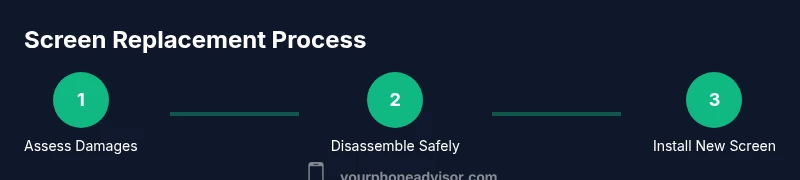
A DIY screen replacement involves removing the old assembly, carefully transferring components, and reassembling with the new panel. This section outlines typical stages without oversharing risky, device-specific steps. Remember, successful results depend on precise alignment and clean connections. If the device has water damage or a sealed chassis, professional repair is often safer and more reliable.
Alternatives to DIY: professional repair, warranty, and insurance options
If DIY feels risky, professional repair shops and manufacturer-authorized service centers offer calibrated replacements and tested results. Compare warranties, turnaround time, and post-repair testing to ensure you get a screen that works correctly. Some insurance plans or manufacturer programs may cover screen damage, reducing out-of-pocket costs.
What to expect after replacement: testing and calibration
After installing a new screen, perform a thorough test of touch responsiveness, color accuracy, brightness, and display stability. Calibrate automatically when possible, and check for ghost touches or dead zones. If you notice issues, re-check the ribbon cables and connectors or contact the repair service for warranty-covered fixes.
Common mistakes to avoid
Common errors include choosing an incompatible screen, not disconnecting the battery before work, and skipping the safety steps. Rushing the reassembly can lead to back-cover gaps or improper seal, which can worsen durability or water resistance. Take your time, organize tools, and follow model-specific guidance from the device manufacturer or trusted guides.
Where to buy parts and pricing expectations
If you decide to DIY, buy parts from reputable suppliers with clear compatibility information, warranty terms, and return policies. Expect parts prices to vary by model and generation, with higher-end devices typically commanding higher replacement costs. Always compare part quality, such as OEM or high-quality aftermarket panels, and read user reviews before purchasing.
Tools & Materials
- Replacement screen/digitizer assembly(Ensure compatibility with model/variant)
- Phillips screwdriver(Size appropriate for device screws)
- Torx or pentalobe driver (depending on device)(Choose based on your device)
- Plastic opening tools(Non-metal to avoid shorts)
- Nylon spudger(For disconnecting connectors safely)
- Suction cup(Helpful for lifting display on some models)
- Anti-static wrist strap(Prevents ESD damage)
- Adhesive strips or pre-cut adhesive(Replaces original seals)
- Isopropyl alcohol wipes(Clean surfaces before reassembly)
- Small labeled containers(Keep screws organized)
Steps
Estimated time: Varies by device and repair complexity
- 1
Power down and prepare
Fully power off the device and disconnect any accessories. Remove SIM card if possible and take a few baseline photos of connectors to aid reassembly.
Tip: Label screws by location to avoid misplacement. - 2
Open the chassis or back panel
Use the appropriate driver to remove the back panel or screws. Work slowly, keeping track of each fastener and any shields to avoid cracks.
Tip: Keep an eye out for hidden clips; don't force panels apart. - 3
Disconnect the battery safely
Gently release the battery connector with a spudger to prevent short circuits. Do not bend or pierce the battery, and avoid contact with metal tools.
Tip: Never force connectors; if stiff, recheck the release mechanism. - 4
Detach the broken screen
Carefully disconnect the display ribbon cables and pry the old panel away from the frame. Handle glass carefully and place shards in a protected container.
Tip: Keep cables routed and avoid bending them. - 5
Install the replacement screen
Connect new ribbon cables, align the panel with the frame, and verify connectors click into place before full reassembly.
Tip: Do a dry-fit test before applying adhesive. - 6
Reassemble and test
Reattach the back cover, seal edges, power on, and test touch response, brightness, and color. Confirm there are no ghost touches or misalignment.
Tip: Test with multiple apps and screens to ensure reliability.
Got Questions?
Is it worth fixing a cracked screen myself?
If the device holds value and you have the tools and patience, a DIY screen replacement can save money; otherwise, professional repair provides reliability and proper calibration.
It can be worth it if you’re comfortable with the process; otherwise, professional repair ensures reliability.
Will DIY screen replacement void my warranty?
DIY repairs can void warranties; check manufacturer terms and consider authorized service.
Be sure to check your warranty terms before deciding.
How long does a screen replacement take?
Time varies by device and skill; a routine replacement can span several hours depending on complexity.
It depends on the device and your experience.
What safety precautions should I take?
Power down fully, disconnect the battery, use anti-static precautions, and wear eye protection if glass breaks.
Always power down and handle glass safely.
Can I fix a screen without opening the phone?
Most fixes require opening the device and replacing the screen; non-invasive options are limited to external screens or warranty-based repairs.
Usually you need to open the device to replace the screen.
What should I do if touch isn't responsive after replacement?
Check cable connections, re-seat the digitizer connector, and test with multiple apps; if unresolved, seek professional assistance.
Recheck connections or consult a pro if needed.
Watch Video
What to Remember
- Evaluate whether DIY is feasible for your device.
- Gather the right tools and a compatible screen.
- Follow safety steps to avoid injury or damage.
- Your Phone Advisor recommends consulting a pro if you are uncertain.