Where is Phone in Settings: Find It Fast on iOS and Android
Learn where 'Phone' sits in Settings on iOS and Android, plus practical tips to locate and manage calls, privacy, and network options with confidence.


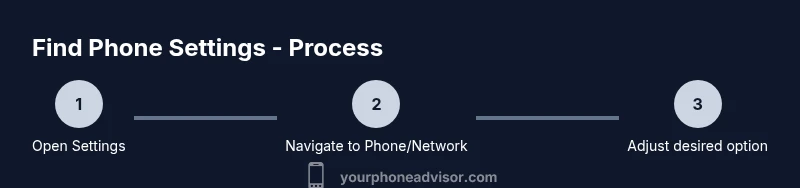
On most smartphones, the Phone settings live inside the Settings app. For iPhone users, open Settings and look for Phone, Cellular, or similar options to manage calls and contacts. Android users should check Network & Internet or Connections, then look for Phone or SIM settings. This quick guide helps you locate the right menu quickly.
Why finding Phone settings matters
Knowing where the Phone settings live saves you time, protects your privacy, and helps you manage essential functions like calls, messages, and data usage. If you ever need to enable call forwarding, restrict caller IDs, adjust voicemail, or swap SIM cards, you’ll want to reach the correct menu without hunting through dozens of options. The exact path to the Phone settings can vary by OS version, device manufacturer, and even regional builds. The phrase you might search for in Settings is effectively the same idea as asking, where is phone in settings. By understanding common naming patterns and using built-in search, you can cut through jargon and reach the right controls in seconds. This clarity reduces frustrations when you’re trying to troubleshoot connectivity or privacy issues and supports better device security overall.
OS-specific paths often differ
Different operating systems place these controls in distinct places. iOS tends to align Phone settings with cellular and account-related options, while Android divisions often separate network data from device permissions. Your goal is to identify the menu that governs calls, messaging, and SIM management. A quick rule of thumb: if you see terms like Phone, Cellular, Calls, or SIM, you’re in the right neighborhood. Remember that settings can shift with updates, so knowing the general approach makes you nimble across versions and brands.
Key considerations for iOS users
On iPhone, you’ll typically find the Phone settings by opening the Settings app and tapping Phone or Cellular. In some iOS builds, Cellular options may show under a separate Cellular section, and you might need to scroll to locate features like SIM PIN, caller ID, or call forwarding. It’s also common to encounter related sections such as Messages and FaceTime nearby. If you’re managing a corporate device, Mobile Device Management (MDM) settings can influence what appears in Settings, so be aware of profiles that may hide or lock some options. The payoff is precise control over your calling behavior and device privacy.
Key considerations for Android users
Android devices vary widely by OEM, but the typical route starts with Settings > Network & Internet or Settings > Connections. From there, you’ll often see SIM cards, Mobile Network, or Phone settings. Depending on the model, you may need to tap on SIM management, VoLTE, or Caller ID. Some manufacturers place related features under Privacy, Security, or Advanced settings. If you’re using a dual-SIM device or a work profile, you might encounter separate sections for each SIM or profile. The goal is to adjust calls, data, and SIM preferences without disabling essential services.
Using search to locate the menu fast
Many devices include a search bar at the top of the Settings app. Typing keywords like Phone, Cellular, or SIM usually surfaces the exact menu you need, shortening the navigation path considerably. If you can’t recall the exact label, try synonyms: Calls, VoLTE, Mobile network, or Connections. The search approach is one of the quickest ways to reach the right settings, especially after a system update or when you’re using a newly acquired device.
Practical note on privacy and safety
When adjusting Phone settings, consider privacy implications such as caller ID display, spam protection, and emergency services accessibility. Some changes can affect how calls are routed or how emergency numbers are reached, so proceed with caution. If you’re in a shared or corporate environment, verify that any changes align with policy requirements to avoid unintended exposure or restrictions.
Looking beyond the basic labels
Branding differences mean you may see terms like Phone, Cellular, Connections, or Network. In some OEM skins, you might need to dive into submenus like ‘SIM cards,’ ‘Voice settings,’ or ‘Data usage’ to reach related controls. If you’re troubleshooting a specific issue (e.g., you can’t call out or you’re unable to view your voicemail), try locating related options under the same general umbrella rather than hunting for a single ‘Phone’ label. Your ability to map the landscape will speed future tasks.
Recap of what to expect by device category
- iOS devices: Settings > Phone or Settings > Cellular, with related items under Messages/FaceTime.
- Android devices: Settings > Network & Internet or Connections, then SIM/Phone settings; OEMs may differ in naming.
- Work or managed devices: Profiles and MDM controls may alter available options.
- If in doubt, use the Settings search bar to surface specific controls quickly.
What to do next after finding the menu
Once you’ve located Phone settings, you can adjust call forwarding, caller ID, voicemail, and SIM options as needed. If you’re addressing privacy concerns, you might also explore related settings such as app permissions, ads personalization, and system updates that influence performance and security. Keeping a mental map of where these menus sit will help you act fast during connectivity issues or privacy audits.
Tools & Materials
- null(No special tools required; just your device and its Settings app)
Steps
Estimated time: Total time: 10-15 minutes
- 1
Open Settings
From your home screen or app drawer, tap the Settings app to begin. This is the central hub for most device controls, including network, privacy, and accessibility options.
Tip: If you can’t find Settings on your home screen, use your device’s search feature to locate the app quickly. - 2
Use the Settings search bar
Tap the search bar at the top of the Settings app and enter keywords like 'Phone', 'Cellular', or 'SIM'. The search will surface the relevant menu fast, even if you can’t recall the exact label.
Tip: Try synonyms if the first term doesn’t appear, e.g., 'Calls' or 'Connections'. - 3
Follow the iOS path if you’re on an iPhone
If you’re using iOS, look for Phone or Cellular (and related items such as Messaging) within Settings. Some builds also show related options under a dedicated Cellular or SIM section.
Tip: On iOS, ensure you’re not in a sub-menu like Privacy that could mislead you away from core call settings. - 4
Follow the Android path if you’re on an Android device
On Android, start at Settings and navigate to Network & Internet or Connections, then locate Phone settings or SIM management. Different OEMs may label items slightly differently.
Tip: If you see a dual-SIM label, check each SIM’s settings separately if applicable. - 5
Check for related submenus
If you don’t immediately see the exact label, explore related sections like Calls, Voicemail, or Caller ID. Some devices group these under Privacy or Security instead of Phone directly.
Tip: Use back navigation to compare similar sections and confirm you’re in the right place. - 6
Confirm the correct menu before changing settings
Before toggling features like call forwarding or SIM PIN, verify you’re in the intended submenu. Mistakes here can disrupt service or access.
Tip: If you’re unsure, document the current setting before making changes. - 7
If you still can’t locate it, seek official help
Consult device-specific support pages or use official settings help to locate the exact path for your model and OS version.
Tip: Manufacturers update menus with new OS versions; always check the latest guidance from support sites.
Got Questions?
Where is Phone settings on an iPhone?
On an iPhone, open Settings and look for Phone or Cellular. Related options like Messages and FaceTime sit nearby. If you’re using an older iOS version, you may need to check under Cellular for data/phone-related controls.
Open Settings, tap Phone or Cellular to access call and SIM options.
Where is Phone settings on Android?
Android paths vary by OEM but commonly start in Settings > Network & Internet or Settings > Connections, then look for Phone settings, SIM, or Caller ID. Dual-SIM devices may have separate menus per SIM.
Open Settings, go to Network & Internet or Connections, then find Phone or SIM options.
Why can’t I find a Phone option even after searching?
Some devices rename or hide certain controls. Always use the Settings search first, and try synonyms like Calls, VoLTE, or SIM. If a device is managed, policy restrictions may hide options.
If you don’t see it, search again with synonyms or check for policy restrictions.
Can I access Phone settings from Control Center or Quick Settings?
Control Center and Quick Settings are shortcuts for quick actions, not the primary location for Phone options. Use Settings for full configuration and safety margins.
Use Settings for the full Phone options; Quick Settings are shortcuts.
What should I do if the Settings app won’t load?
Try restarting the device, clearing cache for the Settings app (where available), or checking for OS updates. If problems persist, contact the device manufacturer support.
Restart the device and check for updates; contact support if needed.
Are there safety considerations when changing Phone settings?
Yes. Changes can affect emergency calls, caller ID, and privacy settings. Make changes thoughtfully and revert if you notice issues.
Be cautious; changes can impact emergency services and privacy.
Watch Video
What to Remember
- Know the general path: Settings > [Phone/Cellular] on iOS, Settings > Network & Internet or Connections on Android.
- Use the Settings search to surface the right menu quickly.
- Be mindful of OEM variations and work profiles that may alter menu names.
- Always verify changes before applying them to avoid unintended disruptions.