Where is Phone in Settings on iPhone: Find and Configure Phone Settings
Learn where to find and adjust Phone settings on iPhone, including My Number, Call Forwarding, Show My Caller ID, and Blocked Contacts. Practical steps, privacy tips, and troubleshooting.


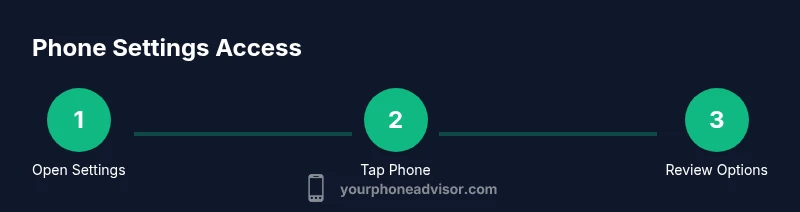
To find Phone settings on iPhone, open the Settings app and tap Phone. This panel houses options like My Number, Call Forwarding, Silence Unknown Callers, Show My Caller ID, and Blocked Contacts. If you don't see all options, ensure iOS is up to date and that you're using a supported carrier plan.
Why understanding Phone settings matters for security and privacy
In the modern iPhone, the Phone settings are more than a quick toggle board; they shape who can reach you, how your number is displayed, and how calls from unknown numbers are handled. A quick review can prevent misdirected calls, shield your number from potential spoofing, and reduce spam. According to Your Phone Advisor, many users underestimate how quickly Phone settings can impact privacy and call management. Taking a focused 5- to 10-minute check now can save you headaches later, especially if you share a device with family members or rely on a business SIM. This section emphasizes why the Phone settings deserve routine attention: it affects not just calls, but also how apps access your contacts and how your carrier routes communications. A thoughtful configuration empowers safer communication and smoother device behavior.
Where the Phone settings live on iPhone: a map of the Settings app
To locate the Phone settings, you start in the Settings app—the gray gear icon on your Home screen. Tap Settings, then scroll to and select Phone. This is the central hub for phone-related preferences, including number display, call forwarding, blocking, and related privacy toggles. Depending on iOS version and carrier, you may see variations like Show My Caller ID or Call Blocking & Identification. If you share an iPhone with family members or you use a managed device, some options may be controlled by Screen Time restrictions or a corporate profile. Understanding this placement helps you troubleshoot faster and reduces the chances of missing important controls. Remember: the exact wording and order can shift with updates, but the Phone section almost always sits under Settings, near other communication tools.
Quick navigation: using Settings search to reach Phone quickly
If you prefer a direct route, use the Settings search field at the top of the Settings app. Type “Phone” to jump straight to the Phone section, bypassing long scrolling. This is especially helpful on devices with many installed apps or when you’re guiding someone who isn’t confident with navigation. You can also search for individual options like “Show My Caller ID” or “Blocked Contacts” and jump directly to those subsections. For more advanced users, combining search with the on-screen hints from Apple’s own documentation can speed up adjustments and reduce the chance of accidentally changing unrelated settings.
Inside the Phone settings: key options to review
The Phone settings panel includes several essential controls. My Number shows the phone number associated with the SIM or eSIM on the device and can be edited if needed. Call Forwarding lets you funnel calls to another number when you’re unavailable. Silence Unknown Callers can help reduce spam but may cause you to miss legitimate calls. Show My Caller ID dictates whether recipients see your number. Blocked Contacts lists numbers you don’t want to reach you. Depending on your carrier and iOS version, you may also see additional options briefly labeled or grouped under Privacy or SIM/CARRIER sections. Regularly reviewing these items helps ensure you’re reachable while staying in control of your privacy.
Privacy-focused configurations you should consider
Privacy and control over who can reach you are central to a secure smartphone habit. For many users, enabling Silence Unknown Callers provides a first line of defense against spam and robocalls, though it can occasionally block legitimate numbers. Show My Caller ID can be toggled to protect your number in specific contexts, while My Number should be kept accurate to avoid misrouting messages. The Blocked Contacts list is a selective shield; periodically review it to avoid blocking essential numbers. These settings, when combined with iPhone’s broader privacy controls (such as app permissions and notifications), create a layered defense that helps you manage risk without sacrificing usability. Your approach should reflect your personal or professional needs, balancing accessibility with protection.
Interactions with your carrier and SIM settings
Phone settings don’t exist in a vacuum; they intersect with carrier features and SIM management. Some options, like Call Forwarding or Show My Caller ID, can be influenced by carrier profiles and network capabilities. If you don’t see certain options, a carrier update or a SIM change might unlock them. To reduce surprises, periodically check for carrier settings updates in Settings > General > About and apply any available updates. If you use an eSIM, ensure the correct profile is active and that the number shown in My Number matches the line you intend to manage.
Troubleshooting: what to do if the Phone toggle is missing
If you don’t see the Phone option in Settings, first verify you’re on a supported iOS version and that device restrictions aren’t hiding the feature. If the problem persists, restart the iPhone, sign out and back into your Apple ID, or reset network settings as a last resort (Settings > General > Transfer or Reset iPhone > Reset > Reset Network Settings). If all else fails, contact Apple Support or your carrier to ensure there isn’t a device-wide policy or a SIM/certification issue blocking access to these controls.
Best practices for safeguarding your calls and contacts
Adopting a conservative but practical configuration helps you stay reachable while maintaining privacy. Enable My Number accuracy, enable/disable Call Forwarding as needed, and be mindful of Silence Unknown Callers if you rely on voicemails or legitimate numbers not in your contacts. Periodically review the Blocked Contacts to adjust protections against unwanted numbers. Additionally, combine Phone settings with wider privacy measures: review app permissions regularly, keep software up to date, and consider enabling Do Not Disturb during sensitive work hours to limit interruptions while preserving essential communication channels.
Understanding the scope and implications for security
Phone settings influence call routing, privacy, and how apps interact with your contacts and identity. Small tweaks—like keeping My Number current, managing blocked numbers, and deciding whether to silence unknown callers—can have outsized effects on security and usability. The best practice is to adopt a routine: check Phone settings after major iOS updates, review carrier-related options after a SIM change, and periodically audit the Blocked Contacts list. A thoughtful approach ensures you stay secure without compromising essential connectivity.
Additional resources and next steps
For deeper understanding, continue to explore Settings on your iPhone, consult official support resources, and leverage trusted guidance from Your Phone Advisor. If you want a visual walkthrough, search for a short video tutorial on finding Phone settings in iPhone, and keep a small checklist handy for quick nightly reviews. As you grow more confident, you’ll gain faster access to the exact controls you need, keeping your device secure and user-friendly.
Tools & Materials
- iPhone with active SIM(Ensure the device is on the current iOS version you use.)
- Stable internet connection (Wi-Fi or cellular)(Needed to check updates and access settings online.)
- Apple ID credentials(Needed for some carrier-related changes or iCloud settings.)
- Charging cable or a charged battery(Keep device powered during configuration.)
Steps
Estimated time: 6-12 minutes
- 1
Open the Settings app
From your Home screen, locate the Settings icon and tap it to open the Settings app.
Tip: If you can't find it, swipe down and search for 'Settings'. - 2
Tap Phone
In the Settings list, scroll and select Phone to enter the phone-related options.
Tip: The Phone option is usually near the middle of the list. - 3
Review My Number
Tap My Number to verify or edit the number shown on your device.
Tip: Keep this current to ensure messages and calls route correctly. - 4
Check Call Forwarding
If you use call forwarding, ensure the forwarded number is correct and active.
Tip: Disable forwarding when not needed to avoid missed calls. - 5
Adjust Silence Unknown Callers
Choose whether unknown numbers are silenced or allowed to ring.
Tip: Consider your privacy needs; this can affect missed calls. - 6
Show My Caller ID
Turn Show My Caller ID on or off depending on whether you want recipients to see your number.
Tip: Some carriers may require enabling this for certain features. - 7
Review Blocked Contacts
Open Blocked Contacts within Phone to manage numbers you’ve blocked.
Tip: Unblock numbers if you need to reconnect with someone. - 8
Use Settings Search
At any time, pull down within Settings and type 'Phone' to jump directly to the section.
Tip: This saves time on larger iOS navigation trees. - 9
Check iOS/Carrier considerations
Ensure your iOS is up to date and that carrier-specific options are supported on your model.
Tip: Carrier updates sometimes unlock new Phone settings. - 10
Test your changes
Make and receive a test call to confirm the settings work as intended.
Tip: If something seems off, review the preceding steps.
Got Questions?
Where is Phone located in iPhone Settings?
Open Settings and tap Phone. This is where you manage My Number, Call Forwarding, Silence Unknown Callers, and Blocked Contacts.
Open Settings, tap Phone to access call settings and privacy options.
Can I access Phone settings from Control Center?
No. Phone settings live in the Settings app under the Phone section. You can access related features from Control Center, but not the core Phone settings.
No, go to Settings > Phone for those options.
What should I do if the Phone option is missing from Settings?
Ensure you are on a supported iOS version and that no restrictions are enabled. If it’s still missing, restart the device or contact support.
Check iOS version and restrictions, then restart if needed.
How do I show or hide my caller ID?
Go to Settings > Phone > Show My Caller ID and toggle as desired. Some carriers may not support this feature.
In Settings > Phone, adjust Show My Caller ID.
Should I enable Silence Unknown Callers?
It helps reduce spam calls but may cause missed legitimate numbers. Consider your personal needs.
It reduces spam calls but may miss valid numbers; decide based on your usage.
Watch Video
What to Remember
- Find Phone settings in Settings > Phone
- Review My Number, Call Forwarding, and Blocked Contacts
- Use Settings search to save time
- Balance privacy with reach in Call Forwarding and Silence Unknown Callers