Phone to Projector Setup: Mirror Your Phone to a Big Screen
Learn how to connect your phone to a projector with wired and wireless methods, optimize image quality, and troubleshoot common issues. This practical guide covers adapters, projectors, and best practices for presentations, movie nights, and classroom demos.


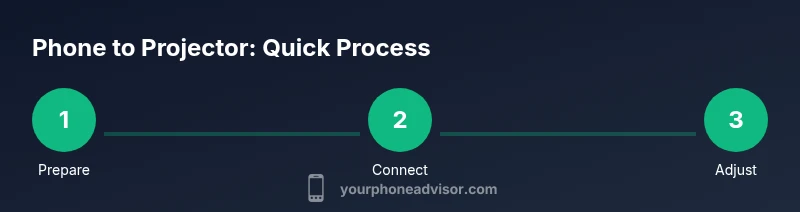
You can mirror your phone to a projector using wired HDMI adapters or wireless casting, depending on your device. Start by selecting a compatible method, gather the right adapters and cables, connect, and then adjust the projector input and display settings for the best image. According to Your Phone Advisor, the fastest path is a ready-made HDMI adapter for reliability, followed by wireless casting for mobility.
Why a phone to projector setup matters
Connecting a phone to a projector can turn a living room into a cinema, a classroom into a dynamic lesson space, or a meeting room into a collaboration hub. The phrase phone to projector is more than a buzzword—it represents a flexible, affordable way to share content without lugging a laptop. Whether you’re showing family photos, delivering a school presentation, or running a live demo, Your Phone Advisor recommends thinking first about the environment, the content type, and the audience. In this guide, you’ll learn how to pick the right method, pick the right gear, and execute a clean setup that minimizes downtime and maximizes impact. We’ll cover compatibility, common configurations, and practical steps that work with most mainstream phones and projectors.
Quick note on terminology
- Wired method: often uses an HDMI adapter that converts phone output to HDMI, plugged into the projector.
- Wireless method: uses a display protocol or dongle (such as Miracast or Chromecast) to project without cables.
- Aspect ratios and resolutions matter: most projectors support 1080p, but some phones cap output or scale to the projector. Planning ahead saves time during a live presentation.
Your setup goals
Before you connect, decide what you want to project: static slides, video, or a live demonstration from an app. For presentations, clarity and color accuracy take priority; for movies, motion smoothness and audio alignment matter more. The Your Phone Advisor team suggests testing in the actual room where you’ll present to account for light levels, throw distance, and screen size.
Compatibility and connection options
There are two broad paths: wired and wireless. A wired connection typically offers lower latency and more reliable color reproduction, ideal for presentations. Wireless casting provides greater freedom of movement but can suffer from interference or lag. Your Phone Advisor recommends a hybrid approach: use wired for critical slides and a wireless backup for spontaneous sharing. Keep in mind different brands have different hardware requirements (USB-C, HDMI, or Lightning).
Choosing the right method for your phone and projector
If your phone supports HDMI output via USB-C or Lightning, a simple adapter plus HDMI cable is often the simplest route. For Android devices, USB-C to HDMI adapters are common; for iPhone, a Lightning to HDMI adapter is typical. If you prefer wireless, ensure your projector or dongle supports the standard your phone uses (Miracast, AirPlay, or Chromecast). Always verify compatibility in advance to avoid last-minute surprises.
Optimizing image and audio quality
Set the projector to the correct input, adjust the aspect ratio (often 16:9), and calibrate brightness and contrast for the room. Many phones let you mirror at full resolution or scale to fit the screen; choose the highest stable setting. Audio can be routed through the projector or played through the phone; if your projector lacks good speakers, consider external speakers connected to the projector or to the phone via an audio out. This ensures the overall viewing experience matches the content type.
Troubleshooting common issues
If the screen is blank, verify the input selection on the projector, check cables and adapters, and confirm the phone is outputting video. If the image is cut off or misaligned, use keystone correction and throw distance guidelines to fine-tune. For wireless setups, check network compatibility, ensure the same network or direct casting mode is used, and update firmware on both the projector and the phone. Always have a backup plan: carry a spare adapter or a ready-to-cast file in case the primary method fails.
Advanced use cases: classrooms, meetings, and events
In larger rooms, consider using a projector with higher lumens and a projector screen or a white wall with color accuracy. For classrooms, a dual-display approach (presentation on the main screen, notes on a secondary device) can be useful. In corporate settings, pre-load your content onto the device and rehearse the exact sequence of actions to minimize fumbling during live presentations. The goal is smooth delivery with minimal technical interruptions.
Tools & Materials
- Phone with video output capability(Check USB-C/Lightning output and supported protocols (HDMI, Miracast, etc.))
- Projector with HDMI input(Ensure brightness meets room lighting requirements)
- HDMI cable(Length should match room distance (6–15 ft typical))
- Phone-to-HDMI adapter (USB-C to HDMI or Lightning to HDMI)(Choose compatible model for your phone)
- Wireless display dongle or casting device (optional)(Chromecast, Miracast, or AirPlay-compatible dongle)
- Power strip or extension cord(Ensure safe placement to avoid tripping)
- Mounting stand or stable surface for projector(Secure placement to prevent movement)
- Audio solution (optional)(External speakers or soundbar if projector audio is weak)
Steps
Estimated time: 15-30 minutes
- 1
Prepare devices and environment
Power on your phone and projector. Clear the desk space and place the projector at the recommended throw distance. Verify you have all required adapters and cables on hand before you begin.
Tip: Test run in a dim room to judge brightness and color accuracy. - 2
Choose connection method
Decide between wired HDMI or wireless casting based on content type and room setup. Wired is more reliable for slides; wireless offers mobility for spontaneous sharing.
Tip: If possible, start with wired for reliability and have wireless as a backup. - 3
Connect the phone to the projector
Attach the HDMI adapter to your phone, connect the HDMI cable to the adapter and projector input. Ensure the projector is set to the correct HDMI input.
Tip: Keep cables tidy to avoid accidental disconnection. - 4
Configure display settings
On the phone, enable screen mirroring or select the HDMI output if required. In the projector menu, adjust aspect ratio to 16:9 and set brightness for legibility.
Tip: If the image is cut off, use the projector keystone correction and fit-to-screen options. - 5
Play content and align audio
Start your content and verify audio routing. If using external speakers, connect them to the projector or to the phone if needed.
Tip: Test a short clip first to verify lip-sync and sound. - 6
Verify and save your setup
Run through the entire sequence to ensure stability. Save the input settings for future use and note any room-specific adjustments.
Tip: Document steps for repeatable setups in presentations.
Got Questions?
Can I use a wireless display dongle to connect my phone to a projector?
Yes, a wireless dongle can project your phone’s screen, but ensure compatibility with both the phone and projector. Performance depends on distance, interference, and network setup.
Yes, you can use a wireless dongle, but make sure it works well in your room.
What adapters do I need for iPhone or Android?
iPhone users typically need a Lightning to HDMI adapter, while many Android phones use a USB-C to HDMI adapter. Check your device specs for audio support and charging while mirroring.
iPhone uses Lightning to HDMI; Android often uses USB-C to HDMI.
Why is the projected image blurry or stretched?
Blurry or stretched images result from a mismatch in aspect ratio, resolution, or keystone settings. Adjust the projector’s picture settings and ensure the phone output matches the projector’s native resolution.
Adjust aspect ratio and resolution to fix blur or stretch.
Do I need internet to cast to a projector?
Most wired connections do not require internet. Wireless casting may need a local network or direct device-to-device connection depending on the dongle and protocol used.
Not always—wireless can work without internet, depending on the setup.
Will audio play through the projector speakers?
Audio can route through the projector or be directed to external speakers if the projector output is weak. Confirm audio settings on both the phone and projector before presenting.
Yes, you can route audio to the projector or external speakers.
What should I do if the screen is not mirroring?
Check cable connections, ensure HDMI input is selected, restart devices, and verify compatibility of adapters. If using wireless, confirm the correct casting mode and network settings.
Check connections, reboot devices, and verify compatibility.
Watch Video
What to Remember
- Know your connection path: wired for reliability, wireless for flexibility.
- Prepare in advance: test in the actual room and confirm input sources.
- Optimize image and audio to fit content type and room acoustics.
- Have backup options ready to avoid live-show interruptions.