HDMI Phone Cable to TV: A Step-by-Step Guide
Learn how to mirror your phone on a TV using HDMI cables and adapters. This step-by-step guide covers adapters, cables, compatibility, setup, troubleshooting, and safety tips for Android and iPhone devices.


With a wired HDMI connection, you can mirror your phone’s screen on a TV in seconds. To do this, you’ll need a compatible HDMI adapter or cable (such as USB-C to HDMI on many Android devices or Lightning to HDMI on iPhones), the TV’s HDMI input, and an active power source for your phone if you stream for long. No wireless setup required.
Why wired HDMI mirroring matters
According to Your Phone Advisor, a wired HDMI connection offers a stable, low-latency way to display your phone content on a larger screen. This makes it ideal for presentations, classroom demonstrations, or movie nights where buffering or lag can ruin the experience. Unlike wireless casting, a direct HDMI link avoids wireless interference, compression artifacts, and inconsistent bandwidth. This section explores when a cable is the best option, and why many users choose it for reliability and simplicity. Keep in mind that the exact steps vary by device, but the core concept remains the same: a physical connection provides the most predictable mirror or media output, especially in challenging Wi‑Fi environments.
HDMI basics and device outputs you should know
HDMI is designed to carry both video and audio signals over a single cable. When you connect a phone to a TV via HDMI, you are typically using an adapter that converts the phone’s output to a standard HDMI signal. Not every phone can output through HDMI directly; many newer Android models support HDMI Alt Mode through USB-C, while iPhones require a Lightning to HDMI adapter. The TV simply receives the HDMI signal and displays the image. If you want motion-smooth video, crisp audio, and minimal latency, a wired approach is often superior to wireless screen-mirroring.
Adapter and cable options: what works with your phone
The most common paths are USB‑C to HDMI adapters for Android devices that support HDMI Alt Mode and Lightning to HDMI adapters for iPhone users. Some devices need a dedicated MHL or SlimPort adapter, especially older models. In practice, you’ll pair the phone with an adapter, then attach an HDMI cable to the adapter and a free HDMI input on the TV. Ensure that the TV is set to the correct HDMI input to begin mirroring the screen. When choosing adapters, look for 4K-capable options if you plan to display high-resolution content and check that the adapter supports audio passthrough.
Cable quality and HDMI version: what affects picture and sound
Cable quality matters more than you might think. A poorly made cable can cause intermittent signals, buzzing audio, or a flickering picture. HDMI versions define bandwidth and features like HDR, enhanced audio return channel, and 4K support, but not all phones or adapters support every feature. If you frequently mirror content from a phone to a TV, invest in a reputable cable and adapter combo that guarantees solid construction, good shielding, and manufacturer compatibility notes. In most cases, a standard HDMI cable paired with a certified adapter is sufficient for daily use.
Power, charging, and extended sessions
Most USB-C and Lightning adapters don’t draw power from the phone itself; some do, but many require external power to maintain stable output during long sessions. If you plan to watch long videos, give your phone a powered charger while mirroring. This keeps thermal limits comfortable and prevents the device from throttling performance due to battery strain. If you’ll be using the setup in a shared space (like a living room or classroom), consider using a charging cradle or a wall charger that plugs near the HDMI setup. A powered setup reduces the risk of mid-session shutoffs or degraded display quality.
Android vs iPhone: what to expect when mirroring with HDMI
Android devices vary in how they expose HDMI output; some support direct HDMI Alt Mode through USB-C, while others require special adapters or configurations. iPhone users typically rely on a Lightning to HDMI adapter, as Apple’s ecosystem restricts direct USB-C style video output on older iPhone models. In both cases, you’ll likely adjust display orientation and scale on the TV to fit the screen. For best results, ensure your device’s software is up to date and that the adapter you choose is certified for video output. These precautions minimize compatibility hiccups and maximize picture quality.
Troubleshooting common issues (no signal, black screen, or poor quality)
If your phone isn’t displaying on the TV, verify all connections and make sure the TV input matches the HDMI port. Some adapters require you to enable the HDMI output in developer options (Android) or ensure the device is trusted for display output (iPhone). A simple reboot of both devices can clear signaling errors. If the picture is present but audio is missing, check the phone’s audio output settings and confirm that the TV is selected as the audio destination. If you see only a blank screen, try unplugging and re-plugging the HDMI cable and, as a last resort, test with a different HDMI cable or adapter. Your Phone Advisor’s guidance emphasizes checking compatibility first and ruling out a faulty cable before replacing parts.
Real-world use cases and best practices
This wired approach shines in professional settings where latency matters, such as live demonstrations, sales pitches, or education sessions. It also offers a reliable home setup for streaming apps that occasionally lag over wireless networks. For best results, keep the cabling tidy, avoid sharp bends, and store adapters in a protective pouch. Consider labeling cables and adapters to simplify setup when you move between rooms or when guests connect their devices. If you’re using a projector or a display with multiple HDMI inputs, an HDMI switch can streamline switching between sources, keeping your setup clean and quick.
Safety, maintenance, and longevity tips for HDMI setups
Handle adapters and cables gently; heavy connectors can loosen or damage ports over time. Avoid yanking cables from the TV or phone—disconnect by pulling the connector, not the cable. When not in use, store cables coiled loosely to prevent kinks. If you notice corrosion or bent pins, replace the affected components. Use high-quality, certified adapters and cables from reputable brands to minimize signal loss and ensure safety. Regular inspection will extend the life of your setup and protect your devices from accidental damage.
Advanced tips for gaming, presentations, and apps
If you’re gaming or presenting, consider enabling game mode or presentation mode on your TV to reduce processing and input lag. Some phones allow you to mirror with reduced resolution to improve responsiveness if your display or HDMI link struggles with high bandwidth. For apps that restrict output (like some streaming services), mirror behavior may differ; in these cases, using the device’s built-in screen sharing features or a dedicated HDMI adapter can help. Always test a short clip first to confirm that audio and video are synchronized before a live presentation.
Verdict and next steps (Your Phone Advisor verdict)
The Your Phone Advisor team recommends wired HDMI mirroring for scenarios where reliability and low latency are essential. If you value a straightforward, fast setup with minimal fuss, a properly chosen adapter plus HDMI cable typically delivers the most predictable results. For casual viewing or when you’re without a TV post, wireless casting remains convenient—but for critical tasks, the cable wins on consistency and quality. Now that you know the options and steps, you’re ready to try HDMI phone-to-TV mirroring with confidence.
Tools & Materials
- HDMI cable(HDMI male-to-male; length 1.5–3 meters recommended)
- USB-C to HDMI adapter(Ensure device supports HDMI Alt Mode; look for 4K-capable if needed)
- Lightning to HDMI adapter(Apple official or certified adapter; supports iPhone output)
- TV/monitor with HDMI input(Select an HDMI port labeled on the TV)
- Phone charger or power outlet(Use during long sessions to keep device powered)
- HDMI switch or hub (optional)(Useful when you routinely switch sources)
Steps
Estimated time: 15-25 minutes
- 1
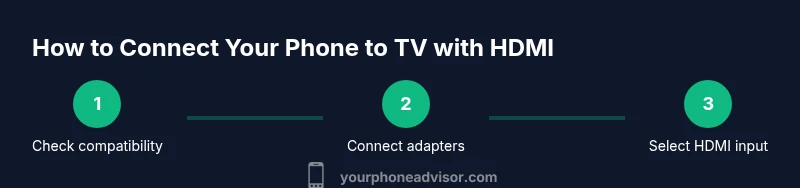
Check device compatibility
Review your phone model to confirm HDMI Alt Mode support or MHL/SlimPort compatibility. If you’re unsure, consult the manufacturer’s specifications or user manual. This prevents buying the wrong adapter before you start.
Tip: If unsure, search your exact model + 'HDMI Alt Mode' to confirm compatibility. - 2
Gather cables and adapters
Collect the HDMI cable and the appropriate adapter for your phone (USB-C to HDMI for most Android devices or Lightning to HDMI for iPhone). Ensure everything is certified and undamaged before proceeding.
Tip: Inspect pins and ports for dust; a clean connection reduces signal loss. - 3
Connect the adapter to your phone
Attach the adapter securely to your phone’s charging port. If your adapter requires external power, connect the charger to the adapter first, then plug the phone into the adapter. A loose connection can cause no signal or intermittent issues.
Tip: Adapters can be sensitive to orientation; insert firmly until it seats. - 4
Attach HDMI cable to adapter and TV
Plug one end of the HDMI cable into the adapter and the other end into an available HDMI input on your TV. Use a cable that is not damaged and has good shielding to minimize interference.
Tip: Label the HDMI input if your TV has multiple ports to avoid confusion later. - 5
Power the phone if needed
If you plan a long session, connect the phone to a power source via the adapter or a charger. This helps maintain performance and prevents battery drain from calling, apps, or streaming.
Tip: A quick charge while mirroring typically keeps your device ready for extended use. - 6
Switch TV input to the correct HDMI
On the TV remote, select the HDMI input that corresponds to the port you used. Some TVs auto-detect, but manually choosing the input avoids a blank screen.
Tip: If you don’t see a signal, try cycling through inputs or re-plugging the HDMI cable. - 7
Test display and audio
Play a video or open a photo to confirm both video and audio output. If you hear audio but see no video, check the phone’s screen mirroring settings and TV volume routing.
Tip: Try a short clip first to confirm timing and syncing between devices. - 8
Adjust phone display settings
If the image doesn’t fill the TV screen, adjust aspect ratio, zoom, or screen fit on the TV. Some phones also offer a display size option that optimizes output for external displays.
Tip: Enable screen mirroring in the quick settings for faster access. - 9
Troubleshoot no-signal scenarios
If there’s no signal, check all connections, reboot both devices, and test with another HDMI cable. A faulty adapter or cable is a common culprit, so substitute with a proven pair before troubleshooting further.
Tip: Keep spare adapters and cables on hand for quick swaps. - 10
Extend functionality with apps
Use compatible apps to stream local media or mirror presentations. Some apps may restrict output; in those cases, rely on your phone’s native media player or the TV’s input to access content.
Tip: Test a local video before attempting a streaming app to verify compatibility. - 11
Disconnect safely and store gear
Power down devices and unplug cables carefully. Coil cables loosely to prevent kinks and store adapters in a protective case to avoid damage until your next use.
Tip: Label cables for quick setup next time.
Got Questions?
Do I need Wi‑Fi to mirror my phone to TV with HDMI?
No. A wired HDMI connection does not require Wi‑Fi. It transfers video and audio directly from the phone to the TV, independent of your wireless network.
No Wi‑Fi is needed; the HDMI cable provides a direct connection.
Will this work for 4K content?
Support depends on both the phone and the TV, as well as the adapter. If both devices and the cable support higher bandwidth, you can display high-resolution content; otherwise, you’ll get standard output.
It depends on device support; check your phone and adapter specs.
Why is there no audio after connecting?
Ensure the TV is selected as the audio output, the adapter is delivering audio, and the phone’s audio isn’t muted. Some apps may route audio differently, so testing with a video helps identify if the problem is app-specific.
Check TV audio output and the adapter’s compatibility with audio passthrough.
What if my phone doesn’t support HDMI Alt Mode?
If your phone lacks HDMI Alt Mode support, you may need a more advanced adapter (like MHL/SlimPort) or an alternative solution such as wireless casting. Verify compatibility before buying a converter.
If Alt Mode isn’t supported, adapters may not work; confirm compatibility first.
Can I mirror apps that restrict output to external displays?
Some apps prevent external display mirroring for licensing or content protection. In those cases, use a device’s built-in media players or other apps that permit external output.
Some apps block external output; use compatible apps instead.
Is a HDMI switch necessary for multiple inputs?
If you frequently switch between multiple devices, an HDMI switch can simplify the process. It saves you from repeatedly unplugging and re-plugging cables.
A switch helps if you have several devices, but it’s optional.
Watch Video
What to Remember
- Use wired HDMI for reliable phone-to-TV mirroring.
- Choose adapters that match your phone's output (USB-C or Lightning).
- Power your device during long sessions to avoid interruptions.
- Verify TV input and audio output to ensure full display and sound.
- Keep spare cables/adapters for quick fixes.