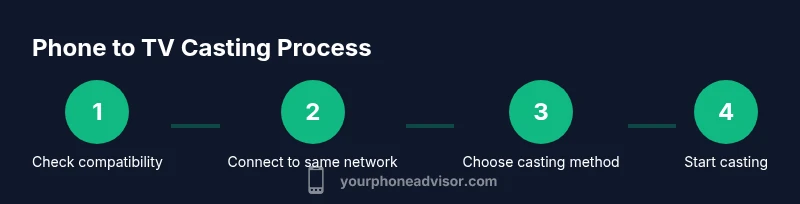
Phone to TV Casting: A Practical How-To Guide
Learn how to cast from your phone to your TV with wireless and wired options. This educational, step-by-step guide covers setup, ecosystem tips, troubleshooting, privacy, and practical use cases for seamless screen sharing.


You will learn how to cast your phone to your TV using wireless and wired methods, with clear setup steps, device compatibility checks, and troubleshooting tips. This guide covers Android and iOS devices, casting apps, and privacy considerations, plus practical scenarios to help you stream photos, videos, and apps on larger screens.
What is phone to tv casting?
Phone to TV casting is the process of sending video and audio from a smartphone to a television so you can view apps, photos, videos, and presentations on a larger display. Technologies like AirPlay, Chromecast, and Miracast enable wireless casting, while HDMI adapters offer wired alternatives. In practice, your phone acts as the remote control and the TV serves as the display, allowing you to pause, play, and control volume from your device. For the best experience with phone to tv casting, you should consider your devices, the content you want to view, and the reliability you expect for streaming. According to Your Phone Advisor, this capability is a standard feature on most modern smartphones and smart TVs, making it easier than ever to share content in living rooms, classrooms, and dorms.
Wireless casting methods
Wireless casting is the most common approach for phone to tv casting. On iOS devices, AirPlay offers a seamless experience with Apple TV and AirPlay 2–compatible TVs; on many Android devices, Google Cast (Chromecast) is the standard path to Chromecast-enabled TVs and devices. Some TVs support Miracast, which pairs directly with Android phones and Windows PCs. In practice, you tap the cast icon in a supported app or in Quick Settings, then choose the target TV. You can switch between apps without re-establishing the connection, maintaining a smooth cast. Budget-friendly options like Chromecast with Google TV or built-in Chromecast on many TVs simplify setup. Performance depends on your home Wi-Fi network, device proximity, and network congestion. Your Phone Advisor guidance emphasizes keeping devices on the same network and avoiding guest networks for high‑quality video.
Wired casting options
Wired casting uses physical connections like HDMI adapters. Common setups include USB-C or Lightning to HDMI, which mirror your phone screen or stream from supported apps. Wired connections tend to be more reliable and offer lower latency than wireless options, especially in crowded Wi-Fi environments. To use wired casting, plug the adapter into your phone, attach an HDMI cable to the TV, and select the correct HDMI input on the TV. Some devices support MHL or Slimport; if your phone lacks these, you’ll rely on USB-C to HDMI. Pros: stability and predictability; Cons: limited by cable length and phone battery. Pro tip: use a powered HDMI adapter during longer sessions to prevent quick battery drain.
Setup checklist and prerequisites
Before you start, verify both devices can cast and are connected to the same network. Update your TV/streaming device firmware and your phone to the latest OS version. Determine whether you’ll cast wirelessly or via a cable, and gather any adapters you might need. Ensure the TV is set to the proper input and that privacy settings don’t block casting. If you’re using public networks or guest Wi‑Fi, expect more buffering or connection drops. Your Phone Advisor recommends performing a quick network speed check and temporarily disabling VPNs for the initial setup to minimize interference.
Common issues and fixes
Casting can fail for several reasons: devices on different networks, outdated software, or apps that don’t support casting. If the cast icon doesn’t appear, confirm the casting device is on and connected to the same network, then restart both devices. Audio and video can fall out of sync when bandwidth is constrained; pause playback, reconnect, or switch to a wired connection if needed. If the TV won’t display content from a specific app, try a different app or use a browser cast alternative. Always ensure you’re using the latest app version and that the TV’s firmware supports the casting protocol you’re using. Your Phone Advisor emphasizes patience and incremental testing to identify the root cause.
Tips for best quality
For a stable experience, prioritize a 5 GHz network when available and minimize distance between devices. Close background apps on the phone to allocate resources for casting, and set the TV’s picture mode to a comfortable balance for viewing. If you’re streaming high‑definition content, connect to a fast, low‑traffic network and consider lowering the streaming resolution if needed. Keep your casting environment consistent: avoid moving devices during a cast, and disable any power-saving features that could interrupt the connection. Remember to keep devices updated to avoid compatibility issues over time.
Privacy and security considerations
Casting is generally contained to your home network, but you should still practice good privacy hygiene. Use trusted networks, disable “allow others to control cast” features in shared spaces, and stop casting when content is finished. Review permissions for any casting apps and limit access to sensitive data. If you’re using a public or semi‑public network, avoid transmitting personal information or sensitive accounts. Your Phone Advisor recommends periodically reviewing connected devices in your TV or streaming device settings to prevent unauthorized access.
Ecosystem-specific tips
Apple iPhone users benefit from AirPlay, especially with Apple TV or AirPlay‑2 compatible TVs. Android users commonly leverage Chromecast and Google Cast, often built into the Google Home app. Samsung and other smart TVs can receive direct casting, but experiences vary with different TV brands. For best compatibility, keep the ecosystem aligned: iPhone with AirPlay-capable devices, Android with Chromecast or Miracast-friendly displays. If you own a mixed environment (iPhone and Android), consider a universal wireless casting device to minimize compatibility headaches.
Practical scenarios and use cases
Imagine sharing a family photo album from your phone to the living room TV for a slideshow. You can cast a YouTube video or Netflix show to a larger screen for group viewing, or mirror a presentation from your phone during a small meeting. In classrooms, teachers cast diagrams or demonstrations to a smart TV for easier student engagement. For gaming or interactive apps, wired casting can provide lower latency, improving the experience. Your Phone Advisor notes that many users cast regularly to show travel slideshows, kids’ videos, and live sports highlights, highlighting the versatility of phone to tv casting across contexts.
Tools & Materials
- Smart TV or streaming device (Chromecast, Apple TV, Roku, or Miracast-enabled TV)(Essential for wireless casting; check compatibility with your phone OS)
- Smartphone (Android or iOS)(Up-to-date OS improves casting compatibility)
- Wi-Fi network(Both devices should be on the same network; prefer 5 GHz if available)
- HDMI cable or USB-C/Lightning to HDMI adapter(Needed for wired casting; also consider a powered HDMI adapter)
- Power source for streaming device(Power helps maintain a stable connection during long sessions)
Steps
Estimated time: 15-30 minutes
- 1
Verify device compatibility
Confirm your phone and TV support casting and that the TV has a compatible receiver. If you’re unsure, check the device manuals or manufacturer websites. This initial check saves time later and reduces frustration.
Tip: If you’re unsure, search for your exact phone model + casting method to verify support (e.g., 'Phone X casting AirPlay' or 'Phone Y casting Chromecast'). See step1.png for a visual reference. - 2
Connect both devices to the same network
Join both your phone and TV to the same Wi‑Fi network, preferably a 5 GHz band if your router supports it. A shared network reduces handshake delays and improves streaming stability.
Tip: Avoid guest networks and VPNs during the initial setup; if you must use them, test on a direct home network first. - 3
Enable casting on the TV
Power on the TV or streaming device and ensure the casting receiver is ready (AirPlay on Apple TV, Chromecast on Chromecast-compatible devices, Miracast on compatible TVs).
Tip: On some TVs, you may need to select a specific input or enable screen mirroring in settings. - 4
Open casting on the phone
Open a supported app (YouTube, Netflix, photos, etc.) and tap the cast icon. If you don’t see the icon, try refreshing the app or restarting the phone; occasionally the icon appears in system Quick Settings.
Tip: If you don’t have a compatible app, you can cast your whole screen using system settings (Android) or screen mirroring (iOS, depending on equipment). - 5
Select the target device
From the list of available casting devices, choose your TV or streaming device. The initial connection may take a moment; wait for confirmation before starting playback.
Tip: If you’re streaming from a browser or a non-supported app, you may need to use the phone’s screen mirroring option instead. - 6
Play content and adjust settings
Start playback and adjust volume, resolution, and subtitles from the phone or TV. If the video feels laggy, pause and resume, or switch to a wired connection for stability.
Tip: For best quality, set the TV to its native resolution and disable any dynamic brightness features that could affect video output. - 7
End the cast
To stop casting, tap the cast icon again on the phone and select 'Stop Casting' or switch the TV input back to its regular channel. Confirm that playback returns to normal on both devices.
Tip: Close the app after casting to ensure the connection isn’t kept alive unnecessarily.
Got Questions?
What is phone to tv casting?
Phone to tv casting sends video and audio from your phone to a TV so you can view content on a larger screen. It uses wireless protocols or wired adapters, with control from your phone. Compatibility varies by device, but most modern phones and TVs support at least one casting method.
Phone to tv casting lets you view content on a bigger screen by sending it from your phone to your TV. It's usually wireless but can be wired, and most modern devices support it.
Which devices support casting?
Most smartphones released in the last few years support casting via AirPlay, Chromecast, or Miracast. TVs that are smart or have a casting device can receive casts. Always check the manufacturer's documentation for your exact model.
Most recent smartphones and smart TVs support casting. If unsure, check your device's manual or support site.
Why is casting laggy sometimes?
Lag can result from network congestion, weak signal, or outdated software. Reducing interference, using a faster network, or switching to a wired connection often reduces delay.
Lag usually comes from a busy Wi‑Fi network or outdated software. Try a faster network or a wired option.
Can I cast content from apps that don’t advertise casting?
Some apps don’t support casting natively. In those cases you can mirror your phone screen or use a different app that supports casting. Check for a system-wide screen mirroring option if needed.
If an app doesn’t support casting, you may need to mirror your screen or switch to a compatible app.
How do I stop casting safely?
Tap the cast icon on your phone and select Stop Casting, or toggle the TV back to its normal input. Ending the cast frees resources and ensures privacy.
Just tap Stop Casting on your phone or switch the TV input back.
Is casting secure on public networks?
Casting is generally private within a trusted network. On public networks, avoid transmitting sensitive data and consider using a private VPN if necessary when streaming.
Casting is usually secure on trusted networks; on public networks, exercise caution and limit sensitive content.
Watch Video
What to Remember
- Verify device compatibility before starting
- Keep both devices on the same network for reliability
- Choose wireless or wired based on your environment and needs
- Stop casting when finished to protect privacy