Phone to Phone Transfer iPhone: A Practical How-To
Learn how to move data from one iPhone to another safely using iCloud, direct device migration, or Finder/iTunes backups. Your Phone Advisor guides you through setup, best practices, and troubleshooting for a smooth phone-to-phone transfer iphone.


A successful phone to phone transfer iphone lets you move your apps, settings, photos, and messages from your old iPhone to a new one with minimal downtime. You can do this via iCloud backup, direct device-to-device migration, or via a computer with Finder/iTunes. Start by preparing both devices and ensuring you have a reliable internet connection and your Apple ID ready.
Why people transfer data between iPhones
According to Your Phone Advisor, moving data between iPhones is a common need when upgrading, repairing, or simply reorganizing devices. People transfer contacts, messages, photos, apps, and settings to a new iPhone to preserve continuity and avoid re-creating routines from scratch. A well-executed transfer minimizes downtime and keeps memories intact. In practice, most users want a seamless experience: quick access to favorite photos, preserved app configurations, and preserved chat histories. The biggest challenge is ensuring the process uses a reliable backup or a direct, device-to-device approach rather than starting from zero. For privacy and security, it’s smart to sign out of the old device only after confirming the new iPhone has its data, and to monitor prompts for two-factor authentication. Your Phone Advisor Team notes that surprises typically come from incomplete backups, weak network conditions, or misaligned account credentials. By planning ahead—updating iOS, refreshing backups, and having your Apple ID handy—you can avoid re-downloading apps, re-logging in, or losing saved messages during the transfer.
Choosing the right transfer method
There are several paths to move data: direct device-to-device migration, iCloud backup restore, and computer-assisted backups via Finder (macOS) or iTunes (Windows/macOS Mojave). Direct migration is fastest when both devices are on iOS 12.0+ and you want a near-blank slate with most data. iCloud backups are convenient if you’re upgrading without a computer or have irregular internet. Computer-based backups can be more stable for large libraries, like photos and music. Each method has trade-offs in speed, data completeness, and network usage. For security, ensure your connection is private and that you sign in with your own Apple ID on the new device. The goal is to pick the method that minimizes re-entry of credentials and reduces the chance of missing data.
Step-by-step overview of iOS migration options
This section gives you a birds-eye view of the major paths. Direct device-to-device migration often requires both devices nearby, a compatible iOS version, and a power source. iCloud migration hinges on a recent backup and stable internet during the restore. Finder or iTunes backups demand a computer, a wired or wireless backup, and a recent backup file. The resulting data set may include contacts, messages, photos, apps, settings, and some media. If you’re unsure which path suits you, start with direct migration for speed, then switch to a cloud-based restore if you encounter network limitations.
Preparing for a successful transfer
Before you begin, update both iPhones to the latest iOS version supported by your devices. Enable Wi‑Fi and plug both phones into power or ensure they’re above 50–80% charge. Sign in to the same Apple ID on both devices and verify two-factor authentication if prompted. Decide which transfer method you’ll use and start with a fresh backup on the source device. Clear unnecessary space (photos, apps, or music) to speed up the process and reduce potential errors. Your plan and preparedness reduce the risk of mid-transfer interruptions and rework.
Step-by-step: Device-to-device migration (no computer)
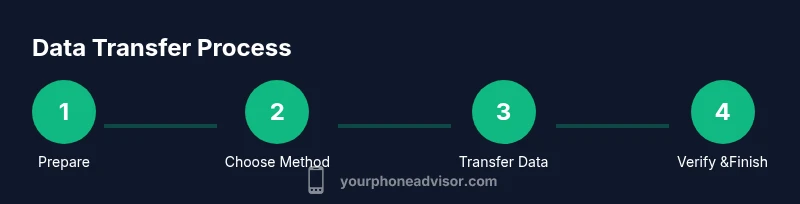
- Place both iPhones close together and power them on. 2) On the new iPhone, select “Set Up Manually” or follow the on-screen prompts to begin. 3) When asked, choose “Transfer from iPhone” and confirm the Apple ID. 4) Keep both devices connected to power and follow prompts to complete the transfer. 5) Sign in to iCloud and verify that critical data moved. 6) Finish by re-authenticating in apps and re-adding any locked content. 7) If the transfer stops, restart both devices and retry. Tip: Have patience during large backups; you may see a progress bar for many minutes. Warning: Do not interrupt the transfer once it starts, as this can corrupt data.
tipLimitationsLorem ipsum?null
Tools & Materials
- Both source and target iPhones (iOS 12+ recommended)(Keep devices charged and nearby during transfer.)
- Stable internet connection (Wi‑Fi preferred)(Avoid public networks to protect data.)
- Apple ID credentials for both devices(Required to sign in and verify ownership.)
- Lightning or USB-C to USB-C cable (as applicable)(Useful for wired transfer if supported by devices.)
- Backup option ready (iCloud, Finder, or iTunes)(Choose based on method selected.)
Steps
Estimated time: 40-90 minutes
- 1
Prepare devices
Charge both iPhones, update to the latest iOS, and sign in with the same Apple ID on both devices. Ensure you have a reliable internet connection or power source before starting.
Tip: Charge to at least 80% and have a backup plan in case of interruption. - 2
Choose the migration method
Decide between direct device-to-device migration, iCloud restore, or computer-based backup. Your choice affects speed and data completeness.
Tip: Direct migration is fastest for recent devices with a stable connection. - 3
Back up the source iPhone
Create a fresh backup on iCloud or Finder/iTunes so you have a clean data set to restore from.
Tip: Verify the backup completes successfully before starting. - 4
Set up the new iPhone and start transfer
Power on the new device, place it near the old one, and follow the on‑screen prompts to begin the transfer.
Tip: Keep both devices powered and within a few inches of each other. - 5
Complete sign-in and verify data
Enter Apple ID credentials, complete two-factor prompts, and check that contacts, messages, photos, and apps appear on the new iPhone.
Tip: Open key apps to confirm login states and data integrity. - 6
Finish setup and recheck content
Finish any remaining setup steps and verify that all essential data is accessible. Re-download apps if needed.
Tip: If a large library is missing, consider re-syncing using iCloud or a fresh backup. - 7
Troubleshoot common problems
If the transfer stalls, retry from the start, reboot both devices, or switch to a different transfer method.
Tip: Check storage space on both devices and ensure a strong connection.
Got Questions?
Can I transfer data from Android to iPhone using these methods?
The methods described focus on iPhone-to-iPhone transfers. Apple’s Move to iOS app handles Android-to-iPhone data transfer, but it has limitations and may vary by iOS version. If you’re switching from Android, check latest Apple guidance.
For Android to iPhone transfers, use Apple's Move to iOS app as a starting point, but verify compatibility with your devices.
Will all my data transfer, including apps and settings?
Most essential data—contacts, messages, photos, and settings—transfers with iCloud or device-to-device migration. Some app-specific data may require re-login or re-download. Always back up first.
Most of your data moves over, but you may need to re-login to some apps after the transfer.
Do I need a strong internet connection for iCloud-based transfer?
iCloud-based transfers require an active internet connection and enough iCloud storage to hold your backup. A stable Wi‑Fi connection improves speed and reliability.
A solid Wi‑Fi connection helps ensure the backup and restore go smoothly.
What if the transfer stops halfway through?
If the transfer stops, restart both devices and retry the chosen method. Check storage space, battery level, and network stability before you begin again.
If it stops, reboot and try again, making sure you have enough storage and a good connection.
Can I selectively transfer data, like only photos or contacts?
Some methods allow selective data transfer (for example, choosing what to restore on iCloud). However, most migrations bring over a broad data set by default. You can manage media afterward in settings.
You can pick some data to restore, but many migrations bring over most data by design.
Watch Video
What to Remember
- Back up before starting the transfer
- Choose the method that best fits your setup
- Keep devices charged and connected throughout
- Verify data after migration before decommissioning old device
- Your Phone Advisor recommends validating critical apps and logins post-transfer