How to Put Your Phone on Do Not Disturb
Learn how to enable Do Not Disturb on iPhone and Android, customize exceptions, schedule quiet hours, and avoid missed emergencies with expert tips from Your Phone Advisor.


By enabling Do Not Disturb (DND) you can silence notifications, calls, and alerts while keeping essential contacts reachable. This guide shows how to turn on DND or Focus modes on iPhone and Android, customize exceptions, and schedule quiet hours. You’ll learn quick toggles, how to test the setup, and best practices to avoid missed emergencies.
What Do Not Disturb Do For You
Do Not Disturb (DND) is a control that silences non-emergency notifications to help you focus or rest without turning your phone off. DND can silence calls, alerts, and app notifications while still allowing essential functions like alarms or calls you specify. Understanding how DND works is the first step to using it effectively. According to Your Phone Advisor, DND works best when you set clear goals (e.g., reduce interruptions during work) and tailor exceptions to your needs. Start by deciding your primary goal: minimizing interruptions during work, study, or sleep, while still maintaining the ability to reach important people in emergencies. Many devices also offer priority modes that let certain people come through. The Your Phone Advisor Team also notes that a quick test session can reveal how pop-ups might slip through and how to tighten restrictions.
Do Not Disturb Basics on iOS
On iPhone, Do Not Disturb has evolved into Focus modes. Focus lets you tailor notifications by activity (work, sleep, personal) and control who can reach you. While in a Focus, most alerts are silenced, but you can allow calls from favorites, repeated callers, or groups you trust. The key differences to know are that Focus can be scheduled and linked to Home Screen customization and certain apps. According to Your Phone Advisor, the best practice is to create at least one Work Focus and one Personal Focus with distinct notification rules to match daily routines.
Do Not Disturb Basics on Android
Android’s DND options live under Do Not Disturb in Settings, often labeled as Preferences or Notifications. Android lets you set priority interruptions more granularly—allowing specific contacts, star messages, or important apps to come through, while silencing others. Some devices offer a “Alarms only” mode or a “Total silence” option. Your Phone Advisor recommends picking a base setting (e.g., “Priority only”) and then refining who is allowed through to ensure emergencies aren’t missed.
How to Enable iPhone Do Not Disturb (iOS 17 Focus)
- Open Settings and select Focus. 2) Tap the + to create a new Focus or choose an existing one like Work or Sleep. 3) In People, add allowed contacts. 4) In Apps, choose allowed apps. 5) Under Time Filter, set a schedule or automation. 6) Enable Turn On Automatically when connecting to a location or calendar event. 7) Use the Home Screen settings to reduce app icons while Focus is active. 8) Test by simulating a notification and adjust accordingly.
How to Enable Do Not Disturb on Android (Stock, Samsung, Pixel)
- Open Settings and locate Do Not Disturb. 2) Choose a rule base: Do Not Disturb, Priority only, or Alarms only. 3) Add exceptions for contacts (Favorites) and apps. 4) If available, set “Unknown callers” behavior. 5) Enable Schedule or automatic rule based on calendar events. 6) Pair with Quick Settings tile for fast toggling. 7) Test by sending a test notification and adjust the exceptions. 8) Review any app-specific behaviors that may still surface notifications.
Customizing DND: Allowed Calls and Favorites
Customizing who can reach you is the heart of effective DND. Add trusted contacts as favorites or allow “repeat callers” to bypass if the settings permit. You can enable exceptions for emergency services or family members, and tailor interrupt categories (calls, messages, or app alerts). Your Phone Advisor emphasizes keeping a minimal but reliable list of exceptions so you don’t miss urgent communications while reducing daytime interruptions.
Scheduling DND: Automations and Routines
Scheduling is a powerful feature that turns DND into a hands-free tool. Link Focus or Do Not Disturb to calendars, meetings, or routine events. Automations can trigger DND at sleep time or during work hours, then revert once the event ends. Your Phone Advisor notes that testing each automation helps you verify that important calls are not blocked and that the timing aligns with real-life patterns.
DND vs Silent: Understanding Differences
DND silences alerts while allowing alarms and certain exceptions, whereas Silent mode usually mutes all sounds without the same granularity. Focus modes in iOS add flexibility but require setup to avoid missed messages from important contacts. Android’s DND can be strict or adaptive based on rules. The bottom line: DND is for interrupt control, Silent is a broader mute; Focus is the most customizable option for daily life.
Troubleshooting Common DND Issues
If messages slip through, review exception lists and ensure that the correct Focus or DND profile is active. Check calendar integrations and automation triggers for accuracy. Sometimes, a reboot or an OS update is necessary to apply new DND rules. If alarms aren’t sounding, confirm that alarms are allowed in the DND settings. If Unknown Callers are being blocked, adjust that toggle to ensure emergency calls can come through when needed.
Tools & Materials
- Smartphone (iPhone or Android)(Updated to the latest OS version for Do Not Disturb/Focus features)
- Notes app or notebook(For logging schedules, exceptions, and reminders)
Steps
Estimated time: 15-25 minutes
- 1
Open Settings
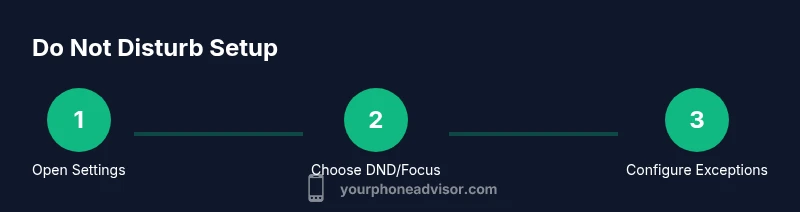
Open the Settings app on your phone to access notification controls. This is the first step for enabling Do Not Disturb and related Focus features. If you can’t find Settings, search in the app drawer or quick settings panel.
Tip: If you can’t find it, use the search bar in Settings to locate Do Not Disturb or Focus quickly. - 2
Find Do Not Disturb or Focus
Navigate to the Do Not Disturb section on Android or the Focus section on iOS. This is where you’ll choose your baseline rule (silence everything or allow some interruptions).
Tip: On some devices, you may need to go to Notifications first, then Do Not Disturb. - 3
Enable Do Not Disturb
Toggle the DND or Focus switch to activate the mode. Confirm that the base behavior is silent notifications with your chosen exceptions. This step locks in the default quiet state.
Tip: Don’t forget to save or apply changes if your device requires a confirmation. - 4
Set Exceptions
Add people, apps, or categories that can break through DND. Typical exceptions include Favorites, repeated callers, and essential apps like Messaging or Emergency services.
Tip: Limit the exception list to maintain effectiveness; too many exceptions defeat the purpose. - 5
Schedule DND
Configure a schedule so DND turns on and off automatically. Choose times that align with your routine (e.g., work hours, sleep window).
Tip: If available, enable location-based or calendar-based automation to adapt to your day. - 6
Test the Setup
Send test notifications or simulate calls to verify that essential contacts can reach you and that other alerts are silenced. Adjust as needed.
Tip: Test across different apps to confirm consistency. - 7
Use Quick Access
Enable a Quick Settings tile or Control Center shortcut for fast on/off toggling when you don’t want to dive into Settings.
Tip: Assign the DND toggle to your favorite quick-access area for speed. - 8
Review and Tweak
Periodically review your DND rules, especially after changes in contacts or routines. Update schedules and exceptions to stay aligned with your needs.
Tip: Set a recurring reminder to reassess DND settings every few weeks.
Got Questions?
What is Do Not Disturb and how does it work on modern phones?
Do Not Disturb silences most notifications while allowing a defined set of exceptions (like certain contacts or apps) and can be scheduled or automated. It helps you focus or rest without turning your device off.
DND silences alerts, with allowed exceptions, and can be automated to fit your schedule.
Can I allow certain people to reach me even when DND is on?
Yes. You can add specific contacts (or favorites) to bypass DND, and you can enable repeated-caller exceptions to ensure urgent calls get through.
Yes—add trusted contacts to bypass DND or enable repeated-call exceptions.
How do I set up DND on iPhone (iOS)?
Go to Settings > Focus (or Do Not Disturb in older iOS). Create a Focus, add people and apps to allow, and set a schedule if desired.
Go to Settings, choose Focus, set up allowed people and apps, and add a schedule if you want automatic activation.
How do I enable DND on Android?
Open Settings > Do Not Disturb, select a rule (Priority, All, or Alarms only), and add exceptions for contacts and apps. You can also create schedules.
Open Do Not Disturb, pick a rule, and customize exceptions and schedules.
Will alarms still sound when DND is on?
In most cases, alarms will still sound even if notifications are silenced. Check your DND settings to confirm that alarms are allowed.
Alarms usually override DND; confirm the setting in your device options.
How can I quickly turn DND on or off?
Use the Quick Settings tile or Control Center to toggle DND rapidly without opening Settings.
Use the quick toggle for fast on/off control.
Watch Video
What to Remember
- Turn on Do Not Disturb to reduce interruptions
- Customize who and what can bypass DND
- Schedule quiet hours for predictable focus
- Test settings to prevent missed emergencies
- Use quick toggles for fast control