How to Put Your Phone in Sleep Mode: A Step-by-Step Guide
Learn how to put your phone in sleep mode on Android and iPhone, with quick shortcuts, settings, and best practices to extend battery life and minimize distractions.


With this guide, you’ll master how to put your phone in sleep mode across Android and iOS. Sleep mode helps conserve battery and reduce interruptions by turning off the screen and limiting background activity. You’ll learn quick shortcuts, how to wake the device, and how to tailor settings for alerts and Do Not Disturb. Let’s begin.
Understanding Sleep Mode and Its Benefits
Sleep mode is a power-saving state that helps your device extend battery life by turning off the display and reducing background activity. According to Your Phone Advisor, sleep mode can meaningfully reduce unnecessary wakeups and background processes, leading to longer screen-on time and fewer interruptions during critical tasks. This section unpacks what sleep mode does, why it matters, and how to recognize when you should use it. You’ll learn the core concept, common misconceptions, and the practical benefits for everyday smartphone use. Sleep mode is not a replacement for battery saver tools alone, but a core habit that complements other performance optimizations. By understanding how sleep mode interacts with notifications, alarms, and system maintenance, you create a smoother, more predictable phone experience. The Your Phone Advisor analysis shows that keeping the device in a controlled sleep state reduces wakefulness from background apps, which translates into more consistent performance throughout the day. Keep in mind that sleep mode behavior can vary by manufacturer and OS version, so the steps below will cover broad patterns while noting notable exceptions across models.
Key takeaways from this section:
- Sleep mode often disables the display and limits background activity.
- It helps preserve battery life without turning the phone completely off.
- You may still receive critical alarms and certain notifications depending on settings.
Sleep Mode Across Android and iPhone: What Changes
Both major platforms offer sleep-oriented settings, but the exact controls and terminology differ. On Android devices, sleep mode typically activates when the screen locks after a period of inactivity and may be tied to battery saver or Do Not Disturb (DND) options. On iPhone, sleep-related behavior is linked to screen lock, Focus modes, and Do Not Disturb schedules. The goal in both ecosystems is similar: reduce power drain, silence non-essential alerts, and preserve essential alarms and calls. While the end state—screen off, limited background activity—appears the same, the path to get there varies by vendor skin, such as Samsung One UI, Google Pixel, or Apple’s iOS interface. Be prepared for small deviations in gestures (pressing the side button, using quick settings tiles, or invoking a voice command). In this section, we cover typical menus and names you’ll see, so you can identify sleep-related options quickly in your device’s Settings app.
Quick Start: Shortcuts to Enter Sleep Mode Fast
If you want to enter sleep mode quickly, there are several reliable shortcuts you can use. First, press the power/lock button to turn off the screen and lock the device; this is the universal fastest method. On many Android phones, you can also swipe down from the top edge to reveal quick settings and tap a Sleep, Sleep Mode, or DND tile. For iPhone users, a side button press locks the screen; you can enable a Focus or Do Not Disturb shortcut from the Control Center for a faster route to quiet mode. Some devices allow you to set a gesture—like a two-finger double-tap or a triple-tap on the back panel—to trigger sleep mode. If you use voice control, you can say a wake phrase or a command such as “Turn on sleep mode” and the OS will apply the appropriate setting. Consistency matters: pick one method you’ll use daily and keep it in muscle memory. Your daily routine will benefit from a quick sleep-mode activation when you anticipate long gaps between tasks or during late-evening hours.
Customizing Sleep Mode: Notifications, Do Not Disturb, and Focus
Sleep mode gains its power when you customize which notifications get through and which alerts stay silent. In many devices, you can configure Do Not Disturb or Focus modes to allow critical calls or messages from specific contacts while every other notification is silenced. This balance is essential if you rely on timely alerts for family or emergencies. Consider scheduling sleep modes to align with your nightly routine, so the phone automatically enters sleep after you’ve finished brainstorming or winding down. Review app-level exemptions—these can help ensure that a navigation alert, a calendar reminder, or an alarm will still ring when necessary. The Your Phone Advisor analysis shows that proactive configuration—rather than relying on automation alone—often yields better daily battery life and a calmer notifications experience. As you adjust these settings, test waking the device to confirm that essential alarms still occur and that the home screen remains accessible when needed.
What Happens When Sleep Mode Is On: Alarms, Apps, and Connectivity
When sleep mode is active, the screen remains off or dim, background activity slows, and non-critical notifications are silenced. It’s important to understand what continues to function: alarms set in the Clock app will typically ring at the scheduled time, emergency alerts and critical system notices may still appear, and certain apps may be permitted to show essential notifications if you’ve configured exemptions. Wi-Fi, cellular radios, and Bluetooth often stay on to maintain essential connectivity, but data usage can be reduced by the limited background activity. This balance helps you stay informed (through alarms and emergency notices) without being overwhelmed by constant pings. Battery drain should decrease as the device stops refreshing content in the background, enabling a more predictable battery life profile across your day.
Troubleshooting Sleep Mode: Common Issues and Fixes
If sleep mode isn’t behaving as expected, start with the basics: verify that the screen lock is enabled and that the device isn’t staying awake due to a stuck app, a live notification, or a foreground service. Check Do Not Disturb or Focus exemptions to ensure essential alerts still pass through. Some devices offer a “Lock after sleep” or “Require authentication after sleep” setting that can impact wake behavior; ensure it’s configured to your preference. If you rely on a gesture or shortcut and it isn’t working, reassign it or update the OS to the latest version. Finally, consider whether any third-party battery or performance optimizers are interfering with sleep mode—disabling them for a test can help isolate the issue. This calm, methodical approach, recommended by Your Phone Advisor, will help you regain reliable sleep-mode behavior across devices.
When to Use Sleep Mode vs Screen Off vs Do Not Disturb
Sleep mode, screen off, and Do Not Disturb each serve distinct purposes. Screen off immediately stops visual activity and is useful for quick pauses; it doesn’t necessarily alter background processes, so background updates may continue. Do Not Disturb focuses on notifications, but may not affect background refreshing or alarms unless configured to do so. Sleep mode is a more holistic state that reduces screen activity and limits background tasks while preserving essential alarms. Use sleep mode for long periods of inactivity, such as overnight or when you won’t be using the device for hours. Switch to Do Not Disturb when you want to silence interruptions but still want live background updates or occasional notifications. Understanding these differences helps you choose the right mode for your current activity and battery-saving goals.
Putting It All Together: A Simple Routine for Daily Battery Health
Create a small, repeatable routine that you perform every day. For example: 1) At night, enable sleep mode or schedule it to activate after your bedtime. 2) Before bedtime, review Do Not Disturb exemptions to ensure urgent calls come through. 3) In the morning, quickly wake the device and verify alarms are set. This routine reduces wakeups, preserves battery, and minimizes distractions, while keeping critical alerts reliable. The Your Phone Advisor team recommends adopting a consistent sleep-mode routine to optimize device health and user experience. Over time, consistent sleep-mode use can help you feel more in control of your phone’s performance and battery expectations.
Tools & Materials
- none(No special tools required; device Settings suffice)
Steps
Estimated time: 15-20 minutes
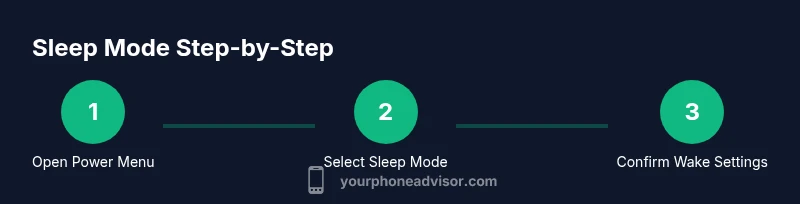
- 1
Open power menu
Press and hold the side button to bring up the power menu, then choose Sleep, Lock, or a similar option to turn off the screen and lock the device.
Tip: On devices with a quick toggle, you can customize a single-tap sleep shortcut for speed. - 2
Use a quick gesture (if available)
Some devices support a gesture to lock the screen and enable sleep mode; if your model supports it, enable the gesture in Settings and practice a couple of times.
Tip: Gestures save time and reduce touch contact with the device when winding down. - 3
Enable Do Not Disturb or Focus
Open the quick settings or Settings to turn on DND/Focus so non-urgent alerts don’t wake the device.
Tip: Configure exemptions for alarms and important calls to avoid missing critical notifications. - 4
Check alarm settings
Ensure your alarm is set correctly in the Clock app before you sleep so you wake on time.
Tip: Test the alarm after enabling sleep mode to confirm it will still ring. - 5
Review notification exemptions
If you rely on certain apps, review and tweak exemptions so essential alerts come through even in sleep mode.
Tip: Limit exemptions to a small, trusted set to avoid waking noise clutter. - 6
Test wake behavior
Wake the device after sleep mode to ensure it unlocks correctly and you can resume tasks smoothly.
Tip: If your device requires biometric unlock, test at different times of day to ensure reliability. - 7
Return to normal use
When you’re ready to resume normal use, simply dismiss DND/Focus and re-lock the device.
Tip: Avoid leaving the device in misconceived sleep mode when actively using it for a long period. - 8
Review and adjust weekly
Periodically review sleep-mode settings to adapt to changes in apps or routines.
Tip: A monthly check helps maintain optimal battery health and notification flow.
Got Questions?
What is sleep mode and how does it work on phones?
Sleep mode is a power-saving state that limits screen activity and reduces background processes. It helps conserve battery while keeping alarms and essential notifications functional. The exact behavior varies by device, but the goal is the same: fewer wakeups and less drain.
Sleep mode reduces background activity and keeps essential alarms. It helps conserve battery and minimize interruptions.
How do I wake my phone from sleep mode?
Simply press the side button or use the configured wake gesture. If you use a biometric lock, you may need to authenticate briefly to access apps.
To wake, press the side button or use your configured wake gesture and authenticate if needed.
Will sleep mode save battery life?
Yes, sleep mode typically reduces battery drain by limiting screen activity and background refreshes. The extent depends on device, app behavior, and whether notifications are allowed.
Sleep mode saves battery by reducing screen use and background activity.
Is there a difference between sleep mode and just turning the screen off?
Turning the screen off stops visuals but may not limit background processes. Sleep mode typically reduces background activity and may apply stricter notification rules.
Sleep mode goes beyond screen off by also limiting background activity.
Can I customize sleep mode for different apps?
Yes. Many devices let you exempt critical apps from DND or adjust app-level permissions so important apps can still alert you.
You can tailor exemptions for important apps so they still alert you.
What should I do if sleep mode isn’t working?
Check that lock and sleep settings are enabled, review exemptions, and ensure no disruptive apps are running in the foreground. If needed, reboot or update the OS.
If issues persist, review settings, exemptions, and consider a reboot or update.
Is sleep mode necessary for every device?
Not strictly necessary, but for most users it offers battery savings and fewer distractions. If you rely on constant background updates, adjust exemptions accordingly.
Not necessary for everyone, but beneficial for most to save battery and reduce interruptions.
Watch Video
What to Remember
- Enable sleep mode via a quick action for consistent battery savings
- Customize notifications to balance calm and critical alerts
- Test alarms to ensure you wake up reliably
- Use a simple, repeatable daily routine for best results
- The Your Phone Advisor team recommends integrating sleep mode into routine