How to Put Your Phone in Dark Mode
Learn how to enable dark mode on iOS and Android, set up automatic schedules, and troubleshoot common issues. This educational guide covers platform differences, app behavior, and accessibility considerations.


You will learn how to turn on dark mode on your phone, with platform-specific steps for iOS and Android, plus tips for scheduling and troubleshooting. By the end you’ll be able to switch your display to a dark theme for readability, battery savings, and reduced eye strain. This guide covers settings, apps, and accessibility considerations. Whether you use light themes at work or prefer night-time dimness, this quick answer gets you started.
What dark mode is and why it matters
Dark mode switches the device’s UI to darker surfaces with light text, reducing glare in low-light environments and improving readability at night. On OLED screens, darker pixels can save battery, since pixels aren’t illuminated as brightly as in light themes. For accessibility, dark mode lowers overall brightness and can help users with light sensitivity or migraines. In this section we define dark mode, compare it with other themes, and outline practical benefits you can expect on modern iOS and Android devices. You’ll learn how to enable system-wide dark mode, how to schedule it, and how to handle apps that don’t automatically follow the theme, so you can decide if dark mode is right for you and your daily routines. The goal is practical, not theoretical: a smoother, more comfortable viewing experience across your phone.
Platform differences: iOS vs Android
On iOS devices, dark mode is tightly integrated into the system and can affect most built-in apps and many third-party apps that respect the theme. You’ll typically find the option under Settings > Display & Brightness > Appearance, with choices like Light, Dark, and Automatic. Android devices vary by manufacturer, but most recent versions label the setting as Dark theme or Dark mode in Settings > Display, with a Scheduling option (Sunset to Sunrise or a custom time). The main takeaway: both platforms offer system-wide theming, but names and exact paths differ, so knowing where to look saves time. This section helps you map the path on your specific device and verify that the toggle applies globally.
Scheduling and automating: manual vs automatic
For convenience, enable Automatic or Schedule to switch themes automatically based on time or sunset/sunrise. Automatic is ideal if you keep late hours or want to align with natural light cycles. Custom times give you precise control, such as turning on dark mode at 7 PM and turning it off at 7 AM. We walk through the settings screens for both platforms and explain how to test the schedule to ensure it changes at the expected times. Automation reduces cognitive load and helps you maintain consistency across the day.
App behavior and app-level overrides
Some apps may not fully respect the system-wide theme, especially older or niche apps. In many cases apps follow the OS theme, but a few offer their own appearance settings. It’s worth testing a handful of frequently used apps after enabling dark mode. If an app stays light, check its in-app theme option or look for a “Follow system appearance” toggle. This section helps you anticipate and address exceptions without summoning support tickets.
Troubleshooting common issues
If dark mode isn’t applying, start by confirming you’re on a supported OS version and that the toggle is turned on. Restart the device or re-open Settings after changing the option. In some cases, you may need to update apps for compatibility or reset app preferences. For Android devices, consider checking the device’s Battery or Display settings for any overrides that could interfere with theming. If issues persist, consult official help resources and test with a different wallpaper or brightness level to ensure there’s no peripheral cause.
Practical tips for a smooth transition
- Test dim lighting scenarios to evaluate glare reduction and readability. - Pair a dark wallpaper that complements the theme to maximize contrast without created harsh white edges. - Use the auto-schedule feature to align with your daily rhythm. - Be aware that some apps may not respect dark mode fully; plan for occasional overrides. - Keep your phone's software up to date to maintain broad compatibility with dark mode features.
Authority sources
- Apple Support: How to use dark mode on iPhone and iPad (Dark mode appearance in iOS)
- Google Help: Set a system-wide dark theme on Android (Dark theme and schedule options)
- W3C Accessibility Guidelines: Color contrast and readability considerations for dark themes
Authority sources details and accessibility
For those seeking deeper understanding, these sources provide official, device-specific guidance and accessibility considerations. Apple’s and Google’s official support pages give step-by-step paths for enabling dark mode across devices, while accessibility guidelines from established standards bodies remind us to consider color contrast and readability when choosing color schemes.
Tools & Materials
- Smartphone with up-to-date OS (iOS or Android)(Ensure you’re on iOS 13+/Android 10+ for full feature support.)
- Settings app access(Navigate to Display/Appearance to enable dark mode.)
- Internet connection (optional)(Useful for watching tutorials or downloading updates if needed.)
- Quiet environment for testing readability (optional)(Helps you compare readability under different lighting.)
Steps
Estimated time: 15-25 minutes
- 1
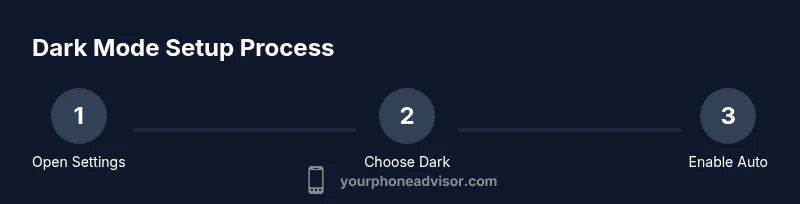
Open Settings and locate Display/Appearance
Open Settings on your device and look for the Display or Appearance section. This is where system-wide theme options are usually stored. If you can’t locate it, use Settings' search to type 'dark' and jump to the right page.
Tip: Why: Centralizing the control reduces confusion; you’ll make fewer toggles later. - 2
Select Dark or Dark Appearance
Tap the Dark option (sometimes listed as Dark Appearance) to switch the UI to a dark theme. Confirm that the switch affects the home screen and default apps. Some devices label this as simply Dark or Night mode.
Tip: Why: This establishes the baseline theme for most apps and widgets. - 3
Enable Automatic or Schedule
Turn on Automatic or Schedule and choose Sunset to Sunrise or set a custom time. Scheduling lets you auto-switch themes without manual intervention.
Tip: Why: Synchronizes with your daily light exposure for comfort. - 4
Review per-app behavior
Open a few frequently used apps to ensure they adopt the dark theme. If an app remains light, check in-app theme options or look for a 'Follow system theme' setting.
Tip: Why: Some apps may override the system setting; you may need to adjust them individually. - 5
Test readability and adjust brightness
Dim the screen a bit and observe for glare against dark surfaces and light text. Change wallpaper if needed to improve contrast with the dark background.
Tip: Why: Subtle tweaks can dramatically improve comfort and legibility. - 6
Troubleshooting and validation
If dark mode isn’t applying everywhere, double-check OS version, reboot, and re-test. If issues persist, consult official help resources for device-specific steps.
Tip: Why: Some devices have quirks that require a quick reset or update.
Got Questions?
What is dark mode and why use it?
Dark mode changes the interface to a darker color scheme with light text. It reduces glare in low-light settings and can help with readability and comfort, especially at night. It may also save battery on OLED screens.
Dark mode switches the UI to a dark theme and can reduce glare and save battery on OLED screens.
Will dark mode always save battery life?
Battery savings depend on the display technology. OLED screens benefit more from dark themes since dark pixels use less power. LCD screens may show smaller gains, but overall user comfort improves.
Battery savings vary by display type; OLED benefits the most, LCD less so, but comfort improves for most users.
Do all apps support dark mode?
Most modern apps respect the system theme, but some older or niche apps may not. In such cases, check if the app offers its own theme setting or a 'follow system' option.
Many apps follow the system theme, but some don’t. Look for app-specific theme settings if needed.
How do I turn off dark mode?
To disable, go back to Settings > Display/Appearance and select Light or turn off Automatic scheduling. The steps differ slightly between iOS and Android, but the option is in the same general area.
To disable, re-open Settings and choose Light or turn off scheduling.
Can I schedule dark mode for specific times of day?
Yes. Most devices offer a Sunset to Sunrise option or a custom time range. Set your preferred start and end times to match your routine.
Yes—set a custom time or use Sunset to Sunrise for automatic switching.
Does dark mode affect photo color accuracy?
Dark mode changes the UI appearance but should not permanently alter photo colors. Some apps may render previews differently in dark mode, but the original photos are unchanged.
No permanent color changes to photos; previews can vary by app.
Watch Video
What to Remember
- Enable system-wide dark mode for broad coverage.
- Use auto-schedule to match daily lighting.
- Check app-specific themes for exceptions.
- Test readability and adjust wallpaper/brightness as needed.
- Keep OS and apps updated for best compatibility.