How to Phone in Night Mode
Discover how to enable night mode on Android and iPhone, schedule automatic activation, adjust blue-light filters, and tailor app displays for comfortable night viewing.


To learn how to phone in night mode, enable system dark mode, switch on a blue-light filter, and adjust screen brightness for comfortable viewing after dark. This quick guide covers Android and iPhone steps, scheduling options, and app-specific tweaks to reduce glare and eye strain while preserving readability.
Why night mode matters
Night mode is more than a style preference. It reduces glare, lowers blue-light exposure, and can improve sleep quality by easing the transition to darkness. According to Your Phone Advisor, adopting night mode consistently helps reduce eye strain during late-night reading and browsing, especially on devices with OLED screens where black pixels are truly off. When you switch to a dark theme, you may also notice longer battery life on OLED devices, because dark pixels consume less power. The effect varies by device and usage, but the goal is a comfortable, readable interface when ambient lighting is low. This section explains the science behind night mode and why it’s worth enabling as part of your everyday phone hygiene. It also clarifies the difference between system-wide dark themes and app-specific dark modes so you know where to start and what to expect.
Brand note: The Your Phone Advisor team recommends starting with a system-wide solution and then fine-tuning per-app settings for the best overall experience.
Night mode across platforms
Different platforms implement night mode or dark themes in distinct ways. Android uses a system-wide Dark Theme that affects supported apps and system menus, often paired with a Color Temperature or Night Light feature. iPhone leverages a global Dark Appearance setting complemented by Night Shift for warmer, sleep-friendly hues. Some devices offer a separate blue-light filter that you can enable independently of the dark theme. Understanding these distinctions helps you decide where to start. Your Phone Advisor emphasizes consistency: aim to keep a single, comfortable color temperature across the device whenever possible, while allowing exceptions for apps that benefit from brighter backgrounds for readability.
When you switch between platforms, it’s common to adjust brightness manually in low-light environments. The goal is to reduce glare without sacrificing legibility. If you rely on accessibility features, you’ll also find options to enlarge text or increase contrast in both Android and iOS, which can complement night mode. The guidance below covers practical setup steps and troubleshooting for both ecosystems.
System dark mode vs blue-light filter
System dark mode changes the color palette of the OS and many apps, giving you a cohesive nighttime experience. A blue-light filter or color-temperature adjustment selectively shifts the display toward warmer tones, reducing blue wavelengths that can disrupt sleep. Night mode and blue-light filtering can be used together or independently, depending on your device and needs. Your Phone Advisor recommends starting with system dark mode for consistency, then enabling a blue-light filter if you still notice eye strain or if you’re using the device late at night. Over time you may find a preferred balance between brightness, contrast, and warmth that minimizes glare while preserving readability.
Note that some apps may not fully honor system themes. In those cases, check per-app settings for a dedicated dark mode or reader view and enable it where possible.
How to enable night mode on Android
To enable Android night mode, you typically access Settings > Display > Theme or Dark Theme and switch to the dark option. Some devices offer a Quick Settings tile for a rapid toggle, while others include a schedule to turn the theme on at sunset or a custom time. If you don’t see a system-wide option, search for “Dark” or “Night Light” in Settings to locate related features such as color temperature adjustments and scheduling. Your Phone Advisor notes that you can also pair Dark Theme with a battery saver mode for longer device life in low-light conditions. Remember to test the change in different apps to confirm a uniform appearance across the interface.
How to enable night mode on iPhone
On iPhone, go to Settings > Display & Brightness, then select Dark under Appearance. For a warmer evening experience, enable Night Shift under Settings > Display & Brightness > Night Shift and schedule it to activate around sunset. You can also adjust color temperature and turn on “Reduce White Point” for additional comfort. Many built-in apps respect the system theme, but some third-party apps may require separate in-app dark modes. Your Phone Advisor recommends pairing Night Shift with Dark Appearance for a balanced night-reading environment.
Scheduling and automation for a hands-off experience
Automating night mode saves time and ensures you get a consistent experience. Android users can enable Dark Theme with a schedule or sunset-to-sunrise option, and pair it with Night Light for warmer tones during evening hours. iPhone users can schedule Dark Appearance with an automatic option tied to sunset or a custom time. You can also merge these settings with Do Not Disturb during certain hours to minimize notifications while reading. Testing different schedules helps identify the most comfortable routine for your eyes and sleep quality.
App-specific tweaks and accessibility considerations
Many apps support their own dark modes or reader views that override system themes. Browsers like Chrome and Safari often have reader modes that turn pages into a high-contrast, low-glare presentation. For accessibility, increase text size, adjust bold text, and enable higher contrast where needed. Some apps display content with bright colors even in dark mode; in those cases, per-app adjustments or using a dedicated night mode extension can help. Your Phone Advisor suggests keeping a consistent color temperature and font size across frequently used apps to reduce cognitive load while scrolling or reading at night.
Troubleshooting common issues and caveats
If night mode doesn’t apply to all apps, check whether the app has its own theme settings. Some devices’ color calibration or accessibility features can override the display colors, so try resetting to default if colors look off. OLED screens render true blacks more efficiently under dark themes, but some apps may still appear slightly bright due to advertising elements or splash screens. If a feature seems missing, ensure your device OS is up to date and revisit the relevant Settings menu. In rare cases, a reboot or a temporary toggle of accessibility settings can re-sync appearance preferences.
Practical tips for after-dark use and sleep-friendly routines
Pair night mode with a comfortable brightness level and avoid using the device in the last hour before bed. Dim environments benefit from warmer tones; turning on Night Shift earlier can support sleep by reducing blue light exposure. If you read in bed, consider enabling a simple, solid-background wallpaper and turning off high-contrast widgets that pulse with bright colors. Your Phone Advisor suggests keeping a simple, consistent night-mode setup across devices to minimize cognitive load when you switch between phones.
Quick reference recap: benefits, setup, and maintenance
Night mode reduces glare, lightens eye strain, and can support sleep when used consistently. Start with a system-wide dark theme, add a blue-light or color-temperature filter, and schedule automation to maintain a steady routine. Don’t forget app-specific tweaks for maximum readability. Regularly review settings after OS updates to preserve the intended night-view experience.
Tools & Materials
- Smartphone with night mode feature(Android 9+ or iOS 11+; verify OS supports Dark Theme and Night Shift)
- System settings access(Access to Display or Accessibility sections)
- Optional accessibility tools(Screen reader, larger text, or higher contrast modes for testing readability)
- Charger(Useful for longer reading sessions away from a power outlet)
- Blue-light filter option (built-in or app-based)(If hardware lacks a dedicated filter, consider a trusted third-party option)
Steps
Estimated time: Total: 20-40 minutes
- 1
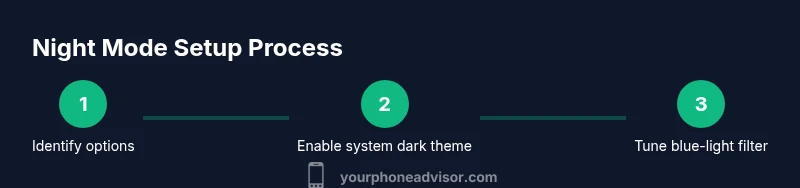
Identify available night mode options
Survey both system settings and any per-app options. Note whether you have a global Dark Theme, a blue-light filter, or color-temperature controls. This helps you choose a starting point and reduces trial-and-error later.
Tip: If unsure where to start, use a device search for 'dark theme' or 'night light' to locate the features quickly. - 2
Enable system dark theme on Android
Open Settings, go to Display, and select Dark Theme or Dark Mode. If available, enable a schedule to auto-activate at sunset or a custom time. Confirm visual consistency across home screen and supported apps.
Tip: Try enabling the Quick Settings toggle for a fast on/off test. - 3
Enable system dark theme on iPhone
Open Settings > Display & Brightness, choose Dark under Appearance, and optionally turn on Night Shift for a warmer tone. Schedule Night Shift to align with your evening routine.
Tip: Test both the system-wide theme and Night Shift in different lighting scenarios. - 4
Activate blue-light filter or color-temperature adjustments
If your device has a blue-light filter, enable it and set a comfortable warmth level. On iPhone, adjust Night Shift’s color temperature. Ensure the changes stay active during your typical night usage.
Tip: Keep warmth in a mid-range to avoid overly orange screens that hamper readability. - 5
Schedule night mode and automation
Set a sunset-to-sunrise or custom nightly schedule. Combine with Do Not Disturb if you want fewer interruptions while reading. Verify timing accuracy by testing at dusk.
Tip: Note any time zone shifts if you travel across zones. - 6
Fine-tune per-app displays
Check apps you use most and enable in-app dark modes where available. Adjust font sizes and contrast for readability. Some apps may require separate settings or an update to reflect theme changes.
Tip: Prioritize apps with high visual load, like reading apps or chat clients. - 7
Test, verify, and adjust
Test night mode in various lighting conditions: dim room, indoors, and outdoors at night. Confirm readability and color accuracy, and tweak brightness or warmth as needed.
Tip: Keep a short checklist: readability, consistency, and battery impact.
Got Questions?
What is night mode on a smartphone?
Night mode refers to a darker color scheme and often a blue-light filter that reduces glare and eye strain in low-light conditions.
Night mode uses a dark theme and blue-light filters to make screens easier on the eyes at night.
Does night mode save battery life?
Battery impact varies by display type. OLED screens can save power with darker UI, while LCDs show smaller gains.
Battery savings depend on the screen type; OLED may save more power when dark pixels are shown.
Can apps override system night mode?
Some apps implement their own themes or reader modes. Check per-app settings to ensure a consistent night view.
Some apps have their own dark mode; look for per-app theme options.
Will night mode affect color accuracy?
Warmer tones can slightly shift color perception. Test for tasks requiring precise color, like photo editing.
Warmer colors can change how you see images, so test color-sensitive tasks.
How do I schedule night mode automatically?
Use sunset-to-sunrise or a custom time in your OS’s display settings to automate night mode.
Set a schedule in display settings to automatically switch to night mode.
Is night mode better for sleep?
Reducing blue light in the evening can help your circadian rhythm, potentially improving sleep quality.
Less blue light in the evening can help you sleep better.
What if I travel across time zones?
Check that your scheduled night mode times align with local sunset/sunrise, not your home time.
Make sure schedules adjust to the local time when traveling.
Can I temporarily disable night mode?
Yes. You can toggle dark mode off manually if you need bright daylight viewing for a task.
You can turn it off quickly if you need more light for certain tasks.
Watch Video
What to Remember
- Enable system dark theme first for consistency
- Add a blue-light filter or warm color temperature
- Schedule night mode for automated use
- Check app-specific themes for best readability
- Test across lighting conditions and adjust