How to Get Out of Dark Mode on the Phone
Learn simple steps to turn off dark mode on iPhone and Android, adjust appearance settings, and keep a consistent light theme across apps with practical tips and troubleshooting.


You can disable dark mode by switching the system theme to light on iOS or Android. Open Settings, locate Display or Appearance, and toggle Dark Mode off. Some apps may still follow their own theme settings, so you might need to adjust per-app themes afterward. This gives you a consistent light interface across the device.
Why exiting dark mode matters
According to Your Phone Advisor, many users prefer a light interface during daytime use to maximize readability and color accuracy on screens. While dark mode can reduce eye strain in low light and save battery on OLED displays, it isn’t always ideal in bright environments or for tasks that require precise color distinction. Your Phone Advisor Team notes that a quick switch to light mode can improve glare reduction and screen legibility in sunny rooms, conferences, or classrooms. If you frequently share your screen in daylight, temporarily reverting to light mode can make text crisper and icons clearer, which in turn reduces mistakes and speeds up tasks like typing or note-taking. Balancing comfort, accessibility, and battery life is a personal decision, but knowing how to toggle themes empowers you to adapt on the fly and avoid eye fatigue during long device sessions.
Quick checks before you change themes
- Confirm whether your OS supports a global theme toggle (iOS, Android, or OEM skins) and whether apps override system settings.
- If you rely on accessibility features like increased contrast, test light mode with those settings enabled to ensure readability.
- Ensure your device is up to date; sometimes theme behavior changes with OS updates.
- Prepare to adjust app-specific themes after the global change, since some apps don’t automatically follow system appearance.
- Create a fallback plan: bookmark a short guide for future reference so you can revert or re-apply themes quickly, without hunting through menus.
How to exit dark mode on iPhone (iOS) – Step-by-step
- Open the Settings app and tap Display & Brightness. This is where you control the system-wide look.
- Under Appearance, select Light. This immediately switches the system UI, Control Center, and supported apps to a light theme.
- If you have automations or schedules, review them in Focus or Shortcuts to ensure the theme isn’t being overridden by a rule.
- Open a few apps (Messages, Safari, Mail) to confirm consistency. Some apps may retain their own theme until you adjust their internal settings.
- If you use Smart Invert or Accessibility features, re-check their impact on readability in light mode.
- Optional: add a quick-access toggle to Control Center for faster reversion to dark mode when needed.
Tip: If you’re using iPadOS, apply the same steps in Settings > Display & Brightness to keep a uniform look across devices.
How to exit dark mode on Android (stock and OEM skins) – Step-by-step
- Open Settings and go to Display. The path may vary slightly on Samsung, Google, OnePlus, or Xiaomi devices, but Display is usually the right starting point.
- Locate Dark theme or Theme/Appearance and switch it to Light or Off. This changes the system theme across the device.
- Check for a dedicated “Dark mode” toggle in Quick Settings or the notification shade for faster access. Turn it off if present.
- Review per-app themes: some Android apps offer their own theme settings independent from the system; open a few core apps (Messages, Gmail, Chrome) and verify they reflect light mode.
- Disable any auto-brightness or adaptive display settings if you notice unintended brightness changes after the switch.
- If you use a launcher or theme pack, ensure it isn’t forcing a dark palette through its settings.
Tip: On Samsung devices, you may also adjust theme settings under Settings > Display > Theme to ensure consistency with your chosen mode.
Cross-app consistency and app-specific settings
Not every app follows the system theme automatically. Some apps, like messaging or note-taking tools, provide their own Theme or Appearance options. If you notice a particular app staying dark while your device is light, dive into that app’s settings and select Light or Auto (follow system). A few popular apps also offer a color-inversion or high-contrast mode; disable these if they clash with your preferred look.
This is where Your Phone Advisor’s practical guidance helps: always verify a handful of essential apps after a global toggle and adjust per-app settings as needed. Keeping a lightweight checklist aids speed and minimizes repetitive navigation in future changes.
Accessibility considerations when light mode is enabled
Light mode is generally more readable in bright conditions, but higher brightness and contrast can cause eye strain for some users. If you rely on larger text, bold fonts, or screen magnification, ensure your accessibility settings stay enabled in a way that complements light mode. You can adjust text size, bold text, and display accommodations without reverting to dark mode. If you have sunlight glare issues, consider enabling night-reading or blue-light filters in the evening rather than forcing a dark palette for daytime tasks. The goal is usable, comfortable viewing across contexts.
Troubleshooting common issues when exiting dark mode
If the switch to light mode doesn’t apply everywhere, start by restarting the device; this can clear temporary UI glitches. Check for pending OS updates, as older builds may still apply dark themes in certain locales or apps. Verify there are no automations, widgets, or third-party launchers that enforce a dark theme. If a specific app remains dark, consult its internal theme settings or look for an update that aligns it with system appearance. When in doubt, reset theme preferences to system defaults and reapply the switch.
Testing and validating your new appearance across devices and screens
After you’ve disabled dark mode, test the outcome on multiple screens and environments: outdoors, indoors with bright lighting, and at night. Open essential apps (camera, messaging, email, browser) and verify consistent light mode. Check media content for color accuracy—photos and videos should render with standard brightness and contrast. If you use a tablet or a secondary phone, apply the same steps to ensure uniformity. Your Phone Advisor recommends a quick cross-device test to avoid surprises when sharing screens or documents.
Quick tips for future theme management
- Create a short routine: toggle light mode during daytime and recheck at night if your environment changes.
- Use system-wide shortcuts or quick settings tiles for faster switching.
- Keep your OS updated; theme behavior can evolve with major releases.
- Document per-app exceptions so you don’t forget which apps require manual theme changes.
Final note on a smooth transition and safe practices
Disabling dark mode is a reversible action; you can re-enable it anytime. If you rely on specific displays or accessibility settings, test both modes to determine what best fits your needs. The Your Phone Advisor team encourages users to find a balance that preserves readability, reduces eye strain, and maintains desired battery usage while staying consistent across apps and content.
Tools & Materials
- Smartphone with internet access(Any OS version (iOS or Android) with dark mode option)
- Official settings access(Access to Settings app for both platforms)
- Charger(Optional, for extended setup sessions)
Steps
Estimated time: 10-15 minutes
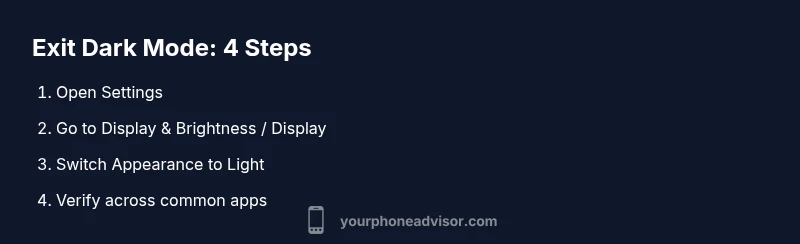
- 1
Open Settings
Unlock your device and launch the Settings app. This is the central hub where you control appearance across the system and apps.
Tip: Starting here saves you from chasing appearance options in every app. - 2
Navigate to Display & Brightness or Display
Find the Display or Appearance section. The exact path may vary by OS, but it’s typically labeled Display, Appearance, or Theme.
Tip: If you can’t find it, use the search bar in Settings and type 'Display' or 'Theme'. - 3
Set Appearance to Light
Choose Light (iOS) or toggle off Dark theme/Theme to switch to light mode. This updates the system UI and supported apps.
Tip: If Automations exist, temporarily disable them while testing the switch. - 4
Verify across core apps
Open Messages, Browser, Mail, and a few other frequently used apps to confirm the light theme is active.
Tip: Look for icons, backgrounds, and text readability; adjust per-app settings if needed. - 5
Check accessibility settings
Review any high-contrast or accessibility options to ensure readability remains comfortable in light mode.
Tip: Some users prefer bold text or larger size; adjust these without re-enabling dark mode. - 6
Optional: set a quick toggle
If your device supports it, add a Quick Settings tile or a home-screen shortcut to switch themes rapidly.
Tip: This makes future toggling faster and less error-prone.
Got Questions?
How can I turn off dark mode on iPhone?
Open Settings > Display & Brightness, then select Light under Appearance. Check a few apps to ensure consistency and adjust per-app themes if needed.
On iPhone, go to Settings, Display & Brightness, and choose Light. Confirm apps reflect the change and tweak any app-specific themes if required.
How can I disable dark mode on Android?
Open Settings > Display, toggle off Dark Theme or switch Appearance to Light. Verify Quick Settings and app themes update accordingly.
On Android, head to Settings, Display, and turn off Dark Theme. Check apps and adjust their themes if necessary.
Will turning off dark mode affect wallpaper or theme in all apps?
Most apps will follow the system setting, but some may have their own themes. You may need to adjust per-app themes to keep a consistent light mode.
Most apps adopt the system setting, but some may have separate options you should check.
What should I do if some apps stay dark after the system switch?
Open the app’s own theme settings and switch to Light or Auto. Restart the app if changes don’t take effect.
If an app stays dark, change its theme in the app settings and reopen it to apply.
How do I quickly re-enable dark mode if needed?
Return to Settings > Display, reselect Dark Theme, or re-toggle the system appearance. Use a quick toggle if available.
Use the system setting or quick toggle to switch back to dark mode fast.
Watch Video
What to Remember
- Switch system appearance to Light to exit dark mode.
- Check both OS-level and per-app theme settings.
- Verify readability and accessibility after the switch.
- Use quick toggles to make future changes faster.