How to Prepare Your Phone: A Complete 2026 Guide
Learn a thorough, step-by-step approach to prepare your phone for sale, transfer, or upgrade. Back up data, sign out of accounts, securely wipe information, and verify post-reset readiness with practical tips from Your Phone Advisor.


You'll learn how to prepare your phone for its next phase—whether you’re selling, gifting, or upgrading. You’ll back up data, sign out of accounts, safely wipe personal information, and verify your device’s security settings. Essential prep includes gathering tools, choosing the right reset method, and ensuring you can restore your data later.
Why Prepare Your Phone Matters
According to Your Phone Advisor, taking the time to properly prep a device protects privacy, preserves personal data you may need later, and ensures the handoff to a new owner is smooth. A well-prepared phone tends to fetch a higher resale value and reduces the risk of misused data. By following a clear, repeatable process, you minimize mistakes that could compromise security or leave sensitive media accessible. In addition, responsible preparation reduces electronic waste by encouraging proper recycling or reuse rather than careless disposal. The goal is to create a clean, usable state for the next user while keeping your own information safe and out of reach.
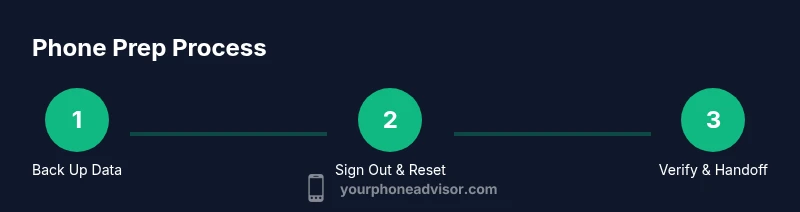
As you plan, remember that preparation isn’t a one-and-done task. It’s a sequence of focused steps—backup, sign-out, wipe, and verify—each with its own safeguards. The Your Phone Advisor team emphasizes that starting with a clear objective helps you choose the correct reset approach and identify which accessories to include or exclude. With the right mindset and checklist, you can complete prep confidently and efficiently.
Define Your Goal: Sell, Donate, or Reuse
Before you touch the device, define what you want to achieve. If you’re selling, you’ll want to maximize value by providing clean software, intact hardware, and documentation. If you’re donating, you may prioritize a broad compatibility and a minimal amount of personal data left behind. For reuse within your household or a family member, you might combine data migration with app handovers and a restored configuration. Your approach will influence the backup strategy, the level of data-cleansing, and the messaging you provide to the new owner. Your Phone Advisor notes that different goals can change how aggressively you wipe data or what you choose to include in the handoff package.
By clarifying intent up front, you reduce back-and-forth and speed up the process. This step also helps you set expectations for the device’s remaining lifetime, the required accessories, and any conditions you want to communicate about warranties or updates.
Gather Tools and Materials
Collect the essentials before you start. A clean, calm workspace makes the process easier and reduces the chance of missing steps. Gather the charger and USB cable, a SIM ejector tool, a soft microfiber cloth, and any case or screen protector you intend to reuse. Have access to your cloud backups and a computer or another device if you want to save backups locally. If you’re handling a newer device with eSIM, note that you may need to contact your carrier for activation transfer. Your setup plan should also include your account credentials for the backup services so you can verify data later. Finally, keep your device charged to at least 50% in case you need to complete steps that require power.
Pro tip: use the device’s original charger when possible to avoid charging inconsistencies during the backup process.
Step 1: Back Up Your Data
Back up everything you might need after the reset: contacts, messages, photos, videos, apps, and documents. Use multiple backups if you can—cloud backup for quick access and a local copy on a computer for redundancy. For Android, enable Google One or the manufacturer’s backup service; for iPhone, use iCloud or iTunes/Finder. Verify that the backup completed successfully by attempting a quick restore to a test device if available. If you value privacy, encrypt backups and store credentials securely.
Tip: Start with a cloud backup first, then create a local backup. This dual approach reduces the risk of losing unique data.
Step 2: Sign Out of Accounts and Remove Security Features
Sign out of all accounts linked to the device to prevent accidental data syncs or unlocks after transfer. Deactivate Find My iPhone/Find My Device and remove any enterprise or work profiles if present. Disable two-factor authentication prompts tied to the device and unpair Bluetooth accessories if they will be used by the next owner. This step protects your information and avoids surprises when the new user powers it on.
Pro tip: Before wiping, collect account recovery options in case you need to regain access later. Keeping a written record helps you avoid lockouts during the transition.
Step 3: Encrypt Backups and the Device
Ensure that your backups are encrypted. Most backup services offer a built-in encryption option; enable it if it isn’t already on. Some devices also allow you to encrypt the local storage. Encryption protects data at rest during and after the reset, making it costly and time-consuming for someone else to recover personal content. If you have sensitive media or documents, consider additional protection such as password-protecting files or moving sensitive items to a secure cloud folder with restricted access.
Note: Encryption is often automatic on modern devices, but you should verify that it is enabled as part of your backup and reset flow.
Step 4: Remove SIM/eSIM and De-link Carrier and Accounts
If the device uses a physical SIM card, remove it and store it in a safe place. For eSIM devices, deregister or transfer the eSIM profile to the next owner or to your new device, following your carrier’s instructions. This prevents the device from being tied to you and ensures a clean activation path for the next user. Maintain a record of the device’s IMEI/MEID for reference or warranty transfers, but do not share it publicly.
Pro tip: Photograph the SIM area and note carrier settings for future reference, especially if you plan to re-use the phone.
Step 5: Clean the Device Thoroughly
A physical clean enhances appeal and helps prevent corrosion on ports. Use a soft microfiber cloth to remove fingerprints, smudges, and dust. If needed, dampen the cloth slightly with water or a manufacturer-approved cleaner. Avoid harsh solvents, which can strip coatings or ruin seals. Pay attention to the screen, camera lenses, charging port, speaker grills, and buttons. Let the device dry completely before proceeding to the next step.
Warning: Do not spray liquids directly on the device. Excess moisture can seep into ports and damage internal components.
Step 6: Factory Reset — Soft vs Hard, and Why
Perform a factory reset to erase personal data and restore system settings. A soft reset preserves the OS configuration, while a hard factory reset returns the device to its original state. Your goal is to ensure no personal apps or accounts remain and that the device boots cleanly to the setup screen. On most devices, you can access reset options via the settings menu. After resetting, verify that the device displays the welcome/setup screen and no personal data appears.
Tip: If you can’t access the OS, consult the manufacturer’s recovery mode instructions to perform a hardware-based reset.
Step 7: Prepare Accessories, Documentation, and Handoff Materials
Collect all accessories you intend to include: charger, cable, original box, manuals, case, screen protector, and any activation documentation. Include notes about warranty, carrier status, or updates. Prepare a simple handoff sheet that lists the device’s model, color, storage, IMEI/MEID, and any limitations or repairs performed. Clear, organized packaging improves buyer trust and reduces confusion during transfer.
Pro tip: Photograph included accessories and the device in a well-lit setting to accompany the handoff materials.
Step 8: Verify Backups and Connectivity on a Test Device
Recheck that backups can be restored to a test device or a new owner’s device. Confirm that contacts, photos, messages, and app data appear as expected. If you’re transferring the device to a new owner, ensure that the device connects to Wi-Fi, registers with the new owner’s accounts, and completes initial setup steps. Check Bluetooth, camera, and basic apps for proper functionality. This step catches issues you might regret after the sale or handoff.
Note: If you don’t have a test device, use the backup preview feature in the cloud service to verify contents.
Step 9: Final Security Hygiene and Handoff Readiness
Do a final security sweep: reset passwords as needed, enable a fresh lock screen passcode or biometric, and confirm that Find My services are disabled on the old device. Prepare your post-reset notes for the new owner, including steps to activate the device, transfer ownership, and set up updated security features. Return the device to the setup screen only after you’ve confirmed the backup integrity and reset success. This last check minimizes returns and increases seller confidence.
Pro tip: Leave a brief, readable setup guide with the handoff materials so the new user can complete activation without guesswork.
Tools & Materials
- Phone charger and USB cable(Original charger recommended; ensure cable works)
- SIM ejector tool(For removing SIM if applicable)
- Soft microfiber cloth(Lint-free; used for screen cleaning)
- Screen cleaner (optional)(Isopropyl-based cleaner is preferred; avoid harsh chemicals)
- Protective case or pouch(Optional for protective handling)
- Stable internet connection(Needed for backups and transfers)
- Account credentials for backups(Needed to sign in and verify backups)
- New device or backup destination(Cloud or computer for backups)
- Portable storage drive (optional)(Extra local backup option)
Steps
Estimated time: 60-120 minutes
- 1
Back Up Your Data
Initiate cloud and local backups to capture contacts, photos, messages, and files. Verify the backups by checking a few file previews and restore tests on a secondary device.
Tip: Always start with a cloud backup, then add a local backup for redundancy. - 2
Sign Out of Accounts
Sign out of Google/Apple IDs and remove work or school profiles. Disable automatic syncing that could re-upload personal data after reset.
Tip: Keep recovery options documented in a secure place in case you need them later. - 3
Encrypt Backups and Device
Ensure backups are encrypted and that device storage is encrypted if the option exists. This protects data at rest during and after the transfer.
Tip: Check backup settings to confirm encryption is enabled. - 4
Remove SIM/eSIM and De-link Accounts
Physically remove SIM, deregister eSIM if possible, and unlink carrier details. This prevents post-transfer activation locks.
Tip: Photograph the SIM area for reference during transfer. - 5
Clean the Device
Wipe fingerprints, dust, and grime from the screen and ports using a soft cloth. Let the device dry completely before proceeding.
Tip: Avoid sprays directly on the device; use a damp cloth only when necessary. - 6
Factory Reset
Choose a reset method that matches your goal. A full factory reset clears data; ensure the device boots to the setup screen.
Tip: If the device won’t boot, use recovery mode instructions from the manufacturer. - 7
Prepare Accessories and Documentation
Bundle charger, cable, case, manuals, and a simple ownership sheet. Include warranty and activation notes where relevant.
Tip: Take a photo of included accessories to prevent disputes. - 8
Verify Backups and Connectivity
Confirm data is accessible on a test device and that the device connects to Wi-Fi and Bluetooth. Check key apps and media on the restored device.
Tip: If possible, perform a test restore before handing over. - 9
Final Security and Handoff Readiness
Do a final security sweep, reset passwords if needed, and provide a brief activation guide for the new owner.
Tip: Leave a short setup checklist to ensure a smooth start for the buyer.
Got Questions?
What should I back up before preparing my phone?
Back up contacts, messages, photos, videos, documents, and app data to cloud storage and a local drive. Verify the backups by a quick restore test if possible.
Back up your contacts, messages, photos, videos, documents, and app data to both cloud and a local drive, then verify backups by restoring a sample item.
Should I remove the SIM before selling?
Yes. Remove the SIM card and deregister any eSIM profiles. This prevents the device from being tied to your carrier and ensures a clean activation path for the next owner.
Yes, remove the SIM and deregister any eSIM so the new owner can activate the device easily.
Is encryption necessary after the reset?
Encryption helps protect data at rest; ensure backups and device storage are encrypted if the option exists. Modern devices typically handle this automatically.
Encryption is important; make sure both the device and the backups are encrypted.
What about Find My and device security after transfer?
Disable Find My iPhone/Find My Device and sign out of accounts. This reduces friction for the new owner and prevents activation issues.
Disable Find My services and sign out to avoid activation problems for the new owner.
How long does a factory reset typically take?
Factory resets usually take a few minutes but can vary by device and data size. Ensure the device completes the process and boots to the setup screen.
Most resets take a few minutes; wait for the device to boot to the setup screen afterward.
Watch Video
What to Remember
- Back up data before any wipe
- Sign out of accounts and disable Find My/Find My Device
- Choose the correct reset method for your goal
- Clean physically and verify backups
- Prepare accessories and clear handoff instructions