What to Do When You Reset Your Phone: A Practical Guide
A step-by-step approach to resetting your phone safely, backing up data, protecting privacy, and reconfiguring settings after a factory reset. Learn best practices from Your Phone Advisor for a smooth, secure reboot.


What happens when you reset your phone?
Resetting a phone is a powerful tool. It can fix performance issues, clear stubborn glitches, and restore a clean baseline. But if you haven’t prepared, a reset can also erase data and disrupt access to essential services. For many users, the question boils down to understanding the consequences and planning carefully. If you’re asking what to do when you reset your phone, the first rule is data protection: back up first, sign out of accounts, and note your important settings. In this section, we outline what a reset does to inside memory, apps, and personalization, and how to approach it so you land on a usable, secure device on the next boot. This topic touches on privacy, app reinstallation, and how the OS reestablishes its own startup state. While a reset can seem drastic, with the right preparation you’ll minimize downtime and preserve critical information. By aligning your steps with best practices from Your Phone Advisor, you’ll reduce surprises and make the transition smoother.
Prepare before you reset
Preparation is the foundation of a successful reset. Before you perform any reset, locate all critical data, verify your account credentials, and ensure your phone is charged. This step-by-step approach ensures you don’t lose personal information or access to critical services.
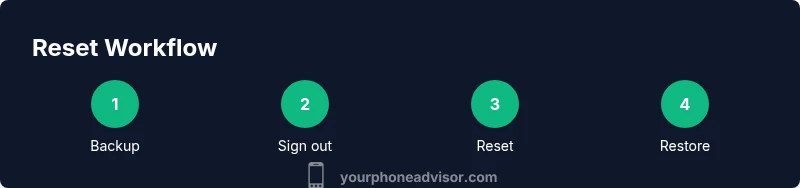
First, identify what matters most: contacts, photos, messages, and app data that aren’t stored in cloud backups. Second, confirm you have an active backup: iCloud/Google Drive backups, or local backups to a computer or external drive. Third, sign out of your accounts to prevent automatic re-downloads or device activation issues after the reset. Fourth, make a loose plan for reinstalling essential apps and restoring settings. Finally, review any carrier-specific settings that may need reconfiguration after the reset. In short, a careful pre-reset plan saves time and reduces friction after boot.
Choosing the right reset type
There are several reset options, and selecting the right one matters. A soft reset restarts the device and clears temporary glitches without touching user data. A network settings reset reverts Wi‑Fi, Bluetooth, and cellular configurations, which can resolve connectivity issues without wiping apps. A factory reset removes all data, apps, and personalized settings, returning the device to its original state. When deciding which reset to perform, start with a soft reset to test if the problem persists. If issues remain, progressively move to a network reset and finally to a factory reset only after ensuring you have a verified backup. Your choice should align with your goal—whether it’s speeding up a sluggish device or fixing persistent software problems—so you don’t lose more than necessary.
Back up your data securely
A secure backup is your safety net. Use cloud backups for automatic, near-continuous protection, and consider a local backup for added redundancy. Cloud backups are convenient but require an account and sufficient storage; local backups offer physical control and can be encrypted for security. Ensure that photos, contacts, calendars, app data, and messages are included in the backup scope. For sensitive information, enable device encryption and set a strong screen lock. If you use a multi-device ecosystem, such as Android with Google services or iPhone with iCloud, make sure the backup process captures the right data from all linked devices. After backing up, verify critical items by performing a quick restore test on a spare device or a simulator to confirm you can recover essential information after the reset.
Sign out and unlink accounts
To maximize privacy and prevent automatic data restoration after the reset, sign out of all accounts and unlink devices from services like Find My iPhone/Find My Device, cloud accounts, and third‑party security apps. On iOS, go to Settings > [your name] and sign out; on Android, go to Settings > Accounts to remove accounts. Disable two‑factor authentication prompts tied to the device, and revoke device access in any linked services. If you use password managers, ensure you have access to your vault credentials after the reset. This step reduces the risk of unauthorized access and ensures a clean slate on first boot.
What to expect after the reset
After the reset, your device will boot to a fresh state. Expect guided setup screens, including network configuration, account sign‑in, and privacy prompts. Reinstall essential apps, reconfigure security settings, and restore data from your backup as needed. Depending on your backup strategy, you might need to re‑authorize apps or re‑download large media libraries. If you run into issues, check for OS updates, which can address security flaws or compatibility problems that appear after a reset. Finally, re-enable security features such as biometric unlocks and screen‑lock timers to protect your restored device.
Quick troubleshooting after reset
If you encounter issues after a reset, tackle them in a systematic way. First, verify network connectivity and ensure the device is up to date with the latest OS version. If apps fail to install, sign in with the correct account credentials and clear space on the device. For persistent glitches, consider a second, targeted reset (for example, a network settings reset) before performing a full factory reset. If problems persist, consult your carrier or device manufacturer support, preferably through official channels. Regular maintenance, such as app updates and security scans, will help prevent future resets from becoming a recurring fix.
Data privacy and security considerations
Resetting a device can eliminate software clutter, but it also raises privacy questions. Ensure all sensitive data is securely backed up and that backups themselves are encrypted. After the reset, review app permissions and minimize data exposure by limiting location sharing, microphone access, and contact access for apps you reinstall. From a security standpoint, re‑enable device encryption, use a strong passcode, and enable biometric authentication. Regularly review connected devices and revoke access for apps or services you no longer use. Your Phone Advisor recommends maintaining a proactive privacy posture before and after any reset to reduce risk.
Final checklist and best practices
- Back up all critical data and verify backups before starting.
- Choose the reset type that matches your goal; start with a soft reset.
- Sign out of accounts and unlink devices to protect privacy.
- Test essential functions after boot, then gradually restore apps and data.
- Keep the device updated and enable robust security settings.
- Document any settings you change so you can replicate them later.
- If problems recur, seek official support rather than relying on unverified fixes.