How to Phone Without a SIM Card: A Practical Guide
Learn how to call without a physical SIM using Wi‑Fi calling, VoIP apps, or an eSIM. This detailed guide covers setup, caveats, tips, and safety considerations to keep you connected on any network.


You can phone without a physical SIM by using Wi‑Fi calling, VoIP apps, or an eSIM. If your phone supports it, turn on Wi‑Fi calling and emergency calling features; otherwise use apps like WhatsApp, Skype, or Google Duo over a data connection. According to Your Phone Advisor, these methods let you stay reachable even when you’re off-network.
Understanding SIM-free calling options
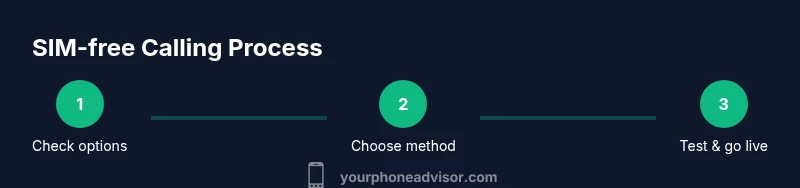
When a phone is used without a traditional SIM card, you still have several routes to place calls and send messages. The most common are Wi‑Fi calling (also known as VoWiFi), VoIP apps, and eSIM profiles. Your Phone Advisor team notes that these options rely on data connections or embedded profiles rather than a physical card. The right choice depends on your device, carrier support, and the type of communication you need (voice, video, or messaging). For travelers or during outages, a Wi‑Fi‑only approach can be a practical fallback when roaming or when a SIM isn’t available. The core idea is simple: stay connected where you have data, not just where you have a SIM. In this guide, we’ll walk through each method, provide setup steps, and flag common pitfalls to help you remain reachable.
Wi‑Fi calling basics
Wi‑Fi calling turns your internet connection into a path for regular voice calls. It can be a seamless substitute when cellular service is weak or absent, provided your device and carrier support it. To use Wi‑Fi calling, you typically enable the feature in Settings and ensure a stable network. Some carriers require you to verify a billing method or emergency address. On many devices, you’ll see a Wi‑Fi calling toggle under Network & Internet or Carrier settings. Be aware that some emergency services routing may differ when you rely on Wi‑Fi calling, and not all regions support it equally. If Wi‑Fi calling isn’t available, you can still rely on internet-based calls when you have data.
VoIP apps: choosing the right method
VoIP apps offer flexible options for SIM-free calling, especially when you already have contact lists on your phone. Apps like WhatsApp, Skype, or Google Duo work over data or public Wi‑Fi and can provide both voice and video calling. The trade-off is that both parties need to have the app installed and be reachable on the same platform for best experience. When you choose a VoIP app, consider factors like call quality, data usage, contact integration, and accessibility features. If you frequently travel or have inconsistent cellular service, having one or two reliable apps installed can keep you connected even without a physical SIM. Always grant the app microphone and contacts permissions for smooth operation.
Using an eSIM: future-ready SIM-free calling
An eSIM is a built-in programmable SIM that can host a carrier profile without a physical card. If your device supports eSIM and your carrier offers an eSIM plan, you can activate a number without inserting a physical SIM. This is especially useful for travelers, temporary stays, or devices kept as backups. Activation steps vary by device but typically involve scanning a QR code or entering an activation code in Settings. Note that eSIM availability depends on your region and carrier, so confirm compatibility before planning around it.
Data considerations and network reliability
SIM-free calling hinges on data connectivity. A stable Wi‑Fi network is ideal for VoWiFi or VoIP calls, while cellular data can work in a pinch if you’re not within Wi‑Fi reach. Monitor your data usage if you rely on mobile data for VoIP, especially for long calls or video. If you’re in a crowded area with poor signal, a strong Wi‑Fi network can dramatically improve call quality. Security-wise, use trusted networks and keep devices up to date to mitigate eavesdropping risks on public networks. Remember that video calls consume more bandwidth than voice calls, so adjust expectations accordingly.
Privacy, security, and permissions
SIM-free options expose you to the same privacy and security questions as any online communication. Use encrypted apps, enable screen lock, and review app permissions regularly. Be mindful of social engineering risks when using VoIP apps—scammers may impersonate trusted contacts. Your Phone Advisor recommends enabling two-factor authentication on accounts that back your calling apps and keeping your device updated with the latest security patches.
Testing and troubleshooting SIM-free calling
After enabling the chosen method, perform a quick test with a trusted contact to verify audio quality, latency, and reliability. If calls drop, check network strength, restart apps, and ensure the correct default calling method is selected in settings. If you rely on Wi‑Fi calling and it doesn’t work, toggle the feature off and on, rejoin the network, or try a different network. For VoIP, confirm that the app has the necessary permissions and that your contact is reachable on the platform. If you’re using an eSIM, verify the activation status in Settings and confirm the data plan is active.
Travel considerations and outages
On the move, SIM-free calling remains viable as long as you have data access. When traveling, many travelers use a combination of eSIM for a local plan and VoIP apps to stay connected with home contacts. In outages or regions with limited cellular coverage, Wi‑Fi networks often provide the most reliable alternative. Always have at least one back-up method ready, such as a trusted VoIP app, to minimize interruptions.
Accessibility and privacy implications
Consider accessibility needs when choosing a SIM-free solution. Some VoIP apps offer real-time transcription or closed captioning for calls, which can be helpful in noisy environments or for users with hearing difficulties. Privacy considerations include the location data shared by apps and the potential for metadata collection. Use privacy-safe settings, review app permissions, and stay informed about the security practices of the tools you rely on.
Tools & Materials
- Smartphone with Wi‑Fi calling support(Check device model and carrier compatibility; some regions require carrier configuration.)
- Stable Wi‑Fi or mobile data connection(A reliable network improves call quality and reduces dropouts.)
- VoIP apps installed (e.g., WhatsApp, Skype, Google Meet)(Install one or more apps your contacts use; ensure permissions are granted.)
- eSIM-capable device (optional)(Useful if you want a dedicated number without a physical SIM.)
- Second device for backup (optional)(Useful to receive calls or test cross-device performance.)
Steps
Estimated time: 30-45 minutes
- 1
Check device compatibility
Open Settings and search for Wi‑Fi Calling or VoWiFi. Confirm that the toggle exists and that your carrier supports it. If absent, contact your carrier or check their official support pages for compatibility notes.
Tip: If Wi‑Fi Calling isn’t listed, you can still rely on VoIP apps over data. - 2
Connect to a reliable network
Join a stable Wi‑Fi network or ensure you have a strong mobile data signal. Quality depends as much on network stability as on device capability.
Tip: Prefer a private, password-protected network for better security. - 3
Enable Wi‑Fi Calling and emergency options
In Settings, toggle Wi‑Fi Calling on and, if available, enable emergency calling routing. Some regions require additional confirmations within the carrier app or account portal.
Tip: Test an emergency call in a safe environment to understand routing behavior. - 4
Choose your primary SIM-free method
Decide between Wi‑Fi Calling, a VoIP app, or an eSIM profile as your main path. Each has different contact requirements and data needs.
Tip: If you switch methods, inform frequent contacts of the preferred channel. - 5
Set up a VoIP app (optional but handy)
Install and register a VoIP app, grant mic/camera permissions, and sync your contacts if desired. Create a test call with a trusted contact to verify audio and latency.
Tip: Keep apps updated to ensure compatibility with your OS. - 6
Configure an eSIM (optional)
If you choose an eSIM, activate the plan in Settings by scanning a QR code or entering details from your carrier. Ensure the data plan is active before relying on it for calls.
Tip: Only activate one primary eSIM to avoid routing confusion. - 7
Test your SIM-free setup
Call a friend or use a VoIP contact to assess audio quality, latency, and stability across networks. Adjust settings if you notice buffering or dropouts.
Tip: Document any persistent issues and consult carrier or app support if needed.
Got Questions?
Can I make calls without a SIM card?
Yes, you can use Wi‑Fi calling, VoIP apps, or an eSIM to place calls when you don’t have a physical SIM. The exact method depends on your device and carrier.
Yes. You can call without a SIM using internet-based options like Wi‑Fi calling or VoIP apps.
Will emergency calls work without a SIM?
Emergency call behavior without a SIM varies by country and device. Some regions allow it, but it isn’t guaranteed. Check local regulations and test with your carrier.
Emergency calls without a SIM aren’t guaranteed; verify with your carrier and local rules.
Which apps are best for SIM-free calling?
WhatsApp, Skype, and Google Meet are popular options. Choose one that your contacts use and that fits your communication needs.
Apps like WhatsApp or Skype are reliable for SIM-free calls when you have data.
Does Wi‑Fi calling work everywhere?
Wi‑Fi calling availability depends on your device, carrier, and location. Some regions support it fully, others have limited or no support.
Wi‑Fi calling availability varies by carrier and country.
Can I use an eSIM without a physical SIM?
Yes, if your device supports eSIM and your carrier offers an eSIM plan. It lets you have a number without a physical card.
Yes, eSIM lets you keep a number without a physical SIM if supported.
How do I test a SIM-free setup?
Test by placing a call via Wi‑Fi or a VoIP app to a trusted contact and verify audio quality and reliability.
Test with a friend to confirm audio quality.
Watch Video
What to Remember
- Identify the SIM-free option that fits your device and region.
- Enable and test Wi‑Fi Calling or set up a trusted VoIP app.
- Consider an eSIM for continuous service without a physical card.
- Verify call quality and privacy on each method you enable.