How to Call Without a SIM: A Practical Guide
Discover practical steps to call without a SIM using Wi‑Fi calling, eSIM, and VoIP. Learn setup, limits, and troubleshooting for iPhone and Android.


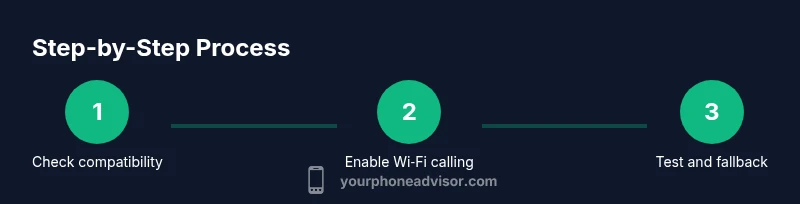
This guide shows you how to call without a SIM using Wi‑Fi calling, eSIM, or VoIP apps. You’ll enable features on your device, pick a method based on your carrier, and test a call. Key steps: check device compatibility, activate service, and confirm emergency services work if available. This applies to both iPhones and Android phones with modern OS versions.
What does it mean to call without a SIM?
Calling without a physical SIM relies on alternative technologies that separate the device from a traditional SIM card. The most common methods are Wi‑Fi calling, which uses your internet connection; eSIM, a digital SIM embedded in the device; and VoIP apps, which route calls over data networks. According to Your Phone Advisor, many modern smartphones support these options, enabling calls where cellular signal is weak or absent. The Your Phone Advisor team found that availability depends on your device model, OS version, and carrier, so always verify compatibility with your plan before you start.
Key methods to call without a SIM
- Wi‑Fi calling: Uses your internet connection to place and receive calls through your carrier's network. It can be a seamless experience if you have a reliable Wi‑Fi connection, but performance varies by router, network congestion, and carrier support. Not all regions offer Wi‑Fi calling, and emergency services flow may differ.
- eSIM: A digital SIM stored in your device, allowing you to switch between lines without a physical card. This is ideal for travel or replacing a damaged SIM. Activation requires carrier support and sometimes a QR code or carrier app.
- VoIP apps: Apps like WhatsApp, Skype, or Google Voice can make voice and video calls over the internet. They require an active internet connection and may incur data usage charges, but they work on devices without relying on network-grade calling.
Wi‑Fi calling: What it is and when it works
Wi‑Fi calling extends your phone's network by routing calls through a Wi‑Fi connection rather than the cellular network. It often supports text messages and voicemail, and many carriers offer extended call features. It’s especially useful in buildings with poor cellular reception but strong Wi‑Fi, or when traveling internationally where roaming charges apply. However, coverage, call quality, and emergency-service routing can differ by country, carrier, and device. Always confirm that your plan includes Wi‑Fi calling and whether it’s enabled by default.
Setting up Wi‑Fi calling on iPhone
To enable Wi‑Fi calling on iPhone, open Settings, select Phone, then tap Wi‑Fi Calling and enable the feature. If prompted, enter your emergency address for E911. Return to Settings and verify that your cellular data is active for calls. Perform a quick test call from a location with solid Wi‑Fi to confirm seamless dialing, then repeat in a space with mixed signal to understand performance.
Setting up Wi‑Fi calling on Android
Android devices vary by manufacturer, but the typical path is Settings > Network & internet > Wi‑Fi calling or Calls > Wi‑Fi calling. Turn the feature on and follow any on-screen prompts to verify your emergency address where required. If the option isn’t visible, check with your carrier to ensure your plan supports it and that your OS is up to date. After enabling, make a test call over Wi‑Fi to gauge audio quality.
Using an eSIM to call without a SIM
An eSIM lets you activate a second line or replace a physical SIM entirely without swapping cards. Start by confirming your device and carrier support for eSIM. Then, either scan the QR code provided by your carrier or install the eSIM profile via the carrier app. Once activated, set the eSIM as your default line for voice calls if you want calls to route through the digital profile. Test a call to ensure the eSIM is properly registered.
Setting up and using VoIP apps as a fallback
If Wi‑Fi calling or eSIM isn’t available, VoIP apps offer a reliable fallback. Install a preferred app (WhatsApp, Skype, Google Voice) and grant necessary permissions (microphone, contacts, background data). Sign in, verify your contact number, and place a test call over a stable internet connection. Be mindful of data usage and consider enabling low‑data modes if you are on a capped plan.
Emergency services and regional caveats
Emergency call handling varies by country, carrier, and technology. Wi‑Fi calling can route to local emergency services in some regions, but not universally. If you rely on these features in an unfamiliar area, verify service availability before traveling and keep a traditional cellular fallback as a backup. Always register your emergency address if your carrier requires it.
Testing and verifying your setup
Test under multiple scenarios: strong Wi‑Fi in your home, mixed networks in a cafe, and roaming if applicable. Confirm audio quality, call stability, and that VoIP apps switch gracefully if Wi‑Fi fails. If you notice frequent drops, try a different network, restart the device, or disable power-saving modes that might throttle background data.
Troubleshooting common issues
If calls don’t route as expected, first check that the feature is enabled and that you’re using the correct SIM or eSIM profile. Reboot, re‑enable the feature, or re‑install the eSIM. Ensure you have a stable internet connection and that the app permissions are granted. When in doubt, contact your carrier support for configuration help.
Security and privacy considerations
Using Wi‑Fi calling or VoIP introduces data usage and potential exposure to network-based threats. Always use trusted Wi‑Fi networks, enable device encryption, and keep apps up to date. For extra privacy during calls, consider using end‑to‑end encrypted VoIP apps and review app permissions regularly.
Quick-start checklist for most devices
- Verify device and OS support for Wi‑Fi calling or eSIM.
- Enable Wi‑Fi calling on both iPhone and Android where available.
- If using eSIM, activate the profile and set a default line.
- Install and configure a VoIP app as a backup option.
- Test calls in different environments and keep a backup plan ready.
Tools & Materials
- Smartphone with Wi-Fi calling support(Check device model and OS version compatibility.)
- Active carrier plan that supports Wi-Fi calling or eSIM(Enable feature via carrier app or account portal.)
- eSIM-capable device or eSIM profile(If using eSIM, you may need a QR code.)
- QR code or carrier app for eSIM activation(From your mobile operator.)
- Stable Wi‑Fi network(To ensure call quality for Wi‑Fi calling or VoIP.)
- VoIP app (optional)(Useful backup (e.g., WhatsApp, Skype).)
- Account credentials for carrier/wifi app(Needed to enable settings in some carriers.)
Steps
Estimated time: 30-60 minutes
- 1
Check compatibility
Verify that your device supports Wi‑Fi calling and/or eSIM, and confirm your carrier offers these features in your region. This initial check prevents fruitless setup attempts and helps you plan the right method.
Tip: Look up your exact model and OS version in Settings > About phone. - 2
Update your device
Install the latest OS and security updates to ensure the latest calling features are available and functioning correctly. Updates can improve call stability and app compatibility.
Tip: Back up important data before major OS updates. - 3
Enable Wi‑Fi calling on your device
Turn on Wi‑Fi calling in your phone’s settings and follow any on-screen prompts to confirm emergency services routing. If you’re using iPhone, this is typically Settings > Phone > Wi‑Fi Calling. For Android, path varies by manufacturer.
Tip: Test a call from a location with reliable Wi‑Fi after enabling. - 4
Add or switch to an eSIM
If you’re using eSIM, add the eSIM profile via QR code or carrier app, then set it as the default voice line if desired. Ensure the new line is active and ready for calls.
Tip: Keep a backup SIM or paper copy of activation details in case of issues. - 5
Test a Wi‑Fi call
Place a test call over a stable Wi‑Fi network and verify audio quality, call reliability, and connectivity with a trusted contact.
Tip: Move between rooms to test signal stability and voice clarity. - 6
Configure VoIP as a fallback
Install a VoIP app, sign in, and complete any required verification. Make a test call to ensure you have a reliable backup in case Wi‑Fi calling is unavailable.
Tip: Enable background data and notifications for quick call access. - 7
Verify emergency services and roaming behavior
Understand how emergency calls are routed in your region and during roaming. If needed, register an emergency address and confirm roaming coverage with your carrier.
Tip: Keep a traditional cellular fallback in mind for critical moments.
Got Questions?
What does it mean to call without a SIM?
Calling without a SIM means placing calls using alternatives like Wi‑Fi calling, an eSIM, or VoIP apps rather than a physical SIM card. Availability depends on device, OS, and carrier. Some regions may have limited support.
No-SIM calling means using Wi‑Fi, eSIM, or VoIP instead of a physical SIM. Availability varies by device, OS, and region.
Will emergency calls work when using Wi‑Fi calling?
Emergency call routing via Wi‑Fi calling depends on location and carrier. In some places, it’s supported with an emergency address; in others, it may not be available. Always verify before traveling and have a fallback method.
Emergency routing can vary by country and carrier. Check local support and register an emergency address where required.
Is Wi‑Fi calling available on all phones?
No. Availability depends on the device model, OS version, and carrier. Some older devices or regions may lack support for Wi‑Fi calling or eSIM.
Not every phone supports Wi‑Fi calling; check your model and carrier.
Do I need an internet connection for VoIP calls?
Yes. VoIP calls require an active internet connection, either through Wi‑Fi or mobile data. Without internet, VoIP calls cannot be placed.
VoIP calls need data or Wi‑Fi; without internet they won’t work.
How do I set up an eSIM?
You need a carrier that supports eSIM and an activation method (QR code or carrier app). Follow your provider’s instructions to add the eSIM and select a default line if desired.
Setting up an eSIM depends on your carrier; use the QR code or their app.
What should I do if Wi‑Fi calling drops?
Switch to a more stable network, toggle Wi‑Fi calling off and on, or switch to a VoIP app as a backup. Ensure your device and apps are up to date and avoid power-saving modes that block background data.
If it drops, reconnect to a stable network and consider a backup option.
Watch Video
What to Remember
- Verify device and OS compatibility before setup.
- Choose the best method (Wi‑Fi calling, eSIM, or VoIP) based on context.
- Test in multiple environments to gauge reliability.
- Understand regional emergency service behavior and roaming limits.
- Keep software updated to maintain feature support.