Can You Transfer an eSIM to Another Phone? A Practical Guide
Learn how to transfer an eSIM to a new phone with step-by-step guidance for Android and iPhone, plus troubleshooting, carrier tips, and safety considerations.


Yes. You can transfer an eSIM to a new phone, but the exact steps depend on your device and carrier. Most transfers use your old phone’s settings or the carrier app, then you activate the eSIM on the new device and test service. The process varies by platform (iPhone vs Android) and may require a QR code or carrier login.
What is an eSIM and why transfer might be needed
An eSIM is a digital SIM embedded in your device, letting you activate a cellular plan without swapping physical SIM cards. It’s increasingly common on modern phones, tablets, and some laptops. If you upgrade to a new phone, switch carriers, or travel abroad, you’ll often need to transfer the eSIM so you can keep the same number and service. The question can you transfer esim to another phone? According to Your Phone Advisor, the answer is usually yes, but it depends on your device model and carrier policy. Some carriers require you to deactivate the eSIM on the old phone before activation on the new one, while others support seamless device-to-device transfers. In this block we’ll lay out the general approach, highlight device-specific quirks, and point to carrier instructions that may apply to your plan.
Before you start: check device compatibility and carrier policy
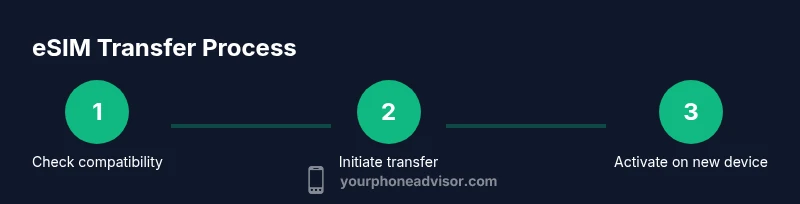
Before attempting a transfer, verify that both the old and new devices support eSIM and are running a compatible operating system. iPhones from iOS 12.1+ and many Android devices support eSIM, but transfer paths vary by brand and carrier. Check your carrier’s policy on eSIM transfers—some carriers restrict transfers to devices on the same account, or require you to use their app or customer portal. You’ll also want to confirm that you have a stable internet connection and access to your carrier credentials or activation details. Based on Your Phone Advisor research, carriers differ in activation steps and potential fees, so reviewing the policy in advance saves time and avoids service interruptions during the switch.
Carrier policy and device compatibility you should review
Different carriers enforce different rules for eSIM transfers. Some let you initiate the transfer directly in the phone’s settings, while others require you to use the carrier’s app or a customer service representative. Confirm you’re signed into the carrier account associated with the line, and check whether you’ll need a new activation QR code or a transfer PIN. Also verify that the new device model is eSIM capable and supports the same cellular bands as your plan. If you’re moving to a new carrier, you’ll usually need to start a fresh activation on the new network. Being proactive about these checks reduces delays and ensures a smooth transition.
Android transfer process: step-by-step overview
Android devices vary by manufacturer, but the general flow is similar. First, ensure both phones are updated to the latest OS and carrier settings. On the old device, open Settings > Network & internet > Mobile network > eSIM, then look for a Transfer option or a carrier app entry that says Transfer eSIM. Follow the on-screen prompts to initiate the transfer, and complete the process on the new phone by accepting the transfer or scanning a QR code provided by the carrier. If the new phone asks for a confirmation code or carrier sign-in, do so and wait for activation. This can take a few minutes. Tip: keep both devices near each other and connected to Wi-Fi or data during the transfer.
iPhone transfer process: step-by-step overview
iPhone users typically transfer the eSIM during the initial setup or through Settings > Cellular > Add Cellular Plan on the new device. If both devices run iOS 13+ and are associated with the same Apple ID, you may see a Transfer from Nearby Devices option. On the old iPhone, go to Settings > Cellular > Transfer Your eSIM, then follow prompts on the new iPhone to complete activation. You may be asked to authenticate with Face ID or your device passcode and confirm the carrier’s terms. Activation can take a few minutes. If you don’t see transfer prompts, contact your carrier to issue a QR code or provide activation details.
What to do if transfer isn't supported by your carrier
If your carrier does not support eSIM transfers between devices, you’ll need to deactivate the eSIM on the old phone and manually activate it on the new device. Obtain the activation QR code from the carrier portal or customer support, then add the eSIM on the new device via Settings > Cellular > Add Cellular Plan (iPhone) or Settings > Network & internet > Mobile plan (Android). In some cases, you may need to visit a store or call a support line to complete the activation. Always confirm the deactivation has completed on the old device to avoid service overlap or charges.
How to manually activate eSIM on new device
When you have the activation QR code or the activation details, open the new device’s settings and scan/enter the code. For iPhone: Settings > Cellular > Add Cellular Plan, then scan the QR code and follow prompts. For Android: Settings > Network & internet > Mobile network > Add eSIM, then enter activation details or scan. After activation, restart the phone if prompted and run a quick test by placing a call or using cellular data. If you need a new QR code, contact your carrier and request a fresh activation. Pro tip: keep the old SIM/phone ready in case you need a fallback during activation.
Special cases: eSIM on multi-device plans, eSIM to eSIM, eSIM to physical SIM
Some carriers support multi-device eSIM plans so you can share the same line across devices; others require separate activation for each device. If moving from a physical SIM to eSIM, you’ll generally deactivate the SIM and activate the eSIM on the new phone. If moving from one eSIM profile to another, ensure the source device is no longer actively connected to the network to prevent duplicate charges. In all cases, capture the old eSIM details, including the activation code and the carrier’s terms, before starting the transfer.
Troubleshooting common transfer issues
If the new phone shows No Service after transfer, double-check that the eSIM is activated on the correct line and that you selected the right plan. Ensure the device software is up to date and that the carrier settings are installed. If there is an activation error code, search the carrier’s support portal or call customer service; many carriers provide error codes and their meanings. If you’re transferring to a new carrier, you may need a temporary roaming or data plan while the activation completes. These steps should resolve most problems without losing service. For official guidance, consult FCC resources and carrier support pages: https://fcc.gov, https://support.apple.com, and https://support.google.com.
Security and privacy considerations after transferring
After you transfer the eSIM, review device security: enable a strong passcode, two-factor authentication for your carrier account, and disable any remote access on the old device. If you plan to sell or give away the old phone, erase personal data and reset network settings; remove the eSIM from the old device to prevent unauthorized use. Keep a record of the activation details in a secure location in case you need to reactivate the line on a different device. This helps protect your number and privacy.
Post-transfer checklist
- Verify voice, SMS, and data on the new device.
- Confirm the old device no longer has active service and that the line is fully migrated.
- Update any saved Wi-Fi or carrier APN settings if needed.
- Backup the new device and note activation details.
- If something isn’t working, contact your carrier for support.
Tools & Materials
- Phone with eSIM support on old device(Ensure it’s currently active on the line you’re transferring.)
- New phone with eSIM capability(Should be set up and ready to receive an activation.)
- Stable internet connection(Wi‑Fi is recommended to avoid data interruptions.)
- Carrier account credentials or activation QR code(Needed to authorize the transfer or to activate the eSIM on the new device.)
- PIN/Passcode for both devices(Required to authorize changes to eSIM settings.)
Steps
Estimated time: 40-60 minutes
- 1
Verify device compatibility and policy
Confirm both devices support eSIM and that your carrier allows transfers between devices. Check OS versions and ensure you have the activation details or QR code ready.
Tip: If in doubt, call carrier support before starting to avoid delays. - 2
Update software and carrier settings
Update both devices to the latest OS version and install any carrier settings updates to ensure the transfer path is supported.
Tip: Stable internet helps avoid incomplete activations. - 3
Backup important data
Back up essential data on both devices in case you need to restore settings after activation.
Tip: Backups prevent data loss if the transfer takes longer than expected. - 4
Prepare the old device for transfer
Open the eSIM transfer option on the old phone and generate a transfer request or prepare the QR code.
Tip: Keep the old phone near the new one during setup. - 5
Set up the new device for receiving the eSIM
Power on the new phone, begin setup, and choose the option to transfer or add cellular plan.
Tip: Connect to Wi-Fi and sign into the carrier app if prompted. - 6
Complete the transfer on the new device
Accept the transfer on the new device or scan the QR code when prompted and follow on-screen instructions.
Tip: If prompted for a code, enter the one shown on the old device screen or in the carrier portal. - 7
Verify activation and test service
Test calls, SMS, and data to ensure the eSIM is active on the new device.
Tip: If there’s no service, redo the activation steps or contact your carrier. - 8
Deactivate the eSIM on the old device if needed
Remove or deactivate the eSIM on the old phone to avoid duplicate charges or conflicts.
Tip: Only deactivate after confirming the new device is fully functional. - 9
Secure and preserve activation details
Store activation codes, QR codes, and carrier notes in a secure location.
Tip: Document the transfer in case you need to reactivate later.
Got Questions?
Can I transfer an eSIM to a different carrier?
In many cases you can move an eSIM to a different carrier, but you may need to deactivate the eSIM on the old device and reactivate with the new carrier using a QR code or activation details. Some carriers restrict transfers or require a visit to support. Always confirm before starting.
You can usually transfer to a new carrier, but check with your provider first to avoid service gaps.
Do I need a QR code to transfer my eSIM?
Some transfers use a QR code, especially when activating on a new device. Others work via carrier apps or device-to-device transfer. If you don’t have a QR code, contact the carrier for a fresh activation.
Often, you’ll need a QR code or activation details from your carrier.
Will I lose my phone number when transferring eSIM?
Usually not. The number stays with the line, but you’ll need to complete activation on the new device and ensure the old device is deactivated to avoid duplicate charges.
No, your number stays with the line; just activate on the new device.
What if my old phone is broken and can't transfer?
If the old device is broken, contact the carrier to move the eSIM activation to the new phone; you may be able to activate via QR code or carrier portal using your account.
If your old phone is broken, call your carrier for guidance.
How long does transfer take?
Most transfers complete within a few minutes to an hour, but some carriers may take longer; plan for interruptions if you’re traveling.
Transfers typically finish in minutes, but some delays can occur.
Is eSIM transfer different on Android vs iPhone?
Yes. Android transfers use the device's settings or carrier app; iPhone often uses Settings > Cellular > Transfer or Add Cellular Plan, with prompts to complete.
The steps differ: Android uses settings and apps; iPhone uses Cellular settings.
Watch Video
What to Remember
- Understand that eSIM transfer is usually possible with carrier support.
- Android and iPhone have different transfer paths—follow device-specific prompts.
- If transfers fail, request a QR code or activation details from the carrier.
- Deactivate the old eSIM after activation to avoid overlaps.
- Test voice and data on the new device before retiring the old one.