How to Check If Your Phone Is eSIM Compatible
Learn step-by-step how to check if your phone supports eSIM, with practical checks for iPhone and Android, carrier notes, and troubleshooting tips to avoid common pitfalls.


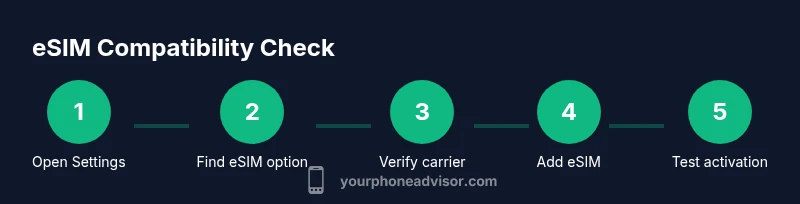
To determine if your phone supports eSIM, start by inspecting settings for a Cellular/Network option, confirm your device model and OS version, and verify with your carrier. On iPhone, open Settings > Cellular > Add Cellular Plan; on Android, Settings > Network & Internet > SIMs. If you see an Add eSIM or Mobile Plan option, your device is likely compatible.
What is eSIM and Why It Matters
An embedded SIM (eSIM) is a digital SIM that lets you activate a cellular plan without a physical SIM card. It’s handy for phones that support multiple carriers, traveling internationally, or switching plans quickly. The key to knowing if your device can use eSIM is to confirm both hardware support and software-enabled provisioning. How to check if your phone is esim compatible starts with your model and OS version, then moves to carrier confirmation. According to Your Phone Advisor, most newer devices support eSIM where the hardware and software align, but not all models or regions are covered, so always verify before planning a switch.
In practice, eSIM readiness means your phone can host one or more digital SIM profiles, which you activate via software rather than swapping a physical card. This can simplify switching carriers, separating personal and work lines, or enabling eSIM-only promotional plans. As you evaluate compatibility, consider where you’ll be the most—if you frequently travel, eSIM can offer a smoother experience across borders. This article will walk you through practical checks and steps to confirm compatibility across iPhone and Android devices.
Quick Paths to Check eSIM Support
If you’re short on time, you can perform a quick sanity check using three easy signals:
- Look for a dedicated eSIM or Add Cellular Plan option in your settings.
- Check the device’s official specs for eSIM support (model + OS version).
- Contact your carrier to confirm active eSIM provisioning is possible on your plan.
Your Phone Advisor emphasizes starting with a settings check and then validating with the carrier. This approach minimizes confusion and helps you avoid attempting to activate an eSIM on a device that technically cannot support it. Many recent flagship devices and mid-range models now include eSIM, but features can vary by region and carrier.
iPhone-Specific Checks
iPhone models starting with iPhone XS/XR era and later typically support eSIM, but the exact availability depends on carrier and region. To confirm, go to Settings > Cellular (or Mobile Data) > Add Cellular Plan. If you see an option to add a plan, your iPhone likely supports eSIM and can provision a second line if the carrier allows. If the option is missing, verify your OS version is up to date and double-check model compatibility in Apple’s official specs. Your Phone Advisor recommends keeping iOS updated to ensure you can see the latest eSIM provisioning features.
Additionally, you can check Settings > General > About to view model details. Compare this against Apple’s official list of devices that support eSIM in your region. If your model isn’t listed, it may be too old for eSIM or constrained by regional carrier support. That’s not a failure of your device; it simply means you’ll rely on the physical SIM or a carrier alternative.
Android-Specific Checks
Android devices vary widely by manufacturer, but most modern Android phones with Android 9 (Pie) or newer support eSIM, especially from Google, Samsung, OnePlus, and other major brands. To verify, open Settings > Network & Internet > SIM cards (or eSIM). Look for an option like Add eSIM, eSIM profile, or Mobile Plan. If you see it, your phone likely supports eSIM. If not, check OS version, manufacturer support pages, and your carrier’s guidance for device eligibility. Your Phone Advisor notes that some carriers restrict eSIM activity based on device region and SIM profile restrictions, so carrier confirmation is essential.
To minimize confusion, record your device’s model name, OS version, and regional variant before reaching out to support. This information helps the carrier tell you whether eSIM provisioning is possible on your exact device.
Carrier and Plan Considerations
Even when a device supports eSIM, carrier policies can affect whether you can activate or migrate an existing line to eSIM. Some regions require you to purchase a new eSIM plan rather than convert an existing physical SIM, while others allow seamless transitions. Your carrier’s app or customer support can provide a definitive yes/no on eSIM provisioning for your account. Your Phone Advisor analysis shows that carrier support is a critical factor; if the carrier doesn’t support eSIM in your region, you won’t be able to activate an eSIM on that network.
Before you begin, confirm:
- The carrier supports eSIM in your country or region.
- Your current plan allows eSIM provisioning or you can port a line.
- The device is running a compatible OS version.
If any of these don’t align, you may need to wait for carrier updates or consider a physical SIM option as a backup.
Troubleshooting If You Don’t See eSIM Options
If the Add Cellular Plan or eSIM option doesn’t appear after confirming hardware and OS support, try these steps: ensure you’re on the latest OS version, reset network settings, and restart the device. Some OEMs hide eSIM settings behind security policies or enterprise profiles, which can block provisioning. If you still can’t find the option, contact your carrier to verify whether your account is provisioned for eSIM or if there are region-specific restrictions. Your Phone Advisor highlights that carriers may require a policy change or a SIM profile reset on their end to enable eSIM provisioning.
Always back up critical data before performing network-related resets. If you’re unsure, seek guidance from your carrier’s official support portal or a reputable tech help source.
Common Mistakes and How to Avoid Them
Common mistakes include assuming eSIM is universally available, updating OS versions without verifying carrier support, and attempting to activate eSIM without a carrier-provisioned plan. To avoid these missteps, verify region-specific availability, confirm plan eligibility, and get the activation QR or details directly from the carrier. Your Phone Advisor suggests documenting the device’s model and OS, carrier name, and activation steps so you have a reference if you need to revert to a physical SIM or switch plans.
Key Takeaways and Next Steps
By following the checks above, you can confidently determine whether your phone supports eSIM and what steps to take next. If your device is eligible, prepare the activation details, ensure OS compatibility, and coordinate with your carrier for plan provisioning. The Your Phone Advisor team recommends scheduling a quick carrier confirmation call or chat after you’ve gathered device and OS information, to avoid delays when you’re ready to switch plans.
Tools & Materials
- Phone with internet access(Wi-Fi or cellular data to fetch settings and check updates)
- Device model name and OS version(Find in Settings > About phone (or About device) and Settings > System > About)
- Carrier or network SIM information(Helpful to confirm carrier support and plan eligibility)
- Latest OS update(Ensure OS is current to display eSIM features)
- QR code or activation details from carrier(Only needed if proceeding with activation)
Steps
Estimated time: 15-30 minutes
- 1
Open Settings and locate Cellular/Network
Open the device Settings and navigate to Cellular (iPhone) or Network & Internet (Android). This step establishes where you’ll find eSIM options and ensures you’re looking in the right place for a potential Add Cellular Plan or eSIM section.
Tip: If you don’t see Cellular or Network settings, try a device search for 'eSIM' or check manufacturer support pages. - 2
Check for Add Cellular Plan / eSIM option
Look for an option such as Add Cellular Plan, Add eSIM, or Mobile Plan. Seeing this option indicates the device supports eSIM provisioning and that the carrier can provision a digital SIM.
Tip: Some devices hide this option behind enterprise profiles; ensure you’re using a personal account. - 3
Verify device model and OS version
Confirm your exact device model and OS version to compare against official eSIM support lists from the manufacturer or carrier.
Tip: If your OS is outdated, update first to unlock eSIM provisioning features. - 4
Confirm carrier compatibility
Contact or check the carrier’s official page to confirm eSIM support for your specific plan and region, and whether you can port or add a line via eSIM.
Tip: Ask for a formal confirmation or a QR activation method to avoid misunderstandings. - 5
Attempt to add an eSIM plan
If the option exists, proceed to add a cellular plan. You may scan a QR code or enter details provided by the carrier.
Tip: Follow prompts carefully; take screenshots of each step for reference. - 6
Test activation and data routing
After provisioning, test data connectivity and call/text features to ensure the eSIM is active and functioning as intended.
Tip: Disable the physical SIM temporarily if you’re testing dual-SIM behavior to prevent confusion. - 7
Fallback plan if eSIM isn’t available
If eSIM cannot be activated, continue using a physical SIM or explore carrier alternatives that offer eSIM compatibility for future use.
Tip: Keep a record of activation steps and carrier statements for reference.
Got Questions?
Can any phone use eSIM?
No. eSIM support depends on the device model, OS version, and carrier region. Check your exact device specifications and contact your carrier for confirmation.
No. eSIM works on specific devices and regions. Check your model and carrier support to confirm.
Where do I find eSIM settings on iPhone?
Go to Settings, then Cellular (Mobile Data), and look for Add Cellular Plan. If shown, your iPhone supports eSIM provisioning.
Open Settings > Cellular and look for Add Cellular Plan.
Where do I find eSIM settings on Android?
Open Settings, then Network & Internet (or SIM Cards) and look for eSIM or Add eSIM. Variations exist by OEM.
Settings > Network & Internet > SIM cards.
How do I activate an eSIM with a carrier?
Scan the QR code or enter activation details provided by your carrier and follow the on-screen prompts to provision the eSIM.
Scan the QR or enter the activation details from your carrier.
What if my carrier doesn’t support eSIM?
If eSIM isn’t supported in your region or by your carrier, you’ll need to use a physical SIM or switch to a carrier that offers eSIM.
If the carrier doesn’t support eSIM, use a physical SIM or switch carriers.
Watch Video
What to Remember
- Check device settings for eSIM options
- Verify model and OS compatibility
- Confirm carrier support before activation
- Test the eSIM after provisioning
- Have a fallback plan if eSIM isn’t available