Apple Phone Help: A Practical iPhone How-To Guide
Learn practical, step-by-step Apple phone help to troubleshoot, secure, and optimize your iPhone with trusted guidance from Your Phone Advisor.


Learn practical, step-by-step help for your iPhone. This guide covers security, performance, and common fixes, with easy actions you can start today. Your Phone Advisor provides trusted, actionable apple phone help that walks you through setup, privacy, and ongoing maintenance for a safer, smoother iPhone experience.
Apple Phone Help: Getting Started and What You’ll Achieve
If you’re new to Apple devices or simply want clearer guidance, this article provides a practical, end-to-end approach to apple phone help. You’ll learn how to back up data, secure your device, and tackle common issues without guesswork. The goal is for anyone using an iPhone to feel confident handling security prompts, software updates, and everyday maintenance. According to Your Phone Advisor, starting with a reliable backup and a simple security routine reduces stress and sets the foundation for successful apple phone help. The Your Phone Advisor team found that users who build a routine around updates, backups, and privacy controls experience fewer headaches when problems arise. As you move through each section, you’ll see how small, deliberate steps add up to a noticeably better iPhone experience for you and your family.
Why Clean, Clear Guidelines Matter for iPhone Users
Smartphone users often encounter fragmented advice online. A structured, step-by-step approach reduces confusion and makes it easier to achieve the outcomes you want. In this guide, you’ll see concrete steps, clear reasons for each action, and practical checks you can perform at your own pace. This is not about chasing every new feature; it’s about building a dependable routine that keeps your iPhone secure, fast, and reliable. You’ll also find tips on privacy, app permissions, and how to handle unusual issues without panic. By following these practices, you gain resilience against common problems and enjoy a smoother daily experience.
Setting Up Your iPhone for Security First
A strong security posture starts with simple, repeatable actions. Ensure your device has a unique passcode, enable two-factor authentication for your Apple ID, and turn on Find My iPhone for quick recovery if something goes wrong. Regularly review app permissions and disable access you don’t need. This section is about creating a solid baseline for apple phone help—one that protects your data and makes subsequent troubleshooting faster and less stressful. Your Phone Advisor emphasizes that proactive security saves time during emergencies and reduces anxiety when things go wrong.
Keeping Your iPhone Running Smoothly: Performance and Storage
Performance is not just about speed; it’s about consistency and predictability. Start by updating iOS to the latest version supported by your model, then review storage usage and offload unused apps or delete large files you no longer need. Close or limit background app refresh on apps you don’t use often. Regular maintenance, like clearing Safari data and managing app caches where appropriate, keeps your device responsive. Remember, effective apple phone help is about prevention as much as repair.
Troubleshooting Common iPhone Issues: Step-by-Step Approaches
When problems arise, a methodical approach helps you identify the root cause. Common issues include battery drain, Wi‑Fi or cellular connectivity troubles, app crashes, and unresponsive screens. Start with the simplest fixes: reboot, reset network settings, and check for updates. If a problem persists, back up your data and consider more advanced steps like performing a device reset or restoring from a backup. This section outlines practical actions you can take now, plus how to know when it’s time to seek professional support.
Privacy, Permissions, and App Management for Safer iPhones
Managing privacy settings is an ongoing practice. Review app permissions, enable critical protections like automatic iOS updates, and disable background data for apps that don’t require it. Use strong, unique passwords and keep your Apple ID secure. This portion of your apple phone help focuses on reducing the risk surface while keeping your device functional. With careful management, you’ll experience fewer interruptions and more control over what happens on your iPhone.
Connectivity, Messages, and Network Health for Everyday Use
Connectivity quality affects everything from messaging to streaming. Verify that you’re on the correct Wi‑Fi network, reset network settings if signals seem unreliable, and test cellular data in different locations. If you rely on iCloud and messaging services, ensure those features are configured correctly and synced across devices. These checks are part of a practical apple phone help routine that minimizes frustration during daily tasks and keeps communication smooth.
Data Backup, Recovery, and Preventive Measures
Backups are the safety net that makes apple phone help truly actionable. Use iCloud or a local backup on your computer, and verify you can restore from the backup before you need it. Enabling automatic backups and regularly testing restore flows saves time when you need to recover data after a loss or device failure. The aim is to create a predictable recovery path, so you’re never left scrambling in a corner when something goes wrong.
Verdict: Practical Apple Phone Help You Can Trust
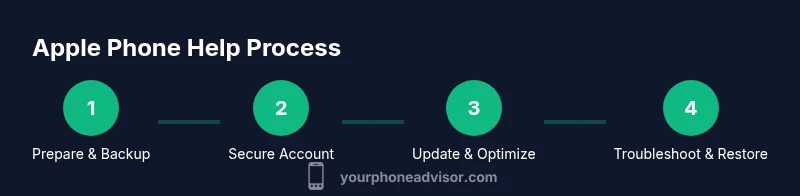
The Your Phone Advisor team recommends adopting a steady, person-centered approach to apple phone help: secure, backup, update, and trim unnecessary permissions, then tackle issues with a clear, repeatable process. This approach minimizes risk and maximizes the odds you’ll resolve problems quickly. Built on real-world experience, it’s designed to be approachable for all users while remaining comprehensive enough to cover essential security and maintenance tasks.
Tools & Materials
- iPhone device (any model)(Ensure it’s charged or connected to power before starting.)
- Apple ID and password(Needed for iCloud backups, Find My iPhone, and updates.)
- Charger and cable (Lightning or USB-C)(For charging and device setup.)
- Stable Wi‑Fi connection(Important for backups, updates, and app management.)
- Computer with iTunes/Finder (optional)(Useful for local backups or restores on older macOS/Windows.)
- Two-factor authentication setup (phone/app)(Enhances Apple ID security.)
Steps
Estimated time: 45-90 minutes
- 1
Prepare your device
Charge the iPhone or connect to power. Back up your data to iCloud or a computer so you can recover if anything goes wrong.
Tip: Backups should be automatic if possible; verify the last successful backup. - 2
Set up Apple ID security
Enable two-factor authentication and review trusted devices. Ensure Find My iPhone is on to aid recovery.
Tip: Update your recovery email and phone number for quick access. - 3
Update iOS and apps
Check Settings > General > Software Update. Update essential apps from the App Store to maintain compatibility.
Tip: Install updates in small batches if the device is older. - 4
Manage storage and performance
Review storage usage, offload unused apps, and remove large files you don’t need. Disable background app refresh for rarely used apps.
Tip: Consider enabling “Offload Unused Apps” to free space automatically. - 5
Secure privacy and permissions
Review app permissions (Location, Microphone, Photos) and disable access where not needed. Turn on privacy protections in Settings.
Tip: Periodically audit permissions after app updates. - 6
Fix connectivity issues
If Wi‑Fi or cellular is unstable, reset network settings and test on different networks. Reconnect to trusted networks.
Tip: Resetting network settings won’t erase data but will forget saved networks. - 7
Restore when needed
If a problem persists, back up, then reset or restore from a backup. Prefer restoring to the latest clean backup.
Tip: If data seems corrupted, try a fresh install from a backup rather than a full restore. - 8
Plan for ongoing success
Schedule monthly quick checks: backups, updates, and permission reviews. Keep essential security features enabled.
Tip: Set calendar reminders to perform these checks. - 9
Know when to reach out
If issues persist after these steps, contact Apple Support or visit an authorized service provider for deeper diagnostics.
Tip: Document symptoms and steps already tried to speed up support.
Got Questions?
What basic steps should I take when my iPhone won't turn on?
First, connect to power and wait a few minutes. If it still doesn’t respond, perform a hard reset according to your model's instructions, then check for a black screen issue that may indicate display problems. If the device remains unresponsive, contact Apple Support.
If your iPhone won’t turn on, plug it in and wait. If there’s no response, try the model-specific reset. If it still won’t boot, reach out to Apple Support for guidance.
How do I secure my iPhone against threats and data loss?
Enable two-factor authentication, turn on Find My iPhone, keep iOS updated, and review app permissions regularly. Use strong, unique passwords and back up to iCloud or a computer.
Turn on two-factor authentication, locate Find My iPhone, update your device, and back up often. Review app permissions to limit data access.
What’s the best way to free up storage without losing data?
Identify large apps and files, offload unused apps, and optimize photo storage by using iCloud Photo Library with Optimize iPhone Storage. Regularly purge unused files while keeping important data backed up.
Find big files, offload apps you don’t use, and store photos in iCloud with optimization.
When should I reset my iPhone to fix issues?
Reset only after backing up, and try non-destructive options first (network settings reset, app updates). A full reset should be a last resort if issues persist after other steps.
Back up first, try resets of settings, then consider a full restore if problems linger.
Can I troubleshoot iPhone problems without a computer?
Yes. Most common issues can be addressed on-device: updates, storage management, and privacy checks. Backups can be done via iCloud without a computer.
You can usually fix issues on the iPhone itself, using iCloud backups when needed.
What should I do if an app keeps crashing?
Update the app, clear its data if possible, and check for iOS compatibility. If the issue persists, reinstall the app or contact the developer.
Update or reinstall the app and verify compatibility with your iOS version.
Watch Video
What to Remember
- Back up regularly and verify restores
- Enable essential security features up front
- Keep iOS and apps updated for stability
- Audit permissions to protect privacy
- Seek help when issues persist after a structured process