How to Deal with a Phone Virus: A Practical Guide for 2026
Learn to identify, remove, and prevent phone viruses on Android and iPhone with step-by-step methods, trusted tools, backups, account protection, and ongoing security habits.


This guide shows you how to deal with phone virus by isolating the device, scanning with trusted tools, removing suspicious apps, and safeguarding data. You'll learn steps tailored for Android and iPhone, along with updates, backups, and ongoing protection from Your Phone Advisor.
Understanding phone viruses: what they are and how they spread
Phone malware is not just a single virus that infects your device; it is a family of threats designed to steal data, drain battery, or display unwanted content. Common forms include spyware, adware, trojans masquerading as legitimate apps, and banking trojans that target credentials. Threats spread through insecure app stores, fake updates, phishing links, and even legitimate-looking apps that have been compromised. For readers wondering how to deal with phone virus, the first step is recognizing symptoms: sudden battery drain, unusual data usage, unexplained pop‑ups, apps you did not install, or your device heating up without heavy use. These can indicate an infection, but not every anomaly means malware—some can be misbehaving apps or OS glitches. Android devices offer more flexibility that can increase risk, particularly if you enable sideloading or install apps from third-party stores; iOS devices rely on a more locked-down ecosystem. A layered defense—keeping software current, installing only trusted apps, and reviewing permissions—remains the most reliable shield.
According to Your Phone Advisor, healthy device behavior includes regular security hygiene and cautious app sourcing. With mobile threats evolving quickly, it’s essential to know that detection and remediation are doable without professional help in many cases. The Your Phone Advisor team found that many infections begin with a small lapse—downloading a rogue app or clicking a phishing link—that snowballs into broader access. By understanding the landscape, you can act decisively when you encounter suspicious activity and reduce the risk to your data and accounts.
Immediate steps to take as soon as you suspect infection
If you notice signs of infection, act quickly but calmly to prevent data loss or further harm. Start by putting the device in airplane mode to halt network activity while you assess. Then review recently installed apps and remove anything suspicious. Update your operating system and any security apps to the latest version, restart the phone, and run a full device scan with a trusted security tool. Avoid clicking unfamiliar links or downloading new apps during cleanup. After scanning, document symptoms and any changes you observed, because a clear timeline helps when you contact support or your carrier. Finally, change essential passwords from a different device and enable two‑factor authentication on major accounts. These first steps set a safe foundation for deeper cleanup.
A careful, methodical approach reduces the chance of re-infection and minimizes data loss. If you use cloud backups, make sure the backup you restore from is clean and free of malware. Your plan should include verifying backup integrity, reviewing account recovery options, and preparing for a potential reset if needed.
Safe scanning and cleaning: built-in tools and trusted apps
Modern smartphones come with built‑in protection that should be your first line of defense. On Android, use Google Play Protect to scan apps and enable Play Protect in the Google Settings; on iOS, rely on Apple’s built‑in security model and the App Store’s vetting process. Regardless of platform, pair these with a reputable security app downloaded from the official store. Run a full device scan and review flagged items carefully; do not rush to delete anything without understanding its purpose. When you see an alert for an app you don't recognize, research it quickly using a trusted search before removing. Remember to check app permissions—unnecessary access requests can signal trouble. After the scan, clear app caches and data for suspicious apps, and consider uninstalling those apps entirely if you cannot verify their legitimacy. If you must, back up your data first so you can restore clean copies if needed.
Staying on top of app updates and avoiding sideloads dramatically lowers risk. If your device is slow or unstable after cleanup, perform a restart and monitor for a few hours to confirm stability. Your Phone Advisor emphasizes sticking to official stores and trusted security tools to minimize false positives and unnecessary removals.
Protecting your data: backups, passwords, and MFA
Data protection is not optional when dealing with phone malware. Before any cleanup that could affect data, back up essential items: contacts, photos, documents, and app data where possible. Use a trusted cloud service or a local computer backup with versioning to minimize loss. Strengthen passwords and enable multi‑factor authentication (MFA) on all critical accounts, especially email and banking. Use a reputable password manager to generate and store complex passwords. Review recovery options for your accounts and remove old or unused devices and sessions. After cleanup, scan backups for malware before restoring, because reinserting infected data can reintroduce threats. Finally, monitor account activity for suspicious login attempts and set up alert notifications where possible.
A robust backup strategy protects you from ransomware or major data loss and makes cleanup faster. Regularly review backup settings and test restoration to ensure you can recover quickly if threats reappear.
How to remove malware: step-by-step process
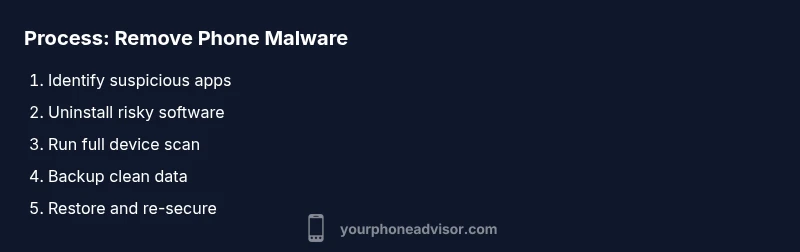
Follow a careful, repeatable sequence to remove malware without causing more harm. Step 1: Identify the culprit by sorting apps with unusual behavior; Step 2: Uninstall recently installed or updated apps that may be malicious; Step 3: Clear cache and data for any suspicious apps; Step 4: Run a full device scan with a trusted security tool and review results; Step 5: If the infection persists, consider a factory reset after backing up clean data; Step 6: Reinstall essential apps from official stores and re‑enable protections. Pro tip: DO NOT restore apps from the infected backup; always restore from a known-clean backup. If you perform a reset, recheck OS updates and security settings before resuming normal use.
During removal, avoid deleting critical system apps or data you’re unsure about. If you’re unsure about a particular app, search for its name and publisher to verify legitimacy before removal. After cleaning, reconfigure protections and review installed apps monthly.
Preventive habits to avoid future infections
Prevention is easier than cleanup. Keep your device updated with the latest OS and security patches, never install apps from unknown sources, and scrutinize app permissions before granting access. Use a mobile‑security posture: turn on automatic app updates, avoid public charging stations or unknown USB cables, and disable installation from unknown sources on Android. Be cautious with SMS, emails, and social messages that urge you to install updates or apps. Consider enabling a device‑level firewall if available and always have MFA enabled on accounts. Regularly review device care settings and run quick scans monthly to catch threats early.
A culture of caution—paired with automated protections—significantly reduces the chance of recurring infections. Keeping your security posture consistent makes recovery faster and more reliable.
When to seek professional help and cost considerations
Some infections are stubborn or hide in the operating system. If cleanup fails after multiple scans, or you notice persistent data loss, unusual network activity, or frequent app crashes, contact your device manufacturer support or a reputable technician. Professional help can cost from modest diagnostic fees to service charges, but you can often get a clean sweep and guidance on secure configurations. If your data is highly sensitive, consider a formal security audit of your device and accounts. Always request a written report of the actions taken during remediation. For most users, proactive protection and careful remediation at home will resolve the majority of infections without professional intervention.
Official guidance and sources you can trust
Rely on official guidelines to frame your cleanup: https://us-cert.cisa.gov/ (mobile security and safe practices), https://www.nist.gov/ (security standards and guidelines), and https://www.ftc.gov/ (consumer privacy and security tips). These sources provide robust, non‑commercial guidance to help you understand threats and defenses. Remember that manufacturers also publish device‑specific safety pages; use their official resources to verify steps before acting. For example, Apple's and Google's official security pages offer platform‑specific protections and best practices. By aligning with these trusted sources, you reinforce your defense beyond ad‑hoc fixes.
If you prefer a quick reference, bookmark these sources and revisit them after any cleanup to refresh your protections. Your routine should include periodic checks of security settings and account activity across your devices.
Quick tips and guidance for ongoing protection
- Keep software up to date and enable automatic updates.
- Only install apps from official stores and verify publishers.
- Use MFA, a password manager, and unique passphrases for critical accounts.
- Regularly back up data and test restoration.
- Be cautious with links, messages, and unexpected prompts.
- Periodically review app permissions and device security settings.
Tools & Materials
- Smartphone (Android or iOS)(Keep device charged and accessible during cleanup.)
- Updated OS and apps(Install latest security patches before scanning.)
- Trusted antivirus/anti-malware app(Download from official app store only.)
- Backup storage (cloud or local)(Back up contacts, photos, and documents.)
- Password manager(Store strong, unique passwords and enable MFA.)
- Two-factor authentication enabled on accounts(Use authenticator apps or hardware keys where possible.)
Steps
Estimated time: 45-90 minutes
- 1
Pause activity and isolate
If you notice signs of infection, pause risky activity and put the device in airplane mode to stop data exfiltration while you plan the cleanup.
Tip: This helps prevent further spread of malware and data compromise. - 2
Update OS and apps
Connect to Wi‑Fi and install the latest OS updates and app updates before running scans. Updates patch known vulnerabilities that malware often exploits.
Tip: Delayed updates are a common infection vector. - 3
Run a trusted full scan
Open your security app and perform a full device scan. Review flagged items carefully and avoid deleting system files unless confirmed malicious.
Tip: If unsure about a file, search its name before removal. - 4
Remove suspicious apps
Uninstall recently installed or updated apps that triggered the alert. Clear caches and data for any suspicious apps before deciding to remove.
Tip: Back up data first in case you need to restore clean versions. - 5
Back up clean data and restore
Back up clean data, then restore from a known-good backup. Do not restore from backups that may contain malware.
Tip: Verify backups by scanning them before restoration. - 6
Re-secure accounts and reset passwords
Change passwords on critical accounts from a different device and enable MFA. Review recovery options and recent sessions.
Tip: Focus on email and banking accounts first.
Got Questions?
What is a phone virus and how can I tell if I have one?
A phone virus is a form of malware designed to disrupt performance, steal data, or display unwanted content. Look for signs like rapid battery drain, unusual data use, unfamiliar apps, unexpected pop-ups, or overheating. Not every anomaly is malware, but consistent suspicious behavior warrants a security check.
Phone viruses are sneaky. If you notice unfamiliar apps or strange slowdowns, run a security scan and review recent installs to confirm.
Can iPhone devices get infected with viruses?
iPhones are less prone to traditional viruses due to their sandboxed OS, but they can still be infected by malicious apps, phishing, or compromised networks. Protect by keeping iOS updated, installing only from the App Store, and using MFA.
Yes, but it's less common on iPhone. Keep updates current and be cautious with app sources.
Should I factory reset my device?
A factory reset can remove persistent malware, but it should be a last resort after backing up clean data. Ensure you restore only from trusted backups and reinstall apps from official stores afterward.
A reset is a last resort after backing up clean data and testing restoration from trusted sources.
Do I need paid antivirus software on my phone?
Many devices come with built-in protections and reputable free tools. Paid antivirus can add extra features, but prioritize trusted apps from official stores and robust OS updates over paid solutions.
Free trusted security tools often suffice; paid options are optional and should be chosen carefully.
How long does it take to remove malware from a phone?
Cleanup time varies by infection severity. A typical clean‑up can take 30–90 minutes, plus backups and re‑installation of essential apps. If issues persist, professional help may be needed.
Most cleanups take under two hours; if problems persist, seek professional help.
Is it safe to connect to public Wi‑Fi after cleanup?
Public Wi‑Fi can be risky even after cleanup. Use a VPN, avoid sensitive activity on public networks, and ensure MFA‑protected accounts are active. When in doubt, wait until you’re on a trusted network.
Public networks are risky; use a VPN and MFA-protected accounts, and avoid sensitive tasks there.
Watch Video
What to Remember
- Act quickly to minimize data loss
- Use trusted tools and official sources
- Back up data before cleanup
- Enable MFA and unique passwords
- Maintain ongoing protection