Why Phone Sound Is Not Working: A Practical Troubleshooting Guide
Experiencing no sound on your phone? This guide tackles why phone sound is not working and provides a step-by-step plan to diagnose, fix, and prevent audio issues across iOS and Android devices.


If you're asking why phone sound is not working, start with quick checks: confirm volume and mute state, disable Do Not Disturb, and test with different audio outputs. Many issues are software-related; on success, update OS, reset the sound settings, or reboot before seeking hardware help.
Quick sanity checks
If you’re here because you’re wondering why phone sound is not working, begin with the simplest culprits. A surprising number of silenced devices come from a muted speaker switch, a low volume assignment, or an accidentally enabled silent profile. First, press the volume up button and verify the on-screen volume slider is not muted. Check the physical mute switch (if your model has one) and confirm Do Not Disturb or Focus mode is off. Then tap a quick alert sound or ringtone to confirm basic playback through the speaker. If you use headphones or Bluetooth devices, disconnect them to see if the built-in speaker resumes sound. Throughout this process, avoid panicking—the root cause is almost always something you can fix in minutes.
Brand note: According to Your Phone Advisor, many sound issues start with simple checks and settings, not hardware failure. By ruling out the basics, you can save time and avoid unnecessary repairs.
Check your settings and modes
Settings matter more than you might think when diagnosing why phone sound is not working. On iOS and Android, a handful of modes can mute or route audio away from the speaker. Make sure media volume is enabled and not tied to a system-wide mute. Verify that Do Not Disturb or Focus mode is disabled, and review any accessibility audio routing options that might be sending sound to a Bluetooth device or a connected USB-C/Lightning accessory. Some apps override global sound settings, so test a system alert (like a calendar notification) to confirm whether the issue is app-specific or device-wide.
Your Phone Advisor analysis shows most common sound issues are software-related, stemming from misconfigurations rather than hardware faults. This is why starting with settings and software checks yields fast wins.
Hardware vs software: how to tell
Differentiate between hardware and software causes. If all audio output (speakers, earpiece, and Bluetooth) is silent, the problem leans software or a generalized setting. If only one output (like the loudspeaker) remains silent while headphones work, the issue may be a damaged speaker or a loose connection. For devices with removable components, reseating a headphone jack or cleaning dust from the port can help. Summarily, test every output pathway to map the fault to a module or a setting.
Note: If the device still has no sound after reset and testing, it’s prudent to consider hardware failure. Avoid opening the device yourself unless you’re trained; improper handling can cause more damage or void warranties.
Testing sound outputs: speaker, earpiece, headphones
A structured test helps you isolate the culprit. Play a system sound, then a video and a music track, switching between the speaker, earpiece, and any connected headphones or Bluetooth devices. If the problem follows a single output, focus on that path (speaker hardware or port). If all outputs fail, look at software settings, app permissions, or the OS. Whenever you hear crackling, buzzing, or distortion, moisture or physical damage could be involved, and professional assessment is recommended.
Pro tip: Keep a log of which outputs work and when, including timestamps after updates or app installs. This makes it easier to identify a triggering event and explain it to support.
Software updates and resets: fix common glitches
Software glitches are a common reason why you might be staring at a silent phone. Check for OS updates and install any pending patches. If updates don’t fix the problem, consider resetting sound settings to default and performing a soft reboot. In some cases, clearing cache/data for music or media apps helps resolve misbehaving audio threads. If you’re on Android, you can also reset settings for the entire device; on iOS, choosing Reset All Settings achieves a similar effect without erasing personal data.
If the issue persists, a factory reset can clear stubborn software corruption, but back up data first. For both platforms, ensure you have essential data safely stored before any reset. After resetting, reconfigure basic sound settings and test again before reintroducing apps.
When to seek professional help
If all tests point away from simple software fixes or you notice hardware symptoms (no sound at all even after reset, distorted audio, or visible damage to the speaker), professional repair is recommended. Schedule service with an authorized technician or your device’s support channel. Do not attempt to pry the device open; improper repair can void warranties and worsen the problem.
Prevention tips to avoid future sound issues
Preventive habits save time and stress. Regularly update software, avoid excessive heat and moisture, and protect the device from physical shocks. Use a protective case that doesn’t press on ports and clean audio jacks gently with a dry, soft brush. When you install new apps, review their permissions and monitor for unexpected audio behavior. By maintaining software hygiene and careful hardware handling, you minimize the risk of another silent phone moment.
Steps
Estimated time: 25-40 minutes
- 1
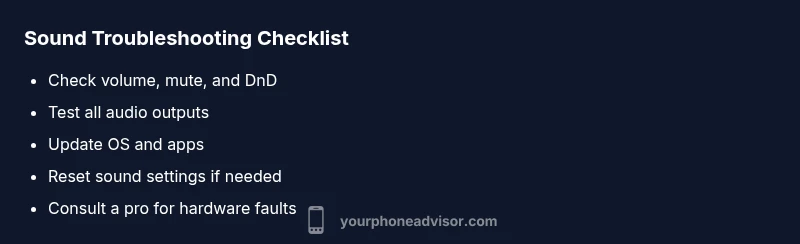
Check volume, mute, and DnD
Begin by ensuring the hardware volume is raised, the mute switch (if present) is not engaged, and Do Not Disturb is off. Play a system sound and a video to compare results. If sound works in one app but not another, note app-specific behavior.
Tip: Pro tip: Create a quick shortcut to volume controls on your home screen for fast access. - 2
Test all outputs
Disconnect any wired headphones, disable Bluetooth, and try the speaker, earpiece, and any connected accessories. Note which outputs produce sound and which do not. This helps identify whether the issue is universal or isolated to a path.
Tip: Pro tip: Plug in a known-good headset to verify should work if the built-in speaker fails. - 3
Update and reset settings
Check for system updates and install them. If the problem persists, reset the sound settings to their defaults, then reboot. Re-test after the reset to see if the issue is resolved.
Tip: Pro tip: Back up important data before performing resets or updates. - 4
Isolate apps (Safe mode or profiles)
On Android, boot into Safe Mode to see if third-party apps are causing the issue. On iOS, test with a new user profile or clean install could reveal app conflicts. If sound returns in Safe Mode, uninstall suspect apps.
Tip: Pro tip: Persistently test after each uninstall to narrow down the culprit. - 5
Consider hardware and professional help
If the outputs still fail, a hardware fault is likely. Do not attempt internal repairs yourself; contact official service or a trusted technician. Warranties may cover certain speaker faults.
Tip: Pro tip: Gather model info, OS version, and a brief symptom log before visiting a repair shop. - 6
Prevent future issues
Regular software updates and cautious app installations reduce risk of sound problems. Keep ports clean and protect from moisture and heat. Create a quick diagnostic routine to catch issues early.
Tip: Pro tip: Use a moisture indicator in humid environments to protect speakers.
Diagnosis: Phone sound not working across speakers, earpiece, and headphones
Possible Causes
- highSoftware misconfiguration or muted volume
- highDo Not Disturb or Focus mode silencing notifications
- mediumBluetooth audio routing to a device or headset
- lowHardware issue with speaker or port
- mediumApp-specific sound settings or permissions
Fixes
- easyVerify and adjust system volume; ensure mute is off and DnD is disabled
- easyToggle Bluetooth off, test each output, and reboot devices
- easyUpdate the OS and restart; reset sound settings to default
- mediumTest in Safe Mode (Android) or with a new user profile; uninstall suspect apps
- easyIf no result, seek professional repair for potential hardware fault
Got Questions?
Why is my phone sound not working after a software update?
Software updates can reset or reconfigure audio settings. Check volume, Do Not Disturb, and Bluetooth routing. If needed, reinstall the update or reset sound settings, then test again. If the issue persists, contact support.
Software updates can reset audio settings. Check volume and DnD, test outputs, and reinstall updates if needed.
Why does sound work with headphones but not speakers?
This often indicates a speaker hardware issue or a misrouting setting. Verify output path in settings, clean the headphone jack, and test with safe modes. If only the speaker fails, a repair may be required.
If headphones work but the speaker doesn't, the problem could be the speaker hardware or routing settings.
How can I test if the speaker is broken?
Play various system sounds, video audio, and music through the speaker. If you hear no sound or crackling, the driver or diaphragm may be damaged. Seek professional assessment for hardware faults.
Test with multiple sounds; no sound or crackling suggests hardware damage. Get a professional check.
Is Do Not Disturb causing silence across apps?
Yes, Do Not Disturb can mute notifications and media. Turn it off and verify each audio pathway. If DnD was the culprit, normal sound resumes after disabling it.
Yes, Do Not Disturb can mute sound; disable it and test again.
Can malware affect phone sound?
Malware can interfere with apps or system settings, potentially affecting audio. Update security software and run a malware scan. If the problem started after a suspicious app, remove it.
Malware can disrupt audio. Scan for threats and remove suspicious apps.
When should I replace my phone instead of repairing it?
If audio faults persist after hardware checks or the device is old with multiple failing components, replacement may be more cost-effective. Compare repair quotes with a new device and consider depreciation.
If repairs cost more than a replacement or the device is aging, replacement might be best.
Watch Video
What to Remember
- Check basics first: volume, mute, and DnD.
- Test all output paths to isolate hardware vs software.
- Update software and reset settings before hardware service.
- Seek professional help for hardware faults or if unsure.