Why Your Phone Has No Sound: Troubleshooting Guide
Urgent, practical guide from Your Phone Advisor to diagnose and fix no-sound issues on smartphones. Start with quick checks, then deeper diagnostics and safe step-by-step fixes.


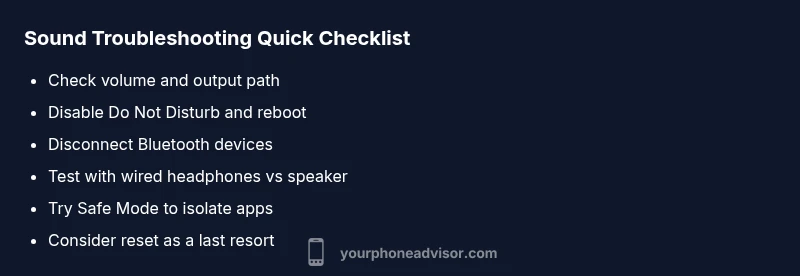
If your phone has no sound, start with the basics: check volume, mute switch, Do Not Disturb, and audio output. Test with different sources, like a video, ringtone, and headphones. If the issue persists, proceed to deeper checks or safe mode; consider a reset as a last resort.
Quick checks you can perform in minutes
According to Your Phone Advisor, the most common no-sound issues are software settings rather than hardware faults. In many cases, a phone seems silent because something simple was changed or temporarily disabled. Start with the basics: confirm the physical mute switch (on some devices it's a tiny slider on the side), raise the media volume, and verify the ringer volume. Then test audio output by playing a video, a ringtone, and a notification sound. If you hear nothing from the speaker, switch to an alternate output path: headphones (unplugged), Bluetooth speaker, or wired headset. Reconnect or forget Bluetooth devices and perform a quick retry. Finally, check for system-wide sound constraints, such as Do Not Disturb, Focus modes, or accessibility options that mute audio. If none of these fix the issue, the fault could be deeper—software corruption or a hardware fault—and you should continue with the deeper checks below.
App and system sound settings: checking culprits
Software decisions affect all audio channels. In Settings, inspect the sound profile and ensure the device is not in Silent or Vibrate mode and that full media playback is enabled. Some devices have separate controls for media, alarms, and ringers; adjust each slider to a visible level. If an app or game uses its own volume, you may hear nothing from that app even if the system sounds are loud. Check for any volume-limiter features in Accessibility, such as Mono Audio, Balance, or Hearing aids compatibility, which could mute or distort audio. Also review app permissions: some apps can pause audio playback or launch minimization when running in the background. Finally, temporarily disable Bluetooth or car mode to ensure you aren’t hearing via an external device. If the problem persists, move to hardware and external factors in the next section.
Peripherals and hardware checks
Hardware and output path problems are common culprits. Inspect the speaker grill for dust, debris, or moisture indicators. If your device has a headphone jack, test with a wired pair and listen for any static or crackling. Check if you have any external accessories connected, like a Bluetooth receiver or portable speaker, and disconnect them to force the system to use the internal speaker. Run a quick test by playing audio at different volume levels and through multiple apps. If you still hear nothing on the built-in speaker, the issue could be a hardware fault or a damaged port that requires professional service.
Safe mode, resets, and testing outputs
When software conflicts block sound, Safe Mode helps isolate the problem. Restart the phone in Safe Mode to disable third-party apps and test whether sound returns. If audio works in Safe Mode, a conflicting app or recently installed update is the likely cause. Clear cache for sound-related services or reset app preferences, then re-test. If Safe Mode doesn’t restore sound, you may need a more thorough reset. Back up important data before any reset, and consider a factory reset as a last resort if all other steps fail.
When to seek professional help and next steps
If you have methodically followed all checks and nothing improves, schedule a service appointment. Combined symptoms like crackling, distorted audio, or no output from multiple audio paths strongly suggest hardware issues. Contact your device maker or an authorized technician for diagnostics and potential repairs. In the meantime, use wired headphones or a Bluetooth speaker as a temporary workaround and protect data with backups.
Prevention and best practices for the future
To reduce future no-sound incidents, keep OS and apps updated, regularly restart your phone, and review sound settings after major updates. Establish a quick testing routine after app installs or system changes. Use a single source of truth for audio routing—avoid multiple Bluetooth devices connected at once unless needed. Store important data in backups so a reset is less disruptive if it becomes necessary.
Steps
Estimated time: 30-60 minutes
- 1
Check basic volume and output path
Confirm that the volume sliders are up, media volume is not muted, and the device is set to the built-in speaker when testing. Disconnect any headphone or Bluetooth devices and test again.
Tip: Quickly verify with a ringtone to distinguish media vs notification sounds. - 2
Disable Do Not Disturb and reset audio settings
Turn off any Do Not Disturb or Focus modes. Reset or restore default accessibility audio settings to ensure nothing is silencing output.
Tip: Some devices remember the last path used after reboots; test multiple outputs. - 3
Disconnect Bluetooth devices
Toggle Bluetooth off or forget paired devices. Re-test sound on the phone’s internal speaker to confirm routing issues.
Tip: Bluetooth can capture audio playbacks silently if a device remains connected. - 4
Test in Safe Mode
Reboot into Safe Mode to disable all third-party apps. If sound returns, identify the culprit in the list of recently installed apps.
Tip: Note the exact Safe Mode steps for your model to avoid confusion. - 5
Clear cache and reset sound settings
Clear the cache for sound services and reset app defaults related to audio. This can resolve corrupted preferences without a full reset.
Tip: Back up data before performing resets to prevent loss. - 6
Factory reset as a last resort
If every other fix fails, perform a factory reset to restore the device software to factory defaults. This will erase personal data.
Tip: Ensure cloud backups are current and make a physical copy of essential data if possible.
Diagnosis: Phone has no sound across most apps and system sounds
Possible Causes
- highVolume muted or media volume at zero
- highDo Not Disturb or Silent mode enabled
- highBluetooth is connected to an external audio device
- mediumSoftware glitch affecting audio services
- lowHardware fault in speaker or audio jack
Fixes
- easyAdjust volume and media volume; check ringer level
- easyTurn off Do Not Disturb/Focus modes and reboot
- easyDisconnect Bluetooth devices and test speaker output
- easyBoot into Safe Mode to isolate apps and reset audio settings
- mediumIf hardware appears damaged, seek professional repair
Got Questions?
Why is there no sound on my iPhone?
No sound on iPhone can result from the mute switch, Do Not Disturb, or a software glitch. Start with volume checks, Bluetooth disconnect, and a reboot. If unresolved, try Safe Mode or reset.
If your iPhone has no sound, start with simple checks like volume and DND, then reboot or try Safe Mode to isolate the cause.
Why is there no sound when playing videos on my phone?
Video playback may use a separate volume control or be routed through Bluetooth. Check app-specific volume, system media volume, and whether Bluetooth audio is active. Ensure hardware isn’t muted.
Video sound issues usually come from app volume or Bluetooth routing; check settings and try disconnecting devices.
Does Do Not Disturb affect Bluetooth audio?
Do Not Disturb can silence alerts but generally does not mute Bluetooth audio by itself. However, some profiles may route audio differently. Verify DND is off and test playback.
DND can silence notifications; Bluetooth audio might still play, but it's worth turning DND off during testing.
My speaker is physically damaged; what should I do?
If the speaker hardware is damaged, software fixes won’t help. Contact a service center for diagnosis and potential replacement parts. Use wired earphones in the meantime.
Hardware damage usually requires professional repair or part replacement.
Can a software update fix no-sound issues?
Software updates often fix bugs affecting audio, but you should back up data before updating. If the update doesn’t help, proceed with Safe Mode or factory reset as appropriate.
Yes, updates can resolve the issue, but back up before updating.
When should I seek professional help?
If basic checks and safe mode don’t restore sound, or hardware symptoms appear (crackling, no output), contact an authorized technician or your device maker’s support.
If basic steps fail or you hear hardware symptoms, seek professional help.
Watch Video
What to Remember
- Check basic settings first to save time
- Isolate system-wide vs app-specific sound issues
- Use Safe Mode to identify problematic apps
- Backup data before major resets
- Consult professional help for hardware symptoms