Phone Won't Connect to WiFi: Fast, Safe Fixes
A comprehensive, urgent troubleshooting guide to fix a phone that won't connect to wifi on Android and iPhone. Quick checks, diagnostic flow, step-by-step fixes, and prevention tips for reliable wireless access.


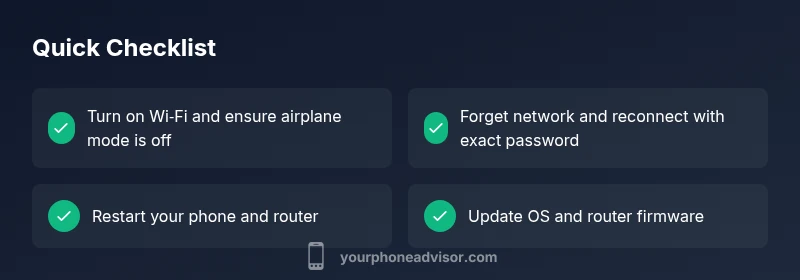
According to Your Phone Advisor, most cases of a phone won’t connect to wifi are quick fixes. Start with the basics: toggle Wi‑Fi off and on, forget the network, reboot the phone, and restart the router. If the problem persists, test another device on the same network, check for OS updates, or reset network settings as a last resort. This sequence fixes the majority of wifi connectivity issues in minutes.
Quick Pre-checks for a Phone Won't Connect to WiFi
If your phone won’t connect to wifi, begin with the simplest checks. Confirm that the device’s Wi-Fi switch is enabled and Airplane mode is off. Make sure you’re attempting to join the correct network and that you know the password. Try connecting another device to the same network to see if the issue is network-wide. Check the phone’s system time and date; incorrect settings can hinder network authentication. Finally, ensure you’re not on a captive portal page that requires login before full access.
Environment and Router Considerations
Many wifi problems stem from the environment rather than the phone. Distance from the router, thick walls, or interference from microwaves and other devices can degrade signal. If you’re on a 5 GHz network, try switching to 2.4 GHz or vice versa, as some phones perform better on one band. Rebooting the router can clear stuck DHCP leases, IP conflicts, or firmware glitches. If the router is old, a firmware update or replacement may be needed. Ensure the router’s security settings aren’t blocking your device unintentionally, and disable MAC address filtering temporarily to test access.
Device-Specific Gotchas (iPhone vs Android)
iPhone and Android handle wifi differently. iPhones may require renewing the DHCP lease or rejoining a saved network after a change to the router. Android devices sometimes have aggressive battery or data saver settings that disable background wifi when the screen is off. Check if any VPNs, firewalls, or privacy apps could be interfering with wifi connections. On both platforms, ensure the OS is up to date, as manufacturers fix known wifi bugs in updates.
Diagnostic Flow: Symptom → Diagnosis → Fixes
A clear diagnostic path helps avoid fruitless tinkering. If you can see the network but can’t connect, the issue is often password, authentication, or IP assignment. If the network never appears, it’s likely a broadcast or router problem. If the device shows a weak signal but other devices connect, proximity or antenna issues may exist. Use the following flow: confirm network visibility → attempt to join → observe error code → apply a targeted fix. Document any changes to reconstruct what worked for future issues.
Most Common Causes and Stepwise Fixes
The most frequent reason a phone won’t connect to wifi is a misremembered password or a cached, conflicting network profile. Forget the network on the phone, then re-enter credentials exactly. DHCP IP conflicts or stale IP leases can block access; rebooting both phone and router usually resolves this. An outdated OS or router firmware can also break compatibility; check for updates and install them. If MAC filtering is enabled on the router, temporarily disable it for testing, then re‑enable with your device’s MAC address whitelisted.
When to Reset Network Settings or Factory Reset
If basic fixes fail, a network reset is a strong next step. On iOS, reset network settings to remove faulty configurations; on Android, you can reset network-related settings or perform a full reset if necessary. Note that a reset clears saved Wi-Fi networks and passwords, so you’ll need to rejoin networks afterward. This step is often enough to restore normal wifi behavior, but use it only after you’ve tried simpler remedies.
Safety, Privacy, and When to Seek Help
Be mindful of security when connecting to wifi—avoid unsecured public networks for sensitive activities. Ensure you’re on legitimate networks and avoid sharing passwords on untrusted devices. If you’re still stuck after attempting the steps above, it may be time to contact the device manufacturer’s support or your internet service provider. A professional can diagnose hardware issues or advanced router problems that aren’t obvious from the device.
Prevention: Keeping WiFi Connections Stable
Maintain stable wifi by keeping devices updated, using a consistent router, and scheduling periodic reboots for the router to prevent stale leases. Use a password for your network and enable a guest network for visitors to reduce password exposure. Consider a dedicated router for high-traffic environments and keep a note of your device MAC addresses for easy whitelisting. Regularly test after updates or changes to ensure ongoing reliability.
Steps
Estimated time: 30-45 minutes
- 1
Check basic connectivity
Verify Wi‑Fi is enabled on the phone and airplane mode is off. Confirm the correct network is selected and you know the password. Try connecting another device to the same network to gauge if the issue is network-wide.
Tip: This is the fastest way to rule out device-specific issues. - 2
Restart devices
Power off and on the phone, then reboot the router. Wait 60 seconds for the network to reinitialize. After reboot, attempt to connect again.
Tip: Sometimes a simple reset clears stuck network sessions. - 3
Forget and rejoin
On the phone, forget the wifi network and then reconnect by entering the password exactly. Ensure you’re joining the correct network and not a nearby open or guest network.
Tip: Avoid auto-fill mistakes by typing manually. - 4
Test different configurations
If available, switch between 2.4 GHz and 5 GHz bands. Try using WPS if your router supports it, or disable MAC filtering temporarily to test connectivity.
Tip: Band switching can resolve compatibility issues. - 5
Update software
Check for OS updates on the phone and firmware updates for the router. Install any available updates and reboot both devices after the updates.
Tip: Updates often fix known wifi bugs. - 6
Reset network settings
If none of the above works, reset the phone’s network settings. This will remove stored networks and will require re‑configuring all connections.
Tip: Back up any saved credentials if possible. - 7
Seek professional help
If the issue persists after all steps, contact the device manufacturer support or your router provider for hardware checks.
Tip: Hardware faults may require replacement parts.
Diagnosis: Phone won't connect to wifi
Possible Causes
- highIncorrect network password or saved profile
- highRouter or network device issues (DHCP, IP lease, interference)
- mediumPhone settings blocking wifi (VPN, firewall, battery saver, data saver)
- mediumOutdated OS or router firmware causing compatibility issues
- lowHardware issue with phone wifi antenna or router hardware
Fixes
- easyForget the network on the phone, then re-enter the password and try to connect again
- easyRestart the phone and the router; test with another device on the same network
- mediumReset network settings on the phone or update OS and router firmware
- easyDisable VPNs/firewall apps temporarily; ensure Wi‑Fi assist or smart network switching is configured correctly
- mediumIf MAC filtering is enabled, whitelist your device or temporarily disable filtering to test
Got Questions?
Why won't my phone connect to wifi after a firmware update?
Firmware updates can reset network settings. Rejoin the network and re-enter credentials; if needed, reset network settings or perform a fresh OS update. Check for any known issues with the update on the manufacturer’s support site.
After a firmware update, rejoin your wifi network and re-enter credentials; if it still fails, reset network settings or check for official updates.
Why is my iPhone not connecting to wifi but other devices can?
There may be a network-specific issue or a router setting blocking that device. Try forgetting the network and rejoining, ensure the iPhone is on the latest iOS, and test with another network to isolate the problem.
If only your iPhone can’t connect, try forgetting and rejoining the network and test on another network to isolate the issue.
Should I reset network settings on Android if wifi won’t connect?
Yes, resetting network settings on Android can clear problematic configurations. Be prepared to re-enter wifi passwords afterward. Use this only after trying simpler steps like rejoining and updating.
A network reset on Android can fix stubborn issues, but you’ll need to reconnect to all networks afterward.
Can a router restart fix wifi on my phone?
Often yes. A router restart clears congested sessions and reassigns IP addresses. If the problem persists, check for firmware updates and verify settings like DHCP and MAC filtering.
Yes, restarting the router can resolve many wifi problems; if not, check for updates and settings.
Is it safe to join public wifi networks with a phone that won’t connect to wifi?
Public networks can be insecure. Avoid transmitting sensitive data on open networks; use a VPN and disable automatic connections to unknown networks when possible.
Be cautious with public wifi—use a VPN and avoid sensitive data transfers.
When should I seek professional help for wifi issues on my phone?
If you’ve tried all steps and other devices connect fine but your phone still won’t connect, there may be a hardware fault. Contact manufacturer support or a licensed technician.
If all basic fixes fail and other devices work, contact support for possible hardware issues.
Watch Video
What to Remember
- Start with basic checks to fix most wifi issues.
- Restart devices to refresh network sessions.
- Forget and rejoin networks to reset authentication.
- Update software before performing drastic resets.