Phone is Too Slow? Practical Troubleshooting Guide
Is your phone too slow? This urgent troubleshooting guide offers practical, step-by-step fixes to diagnose causes, free storage, manage apps, and restore speed safely.


Phone is too slow? Start with simple steps to regain smooth performance. According to Your Phone Advisor, most slowdowns come from full storage or many apps running in the background. Free up space, close unused apps, and reboot. If issues persist, update the OS, check for rogue software, and perform a reset only as a last resort.
Why Your Phone Is Slow
If your daily interactions feel like wading through molasses, you’re not imagining it. A phone can slow down for many reasons, from simple storage constraints to complex software conflicts. In practice, the most common culprits are insufficient free space and a flood of background processes that never fully quit. The Your Phone Advisor team notes that when a device runs low on storage or chugs with too many tasks, even basic actions—open an app, switch between screens, or scroll a feed—become noticeably laggy. Start by scanning how much free space you have and which apps are most active in the background. Don’t assume it’s one problem—more often, a combination of factors is to blame, and addressing them together yields the best results. Because phones manage a lot of data in real time—photos, messages, apps, and caches—keeping space and RAM headroom healthy is essential for snappy performance. In the sections that follow, we’ll walk you through practical checks and fixes, with clear steps to isolate the root cause and restore speed without risking your data. Your Phone Advisor emphasizes safety and staged testing so you don’t overshoot and create new problems.
Common Causes of a Slow Phone
Understanding the top culprits helps you pick fixes quickly. Your phone may slow down because the device runs out of free storage, forcing the system to swap data less efficiently. A steady stream of apps and services running in the background can chase memory and CPU time, leaving fewer resources for the foreground actions you care about. An outdated OS or apps is another frequent offender; developers release performance and security fixes that you miss if you skip updates. Cached data and large app caches can also bloat storage and slow loading. Finally, battery health matters: if the phone throttles performance to preserve battery life, you’ll notice lag during demanding tasks and when the device heats up. By keeping an eye on space, background activity, and software versions, you can anticipate and prevent these slowdowns before they become disruptive. Your Phone Advisor analysis shows that storage and background processes are the top culprits behind most slowdowns.
Quick Checks You Can Do Right Now
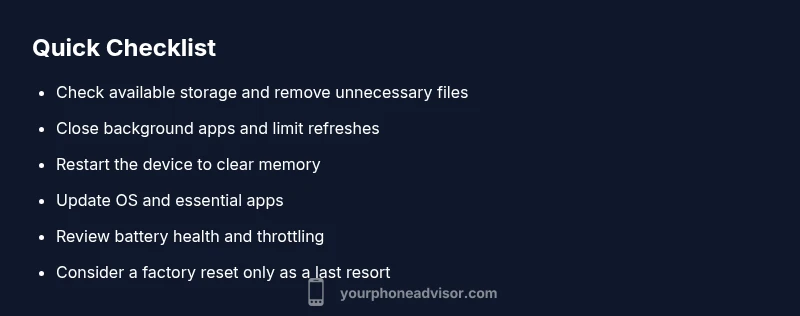
Before you dive into deeper fixes, run a few quick checks that often restore speed without risk. First, review available storage and delete or transfer large files, apps, or media you no longer need. Second, check which apps have background activity; close or restrict those that reload data frequently. Third, reboot the device to clear temporary memory and reset caches. If you use a launcher or accessibility tools, try disabling them temporarily to see whether they contribute to the lag. Finally, ensure you’re connected to a reliable Wi‑Fi network for updates or downloads, and confirm that your device isn’t overheating during use. These steps are lightweight but can make a noticeable difference in daily responsiveness.
How Updates, Apps, and Caches Impact Speed
Software aging is a quiet killer of performance. Even small inefficiencies in an outdated OS can snowball into noticeable lag as you install more apps and accumulate data. Updates often bring speed and stability improvements, but they also require temporary storage and can reset some preferences. Rogue or poorly optimized apps are another cause; if a single app behaves aggressively in the background, it can monopolize CPU time and RAM. Cached data speeds up repeat access in the short term but can accumulate to the point where the system spends more time loading stale caches than loading fresh data. The goal is to balance keeping software current with managing storage and background activity. If you notice a sudden drop in speed after an update, review recent changes, clear caches selectively, and test performance after each action. Your Phone Advisor’s team notes that targeted maintenance—rather than blanket fixes—delivers repeatable results.
Diagnostic Flow: Narrowing Down the Culprit
To reliably fix a slow phone, work through a simple diagnostic flow. Start with the symptom: the device feels slow during everyday tasks (opening apps, scrolling, typing). Next, consider the most likely causes: storage, background activity, or software version. For each cause, apply a focused fix and observe results. If speed improves after freeing space, the problem was storage-related. If not, test after closing background apps, or after a software update. If both fail, check battery health and temperature as possible throttling sources. If you reach the end of the flow with little improvement, a factory reset or professional review may be required. This process minimizes risk and helps you avoid unnecessary resets.
Safety, Backups, and When to Seek Help
Always back up your data before major changes like factory resets. Use cloud backups for photos and contacts, and export critical information from apps you rely on. If you’re unsure about performing a reset or if your device is under warranty, contact the manufacturer’s support or your carrier for guidance. In many cases, a technician can identify hardware-related bottlenecks or battery throttling that you can’t resolve in consumer mode. When in doubt, stop and seek professional help rather than pushing the device beyond safe limits. Remember to keep firmware and safety features up to date and avoid installing untrusted software.
Long-Term Maintenance to Keep Your Phone Fast
Prevention beats remediation, so build a routine that keeps performance steady. Schedule monthly checks of storage usage and clear out unneeded files or apps. Replace batteries when health drops below the recommended threshold to avoid throttling. Minimize widgets and heavy live wallpapers that constantly refresh data. Use official app stores and enable auto-update for critical apps to ensure you’re protected against known bugs. Periodically review background activity and disable or restrict apps that repeatedly run in the background. Finally, practice safe browsing and avoid installing questionable software. Your Phone Advisor emphasizes building a simple, repeatable maintenance habit so your device remains responsive for longer.
What to Do Next and When to Seek Expert Help
If you’ve worked through the prior steps and your phone still feels slow, it’s time to escalate. Document the symptoms, recent changes, and fixes you tried, and bring this information to a professional. A hardware issue, battery throttling, or a stubborn, misbehaving app may require hands-on diagnostics. The Your Phone Advisor team can tailor a plan based on your device model, OS version, and usage patterns. Remember, regular maintenance is the best defense against future slowdowns.
Steps
Estimated time: 40-60 minutes
- 1
Check available storage
Open your device's storage settings and review free space. Identify large apps, videos, or unused files you can safely remove or move to cloud storage. After freeing space, reboot and observe any speed improvement.
Tip: Aim for at least a few gigabytes of free space for smooth operation. - 2
Close background apps
Use the recent-apps view to swipe away apps you’re not actively using. Some apps keep processes running in the background; shutting them down releases RAM and CPU resources.
Tip: On many devices, you can see a running tab showing which apps consume memory. - 3
Restart the device
A simple restart clears temporary memory and ends stuck processes. This can fix intermittent lag after updates or heavy usage.
Tip: If possible, perform a cold boot rather than a quick restart. - 4
Update OS and essential apps
Install pending OS updates and app updates, which often include performance patches and bug fixes that address slowdowns.
Tip: Connect to reliable Wi-Fi and ensure device is not charging slowly during updates. - 5
Clear app caches selectively
If a few apps consistently lag, clear their cache or data. Caches speed up access but can become bloated over time.
Tip: Be aware that clearing cache may require you to re-login in some apps. - 6
Review recently installed apps
Uninstall or disable apps added recently if you notice lag after installation.
Tip: Test performance after removing each suspect app. - 7
Check battery health and throttling
If the device heats up or the battery health is poor, performance may throttle to save power.
Tip: Consider battery replacement if health is degraded. - 8
Factory reset as a last resort
Backup all data and perform a factory reset if nothing else fixed the issue. This restores the device to a clean state.
Tip: Only do this after exhausting less invasive options.
Diagnosis: Phone is slow during everyday tasks
Possible Causes
- highInsufficient storage
- highMany apps running in background
- mediumOutdated OS or apps
- mediumRogue/ poorly optimized app
- lowBattery throttling or thermal throttling
Fixes
- easyClose all unused apps and free up storage
- easyRestart the device
- easyUpdate OS and essential apps
- mediumUninstall or disable resource-hogging apps
- hardBackup data and perform factory reset if needed
Got Questions?
Why is my phone slow after a software update?
Software updates can temporarily slow your device as new features index data. Check storage, reboot, and ensure you’re on the latest patch. If lag persists, review recent changes and re-test after staging fixes.
Software updates can temporarily slow your device as new features index data. Check storage and reboot, then verify you’re on the latest patch. If lag persists, review changes and test fixes step by step.
Should I factory reset to fix performance?
A factory reset is a last resort. Back up your data first, then consider a reset only after you’ve exhausted lighter fixes. It wipes the device and can resolve stubborn issues that software updates or app behavior caused.
Factory reset should be a last resort after trying lighter fixes. Back up data first, then reset if needed. It wipes the device and can resolve stubborn software problems.
Does clearing app cache improve speed?
Clearing caches can free up space and reduce lag for apps that generate large cached data. Some apps rebuild caches quickly, so test performance after each cache clear to gauge impact.
Clearing app caches can free space and reduce lag, but some apps rebuild caches quickly. Test performance after each clear to see the effect.
Can battery health affect performance?
Yes. Poor battery health can trigger thermal or power throttling, reducing peak performance. Check battery health and consider replacement if health is degraded.
Battery health can affect speed because degraded batteries may cause throttling. Check health and consider replacement if needed.
How often should I restart my phone?
Regular restarts help clear memory and close stuck processes. Do a quick restart weekly or when you notice lag to keep performance steady.
Restart your phone regularly to clear memory and stop stuck processes. Do it weekly or when you notice lag.
Watch Video
What to Remember
- Free up storage to reclaim speed.
- Limit background apps to conserve RAM.
- Keep OS and apps updated for performance.
- Consult Your Phone Advisor if issues persist.