How to Make Your Phone Faster: Practical Tweaks That Work
Learn practical, step-by-step ways to speed up Android and iPhone devices. From quick wins to advanced tweaks, this guide helps you reclaim responsiveness and extend your phone’s life.


Do you want a faster phone without buying a new one? This guide shows practical steps you can take now, from closing unnecessary background apps to trimming storage, updating software, and tuning settings. By following these steps, your Android or iPhone should feel noticeably snappier and more responsive. According to Your Phone Advisor, small, targeted actions often yield the biggest gains, especially when combined with regular maintenance.
Why Phones Slow Down
Phones slow down for a variety of reasons, not just aging hardware. Over time, operating systems and apps accumulate data caches, bloatware, and background processes that consume CPU cycles and RAM. A nearly full storage drive forces the system to work harder to manage space, which can cause app launches to lag and animations to stutter. Old OS versions miss efficiency improvements and security patches that help performance. Your Phone Advisor analysis shows that many speed issues start with storage pressure, stale caches, and excessive background activity, which can be resolved without hardware changes.
Fast devices also depend on healthy battery behavior. Worn batteries can throttle CPU performance to protect the battery’s life, especially under peak load. If you notice sudden slowdowns when the screen is bright or when gaming, battery health should be checked as a potential bottleneck. Understanding these factors helps you choose the right fixes rather than replacing your device.
Finally, app behavior matters. Some apps preload data, keep aggressive network connections, or persist in the background after you close them. If you routinely install large apps or games, you may want to audit your app list and review permissions that enable background activity. The goal is to minimize unnecessary work while preserving essential features.
Pro tip: Regular maintenance is more effective than one-off hacks. A routine, repeatable process keeps your device fast over the long term.
Quick Wins You Can Do Today
If you’re in a hurry, start with these fast wins that don’t require deep changes. They typically deliver the fastest perceived gains:
- Close unused apps and restart the device to clear memory and reset background tasks. This gives apps a fresh start and reduces idle processor load.
- Update the OS and commonly used apps. Updates often include performance optimizations and bug fixes that remove slowdowns.
- Reduce or disable visual effects like animations and motion. These changes lower the load on the GPU and CPU, especially on older devices.
- Disable auto-sync for less critical accounts and limit background data for apps that don’t need real-time updates.
- Free up storage by removing large, unused files and moving media to cloud storage. Low storage is a frequent source of slowdowns.
Why these work: they reduce CPU load, free RAM, and lessen disk I/O, which directly affects responsiveness. Your Phone Advisor’s tests show these tweaks commonly yield noticeable speed gains on both Android and iOS devices.
Manage Storage and Apps
Storage fragmentation and app bloat slow down access times. Start by assessing how much free space you have and which apps occupy the most room. Clear app caches where possible; on iOS you can offload unused apps or delete data from cache-heavy apps, and on Android you can clear cache in Settings for individual apps. Consider moving photos and videos to cloud storage or off-device backups to reclaim space for the system to operate more efficiently. Regularly reviewing and removing rarely used apps prevents background services from quietly consuming RAM and CPU time.
Tips for storage hygiene:
- Enable cloud backups to keep local storage lean.
- Use Files by Google or similar tools to safely remove junk files.
- Keep a rolling 10–20% of your storage free for headroom and system operations.
Your Phone Advisor analysis shows that users who maintain 15–20% free storage report smoother app launches and faster system responsiveness, particularly after major OS updates.
Optimize System Settings
System settings influence how aggressively your device works behind the scenes. A few targeted changes can yield meaningful improvements:
- On Android, reduce or disable background data for apps you don’t use often. Disable auto-sync for rarely updated accounts.
- On iOS, enable Reduce Motion and Reduce White Point to cut GPU workload and conserve battery.
- Limit widgets and live wallpapers that continually redraw on the home screen.
- Turn off unnecessary notifications that wake the screen and pull resources from the foreground tasks.
These changes lower power draw, decrease background activity, and improve perceived speed without sacrificing essential features.
Platform-Specific Tweaks
Android:
- Use Battery and Performance optimizations in Settings, and enable ‘Adaptive Battery’ if available.
- Check for system updates and remove bloatware where possible (or disable apps that you don’t use).
iOS:
- Check for iOS updates and reinstall recent updates if needed to fix slow-launch issues.
- Turn on Low Power Mode only when necessary to reduce background activity; otherwise, rely on manual controls.
By tailoring tweaks to your platform, you avoid generic fixes that may have limited impact on your device.
Maintenance Habits to Keep Phone Fast
Create a simple rhythm to keep your device fast:
- Reboot every 3–7 days to clear memory and refresh services.
- Review storage every 2–4 weeks and remove unnecessary files.
- Limit background apps by periodically checking running services in your Settings.
- Monitor battery health and calibrate if needed to prevent throttling.
- Perform a yearly OS update review and back up data before major changes.
Establishing these habits reduces long-term slowdowns and helps you stay ahead of performance declines.
When to Seek Help or Consider a Reset
If speed issues persist after basic maintenance, you may have deeper problems. Consider these signals:
- Recurrent slowdowns after a software update or after installing new apps.
- Frequent freezing or crashes that aren’t tied to specific apps.
- Battery health severely degraded, causing performance throttling or random shutdowns.
As a last resort, a factory reset on Android or iPhone can resolve deeply rooted software problems. Back up all data first and plan the reset during a time you can restore apps and settings post-reset. If you’re considering hardware upgrades, these steps may help you decide whether the improvement justifies a new device.
Sources and Further Reading
For deeper technical background, consult authoritative resources:
- Android Help: Performance and storage optimization (https://support.google.com/android/answer/9318585)
- Apple Support: Improve performance and battery life (https://support.apple.com/en-us/HT207022)
- U.S. government guidance on digital privacy and device safety (https://www.consumer.ftc.gov/)
These sources provide official guidance on maintenance practices, software updates, and safe device handling.
Tools & Materials
- Phone(Any model running iOS or Android)
- Stable internet connection(Wi-Fi recommended for large updates and cloud backups)
- Access to Settings app(To adjust defaults and review background activity)
- Charger or spare power source(Keep device charged during updates or lengthy fixes)
- Computer with USB cable (optional)(For advanced transfers or troubleshooting)
Steps
Estimated time: 30-60 minutes
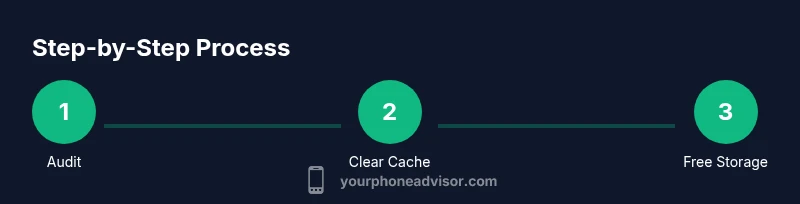
- 1
Audit running apps and services
Open your recent apps view and close background processes, especially those you rarely use. If your device has a battery saver mode, enable it temporarily during the cleanup to prevent apps from relaunching immediately.
Tip: Use the task manager to identify apps with high memory usage and force stop them. - 2
Clear caches and temporary data
Clear application caches where possible, either per-app or via a device-wide storage cleaner. On iOS, offload unused apps; on Android, clear cache in Settings > Apps for frequently bloated apps.
Tip: Cached data can be sizable; clearing it won’t delete essential data like login credentials. - 3
Free up storage space
Review large files (videos, screenshots) and back up to cloud or computer. Delete duplicates and move media to an external drive if available.
Tip: Aim to maintain at least 10–20% free storage for system operations. - 4
Update OS and key apps
Install the latest OS version and update frequently used apps to benefit from performance improvements and bug fixes.
Tip: Back up important data before performing major updates. - 5
Optimize display and animations
Reduce motion and animation scale to lower GPU workload; on Android enable Developer Options and reduce animation length if comfortable.
Tip: These changes often produce a noticeable UI speed-up without impacting functionality. - 6
Restart and monitor
Restart the device to finalize changes and observe whether responsiveness improves. Revisit performance after a few hours of use to confirm stability.
Tip: If performance drops again, consider repeating steps or moving on to deeper optimizations.
Got Questions?
What is the quickest way to speed up my phone right now?
Close background apps and restart your device. Then apply a couple of quick changes like turning off unnecessary animations and updating the OS and key apps. These steps often yield the fastest perceived improvement.
Close apps, restart, then update your OS and a few key apps for a quick speed boost.
Will a factory reset really improve performance?
A factory reset can resolve deep-seated software issues that other fixes miss. It should be used only after backing up data, and when other steps have failed to improve speed.
A factory reset can fix stubborn software problems, but back up your data first.
How can I tell if my battery is causing slowdowns?
Slowdowns can occur when a battery is degrading. Check battery health in your device settings and consider replacing the battery if performance is throttled when the battery drains.
If speed drops as the battery gets old, battery health is likely the culprit.
Are there risks to turning off background data?
Disabling background data can save resources but may delay notifications or sync. Revoke only for non-essential apps and test responsiveness after changes.
Turning off background data helps speed but watch for missed alerts.
Should I restart the device daily?
A regular restart helps clear memory and refresh services, but daily restarts aren’t required unless you notice slowdowns. A few times per week can be enough for many users.
A few times a week is usually plenty to keep things snappy.
Watch Video
What to Remember
- Identify and close resource-heavy apps
- Free storage to improve system headroom
- Keep OS and apps updated for efficiency
- Limit background activity and animations
- Regular maintenance sustains speed over time