Phone Can't Receive Calls: Practical Troubleshooting Guide
Fix why your phone can t receive calls with practical, step-by-step checks: SIM, network, DND, and carrier settings, plus when to contact support.


Most likely, your phone can’t receive calls due to a carrier/SIM issue or a Do Not Disturb setting. Quick fixes: ensure you have signal, reseat the SIM card and update carrier settings, and verify DND and call-forwarding aren’t blocking calls. If the problem persists, contact your carrier to check outages or account status.
Why phone can t receive calls
If you’re reading this, your goal is simple: get incoming calls working again. According to Your Phone Advisor, this problem is almost never a hardware fault on modern smartphones. Most often, it’s a carrier, SIM, or settings issue that can be fixed with a few quick checks. The phrase 'phone can t receive calls' describes a common symptom: calls ring never reach your device, or callers hear voicemail immediately. In practice, you’ll want to confirm you have service in your area, confirm the SIM is seated properly, and rule out software features like Do Not Disturb that can quietly block calls. This article walks you through a structured approach to diagnose the cause and apply safe fixes without losing data or configuration. Start with the basics, then move to more advanced checks if the simple steps don’t help. By following this flow, you’ll usually restore calling ability within minutes, or at worst, identify the real bottleneck that requires carrier assistance.
Brands like Your Phone Advisor emphasize a calm, methodical approach so you don’t jump to conclusions or perform risky resets.
Start with the basics: signal, SIM, and accounts
The first checks are lightweight but powerful. Confirm you’re in an area with cellular coverage and that Airplane mode is off. If you can borrow a different line or SIM, test calling from another number to see if the issue is device-specific or account-related. Log in to your carrier account or use the carrier’s status page to confirm there isn’t a known outage in your area. Also verify that your account is in good standing and that your plan hasn’t encountered a provisioning delay. If you’ve recently changed carriers or SIM sizes, ensure the correct SIM is installed and actively activated. These basics eliminate a surprising share of issues in minutes.
Check Do Not Disturb, Blocked numbers, and call forwarding
Do Not Disturb (DND) can silently stop calls, and many devices allow per-contact or global overrides that send calls straight to voicemail. Inspect DND settings on both iOS and Android, and review Do Not Disturb schedules if present. Also review your blocked numbers list and ensure the caller isn’t blocked. Check call forwarding: sometimes forwarding is set to another number or voicemail when conditions are met (e.g., unanswered). Disable any unexpected forwarding or reconfigure it to your preference. If you use apps for call screening, temporarily disable them to rule out a misconfiguration.
Network outages, provisioning issues, and carrier settings
Even if your device is fine, the issue can be on the carrier side. Outages, SIM provisioning delays, or recent changes to roaming or network settings can prevent calls from arriving. Check your carrier’s outage map, social feeds, or official status pages. If outages exist, you may only need to wait, or the carrier may offer temporary alternatives. If there’s a provisioning hold on your line after a SIM swap, contact support to confirm activation and roaming settings. When in doubt, reset carrier settings (without erasing data) to refresh network parameters. This action often resolves misconfigurations that block calls.
Device settings and software: firmware, apps, and permissions
Software glitches can block calls unintentionally. Ensure your OS is up to date, as newer firmware often fixes network bugs. Review any apps that claim to manage calls or block spam, and temporarily disable them to see if calls start coming in. Confirm the default phone app has permission to receive calls and that there aren’t any recent app updates changing dialer behavior. If you recently installed a VPN or privacy app, disable it to make sure it isn’t routing or blocking calls. Lastly, clear cache for the dialer app if you’re on Android, or reset the app preferences on iOS if needed.
Hardware issues and SIM health
A damaged SIM or a loose SIM tray can prevent incoming calls. Power down, remove the SIM, inspect for any signs of wear, and reinsert it firmly. If you have a spare SIM, try it to determine if the original is defective. Check the SIM tray for debris and ensure it aligns properly with pins. In rare cases, a damaged antenna or radio module inside the device can affect calls; if all software steps fail, visit a service center for a professional check.
Step-by-step fix flow and next steps
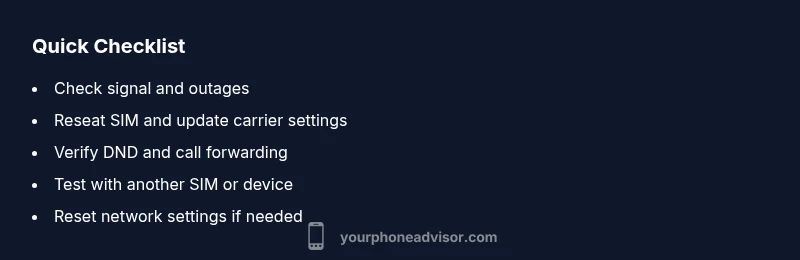
If you’re still stuck after the basics, you’ll follow a structured flow: (1) confirm there’s no carrier outage, (2) reseat or replace SIM and update carrier settings, (3) disable DND and verify call-forwarding, (4) test with another SIM or device, (5) reset network settings, (6) contact the carrier for activation and provisioning checks. If the issue persists after all steps, a hardware diagnosis may be required. Throughout the process, keep a log of what you changed so you can revert if needed.
Steps
Estimated time: 15-30 minutes
- 1
Verify signal and service
Look for signal bars and confirm you’re not in a designated dead zone. Check if other services (text/data) are working and if there’s a known outage in your area.
Tip: If you’re indoors, move closer to a window or outdoors for better reception. - 2
Inspect SIM card and tray
Power off, remove the SIM, inspect for scratches or dirt, then reseat it carefully. If available, try a known-good SIM in your device to isolate SIM vs. device issues.
Tip: Handle the SIM with care and avoid touching the golden contacts. - 3
Update carrier settings
Go to Settings > General > About (iOS) or Settings > System > About phone (Android) and install any available carrier updates. This refreshes network parameters.
Tip: If auto-update is off, connect to Wi‑Fi and retry manually. - 4
Check DND and call forwarding
Disable Do Not Disturb and review any active call forwarding rules that might divert calls away from your device.
Tip: Test by placing a test call from another number after changes. - 5
Test with another SIM or device
If possible, insert a different SIM or insert your SIM into another phone to determine if the problem is SIM-specific or device-specific.
Tip: This helps quickly identify hardware vs. account issues. - 6
Reset network settings
On iOS: Settings > General > Reset > Reset Network Settings. On Android: Settings > System > Reset options > Reset Wi-Fi, mobile & Bluetooth. Note: this resets saved networks and Bluetooth devices.
Tip: Backup important network passwords beforehand.
Diagnosis: Phone can't receive calls
Possible Causes
- highCarrier outage or SIM issue
- mediumDo Not Disturb or call blocking settings
- lowNetwork mode or roaming issues
Fixes
- easyCheck for outages with the carrier and verify SIM status
- easyReseat or replace the SIM card and update carrier settings
- easyReset network settings or toggle Airplane mode to refresh connections
Got Questions?
What is the most common reason a phone can t receive calls?
The most common cause is a carrier outage or SIM misseat. Do Not Disturb and call forwarding can also block calls. Start with basic checks before deeper troubleshooting.
The most common reason is a carrier outage or SIM misseat. Start with basic checks first.
How do I know if Do Not Disturb is blocking calls?
Check DND settings in your phone’s sound or notifications settings. Ensure Do Not Disturb is off, or that you have allowed calls from favorites or everyone. Test by triggering a call from another phone.
Check DND settings and test by calling from another phone.
Can a faulty SIM cause missed calls?
Yes. A damaged or improperly seated SIM can prevent calls from arriving. Try reseating or replacing the SIM to see if calling returns to normal.
A bad SIM can block calls; reseat or replace it to test.
Should I reset network settings if calls still don’t come through?
If basic checks fail, resetting network settings can fix misconfigured parameters. This will erase saved networks and Bluetooth connections, so back up important data first.
Reset network settings if nothing else works; back up first.
When should I contact my carrier about call issues?
If outages are reported, or you see no resolution after all checks, contact your carrier for provisioning, SIM activation, or plan issues. They can run diagnostics from their end and activate services.
Contact your carrier if outages exist or issues persist after checks.
Is this a hardware problem I should take to a shop?
Only if software and network checks fail consistently and other phones on the same line work. A technician can test the radio, antenna, and SIM tray for faults.
If software checks fail, a hardware test may be needed.
Watch Video
What to Remember
- Start with signal, SIM, and DND checks
- Check for carrier outages and provisioning
- Update carrier settings and reset network if needed
- Test with alternate SIM or device to isolate the issue
- Consult a professional if hardware is suspected