Phone Can Not Make Calls? Step-by-Step Troubleshooting
Learn rapid steps to diagnose why your phone can not make calls. Practical, carrier-aware guidance for Android and iPhone with safety tips and when to seek help in 2026.


Most likely, the problem is either a carrier/network issue or a misconfigured setting. Start with the simplest checks: verify Airplane Mode is off, confirm you have service, and test with a different SIM or device. If the issue persists, work through the diagnostic flow to rule out SIM, account, and software problems before contacting your carrier or a technician.
Quick checks to diagnose whether the problem is network or device
If your phone can not make calls, start by excluding obvious issues like a dropped service or a temporary outage. First, check if Airplane Mode is on. If it is, turn it off and attempt a call. Next, examine the signal bars; if you’re in a low-coverage area, move to a window or outdoors. Also ensure your SIM is properly inserted and not damaged. Try a call with another SIM or another phone if available to confirm whether the problem lies with the SIM or the device. If you still cannot place calls after these checks, it’s time to step through the diagnostic flow to pinpoint the root cause. This phase focuses on network status, SIM health, account restrictions, and basic software issues that commonly cause a phone can not make calls scenario.
Verify SIM and carrier status
A misbehaving SIM card is a frequent culprit when the phone can not make calls. Remove the SIM, inspect for dirt or damage, and reseat it firmly in the tray. If you have access to another SIM (for example, a family member’s card), test with that SIM to determine if the issue is SIM-related. Also check your carrier app or account dashboard for any service holds, suspensions, or unpaid balances that could block outgoing calls. If service is interrupted in your area, the problem may lie with the network rather than the device.
Inspect device settings and call features
Review settings that directly impact calling. Ensure that call dialing restrictions aren’t enabled, such as call blocking, call barring, or a limit on outgoing calls. Confirm that any number you’re trying to reach isn’t blocked. Disable Do Not Disturb and verify that any scheduled quiet hours aren’t silently muting calls. On some devices, a misconfigured Voicemail or call-forwarding setting can interfere with calling. Also examine default calling app (Phone app) and permissions; if another app handles calls, switch back to the native dialer.
Diagnostic flow: symptom-to-solution map
When the symptom is a failure to place a call, start by testing in different scenarios (outgoing vs incoming), different numbers, and different networks if possible. If the problem follows the SIM, the issue is likely SIM-related. If it stays with the device, software or hardware could be at fault. Use the diagnostic flow to identify whether the cause is network, account, or device-level. Each path ends with a recommended fix or escalation.
Most common causes and quick fixes you can try now
The most frequent culprits are a paused service, a seated or damaged SIM, or a misconfigured network setting. Try toggling Airplane Mode, reseating the SIM, and rebooting. Check for carrier outages in your area and verify the account status. If software glitches block calls, a quick OS update or a reset of network settings can restore functionality.
When to seek professional help and safety notes
If the issue persists after the basic checks and steps, contact your mobile carrier for assistance or visit an authorized service provider. Never attempt to repair internal hardware yourself, as this could void warranties or cause further damage. Back up data before performing resets, and keep records of error messages to share with support.
Prevention tips to avoid future call problems
Keep your device software up to date, monitor account status, and avoid crowded environments where signal drops are common. Regularly check SIM health and store a spare SIM if possible. Enable cautionary settings like Do Not Disturb overrides and call forwarding only when necessary to prevent accidental blocking.
Steps
Estimated time: 45-60 minutes
- 1
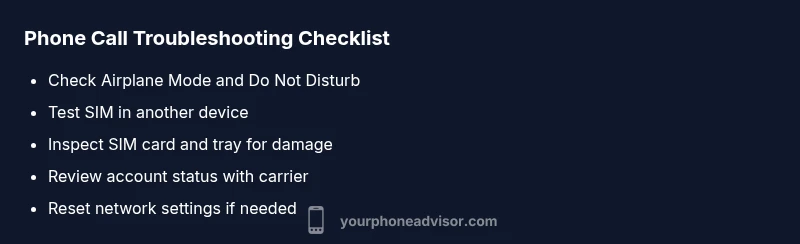
Check Airplane Mode and Do Not Disturb
Quickly verify that Airplane Mode is off and that Do Not Disturb is not silencing calls. Use the status bar or settings search to toggle these features, then test a call.
Tip: If you use DND schedules, temporarily disable them for testing. - 2
Test with another SIM or device
Insert a different SIM or borrow another phone to determine whether the issue follows the SIM or is device-related. If another SIM works, your card or account is the likely culprit.
Tip: Label the devices to avoid confusion. - 3
Inspect and reseat the SIM
Power off, eject the SIM tray, inspect for scratches or damage, clean gently, and reseat the SIM firmly. Power on and test calls again.
Tip: Handle the SIM with clean hands and avoid bending the tray. - 4
Check account status with carrier
Access your carrier app or account portal to verify there are no service holds, unpaid balances, or plan restrictions affecting outgoing calls.
Tip: If you see a hold, contact support to resolve. - 5
Reset network settings
In Settings, reset network settings to restore default configurations. This can fix misconfigurations blocking calls, but you may need to re-enter Wi‑Fi passwords and Bluetooth devices.
Tip: Backup essential data if prompted. - 6
Update OS and carrier settings
Check for system and carrier profile updates. Install all available updates and restart to apply changes.
Tip: Keep automatic updates enabled for future fixes.
Diagnosis: Phone won't start or place a call
Possible Causes
- highPower issue or battery failure
- highSIM card mis-seated or damaged
- mediumCarrier outage or service hold
- mediumSoftware glitch or outdated OS
- lowAirplane mode or Do Not Disturb enabled
- lowHardware issue with microphone/antenna
Fixes
- easyCheck power and battery status; plug in or charge
- easyRemove and reinsert the SIM, clean contacts and reseat
- easyRestart device and check for carrier outages or holds
- easyReset network settings or update OS/carrier settings
- easyEnsure Airplane Mode and Do Not Disturb are off
- easyIf unresolved, contact carrier or service center
Got Questions?
Why can't I make outgoing calls?
Outgoing calls can fail due to network outages, a suspended service, a faulty SIM, or software issues. Run through the diagnostic flow to identify the cause and apply the recommended fixes.
Outgoing calls can fail due to network outages, a suspended service, a faulty SIM, or software issues. Run the diagnostic flow to identify the cause.
What should I check first if I can't call?
Start by confirming Airplane Mode is off, checking service status, and testing with another SIM or device. These quick checks often reveal the root cause without complex steps.
Check Airplane Mode and service status, then test with another SIM to locate the issue.
Why does Airplane Mode affect calls?
Airplane Mode disables cellular radios, so calls won’t work until you switch it off.
Airplane Mode turns off cellular radios, preventing calls until you disable it.
Is it safe to reset network settings?
Resetting network settings is generally safe and restores default network configurations. It may remove saved Wi-Fi passwords and Bluetooth pairs, so back up important data.
Resetting network settings can fix call problems but may remove saved networks and devices.
What if my carrier outage lasts long?
If outage continues beyond a few hours, contact your carrier for status updates or alternatives. They can advise on restoration times and workarounds.
If the outage lasts, contact your carrier for updates and workarounds.
When should I get professional help?
If basic troubleshooting fails and you suspect hardware damage or persistent software faults, visit a service center or your carrier's store for hands-on diagnosis.
If basic steps fail, seek professional help for hardware or deep software issues.
Watch Video
What to Remember
- Verify basic settings first
- Test SIM/card health early
- Use the diagnostic flow to isolate causes
- Escalate to carrier if unresolved