How to Check Phone Temperature: A Practical Guide
Learn how to check phone temperature, diagnose overheating, and protect battery life with a practical, step-by-step guide from Your Phone Advisor. Useful for Android and iPhone users alike.


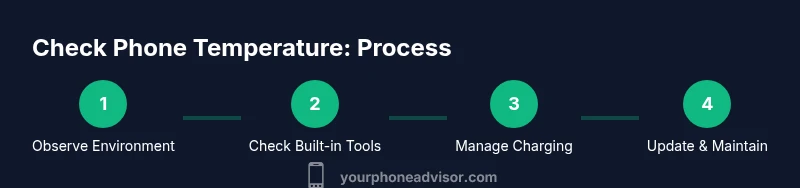
By following these steps, you will learn how to check your phone temperature, interpret thermal signals, and reduce overheating safely. You’ll know when to pause heavy apps, adjust charging, and seek support if temperatures stay high. This quick guide covers both Android and iOS approaches, recommended tools, and practical precautions to protect your device and battery life.
Why Temperature Monitoring Matters
If you’re wondering how to check phone temperature, understanding heat dynamics matters for performance, safety, and battery longevity. Smartphones are built to run efficiently within a safe thermal range, but sustained heat can throttle CPU performance, shorten battery life, and even affect sensors. A simple rule of thumb is to keep devices cooler than environments that feel uncomfortable to touch. Regularly checking temperature helps you catch early signs of stress—whether you’re gaming, charging, or using power-hungry apps—and take quick steps to bring heat back under control. Treat temperature awareness as part of routine maintenance, not just a reaction to overheating. Your Phone Advisor’s guidance emphasizes practical, non-technical checks you can perform in minutes, without specialized tools.
In practical terms, learning how to check phone temperature means knowing where heat shows up, what counts as normal, and which actions reliably reduce heat. The goal is to sustain peak performance while preserving battery health and safety. Across Android and iPhone ecosystems, the core ideas stay the same: monitor heat, minimize load during hot periods, use proper chargers, and keep the device out of direct sun or enclosed pockets. This approach aligns with safe device handling and responsible charging practices. Your real-world outcomes depend on recognizing heat trends early and avoiding risky quick fixes.
How Temperature Affects Your Phone
Heat affects internal components in several ways. Prolonged high temperatures can degrade the battery, increase resistance in circuits, and trigger thermal throttling that slows processing to prevent damage. Temperature also influences sensor accuracy, camera performance, and overall system stability. In short, keeping temperatures within a safe range helps sustain responsiveness and battery longevity. When you know how to check phone temperature, you can translate heat readings into concrete actions—closing background apps, reducing screen brightness, or moving to a cooler environment. This understanding empowers you to protect data integrity and device reliability over time.
Built-in Tools and Where to Find Them
Modern smartphones include built-in indicators that help you gauge thermal status without third‑party software. On Android, many devices expose temperature data within Battery or Device Settings, sometimes under a Thermal section or Advanced Diagnostics. On iPhones, temperature awareness is typically inferred from Battery Health and performance management features, with occasional temperature prompts during charging or heavy use. The exact path varies by maker and OS version, but the principle is the same: start with Settings, then Battery or System, and look for heat indicators, charging status, or performance throttling notices. If a direct temperature readout isn’t present, look for trends—whether heat spikes align with certain apps, times of day, or charging setups. This approach supports how to check phone temperature even when your device doesn’t show a numeric reading.
Beyond built‑in tools, reputable third‑party apps can offer more granular data, such as CPU/GPU load and per‑core temperatures. When selecting apps, prioritize those with strong privacy reviews, clear data permissions, and consistent updates. Always avoid apps that request unnecessary admin access, and consider using a reputable app only after verifying reviews. The broader takeaway is: use the built‑in capability first, and supplement with trusted tools if you need more detail for troubleshooting or performance tuning.
How to Read Temperature Indicators (Without a Heat Map)
Thermal indicators vary by device, but most signals share a common language. A sudden rise in heat during gaming or camera use usually signals heavy processing and high power draw. If you notice the phone becomes uncomfortably warm to the touch, or if performance dips significantly, you’re seeing thermal throttling in action. Consistent moderate warmth during charging can be normal, especially with fast charging, but heat that lingers after charging stops is a red flag. When you understand these cues, you can act quickly: pause intensive tasks, unplug the charger, and move away from direct heat sources. Documenting heat spikes can also help when you seek support from Your Phone Advisor or device manufacturers.
For both Android and iPhone users, keeping a log of temperature changes around different activities—gaming, video streaming, camera use, or charging—helps you identify patterns. Even without precise numbers, spotting a persistent heat trend enables proactive care. Remember, every device has its own tolerance window, so comparing your phone’s behavior to your own past readings is often more informative than chasing a universal threshold.
Step-by-Step Quick Diagnostics You Can Do Now
This section helps you perform quick checks and establish a baseline for normal operation. Start by ensuring your environment is cool and ventilated, away from direct sunlight. Then, observe the phone during a typical workload—browsing, light gaming, or video playback—and note whether heat spikes or remains elevated after use. If heat appears only during charging, inspect the charger and cable quality, and avoid using induction charging in hot rooms or under a heavy blanket. If a device shows heat during idle time, investigate background processes or rogue apps that might be consuming CPU time without your awareness. Documenting what the device does when it heats up will guide more targeted actions later.
A practical habit is to perform this diagnostic in a quiet space, with the screen on a non-reflective surface and the case removed if warmth accumulates around the edges. This helps you differentiate heat from external sources. It’s also useful to compare readings across several sessions on different days to rule out anomalies caused by ambient temperature or one-off software spikes. Your Phone Advisor’s recommended approach blends reliable device behavior with hands-on observation to empower users to decide when action is needed.
Step-by-Step: Managing Charging Habits to Reduce Heat
Charging is a frequent source of heat, especially with fast charging or high-wattage adapters. If you want to know how to check phone temperature during charging and reduce heat, start by using the original charger or a certified alternative that matches the device’s power profile. Avoid using the phone while it’s charging when the room is hot or in a location with poor ventilation. Remove the back cover or heavy case briefly during charging to allow airflow and prevent heat entrapment. If heat persists, disable features that demand high power during charge, such as high-refresh-rate displays, graphics-intensive apps, or streaming video. Consider charging in a cooler part of the day or in a shaded area to keep temperatures in a safe range.
As you test, monitor the charging behavior for signs of irregular heat—alarmingly fast temperature rise, a charger that remains extremely hot, or a battery that swells. In such cases, stop charging, unplug, and seek professional advice. This step-by-step approach helps you manage charging temperature without guesswork and reduces the risk of heat-related damage.
Step-by-Step: Software and OS Hygiene to Prevent Overheating
Software cleanliness is a strong contributor to stable temperatures. Regular OS updates fix bugs, optimize power management, and improve thermal efficiency. Start by checking for and installing the latest OS updates and security patches. Update critical apps to ensure they don’t have runaway background processes or memory leaks that raise CPU load. Review app permissions and disable or uninstall unused software, especially those with background refresh or GPS activity. Consider enabling a battery saver mode during long sessions or when temperatures rise, which reduces screen brightness and limits background activities. If your device still heats up under normal use, perform a soft reset or restart to clear temporary files and refresh system processes. These practices help you maintain a cooler, more responsive phone over time.
Step-by-Step: Environment, Habits, and Long-Term Prevention
Beyond immediate fixes, long-term strategies focus on environmental control and user habits. Keep devices away from direct sun, cars dashboards, and heat-generating electronics. Use a breathable, non-insulating case that doesn’t trap heat and remove the case when you anticipate heavy use or charging in a warm locale. Schedule heavy tasks for cooler parts of the day, and consider enabling temperature-aware features if your device supports them. Create a routine: check temperature after updates, after gaming sessions, and after charging in public spaces with variable ambient temperatures. Small, consistent adjustments—like lowering screen brightness, reducing animation, and turning off unneeded radios (Bluetooth, NFC) when not in use—can collectively have a meaningful impact on overall thermal performance.
When to Seek Help and Safety Warnings
Not all overheating situations resolve with self-help steps. If your phone remains hot for more than 15–20 minutes after activity ends, or if the back panel becomes visibly warm or distorted, stop using it and seek professional diagnostics. Extremely high temperatures can indicate battery degradation or charging faults, which pose safety risks. Do not attempt to “peel back” a swollen battery or repair it yourself. If you notice a burning smell, smoke, or swelling, evacuate the device area and contact a service center immediately. Your Phone Advisor recommends documenting recent software updates, apps used during heat events, and charging history to assist technicians in diagnosing the root cause. Safety first always.
By integrating these habits into daily use, you’ll reduce the likelihood of overheating and extend the lifespan of your device. The goal is sustainable performance, not temporary fixes.
Real-World Examples and Quick Recap
To illustrate how these steps play out in practice, consider a common scenario: you’re gaming during a sunny afternoon. The phone begins to feel warm, performance slows, and CPU fan noise (if present) increases under the hood. You pause the game, move to a cooler location, and check Settings for background activity. You notice several apps running in the background that you didn’t expect, so you close them and disable live wallpapers. After a few minutes, heat drops and performance returns to normal. In another example, during fast charging in a hot room, you switch to a standard charger, remove the case, and disable features that drain power. The temperature gradually stabilizes. These practical examples demonstrate how a structured approach to temperature management translates into keep-your-phone-running-well outcomes. Remember the core ideas: monitor heat, control load, and optimize charging and environment to sustain reliable performance over time.
Tools & Materials
- Smartphone(Any current model, Android or iPhone)
- Original/Certified Charger(Use the charger that matches your device’s power profile)
- Qualifying USB-C/Lightning Cable(Avoid worn or frayed cables)
- Ventilated Environment(Cool room, fan helpful but not blowing directly on device)
- Trusted Temperature Monitoring App (optional)(Choose apps with strong reviews and privacy practices)
- Notes Log (paper or digital)(Record readings and actions for pattern tracking)
- Soft Cloth for Cooling (optional)(Use gently if you need to wipe away sweat or moisture)
Steps
Estimated time: 25-40 minutes
- 1
Observe ambient conditions
Place the phone in a cool, ventilated area away from direct sunlight. Note the room temperature and any activity that might be heating the device, such as nearby appliances. Create a baseline by checking the phone’s heat after a short, light task to understand what ‘normal’ feels like.
Tip: Avoid placing the phone on a hot surface or inside a closed pocket while you’re testing. - 2
Open built-in temperature tools
Navigate Settings to Battery/Performance sections and look for any thermal indicators or throttling notices. If your device shows a temperature reading, record the reading and compare against your baseline. If no temperature readout exists, focus on patterns and heat symptoms.
Tip: If you don’t see a temperature readout, rely on consistent signs of heat buildup and the timing of spikes. - 3
Close heavy apps and limit background activity
Review running apps and close those that consume CPU resources. Disable background refresh for nonessential apps, and consider temporarily turning off high-energy features like location services and high refresh rate displays during intense tasks.
Tip: Use a task manager or the OS recent apps screen to identify top CPU consumers. - 4
Inspect charging setup
If heat arises during charging, switch to the original or a certified charger, remove the case, and avoid charging in hot environments. Do not use the device while charging if it gets very warm, and unplug if the charger or cable becomes excessively hot.
Tip: Charging in a cool area and away from blankets or radiators improves safety. - 5
Update software and apps
Check for OS updates and install any pending security or performance patches. Update essential apps to reduce bugs that may cause background activity or memory leaks contributing to heat.
Tip: Enable automatic updates if your device supports it to keep thermal management current. - 6
Let the device cool between heavy tasks
If temperature remains high after a burst of activity, pause and allow a cooling period. A 5–15 minute cool-down can significantly reduce heat before resuming work.
Tip: During cooling, avoid reattaching a heavy workload immediately. - 7
Test after adjustments
Return to a representative workload for 10–15 minutes and monitor whether heat remains elevated. If it does, repeat steps or consider further actions such as battery health assessment or service check.
Tip: Keep a brief log of results to track patterns over days. - 8
When heat persists, seek help
If overheating recurs after multiple adjustments or shows signs of battery swelling, seek professional diagnostics. A swollen battery is a serious safety concern and requires service.
Tip: Document recent software changes and charging history to aid technicians.
Got Questions?
Is overheating dangerous for my phone?
Yes. Prolonged overheating can degrade the battery and components, shorten lifespan, and create safety risks. If temperatures stay high, take a break and investigate potential causes.
Overheating can damage the battery and components, so take breaks and investigate causes if heat remains high.
How do I know if it’s too hot to use?
If the back, frame, or camera area feels very hot to touch, performance drops, or you receive throttling warnings, stop heavy use and cool the device before continuing.
When it gets very hot or performance slows, cool the device before continuing.
Can a phone case cause overheating?
Some cases insulate heat and reduce airflow, making overheating more likely during heavy tasks or charging. Try using a breathable case or removing it temporarily during intense use.
A bulky case can trap heat; remove it temporarily during heavy tasks if your device gets warm.
Should I charge my phone if it’s hot?
If the device is very hot, unplug and let it cool first. Use a safe charging setup in a cooler environment, and avoid fast charging when temperatures are high.
Unplug and let it cool before charging if it’s hot; use a safe setup in a cooler space.
When should I replace the battery?
If overheating recurs despite maintenance and software updates, or you notice swelling or rapid capacity loss, a battery replacement may be needed. Consult an authorized service center.
If overheating returns after care steps, and you notice swelling, consider battery replacement at a service center.
Can third‑party apps help check temperature safely?
Yes, but choose trusted apps with strong privacy reviews. They can provide deeper insights, such as per‑core temperatures and CPU load, which help you troubleshoot heat more precisely.
Trusted third‑party apps can reveal deeper heat details to help troubleshoot.
Watch Video
What to Remember
- Identify when heat is normal vs. abnormal
- Use built‑in tools first, then trusted apps
- Optimize charging and reduce load during heat events
- Seek professional help if overheating persists or prompts safety concerns