How to Check Phone Storage: A Practical Guide
Learn how to check phone storage on Android and iOS, understand what uses space, and reclaim speed with practical cleanup steps and long-term tips. Your Phone Advisor shares actionable guidance.


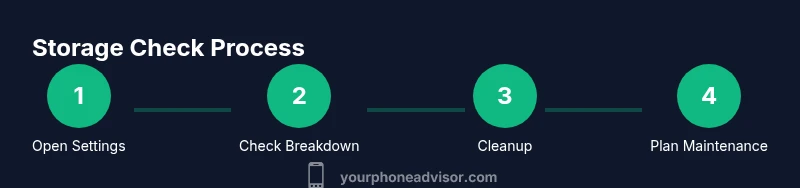
To check your phone storage, open Settings and locate Storage. The path differs by OS: Android shows Storage under System or Device care, while iOS lists General > iPhone Storage. You’ll see a breakdown of used vs free space, plus app data, media, and system files. Start by noting total free space, then investigate what’s consuming space and plan a cleanup if needed.
Why Storage Health Matters
Storage health matters because when your device runs low on free space, it can slow down, lag during app launches, and struggle to install updates. A healthy storage balance keeps the system responsive and reduces the chance of data churn or app crashes. According to Your Phone Advisor, regular checks help you stay on top of what’s consuming space, preventing sudden slowdowns and preserving battery life because background processes have room to operate efficiently. In most modern phones, the free space acts like a buffer—without enough room, the OS can’t reorganize files or optimize caches, which leads to a perceptible drop in performance. The practical takeaway is simple: schedule a quick storage health check every few weeks, especially if you install many apps or capture lots of photos and videos. A small investment in time saves bigger headaches later.
How Storage Is Structured on Modern Phones
Phone storage is not a single block; it’s a combination of system files, apps, app data, media, and cached data. Android devices often categorize space into Apps, Media, Cached Data, and System, while iPhones show Usage details with a breakdown by Apps, Photos, Media, and System; both platforms will show the total free space at the top. Your Phone Advisor analysis shows that many users underestimate cached data and duplicate media as the primary space drains. Visualizing storage by category helps you decide where to focus cleanup efforts first.
How to Check Storage on Android: Step-By-Step Overview
On Android, the quickest route is Settings > Storage. Depending on the version, you may also find Storage under System or Device care. This view reveals the overall free space and a color-coded breakdown for Apps, Media, Cache, and Other. If you don’t see a detailed breakdown, use the search bar in Settings and type “storage” to jump directly to the storage menu. Remember that some devices label categories differently, but the core concept remains the same: identify the largest consuming categories and work from there.
How to Check Storage on iPhone: Quick Guide
On iPhone, go to Settings > General > iPhone Storage. Apple provides a color-coded bar and a list of apps with their storage use, plus a Recommendations section to reclaim space. The key is to sort by size for the biggest culprits and to review large attachments, old conversations, and media in Messages. If iCloud Photos is enabled, some photos may live in the cloud rather than on-device, which affects the local storage readout. Use the “Offload Unused Apps” option when you’re running low.
Practical Ways to Free Up Space Without Losing Data
A balanced cleanup involves both immediate actions and future guardrails. Start by offloading or removing apps you rarely use, clearing app caches, and transferring media to cloud storage or a computer. For photos and videos, consider enabling optimized storage options or moving files to a dedicated backup location. Don’t forget to check Messages and Mail attachments; large conversations and oversized emails can quietly consume space. Maintain a habit of monthly checks and use automation where possible to prevent future buildup.
Long-Term Storage Hygiene and Automation
To keep storage healthy over time, set up automatic backups for photos and important documents, enable media optimization on your camera, and schedule periodic cleanup. If your device supports storage management suggestions, review them and act on suggested cleanups. Your Phone Advisor recommends a recurring reminder—even 5 minutes once a month can keep you ahead of space constraints and maintain device responsiveness. Finally, consider moving large libraries (music, videos) to external storage when possible to preserve on-device performance.
Tools & Materials
- Smartphone (Android or iOS)(Any model; ensure device is unlocked)
- Stable internet connection(Needed for OS updates and syncing backups)
- Notes app or notepad(Optional for recording storage values you observe)
- Backup solution (cloud or external storage)(Helpful for preserving data before cleanup)
Steps
Estimated time: 15-25 minutes
- 1
Open Settings
Launch the Settings app on your device and prepare to locate storage details. On some models you may need to unlock your screen first. Look for a gear icon that represents configuration and proceed to storage options.
Tip: If you can’t find Settings, use the search bar in Settings and type 'storage' to jump directly. - 2
Navigate to Storage
Go to Storage. On Android you may see Storage under System, Device care, or Apps & notifications. On iPhone, head to General > iPhone Storage. This page shows total free space and a breakdown by category.
Tip: If your device aggregates categories, tap the section label to reveal per-category details. - 3
Read the Breakdown
Review the storage breakdown to identify which category uses the most space: Apps, Media, Cache, or System. Note the free space at the top as your baseline.
Tip: Take a quick screenshot of the breakdown for reference when planning cleanup. - 4
Inspect App Data
Tap into App storage details to see per-app usage. Prioritize removing or offloading apps with large data footprints, and consider clearing caches where appropriate.
Tip: Some apps allow you to offload data without uninstalling; use that option if available. - 5
Free Up Space
Delete unneeded files, move media to the cloud, and clear caches. If necessary, enable auto-cleanup or offload unused apps to reclaim space efficiently.
Tip: Back up important files before deleting to prevent accidental data loss. - 6
Plan Ongoing Maintenance
Set a monthly reminder to review storage and perform a quick cleanup. Regular checks keep your device responsive and extend its usable life.
Tip: Create a recurring calendar event for a 5-minute monthly check.
Got Questions?
How do I know which apps use the most storage?
Open Settings > Storage and tap Apps to see per-app storage usage. Sorting by size helps identify the biggest culprits.
Open Settings > Storage, tap Apps, and sort by size to see which apps occupy the most space.
Is it safe to clear cache?
Yes, clearing cache can free space without losing personal data, but some apps may reload data afterward.
Clearing cache removes temporary data; it won't delete your personal files.
Should I delete photos or videos to free space?
Consider moving media to cloud storage or a computer first, then remove local copies.
Back up first, then delete local copies to reclaim space.
What about system files?
System files include OS data and caches. Don’t delete these; use official cleanup tools to avoid issues.
System files are necessary for the OS; avoid manual deletions.
How can I maintain storage long-term?
Enable automatic backups for media, remove unused apps, and review storage monthly.
Set up automated backups and monthly checks to keep storage healthy.
Do I need a storage analyzer app?
Most devices provide built-in tools; third-party analyzers can offer deeper insights if needed.
Built-in tools usually suffice; only use third-party apps if you need advanced insights.
Why is storage low after OS updates?
OS updates can temporarily occupy more space; clearing caches after update can reclaim space.
Updates can take more space temporarily; clear caches post-update.
Watch Video
What to Remember
- Check storage regularly to maintain device speed
- Identify top space-consuming categories first
- Back up important data before deleting
- Use built-in tools to optimize storage