How to Bring Back the Phone Icon on iPhone
Learn practical, expert-backed steps to restore the missing Phone icon on iPhone. Use App Library, Spotlight, and safe resets to recover quick access to calls. Includes tips, tricks, and authoritative references.


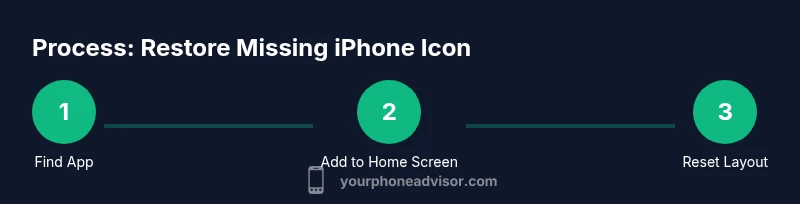
To bring back the missing Phone icon on your iPhone, locate the app in App Library or Spotlight, then re-add it to a Home Screen. If the icon remains hidden, reset your Home Screen layout or check Screen Time restrictions and offload settings. You’ll need an iPhone running iOS 14 or later and an active internet connection.
Why the Phone Icon Might Be Missing on Your iPhone
In iOS, the Phone app is a core system app that can sometimes disappear from the Home Screen if it's been hidden, moved, or offloaded. When you ask how to bring back the phone icon on iphone, the root cause is usually either the app being tucked away in the App Library, or the Home Screen layout having been reset accidentally. Other potential causes include Screen Time restrictions that hide certain apps, or the app being offloaded to free storage. Understanding how iOS organizes apps helps you troubleshoot quickly. Apple designed the App Library to house every installed app, even ones you’ve removed from the Home Screen. From there you can re-add icons by dragging or using the contextual menu. Offloaded apps keep their icon faint and require a tap to re-download. Before scrambling for a workaround, confirm you’re not simply on a different Home Screen page or in a filtered App Library search. This guide assumes a typical iPhone experience with standard settings.
How iOS App Library and Home Screen Work Together
Apple’s app-management model splits installed apps between the Home Screen and the App Library. The App Library contains every app, but hidden Home Screen icons can be re-added from there. If you’ve removed the icon from the Home Screen, you’ll still see it in App Library. The key is to know how to switch between these views without losing your layout. When you re-add an icon, iOS preserves your overall organization and only places the app back on a page you choose. In short, App Library is a safety net for icons you’ve moved or hidden, while the Home Screen is the primary launcher for quick access. This distinction is crucial for troubleshooting missing icons, including the Phone app.
Quick Checks You Should Do First
Before you jump into multi-step fixes, run a few quick, low-effort checks. Start with Spotlight search: swipe down on any Home Screen and type Phone. If the app appears, long-press and choose "Add to Home Screen" or drag it back. Then open App Library ( swipe left to the end of your Home Screen pages ) and search for "Phone". If you see the icon in App Library but not on the Home Screen, drag it to the desired page. Also verify you haven’t hidden the app via Screen Time restrictions or a recent iOS update. If the icon still won’t appear, you’re likely facing a layout issue or an offloaded app that needs re-download. These quick checks save time and prevent unnecessary steps.
Step 1: Find the Phone App in App Library or Spotlight
Locating the Phone app is the first essential move. Use Spotlight by pulling down on the Home Screen and typing “Phone” to confirm whether the app exists on your device. If Spotlight finds it, long-press the result and choose "Add to Home Screen" or drag the icon to a visible page. In App Library, navigate to the folder named either "Utilities" or the app’s alphabetical category and locate Phone. If you consistently fail to locate the app, it may have been temporarily removed via a device management profile or a misconfigured Screen Time setting. In that case, check the restrictions settings or contact your device administrator for guidance.
Step 2: Add the Phone App Back to Home Screen
If the Phone app appears in App Library but not on the Home Screen, you can insert it back onto a home page. Tap and hold the Phone icon in App Library (or Spotlight result) and choose "Add to Home Screen" or drag it onto the Home Screen. Position it where you typically access calls—often the dock at the bottom for quick access. If you’re dragging from the App Library, you may drop the icon onto any blank area of the Home Screen. This action restores direct access without affecting other icons. For safer placement, consider creating a dedicated Home Screen page for essential apps to reduce future disappearances.
Step 3: Reset Your Home Screen Layout
If re-adding isn’t solving the problem, resetting the Home Screen layout can be a powerful reset that preserves apps while restoring defaults. Go to Settings > General > Transfer or Reset iPhone > Reset Home Screen Layout. This action returns icons to their original arrangement and re-creates the default Dock. Note: This will not delete apps, only their positions. After the reset, you may need to rearrange the icons again, but this step often resolves stubborn disappearances caused by layout glitches announced by an iOS update or a glitch in the current session.
Step 4: Check for Offloads and Restrictions
A hidden Phone icon can also indicate an offloaded app or a restriction. Open Settings > General > iPhone Storage and locate Phone. If it shows as Offloaded, tap the app and choose "Reinstall App". If the app is not offloaded but still missing, review Screen Time: Settings > Screen Time > Content & Privacy Restrictions > Allowed Apps. Ensure that Phone is permitted and that there are no restrictions on adding apps to the Home Screen. If you recently enabled a profile or device-management settings, consult your admin to confirm the allowed app list. These checks catch issues beyond simple hiding.
Step 5: If All Else Fails, Reinstall or Restore
As a last resort, reinstalling the Phone app via App Store is not always possible since Phone is a system app, but you can re-download the app by enabling a reinstallation flow if it’s been offloaded. If the icon still won’t appear, consider a broader iOS update or a factory reset after backing up your data. Always back up before major changes. If the problem persists after updates and resets, contacting Apple Support is recommended. This approach ensures you don’t miss critical calls while you troubleshoot.
Preventive Tips and Best Practices
To minimize future icon disappearances, keep your Home Screen layout organized by regularly reviewing layout changes after iOS updates. Use the App Library as your safety net for unknown locations, and consider a small, consistent Home Screen page for essential utilities like Phone, Messages, and FaceTime. Regularly back up data so you can safely reset the Home Screen later without losing information. Avoid aggressive automation that hides or relocates icons and be mindful of profiles or device-management settings that could restrict app visibility. Lastly, keep iOS updated to the latest stable version to reduce glitches that affect home-screen behavior. By adopting these habits, you’ll reduce the chances of losing track of important icons and keep your iPhone experience smooth.
Authority and Further Reading
For authoritative guidance on iPhone icon management and features, refer to trusted sources:
- Apple Support: https://support.apple.com
- The Verge: https://www.theverge.com
- CNET: https://www.cnet.com
These sources provide user-friendly explanations and official tips that align with best practices for iOS navigation and app management. Regular consultation of official documentation is recommended to stay current with any changes in future iOS releases.
Tools & Materials
- iPhone with iOS 14 or later(Ensure you can access App Library and Home Screen features)
- Active internet connection(Needed to re-download or verify app status)
- Settings app access(Used for resets and restrictions checks)
- App Library and Spotlight familiarity(Helpful for locating and re-adding the Phone app)
- App Store access(Useful if you need to reinstall or re-download offloaded apps)
Steps
Estimated time: Total: ~15-25 minutes depending on device state
- 1
Find the Phone App
Open Spotlight by swiping down on the Home Screen and type “Phone.” If it appears, you can add it back to Home Screen or confirm its presence. Alternatively, go to App Library (swipe left to the end) and search for Phone. If you locate it, note whether it’s offloaded or hidden on a page. This step confirms whether the app still exists on the device and helps pinpoint where it’s located.
Tip: Use Spotlight results to quickly confirm existence; if it’s offloaded, you’ll be able to reinstall with a tap. - 2
Add the Phone App Back to Home Screen
From App Library or Spotlight, long-press the Phone icon and choose Add to Home Screen or drag it onto a Home Screen page. Place it on the dock if you want quick access to calls. If the app is not drag-able from App Library, it may require a reset of the Home Screen layout.
Tip: Hold and drag slowly to an exact dock position to ensure it sticks in place. - 3
Reset Home Screen Layout
If the icon still won’t stay, reset the Home Screen layout to the default arrangement via Settings > General > Transfer or Reset iPhone > Reset Home Screen Layout. This will restore default positions without deleting apps, though you’ll need to regroup icons afterward.
Tip: If you back up before resetting, you can restore your prior arrangement later. - 4
Check Offloads and Restrictions
Go to Settings > General > iPhone Storage to see if Phone is Offloaded. If so, tap and reinstall. Then check Settings > Screen Time > Content & Privacy Restrictions to ensure Phone isn’t blocked. If there’s an MDM profile, verify its policies with the administrator.
Tip: Offloading appears as light gray icon; tapping will re-download automatically. - 5
Reinstall or Restore If Necessary
System apps can't be deleted, but they can be hidden or offloaded. If usual steps fail, consider updating iOS to the latest version. In extreme cases, a factory reset after backing up can resolve persistent anomalies. If in doubt, contact Apple Support for guided restoration.
Tip: Always back up before major changes to avoid data loss. - 6
Preventive Maintenance
Maintain a clean Home Screen by using App Library to hide rarely used apps and reserve Home Screen pages for essentials like Phone, Messages, and Mail. Regularly review app statuses after iOS updates and keep a current backup in iCloud or computer. These habits reduce future icon disappearances.
Tip: Schedule a monthly quick Home Screen audit to catch hidden icons early.
Got Questions?
Why is the Phone icon missing from my iPhone?
The icon can disappear if it’s been hidden on the Home Screen, moved to App Library, offloaded, or affected by a Screen Time restriction. Start by locating the app in App Library or Spotlight and re-adding it to the Home Screen.
It’s usually hidden, moved, or offloaded. Try finding it in App Library or Spotlight and then re-add it to your Home Screen.
How do I find a hidden app in App Library?
Open App Library and use the search field to locate the app by name. Once found, long-press and choose Add to Home Screen or drag it onto a Home Screen page.
Open App Library, search for the app, then add it to the Home Screen from there.
What does Reset Home Screen Layout do exactly?
Resetting the Home Screen Layout returns icons to their default positions. It doesn’t delete apps, but you’ll need to rearrange them afterward.
It resets where icons sit on the grid but doesn’t delete anything.
Can offloaded apps hide icons permanently?
Offloaded apps appear faint and can be re-downloaded automatically. If the icon is missing, check iPhone Storage to confirm and re-download as needed.
If an app is offloaded, tapping it will re-download it automatically.
Will updating iOS fix missing icons?
Software updates often fix UI glitches. If you’re seeing icon issues, install the latest iOS version and retry the steps.
Updating iOS can fix glitches that hide icons.
What should I do if nothing works?
If all steps fail, back up data and contact Apple Support for guided troubleshooting. They can provide device-specific assistance.
Contact Apple Support if the problem persists after all steps.
Watch Video
What to Remember
- Identify why the icon disappeared (hidden, offloaded, or layout issue).
- Use App Library and Spotlight to locate Phone quickly.
- Re-add or reset Home Screen layout to restore order.
- Check Screen Time and restrictions before reinstalling.
- Back up data before major changes to avoid loss.