Where is the Phone App on iPhone? A Practical Finder Guide
Discover where the iPhone Phone app lives, how to access it from the Home Screen, Spotlight, and App Library, and practical steps to restore or relocate it if it's missing.


You can usually find the iPhone Phone app on the Home Screen by default. If it isn’t there, you can locate it quickly with Spotlight search, the App Library, or by checking Settings to ensure it isn’t hidden. This guide adds practical steps to locate, restore, or relocate the Phone app on any iPhone model.
What the Phone app is and why it matters
According to Your Phone Advisor, the Phone app is the core iPhone communication tool that handles calling, voicemail, and contacts. Understanding where it sits on your iPhone saves time and reduces frustration, especially after iOS updates or when you customize your Home Screen. If you’re asking where is the Phone app on iPhone, you’re not alone—built-in apps can appear or disappear from the Home Screen depending on settings, storage, and user behavior. This guide walks you through trusted paths to locate or restore the Phone app, so you can make and receive calls without delay. The Phone app’s placement is designed to be intuitive, but when it isn’t visible, you still have several reliable discovery methods at your disposal.
First, recognize that the Phone app is a built-in tool designed for quick access. It is usually available on the first Home Screen, but reorganizing icons can move it to another screen or into a folder. iOS offers several discovery methods: Spotlight search, the App Library, and direct hints in Settings. If you ever need to reset your layout, that option exists, though it should be used sparingly. The goal of this guide is to provide practical steps, preventive tips, and trusted sources to help you quickly locate the Phone app whenever you need it.
Home Screen, App Library, and Spotlight: three discovery zones
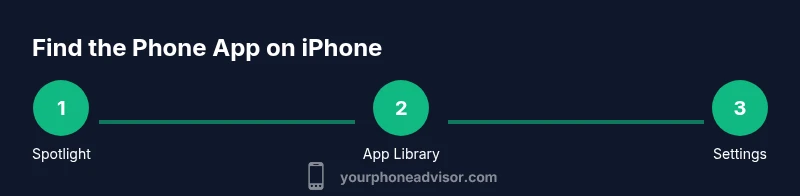
iOS organizes apps into three accessible zones: the Home Screen, the App Library, and Spotlight search. The Home Screen is where you’ll most often expect to find the Phone app by its default icon. If you’ve rearranged or hidden icons, the App Library provides a centralized index of all installed apps, including those not on the Home Screen. Spotlight is a universal search that quickly surfaces apps (and other content) when you pull down from the middle of any screen. Understanding these zones helps you stay efficient, even if the Phone app seems to disappear momentarily.
Spotlight search: find the Phone app in seconds
Spotlight search is a fast way to locate the Phone app without scrolling. From any Home Screen, swipe down to reveal the search field, then type Phone. The results will show the app icon as well as related call-related shortcuts. If Spotlight is not returning results, ensure Spotlight is enabled for all apps in Settings > Siri & Search, and verify that Screen Time restrictions aren’t filtering results. This method is especially helpful on devices with many pages of apps or after a fresh iOS install.
App Library: locate apps that aren’t on the Home Screen
The App Library groups apps by category and offers a search bar at the top. If you’ve hidden or moved the Phone app, you can locate it here by typing Phone in the search field or by browsing the Utilities or Other folders. Dragging the app from the App Library back to the Home Screen is straightforward—press and hold the app icon, then choose Add to Home Screen from the context menu. This approach keeps your Home Screen clean while preserving quick access to essential apps.
Settings and visibility: check for restrictions or layout issues
Sometimes apps can be hidden or restricted by device settings. Go to Settings > Screen Time > Content & Privacy Restrictions and review the allowed apps. If Phone is restricted, toggle it back on. Also check Settings > Home Screen to verify that App Library and iOS rearrangement options aren’t hiding or relocating the Phone app. If you recently upgraded iOS or performed a reset, these settings can help explain why the app seems missing and guide you back to quick access.
Restoring or re-adding to the Home Screen
If the Phone app icon is missing from the Home Screen, you can try re-adding it by locating the app in App Library or Spotlight and then dragging it back to a home page. If it cannot be found, perform a quick reset of the Home Screen layout via Settings > General > Reset > Reset Home Screen Layout. Note that this resets icon positioning but does not delete data. After re-adding, place the Phone icon within easy reach on your favorite Home Screen.
Practical checks and maintenance tips
To maintain easy access to the Phone app, keep at least one page near the primary dock, use Spotlight for rapid searches, and occasionally review Screen Time restrictions to ensure essential apps aren’t blocked. Regular device maintenance, including updates to the latest iOS version and a clean Home Screen arrangement, can prevent future visibility issues. If issues persist, a simple restart often resolves minor glitches and refreshes the app index.
AUTHORITY SOURCES
- https://support.apple.com/iphone
- https://www.apple.com/ios/
- https://www.nytimes.com/section/technology
Tools & Materials
- iPhone with current iOS version(Update to latest iOS for accurate results in discovery features)
- Charged battery(Ensure device is powered for testing the steps)
- App Library access(No extra equipment needed; just follow onscreen prompts)
- Settings access(Needed for checking restrictions and Home Screen options)
Steps
Estimated time: 20-30 minutes
- 1
Open Spotlight search
From the Home Screen, swipe down in the middle of the screen to reveal Spotlight. Type Phone to surface the app. If found, you can open it directly or long-press to reveal quick actions.
Tip: If Spotlight is slow, check Settings > Siri & Search to ensure all apps are allowed to appear in results. - 2
Inspect the Home Screen
Scan the primary Home Screen and any folders for the Phone icon. It may have been accidentally moved to another page or placed in a folder.
Tip: Use the dock area for frequently used apps to minimize searching. - 3
Check the App Library
Swipe left through all home screens until you reach the App Library. Use the search bar at the top to type Phone and locate the icon.
Tip: If you find the app here, you can drag it back to the Home Screen for faster access. - 4
Review Restrictions
Open Settings > Screen Time > Content & Privacy Restrictions. If Phone is restricted, re-enable it to make it visible again.
Tip: Restrictions can hide built-in apps; recheck after any major OS update. - 5
Re-add to Home Screen
If the icon is missing, locate Phone in Spotlight or App Library and drag it onto the Home Screen. You can place it near the dock for convenience.
Tip: Avoid deleting apps; you can re-add them without data loss. - 6
Reset Home Screen Layout (last resort)
If all else fails, go to Settings > General > Reset > Reset Home Screen Layout. This returns icons to their default positions but may rearrange other apps.
Tip: Note: This does not delete data; you’ll need to rearrange apps afterward. - 7
Test and verify
Open the Phone app from its new location to confirm it launches correctly and activities like dialing or voicemail work as expected.
Tip: If problems persist, a simple restart can refresh system caches.
Got Questions?
Where is the Phone app on iPhone by default?
The Phone app typically sits on the Home Screen as a core built-in app. If it’s not visible, use Spotlight or App Library to locate it, or check Settings for any restrictions.
Usually on the Home Screen, but you can find it quickly with Spotlight or the App Library. Check restrictions if it’s missing.
Can built-in apps be hidden on iPhone?
Yes, built-in apps can be hidden via Screen Time restrictions or during layout resets. If the Phone app isn’t visible, review those settings first.
Yes, you can hide built-in apps with restrictions. Check Screen Time and re-enable the Phone if needed.
What if I accidentally deleted the Phone app?
You cannot delete the built-in Phone app, but it can appear missing due to layout or restrictions. Use Spotlight or App Library to locate or restore it.
You can’t delete it, but you can locate it via Spotlight or App Library and re-pin it to the Home Screen.
Will updating iOS affect the Phone app location?
Major iOS updates can rearrange icons or reset layouts, so it’s wise to re-check Home Screen and App Library after updating.
An update can shuffle icons; verify again after upgrading iOS.
How do I restore the Home Screen layout?
Go to Settings > General > Reset > Reset Home Screen Layout. This resets icons to default positions without deleting data.
Use Reset Home Screen Layout to restore icons, then rearrange as you prefer.
If the Phone app still isn’t visible, what should I do?
If visible options fail, contact Apple Support for deeper diagnostics, as there may be device-specific issues or restrictions at play.
If you still can’t find it, reach out to Apple Support for help.
Watch Video
What to Remember
- Know the three main locations to find apps: Home Screen, App Library, Spotlight.
- Spotlight search is the fastest way to locate the Phone app when icons move.
- Restrictions can hide built-in apps; check Screen Time before panicking.
- Reset Home Screen Layout as a last resort to reset icon positions.
- Regularly updating iOS reduces discovery issues and keeps you productive.