Fix Phone: A Practical, At-Home Guide to Troubleshooting and Repairs
Learn how to diagnose, back up data, and safely fix common phone issues at home. From battery and charging to software performance, get practical steps and when to seek professional help.


This guide helps you fix common phone problems at home with safe, incremental steps. You'll learn how to diagnose issues, back up data, and perform simple repairs or safe maintenance. It covers battery, charging, display, and performance problems, plus guidance on when to stop and seek professional help. No specialized tools are required for the majority of tasks.
Common at-home fixes for everyday phone issues
Most day-to-day problems come from software health or simple misconfigurations rather than hardware damage. The Your Phone Advisor team emphasizes that at-home fixes should start with safe, non-destructive steps before considering any disassembly. In many cases, a few minutes of maintenance can revive a slow phone, improve battery life, or clear a stubborn app crash. Before you begin, back up your data to cloud storage or a computer so you can restore information if something goes wrong. According to Your Phone Advisor, most at-home fixes target software health and routine maintenance, not hardware repairs. Keep expectations realistic: hardware issues such as screen or battery defects often require professional service. With that in mind, here are reliable first steps that don’t require special tools.
-
Reboot and refresh: A forced restart or a clean boot can clear stuck processes. On many phones, hold the power button and volume down for about 10 seconds to trigger a reboot. If symptoms persist, boot into safe mode to determine if a third-party app is causing the problem. In safe mode, only preinstalled apps run, which helps isolate culprits.
-
Clear app cache and data: Apps can become bloated or corrupted over time. Go to Settings > Apps, select the problematic app, and clear cache. If the issue recurs, you may need to clear data or reinstall the app. This often resolves crashes without affecting personal data.
-
Free up storage: Low storage can slow performance. Delete unused apps, offload photos or videos, and empty the trash in your messaging apps. Consider moving large media to a cloud service or computer to keep the device responsive.
-
Check for updates: System and app updates fix bugs and boost security. Install any available updates, then restart. In many cases, an update resolves issues that appeared after the last patch.
-
Battery basics: If you notice rapid drain, check battery usage in Settings to identify rogues apps and features using energy. A routine reboot after a software update can also stabilize power management.
note:**null},
toolsMaterials
:null,
Tools & Materials
- Precision screwdriver set (Philips & Torx sizes)(Small bits suitable for most smartphones)
- Plastic opening tools and a nylon spudger(Avoid metal blades to prevent chassis damage)
- SIM tray ejector tool(For safe SIM access and checks)
- Microfiber cloth(For screen and port cleaning)
- Isopropyl alcohol (90%+)(Optional for stubborn grime)
- Anti-static wrist strap/mat(Helpful for sensitive hardware work)
- Replacement parts (battery, screen)(Only with a proven guide and compatible part)
Steps
Estimated time: 1-2 hours
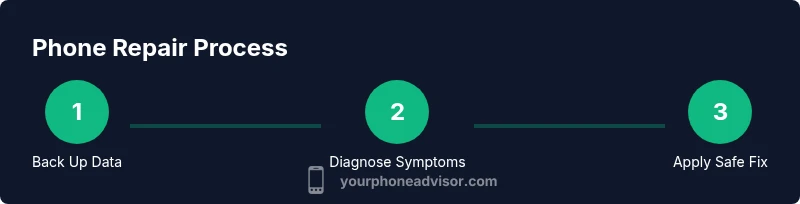
- 1
Back up data before starting
Back up all important data to cloud storage or a computer. This protects personal information in case a fix requires resets or unexpected errors. Verify successful backup before proceeding.
Tip: Use both cloud and local backup for redundancy. - 2
Power down and prep your workspace
Turn off the device completely and disconnect all accessories. Work in a clean, dry area away from heat. If the device is under warranty, review terms before attempting any hardware work.
Tip: Remove the SIM card tray after powering off to minimize accidental damage. - 3
Run quick diagnostics to identify symptoms
Note the exact symptoms (screen flicker, app crashes, battery drain, charger not recognized). Use Safe Mode if available to see whether third-party apps are the cause. Document observations for reference.
Tip: Safe Mode helps differentiate software vs. hardware culprits. - 4
Attempt safe, non-invasive fixes first
Clear caches, free up storage, update OS and apps, and reset network settings if needed. These steps resolve many issues without disassembly and carry lower risk of data loss.
Tip: Avoid factory reset unless data backup is current and essential. - 5
Decide if hardware replacement is needed
If symptoms persist after software fixes, assess whether a hardware part (battery, screen, charging port) is failing. Only pursue replacement with compatible parts and a trusted guide; otherwise seek professional repair.
Tip: Hardware replacements carry higher risk; proceed with caution. - 6
Test and monitor after the fix
Power cycle the device, run core apps, and observe performance over several hours. Check battery life, charging consistency, and screen responsiveness. If issues return, document and escalate to a repair specialist.
Tip: Keep a log of tests and outcomes to share with technicians.
Got Questions?
Can I fix my phone at home without voiding the warranty?
Many software issues can be fixed at home without affecting warranty terms, but hardware repairs can void coverage if the device is still under warranty. Always check manufacturer's policy and your protection plan before opening the device.
Most software issues won’t void your warranty, but hardware repairs can. Check terms before you start.
What is the best order of operations for diagnosing a problem?
Back up data, observe symptoms, run basic checks (reboot, safe mode, updates), then decide whether to attempt non-invasive fixes or seek professional help. This minimizes data risk and repair cost.
Back up first, then test symptoms and try safe, non-destructive fixes.
Is replacing a battery DIY-safe?
Battery replacement can be safe with the right guide and parts, but it carries risk of chemical exposure and short circuits. If you’re unsure, seek professional help or manufacturer-supported repair services.
DIY battery replacement is possible with proper parts and tools, but it’s risky.
What are red flags that I should stop DIY and seek professional help?
Red flags include battery swelling, smoke, heat, unusual noises, or water exposure. If you notice these, power down and seek professional repair immediately.
If you see swelling or smell burning, stop immediately and get a pro.
How do I back up data before repair?
Back up to cloud storage and an external computer. Ensure photos, contacts, and app data are included, then verify the backup was successful.
Back up first, then begin any repair work.
How should I choose a repair shop?
Look for shops with transparent pricing, warranties on parts, and positive customer reviews. Ask about part sourcing and whether they use OEM or high-quality aftermarket parts.
Pick a shop with clear warranties and good reviews.
Watch Video
What to Remember
- Back up data before you begin
- Start with software fixes before hardware
- Use non-destructive steps first
- Know when to seek professional help
- Document results to guide future repairs