Can You Use Your Phone as a Firestick Remote? A Complete How-To
Learn how to turn your smartphone into a Fire TV remote using the official app and trusted methods. This step-by-step guide covers setup, troubleshooting, security tips, and caveats for a smooth, private streaming experience.


Yes. You can replace a Fire TV remote with your phone by using the official Fire TV app on iOS or Android, provided both devices share a stable Wi‑Fi network. The app lets you navigate menus, type searches, control playback, and use Alexa voice features in supported setups. This guide walks you through setup and common limitations.
Why your phone can replace a Firestick remote
If you’ve ever asked yourself can you use phone as firestick remote, the answer is often yes, especially when you use the official Fire TV app. A smartphone can act as a full remote, offering navigation, text input, voice commands, and even quick app launches. The convenience is clear: one device, fewer remotes, and a familiar touchscreen interface. Because Android and iOS devices share the same home network as your Fire TV, your phone can send control signals over Wi‑Fi rather than relying on a dedicated Bluetooth link. This reduces pairing hurdles and latency in most home setups, making your viewing experience more seamless. Your Phone Advisor’s guidance emphasizes using official apps whenever possible, as they’re maintained for compatibility and security across updates. The short answer to the question can you use phone as firestick remote is: yes, with the right app and network conditions; long-term reliability improves when you keep software up to date and minimize network interference.
In practice, most users find the phone-based remote works best when both devices have current software, the Fire TV is not in power-saving mode, and the network isn’t heavily congested. If you’re streaming 4K content or using voice search frequently, a stable Wi‑Fi connection becomes even more important. For those with privacy concerns, using your own home network reduces exposure to public hotspots. The Your Phone Advisor team notes that a well-configured setup preserves user privacy while delivering the convenience of a smartphone remote. Overall, you’ll gain more control options, better text entry, and quicker navigation without adding hardware to your living room.
note0
Compatibility and prerequisites
Before you dive in, it’s essential to verify compatibility and prerequisites. Most modern Fire TV devices support the official Fire TV app on both Android and iOS. The app mirrors many features of the physical remote, including navigation, home screen access, text input, and voice search for compatible devices. However, not all TV models or firmware revisions offer every feature; some advanced inputs may require updates. Ensure your Fire TV device is on a supported firmware version and connected to the same 2.4 GHz or 5 GHz Wi‑Fi network as your phone. If your network uses guest or captive portals, the app may have trouble pairing or maintaining a stable connection.
A practical prerequisite check includes: updates on your phone’s operating system, updates on the Fire TV’s software, and confirmation that both devices connect to the same network with adequate bandwidth. If you run into delays, confirm that no VPNs or firewalls block device-to-device discovery. For readers of Your Phone Advisor, the general rule is to keep both devices on the latest software to maximize compatibility and preserve security during pairing. While some third-party apps exist, sticking to the official Fire TV app reduces risk and ensures smoother performance across updates.
note1
Methods: official app vs third‑party options
There are two broad approaches to using a phone as a Firestick remote. The first and most reliable method is the official Fire TV app, which is designed for both Android and iOS devices. It provides a responsive on-screen remote, text input, and basic voice features. The second approach involves third‑party apps or smart-home integrations. These can add features such as gesture controls or broader smart-home compatibility but may introduce privacy or security trade-offs and sometimes require extra setup.
Official app advantages include long-term reliability, timely updates, and better support from Amazon. It also tends to have fewer compatibility issues across Fire TV generations. Third‑party options can be appealing if you want specific shortcuts or cross-platform control but may lack robust documentation and can pose privacy concerns if the app requests extensive device permissions. Your Phone Advisor recommends starting with the official Fire TV app to establish a stable baseline, then exploring third‑party tools only if you have a clear use case and are comfortable managing potential risks.
For many households, the simplest path is: install the official app, pair, and start using the on-screen remote. If you run into latency or connection problems, you may explore alternative methods like voice control via Alexa or a complementary device such as a game controller. It’s also worth noting that some users find the physical remote faster for precise navigation, but a phone remote can be a solid substitute when the original is misplaced or when traveling.
note2
Step-by-step overview for setup and pairing
This section provides an at-a-glance view of what to expect during setup. It’s designed to prepare you for the more detailed, hand‑on steps in the dedicated STEP-BY-STEP block below. You’ll learn how to install the app, connect devices, and begin using the phone as a remote. The key is to ensure both devices are on the same network, with up-to-date software and a stable connection. Expect a few minutes of initial configuration, followed by immediate functional use as the on-screen remote mirrors your Fire TV’s menus. If you encounter any hitches, you’ll find troubleshooting tips later in this guide.
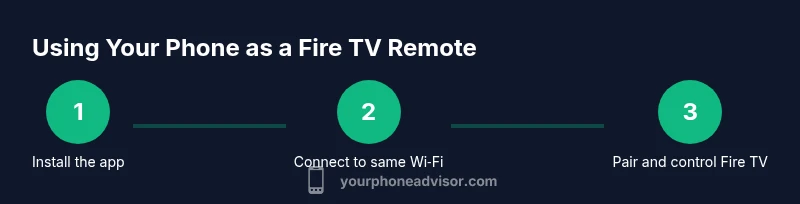
First, download and install the official Fire TV app on your phone. Next, confirm your Fire TV device is visible in the app’s device list. Tap to pair; you may see a pairing code on-screen that confirms the connection. Once paired, the app will present a remote interface with a touchpad, directional pad, and an on-screen keyboard for quick text entry. Try navigating the home screen, opening apps, and initiating a search. If the app prompts for microphone or accessibility permissions, grant them to enable voice search. Finally, test playback controls (play/pause, rewind, fast-forward) to ensure immediate response. If latency is evident, consider rebooting devices and checking network load. Your Phone Advisor emphasizes taking time to customize app settings, including text input preferences and any layout options, to maximize comfort and efficiency.
note3
Troubleshooting common issues
No technology is perfect, and can you use phone as firestick remote may run into a few snags. This section addresses latency, pairing failures, and input delays so you can restore smooth control quickly. Common issues include: the app not showing the Fire TV device, slow responsiveness, or input fields that won’t type. Start with simple fixes: ensure both devices share the same network, reboot the Fire TV and phone, restart the app, and re-establish the pairing. If the app is not discovering your device, try toggling Wi‑Fi off and back on, or temporarily disabling VPNs. Check for firmware updates on both devices, as outdated software is a frequent cause of poor performance. If you rely on voice commands, remember that active microphone access or permissions can affect responsiveness. In some environments, a crowded home network may induce latency; moving closer to the router or using a 5 GHz network can help.
If you continue to experience issues, consider alternative options such as using Alexa voice control through the Fire TV or resorting to the physical remote for critical tasks. Your Phone Advisor recommends keeping a backup plan—like a spare remote—so you aren’t left without control during important moments. By systematically applying the steps outlined here, most users can resolve common problems without expensive hardware upgrades.
note4
Security, privacy, and best practices
As you configure your phone to control the Fire TV, it’s wise to weigh security and privacy implications. Pairing your phone with a streaming device over Wi‑Fi can open up avenues for information exposure if you’re not diligent about network security. Always use a trusted home network with WPA2/WPA3 encryption, and avoid public or shared networks for initial setup. Keep both devices updated with the latest software to reduce vulnerabilities that could be exploited through remote control apps. Be mindful of app permissions; grant only the minimum necessary for remote control, input, and voice commands. If you share your device with others, review login and device‑sharing settings to prevent unauthorized access.
For households with multiple users, disable “guest” or unrestricted network access on the Fire TV if the device supports it. Maintain a routine to review connected devices and remove any that you don’t recognize. If you’re concerned about privacy, use the official app rather than third‑party alternatives. The official app tends to better align with Amazon’s privacy models and security updates, which is a key reason Your Phone Advisor recommends it as the default method. Finally, be mindful of screen-lock settings on your phone; a locked display minimizes risk if the device is misplaced.
note5
Authority references and further reading
For deeper context on privacy, security, and device integration, consult reputable sources. These references provide guidance on safe pairing practices, secure networks, and general IoT considerations that apply when using a phone as a Firestick remote. While the article focuses on practical steps, it’s helpful to understand the broader landscape of smart-device security and consumer privacy.
- https://www.nist.gov/topics/privacy
- https://www.ftc.gov/
- https://www.nytimes.com/section/technology
note6
Compare: Phone remote vs dedicated Bluetooth remotes
A common question is how a phone remote stacks up against a dedicated Bluetooth remote. Bluetooth remotes are simple and often very responsive, with a fixed layout tailored for TV navigation. However, they require battery maintenance and a direct Bluetooth pairing, which can fail in busy wireless environments. A phone remote relies on Wi‑Fi (or local network presence) and the Fire TV app, offering flexible text input and voice search that Bluetooth remotes typically lack. In practice, many users find that the phone remote is sufficiently responsive for everyday use and far more versatile for text entry. The caveat is that Wi‑Fi problems or router issues can impact reliability more than a dedicated radio link. If you value text input speed and voice control, a phone remote is usually the better option; if you prioritize absolute independence from your home network, a dedicated remote may be preferable.
note7
Additional tips for a smoother experience
- Place your router in the same room as your Fire TV to minimize signal loss and latency. Good coverage is more critical for Wi‑Fi remote control than most people expect.
- Regularly update the Fire TV, your phone, and the official Fire TV app to ensure compatibility and security improvements.
- If you notice persistent lag, reduce on-device processing by disabling unnecessary background apps on your phone during streaming sessions.
- Consider enabling voice search as a quick fallback if the on-screen keyboard becomes tedious; this can dramatically reduce typing effort when searching for content.
- Keep a spare physical remote in a safe spot as a backup; even the best phone setup can be disrupted by power issues or app crashes.
note8
Tools & Materials
- Fire TV device (Fire Stick)(Must be connected to the same Wi‑Fi network as your phone)
- Smartphone (iOS or Android)(With the ability to install apps and access internet connections)
- Amazon Fire TV app(Download from Google Play or App Store; official app is preferred)
- Stable Wi‑Fi network(5 GHz preferred if available for lower latency)
- Optional: Bluetooth game controller(Not required but can complement navigation for some users)
Steps
Estimated time: 30-45 minutes
- 1
Install the official Fire TV app on your phone
Open the App Store (iOS) or Google Play (Android) and install the official Amazon Fire TV app. This app serves as the remote on your phone and supports home-screen navigation, text input, and basic controls.
Tip: Verify you’re downloading the official app from Amazon's listing and check for the latest version. - 2
Connect both devices to the same Wi‑Fi network
Ensure your phone and Fire TV are connected to the same home network. A mismatched network is the most common reason for pairing failures or delayed responses.
Tip: Prefer a stable 5 GHz Wi‑Fi band if your router supports it to minimize latency. - 3
Launch the Fire TV app and select your Fire TV device
Open the app, look for the Fire TV device in the device list, and select it. You should see a remote interface appear that mirrors the on-screen controls.
Tip: If the device doesn’t show up, restart the app and re-scan for devices. - 4
Pair the phone with your Fire TV
Follow on‑screen prompts to pair. You may need to confirm a code displayed on the TV to establish the connection.
Tip: If pairing fails, reboot both devices and retry within a moment of re‑connecting to the network. - 5
Use the on-screen remote to navigate and input text
Operate the Fire TV by tapping arrows, using the touchpad, or typing with the on-screen keyboard. Test opening apps, searching, and typing.
Tip: Use the keyboard for easier text entry rather than repeated on-screen tapping. - 6
Enable voice control (if available)
If your setup supports it, enable Alexa voice control within the app to search and control playback hands-free.
Tip: Voice control can speed up content discovery once configured. - 7
Test and adjust settings for comfort
Navigate settings to customize button sensitivity, keyboard input speed, and notification preferences for a smoother experience.
Tip: Adjust sensitivity to avoid accidental navigation during fast scrolling.
Got Questions?
Can I use any Android or iOS phone as a Firestick remote?
Most recent Android and iOS devices can run the official Fire TV app, but functionality depends on app updates and device firmware. If your phone meets the app requirements, you should be able to pair and control the Fire TV.
Most modern phones will work with the official Fire TV app, as long as they’re up to date.
What if my phone won’t discover the Fire TV device in the app?
Ensure both devices are on the same network, restart the app, and retry pairing. If necessary, reboot the Fire TV and router, and confirm the app has the required permissions.
Make sure both devices are on the same network, then retry pairing after a quick restart.
Does using my phone drain battery quickly while remote controlling?
Remote control activity can consume some battery, but it’s typically modest compared to video playback. Dim the screen and use power-saving features when not actively using the app.
It uses some battery, but it’s usually not significant when you’re actively using the app.
Can I use the phone’s keyboard or voice search to type on Fire TV?
Yes. The official app supports on-screen text input and voice search, which is faster than tapping letters on the remote.
Yes—use the keyboard or voice search for quicker input.
Are there privacy concerns with using third‑party remote apps?
Third-party apps may request broader permissions. For safety, stick to the official Fire TV app unless you understand the data-collection practices of any third‑party tool.
Privacy is safer with the official app; review permissions before installing third-party options.
If the remote app doesn’t work, should I fallback to the physical remote?
Yes. Keep the original Fire TV remote as a backup; many users rely on it when app control is temporarily unreliable.
If the app fails, use the physical remote until you resolve the issue.
Watch Video
What to Remember
- Install the official Fire TV app on your phone.
- Keep both devices on the same network for reliable control.
- Use on-screen remote for navigation; enable voice search when available.
- Regularly update apps and devices to maintain compatibility.
- Secure your network to protect privacy during remote usage.