How to Use Your Phone as a TV Remote
Learn how to turn your smartphone into a TV remote using official apps, universal remotes, or IR/bluetooth. This educational guide covers compatibility, setup, troubleshooting, security, and best practices for a smooth experience.


You can turn your phone into a TV remote by using the TV maker’s official app or a trusted universal remote app, and by connecting via Wi-Fi, Bluetooth, or infrared (IR) if your device supports it. This quick guide outlines the essential steps and connectivity options so you can start controlling your TV from your phone right away.
Why using your phone as a TV remote makes life easier
Using your smartphone as a TV remote is a practical way to consolidate devices and simplify control. With the right apps and a compatible TV, you can power on, switch inputs, adjust volume, and navigate menus without hunting for a separate remote. According to Your Phone Advisor, turning a smartphone into a TV remote is a practical, beginner-friendly upgrade for most households. This approach works with many modern smart TVs and even some older models through infrared (IR), Bluetooth, or Wi-Fi connections. If you’re wondering how to use phone as tv remote, this guide will cover the setup, compatibility, and best practices to keep things smooth and secure.
Key idea: choose the connection method that matches your TV’s capabilities. Whether you rely on an official TV maker app, a universal remote, or an IR blaster, you’ll gain easier control and fewer lost remotes.
Methods to connect: official apps, universal remotes, and IR
Most TVs support one of three control pathways: an official manufacturer app, a universal remote app, or a hardware-based infrared (IR) blaster on your phone. Official apps are typically the most reliable, because they’re designed to recognize your TV’s specific commands and menus. Universal remote apps broaden compatibility by supporting multiple brands in one place, but you may need to configure each device individually. If your phone includes an IR blaster, you can often control legacy TVs that don’t support network pairing. In all cases, connecting over Wi‑Fi or Bluetooth tends to be faster for newer smart TVs, while IR remains handy for older models. This section explains when to use each approach and what you’ll need to get started.
Tip: Start with the official app for your TV brand if available. It usually provides the best reliability and layout that mirrors your TV’s remote.
Prerequisites and compatibility: what you need before you start
Before diving in, verify your devices meet the basics: a TV that supports remote apps or IR, a smartphone with compatible remote capabilities, and a stable network. Ensure both devices are on the same Wi‑Fi network for network-based control. If you own a newer TV with Bluetooth, you may also connect via Bluetooth in some scenarios. If your phone lacks IR, rely on software-based remotes that communicate over Wi‑Fi. This section helps you assess compatibility so you don’t invest time in a method that won’t work with your specific TV model.
Note: Not all TVs support every method. Check your TV’s user manual or the manufacturer’s support site for guidance on app availability and supported connection types.
Common pitfalls and how to avoid them
Many users run into small hiccups when turning a phone into a TV remote. Common issues include devices not appearing in the app, the TV and phone not sharing a network, or the app requesting excessive permissions. A simple way to avoid these problems is to confirm both devices are on the same network and that the TV is in discovery mode. Update the remote app and TV firmware, and reboot both devices if discovery fails. If you’re using IR, ensure the camera can focus on the IR emitter and that no reflective surfaces interfere with the signal.
Pro tip: Disable any VPNs or firewall settings that block local network discovery during the initial setup.
Security, privacy, and best practices when using your phone as a remote
Using a remote app should be safe when you stick to trusted developers and manage permissions carefully. Prefer official manufacturer apps or reputable universal remotes from recognized developers. Review the app’s requested permissions and revoke any access you don’t understand. Avoid sharing login credentials or personal data through remote apps, and keep your phone’s OS and apps up to date to minimize security risks. For households with kids or shared devices, enable user profiles or guest modes when available to limit access to sensitive content.
Quick setup scenarios: Wi‑Fi vs IR vs Bluetooth
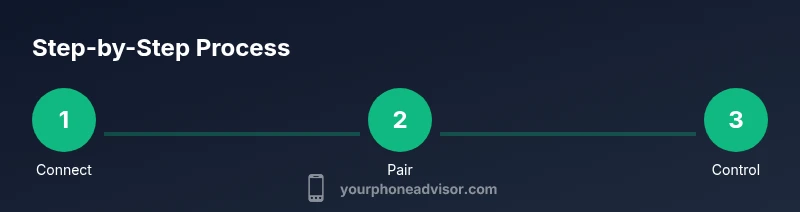
If your TV supports Wi‑Fi-based remotes, you’ll pair quickly by following in-app prompts and selecting your TV from the device list. Bluetooth pairing can work if your TV supports it and if the app asks for Bluetooth permission. For legacy TVs that rely on IR, ensure your phone has a working IR blaster or an external IR accessory, then use the IR remote mode in the app. Each scenario has slightly different steps, but the core idea is to establish a connection, verify device recognition, and customize the control layout for ease of use.
Tools & Materials
- Smartphone with remote support (IR blaster or app-based control)(Check your phone’s hardware specs or settings to confirm IR or app-based control capability)
- TV or smart TV with network capability(Ensure it’s powered on and connected to the same network as your phone)
- Stable Wi‑Fi network (2.4 GHz/5 GHz)(Both devices should be on the same local network for Wi‑Fi control)
- Official TV maker app or a trusted universal remote app(Install from the official store and avoid sketchy third-party apps)
- Optional IR blaster accessory (if your phone lacks IR)(Adds compatibility with older TVs that rely on IR)
- Phone charger or power bank(Keep the phone charged during setup and use)
Steps
Estimated time: 15-25 minutes
- 1
Check device compatibility
Confirm whether your phone has an IR blaster or supports TV control via an app. If unsure, consult the manufacturer specs or your device’s support site. This step saves time by choosing the right connection method.
Tip: If you see a built-in infrared blaster app, test a simple IR command (power or mute) before proceeding. - 2
Install a remote app
Download and install the official TV maker app or a reputable universal remote app. Open the app and grant necessary permissions such as network access. For voice-enabled remotes, enable microphone access if you plan to use voice commands.
Tip: Prefer official apps when available for better compatibility and fewer ads. - 3
Connect to your TV
Follow on-screen prompts to connect via Wi‑Fi/Bluetooth or use IR. Make sure both devices are on the same network if you’re pairing over Wi‑Fi.
Tip: For Wi‑Fi setup, ensure the TV is discoverable in the app’s device list and that firewalls don’t block local devices. - 4
Add and configure devices
Add your TV (and any streaming devices) to the remote app. Name the device, assign a room, and customize the button layout to fit how you actually use the TV.
Tip: If you have multiple TVs, keep them clearly labeled to avoid confusion. - 5
Test basic controls
Test power, volume, navigation, and input switching. If a control doesn’t respond, retry pairing, reboot the devices, or re-check permissions.
Tip: Keep the TV in standby during initial setup to ensure the remote recognizes wake commands. - 6
Troubleshoot common issues
If discovery or control fails, verify network parity, update the app and TV firmware, and check for conflicting VPNs or firewalls.
Tip: Disable VPNs during setup; they can block local network discovery.
Got Questions?
Can I use any phone as a TV remote?
Not every phone supports TV control. Check if your model has an IR blaster or supports a TV remote app. If not, you can use a universal remote app via Wi‑Fi.
Most phones can control a TV if they have IR or the right app support.
What if my TV doesn’t support official apps?
You can still use a universal remote app that supports your TV through Wi‑Fi or Bluetooth, or rely on an IR blaster if available.
There are universal remote options that work with many TVs.
Will this work with all TVs?
Most modern smart TVs support official apps or universal remotes, but some legacy models may require IR or a dedicated remote.
Most TVs will work, but some older models may need IR.
Do I need to be on the same Wi‑Fi network as the TV?
Yes, for Wi‑Fi-based control both devices must be on the same local network; some apps also support Bluetooth pairing.
Yes, both devices should be on the same network.
Is using remote apps secure?
Use trusted apps from reputable developers and review permissions. Avoid sharing sensitive data through remote apps.
Stick to trusted apps and limit permissions.
What if my phone has no IR blaster?
Rely on Wi‑Fi/Bluetooth methods via official or universal remote apps.
Without IR, you’ll use network-based remotes.
Watch Video
What to Remember
- Install official remotes or trusted universal apps.
- Ensure devices share the same network for Wi‑Fi pairing.
- Test core functions before broad use.
- Securely manage permissions and avoid dubious apps.
- IR blaster availability varies by phone model.