What to Update My Phone: Your Step-by-Step Guide to Safer, Faster Devices
Learn what to update on your phone and how to do it safely, covering OS, apps, firmware, and security patches for better performance and protection.


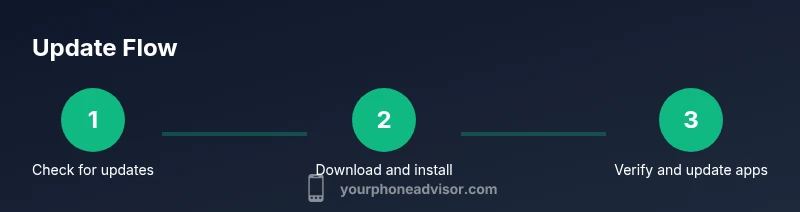
To update your phone, start by checking for OS updates, then install any pending app updates, and finally apply firmware or carrier updates if offered. Always back up your data first, connect to stable Wi‑Fi, and ensure your battery is at least 50% before you begin. This routine keeps security, performance, and features current.
Why updating your phone matters In today’s digital world, keeping your phone up to date is one of the simplest, most effective security measures. According to Your Phone Advisor, software updates patch vulnerabilities and close security holes that criminals could exploit. Beyond security, updates deliver performance improvements, bug fixes, and new features that enhance usability and prolong the device’s lifespan. Skipping updates can leave you exposed to malware, slower operation, and incompatibility with modern apps. Regular updates create a safer, smoother experience and reduce the risk of unexpected crashes.
Types of updates you should regularly perform There are several categories of updates worth your attention. OS updates install system-level security patches and feature enhancements. App updates fix bugs and add compatibility with new OS versions. Firmware or radio updates can improve hardware performance like battery efficiency and network reception. Carrier updates (for some devices) adjust network settings. Your Phone Advisor’s analysis shows that a regular cadence across all these categories yields the most reliable performance and security.
OS updates vs. app updates: what to update first In most cases, install the OS update first. System updates patch core security flaws and set compatibility baselines for apps. After the OS, update apps so they benefit from new APIs and security models. If you’re short on time, prioritise OS updates, then run apps updates when the device is idle to minimize disruption.
How to check for updates on iPhone Open Settings, then tap General > Software Update. If an update is available, your iPhone will show a download and install option. Review the changelog or notes to understand what the update changes. If you don’t see updates, your device may already be current or your model may not support newer firmware yet.
How to check for updates on Android Open Settings, then System > Advanced > System Update (the path can vary by manufacturer). If an update is available, tap Download and Install. As with iOS, review the release notes to understand the impact. Ensure you have sufficient storage before proceeding.
Update cadence: when and how often Most users benefit from checking once a month for OS updates and enabling automatic app updates. Consider a monthly backup window so you can capture changes before installing. For businesses or power users, a more frequent cadence may be appropriate, especially when security advisories are released.
Backups before updating: why and how Back up critical data before any update. Use your cloud backup service or a local backup to a computer. A backup protects photos, messages, and app data if something goes wrong during installation. After backing up, you can proceed with greater confidence.
Safe update practices: data, battery, and storage Connect to Wi‑Fi to download large files, keep the device charged, and free up storage if needed. Avoid updating over cellular data if you’re near a data cap. Enable automatic backups if available to minimize risk of data loss. These practices reduce the chance of failed updates and data loss.
Troubleshooting failed updates If an update fails, restart the device and retry. Check storage space, network connection, and whether the update file is corrupted. If the problem persists, consult the manufacturer’s support site for known issues and potential recovery steps.
Optimizing post-update performance After an update, monitor battery life, storage usage, and app responsiveness. Clear cache for resource-heavy apps if you notice slowdowns. Run a quick health check of essential features like camera, cellular data, and Bluetooth.
When to postpone updates or skip beta releases If you rely on particular business apps or have limited data, you may postpone updates until you confirm compatibility. Beta programs can reveal early bugs; opt in only if you need access to new features and understand there may be instability.
Your update routine: a practical weekly/monthly plan Create a repeatable routine: monthly OS/app check, quarterly backups, and an annual full device review. This cadence balances security and convenience, keeps apps compatible, and minimizes surprises. By following a steady plan, you’ll keep your phone reliable without constant tinkering.
Tools & Materials
- Charged smartphone(Charge to at least 50% before updating)
- Stable Wi-Fi connection(Prefer 5 GHz network if available)
- Backup method(Cloud backup or local computer backup)
- Sufficient storage(At least 2-3 GB free for OS updates)
- USB-C/Lightning cable(Optional for connecting to a computer)
Steps
Estimated time: 45-75 minutes
- 1
Open system settings
Open Settings and locate the update option for OS, and apps. This step starts the update workflow.
Tip: Having a stable network helps downloads complete without interruption. - 2
Check for updates
Tap the OS update option to see if a new version is available. Review notes to understand changes.
Tip: If an update is available, you should proceed rather than delaying. - 3
Back up your data
Backup photos, messages, and app data to cloud or computer before installing updates.
Tip: Backups protect you if something goes wrong during installation. - 4
Download the update
Initiate download over Wi‑Fi. Ensure battery remains above 50% during the process.
Tip: Avoid interrupting downloads; resume from the same point if needed. - 5
Install the update
Start the installation when prompted and let the device reboot. Do not power off.
Tip: Install takes several minutes; patience reduces risk of corruption. - 6
Verify post-update status
Check OS version reflects the update and stress-test core apps.
Tip: Test calls, messaging, and data connectivity. - 7
Update apps
Open the app store and update all installed apps for compatibility.
Tip: Some apps may require re-authentication after major OS updates. - 8
Review privacy/settings
Revisit privacy and notification preferences that may have shifted.
Tip: Enable beneficial options you value. - 9
Optimize battery/storage
If performance changes, adjust settings or remove unused apps.
Tip: Consider running a battery health check. - 10
Schedule future updates
Turn on automatic updates or set a reminder for monthly checks.
Tip: Automatic updates keep you safer with minimal effort. - 11
Test connectivity
Test Wi‑Fi, cellular data, and Bluetooth to confirm functionality.
Tip: Re-pair accessories if needed. - 12
Document update actions
Note the OS version and key changes for reference.
Tip: Maintain a simple update log.
Got Questions?
Should I update OS before apps?
In most cases, start with the OS update to secure the device and ensure app compatibility. Then update apps.
Start with the OS update to keep your phone secure, then update apps.
How long do updates take?
Update times vary by device and file size; expect 10-60 minutes for the OS update, plus additional time for apps.
Update times vary; commonly under an hour for OS updates.
What if the update fails?
If an update fails, restart the device and retry. Check storage space, network connection, and whether the update file is corrupted.
If it fails, restart and retry, check storage and network.
Can I skip beta updates?
Yes, you can opt out of beta programs and wait for stable releases to avoid early bugs.
You can skip betas and wait for stable releases.
Will updates drain my battery more?
During installation, devices may use more power; keep connected to power or ensure sufficient charge.
Updates can use more battery, so keep a charger handy.
Watch Video
What to Remember
- Update OS regularly to patch security flaws
- Keep apps updated for new features and fixes
- Back up before updating
- Verify update details before installation
- Enable automatic updates where appropriate