How to Scan Your iPhone for Viruses: A Practical Guide
Learn step-by-step how to scan your iPhone for viruses, spot suspicious activity, and protect your device using built-in protections and prudent security habits. A practical guide from Your Phone Advisor.


Goal: Learn how to scan your iPhone for viruses iphone and protect against spyware. You will review built-in iOS protections, inspect profiles and apps, update iOS, and use careful browsing habits. Before you begin, ensure your device is on the latest iOS, have a reliable internet connection, and backup your data. This guide emphasizes practical checks over third-party hype.
How to scan phone for viruses iphone on iPhone safely
The idea of scanning your iPhone for viruses iphone is less about running a traditional antivirus scan and more about a careful audit of what can silently affect your device. According to Your Phone Advisor, the term encompasses checking for rogue configuration profiles, suspicious apps, unusual battery drain, and unexpected data usage. iOS is designed to isolate apps and limit cross‑app access, which dramatically reduces the likelihood of a classic mobile virus. However, threats still exist, especially when devices are jailbroken, when phishing lures succeed, or when a profile is installed from an untrusted source. A disciplined approach—inspecting profiles, monitoring activity, and keeping software up to date—provides a solid defense. The goal is practical rather than sensational: identify anomalies, verify they’re benign, and restore trust in your device. If something feels off, take measured steps rather than panicking. In most cases, users who perform routine checks and stay current on updates will maintain a secure iPhone without needing heavy interventions.
How iPhone security mechanisms help prevent infections
iPhone security relies on a layered approach that makes malware infection rare and containment rapid when it occurs. Built-in protections include app sandboxing, code signing, secure boot, and frequent security updates from Apple. These controls restrict what apps can do and how data moves between apps, which limits the damage a rogue app can cause. In addition, iOS privacy features, signed system apps, and a tightly controlled App Store reduce the chance of inadvertently installing harmful software. Your Phone Advisor’s analysis shows that most reported threats come from social engineering, phishing links, or devices that have been jailbroken. When you combine regular software updates, strong passcodes, and cautious app installation, you dramatically lower risk. The result is a safer baseline that makes active malware less likely to succeed.
Tools and materials you'll need
Preparing for an iPhone safety check requires a few essentials. You’ll want a device with the latest iOS installed, a reliable internet connection, and a plan to back up data. A trusted security app from the App Store can help monitor privacy settings and detect unusual activity without claiming to perform invasive scans. If you utilize a computer for additional checks, ensure it is up to date with current antivirus/anti-malware tooling, and that you connect to iCloud securely. Finally, have your Apple ID handy in case you need to reset or verify account activity. This toolkit keeps you ready to verify system integrity, review profiles, and respond quickly if something suspicious arises. Remember, the most important tools are awareness, updates, and caution when installing any profile or app.
Step-by-step: scan your iPhone for viruses iphone
-
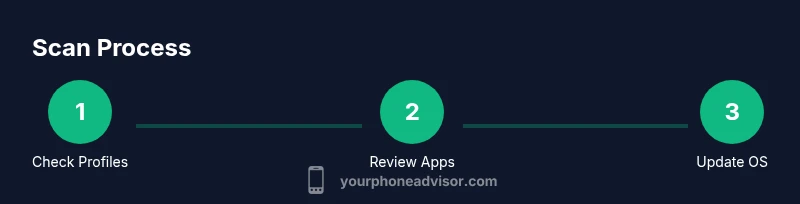
Open Settings and review Profile & Device Management. Look for any unfamiliar or newly added profiles; remove anything you did not install intentionally. This helps catch configuration changes that could route data or enable unauthorized access. Tip: If you don’t recognize a profile, search online for its name before removal to confirm its legitimacy.
-
Check Battery usage by app. Go to Settings > Battery and review the per-app usage. Unusually high drain can indicate a background activity or adware. Tip: If an app you don’t recognize shows heavy usage, investigate or uninstall it.
-
Audit installed apps and Safari data. Scroll through your home screen for unfamiliar apps, delete them, and clear Safari history and website data to reduce possible web-based adware. Tip: Stick to apps from the App Store and avoid sideloading.
-
Update iOS to the latest version. Settings > General > Software Update should show available updates. Install them to patch security gaps that attackers could exploit. Tip: Turn on automatic updates to stay current without manual checks.
-
Review network settings and revoke suspicious VPNs. In Settings > General > VPN & Device Management, remove any unknown configurations. Tip: Resetting network settings afterward can revert rogue DNS or proxy changes.
-
Run privacy and security checks using built-in tools. Use iOS privacy indicators, app permission reviews, and Safari’s Enhanced Tracking Protection. If you use a third-party app, ensure it has a solid reputation and does not request excessive device permissions. Tip: Avoid apps that request broad device access or background monitoring without clear purpose.
-
Reset or restore if necessary. If anomalies persist after updates, back up essential data and consider erasing all content and settings. Tip: After a reset, restore only essential data from trusted backups and reinstall apps from the App Store.
-
Contact support if uncertain. If you cannot determine the source of a problem or symptoms recur, reach out to Apple Support or visit an Apple Store. Tip: Document suspicious activity with screenshots and dates before contacting help.
Common signs of infection or unwanted software on iPhone
Even with strong protections, some users notice telltale signs of trouble. You might experience unexpected pop-ups, sudden ads while browsing, unfamiliar apps, rapid battery drain, or higher data usage without clear reason. Some scammers mimic legitimate system messages, urging you to install a profile or enter credentials. If you observe any of these indicators, begin a careful audit rather than dismissing them as harmless. Also, verify that your Apple ID activity shows no unauthorized logins. Remember that many so-called “virus alerts” are scam sites or legitimate features misrepresented by third-party apps. Staying calm and following a structured checklist reduces unnecessary actions and helps you differentiate genuine issues from marketing tricks.
How to remove suspicious items and protect going forward
Start by removing any unfamiliar apps and profiles. Delete untrusted apps from the home screen and revoke device profiles in Settings > General > Profiles & Device Management. Reset network settings if you suspect DNS redirection or proxy changes. Ensure iOS and all apps are up to date, and enable automatic updates. Consider a factory reset only if you cannot restore trust; before doing so, back up data to a trusted source. After restoration, reinstall apps from the App Store, avoid sideloading, and reconfigure privacy settings with minimal risky permissions. Finally, enable Find My iPhone, set a strong passcode, and use two-factor authentication for Apple ID.
Protective habits matter: avoid jailbreaking, be cautious with public Wi‑Fi, and verify app permissions regularly. If you communicate with support channels, use official Apple resources rather than third-party instructions.
Best practices for long-term iPhone security
Security is a continuous process, not a one-time fix. Keep iOS and installed apps up to date, enabling automatic updates where possible. Use a strong passcode, preferably six digits or longer, and enable biometric options with a backup code. Turn on Find My iPhone and Enable two-factor authentication for your Apple ID. Regularly review app permissions and Bluetooth/device visibility to minimize exposure in public spaces. Be wary of phishing attempts that push you to install profiles or reveal credentials. Maintain a routine of monthly checks: review battery usage, storage, and account activity. These habits build a robust defense against evolving threats and reduce the chance of malware entering your device via insecure apps or networks.
What to do if you think you're compromised
If you suspect compromise and cannot locate the source, contact Apple Support or visit an Apple Store for guided assistance. Prepare a concise incident summary, including when you first noticed the issue and any steps you took. Preserve evidence such as screenshots or logs, and ensure your data is backed up. If needed, perform a controlled reset after backing up, and then reintroduce essentials only. Finally, educate yourself about phishing tactics and safe browsing to minimize the risk of future incidents.
Tools & Materials
- iPhone with latest iOS(Keep OS updated to patch vulnerabilities)
- Stable internet connection(Wi‑Fi preferred over public networks)
- Trusted security app from App Store(Used for privacy checks; not a replacement for iOS protections)
- Backup method (iCloud or computer)(Back up before making major changes)
- Computer or tablet for cross-checks(Optional for advanced diagnostics or data transfer)
Steps
Estimated time: 45-60 minutes
- 1
Open Settings and review profiles
Navigate to Settings > General > Profiles & Device Management and look for unfamiliar profiles. If you find one you didn’t install or can’t verify, remove it and monitor for changes. This helps prevent rogue configurations from shadowing data or traffic.
Tip: If uncertain, search the profile name online before removing it. - 2
Check battery usage per app
Go to Settings > Battery and examine which apps consume most power. Look for apps you don’t recognize or those with abnormally high drain in a short period. Persistent unusual drain can indicate background activity or adware.
Tip: Uninstall or restrict power-intensive apps if you can’t verify their origin. - 3
Audit installed apps and browser data
Review apps on the home screen and delete any that seem unfamiliar. Clear Safari history and website data to eliminate potential web-based trackers or adware. Prefer apps from the official App Store.
Tip: Keep a clean app portfolio to reduce risk exposure. - 4
Update iOS and apps
Check Settings > General > Software Update and install available updates. Regular updates patch security flaws that could be exploited by attackers. Ensure apps are updated from the App Store as well.
Tip: Enable automatic updates to stay current without manual checks. - 5
Review network and VPN configurations
Inspect Settings > General > VPN & Device Management and remove any unknown VPNs or proxies. Rogue network settings can reroute traffic or collect data. After removal, consider resetting network settings to restore defaults.
Tip: Only trust VPNs with known, legitimate providers. - 6
Run privacy and security checks
Use built-in privacy checks and Review app permissions. Safari Privacy Reports can help identify trackers. If you use third-party tools, verify their legitimacy and avoid apps that demand excessive access.
Tip: Limit app permissions to only what’s necessary. - 7
Consider a reset if issues persist
If suspicion remains after checks, back up important data and perform a factory reset (Erase All Content and Settings). Restore only essential data and reinstall apps from the App Store.
Tip: A reset should be a last resort after other checks fail. - 8
Contact support when unsure
If you can’t identify the source or the issue repeats, contact Apple Support or visit an Apple Store for expert guidance. Document suspicious activity with dates and screenshots.
Tip: Use official support channels to avoid scams.
Got Questions?
Can iPhones get viruses?
iPhones can experience malware or spyware, but infections are rare due to iOS sandboxing and app review. Most issues stem from phishing, misconfigurations, or jailbreaking. Regular updates and cautious behavior reduce risk.
Yes, iPhones can get malware but it's uncommon; keep updates current and avoid risky installs.
Do antivirus apps work on iPhone?
Most traditional antivirus scans don’t apply to iPhoneOS the same way they do on Android. iOS relies on built-in protections and privacy controls. Some apps offer privacy checks and threat alerts, but they aren’t a replacement for Apple’s security model.
Antivirus apps on iPhone operate differently and aren’t a substitute for built-in protections.
What should I do if I suspect spyware?
Inspect profiles, review app permissions, update iOS, back up data, and consider a factory reset if necessary. Contact Apple Support if you’re uncertain.
If you suspect spyware, check profiles, update, back up, and seek official support if needed.
Can malware cause data loss on iPhone?
Malware on iPhone is uncommon, but attacks can disrupt services or exfiltrate data. Regular backups are essential for recovery.
Malware can lead to data risk; back up regularly.
Should I jailbreak to test security?
No. Jailbreaking weakens protections and makes malware more likely. Keep your device stock with official apps and settings.
Jailbreaking increases risk; avoid it for security reasons.
When should I contact Apple Support?
If issues persist after updates, or you can’t identify the source, contact Apple Support or visit an Apple Store for guidance.
If problems persist, reach out to Apple Support.
Watch Video
What to Remember
- Review profiles and apps for unknown changes
- Keep iOS and apps updated to patch vulnerabilities
- Rely on official App Store apps and Apple security features
- Back up data before major changes or resets