Pay by Phone: A Practical How-To Guide for 2026
Learn how to pay by phone securely, set up digital wallets, and use contactless payments in-store and online. This practical guide from Your Phone Advisor covers setup, safety basics, troubleshooting, and tips for personal and small-business use.


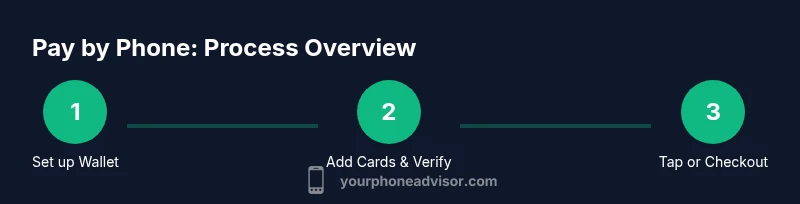
You can pay by phone by adding your card to a digital wallet on your smartphone, then tapping or scanning at checkout. This quick answer previews setup for Apple Pay and Google Wallet, how to use it in stores and online, and how to keep payments secure. By the end, you’ll make fast, contactless payments with confidence.
What pay by phone is and how it works
Pay by phone is a form of mobile payment that lets you complete purchases using a digital wallet on your smartphone. Most major wallets rely on tokenization and near-field communication (NFC) so your actual card number never leaves your device. Instead, a one-time token is transmitted at checkout, keeping your data safer. According to Your Phone Advisor, pay by phone blends speed with strong security when used correctly. You can pay in-store by tapping your phone at a compatible terminal or online by selecting the wallet option at checkout. This approach is widely accepted, simple to set up, and increasingly universal across retailers and apps. By adopting pay by phone, you can reduce fumbling with plastic cards and speed through checkout while maintaining good security hygiene.
Security and privacy foundations
Security and privacy are the core reasons many users choose pay by phone. Wallets use tokenization, device-based authentication (biometrics, PIN), and one-time session codes to minimize card data exposure. If your phone is protected by a strong passcode or biometric lock, and you install updates promptly, you have a solid baseline defense. The Your Phone Advisor team notes that avoiding public Wi‑Fi for wallet sign-ins and enabling two-factor verification where available further improves safety. Be mindful of phishing prompts that imitate payment requests and never approve a payment after being routed to an unexpected screen. Regularly review recent transactions and report any unfamiliar activity to your bank immediately.
How pay by phone works across platforms
Most pay-by-phone experiences revolve around three pillars: NFC-based in-store payments (Apple Pay, Google Wallet, Samsung Wallet), QR-based mobile payments, and in-app payments within apps that support wallet funding. In-store, you unlock your wallet and hold the phone near the reader until you hear a tone or see a confirmation. Online, you select the wallet option at checkout and complete authentication with biometrics or a passcode. Tokenization prevents sharing full card numbers, and merchant data remains protected by the wallet's security model. The Your Phone Advisor analysis suggests that these methods become nearly ubiquitous as merchants update terminals and apps adopt cross‑wallet compatibility.
Step-by-step setup (iOS and Android)
Getting started is quick on both major mobile platforms. On iOS, open Wallet, add a card, and complete identity verification with Face ID or Touch ID. On Android, open Google Wallet, add a card, and enroll any device unlocking that uses secure credentials. In both ecosystems, enable NFC and set up a preferred default wallet for quick taps. Tests with a small in-store purchase help confirm everything works as expected. By guiding yourself through these steps, you’ll be ready to pay by phone with confidence.
In-store and online payment workflows
When paying in-store, unlock your wallet or activate on your lock screen, then tap the reader or present your phone for a scan. For online purchases, choose the wallet at checkout and authenticate with biometrics on your device. Many merchants allow tipping and rewards integration through the wallet as well. For merchants, working with a single wallet provider or enabling multiple wallets can improve conversion and reduce checkout friction. The Your Phone Advisor team notes that consistent experiences across devices enhance user trust.
Common pitfalls and troubleshooting
Common issues include a failed tap, a wallet not selected as default, or a card not supported by a particular wallet. Ensure your device screen is unlocked, the wallet is enabled for in-store use, and you have an active payment method. If a payment fails, try a different card stored in the wallet or use the card manually. If you notice missed refunds or unusual activity, contact your bank immediately. Regular wallet updates and OS patches help prevent these problems.
When to enable pay by phone for personal and small-business use
Pay by phone is ideal for everyday personal purchases, groceries, transit, and casual shopping where speed matters. Small businesses can benefit from faster checkouts and reduced cash handling. For business use, consider adding multiple payment methods and setting user permissions for employees who can authorize wallet payments. If you often buy online, keep a backup payment method and enable security features to protect corporate accounts.
Tools & Materials
- NFC-enabled smartphone(Ensure NFC is turned on in Settings and test with a known card.)
- Digital wallet app (Apple Pay, Google Wallet, or Samsung Wallet)(Install the app and update to the latest version.)
- Active payment method linked to the wallet(Have at least one card or bank account ready for tokenization.)
- Stable internet connection(Wi‑Fi or mobile data is needed for setup and online transactions.)
- Device with charged battery(A charged device prevents failed transactions at checkout.)
- Optional wearable device (smartwatch)(Can provide convenient hands-free payments if supported.)
Steps
Estimated time: 20-40 minutes
- 1
Choose your wallet app
Select the wallet that matches your device (Apple Pay on iOS, Google Wallet on Android) and set it as a default for quick taps. This ensures you can pay with a single tap at the counter.
Tip: Pro tip: If you use multiple wallets, keep two distinct cards to avoid confusion. - 2
Add a payment method
Open the wallet app and add a card or link a bank account. Complete any required verification steps with your bank or card issuer. Ensure the card supports tokenization.
Tip: Pro tip: Use a primary card with good fraud protection for quickest checkout. - 3
Verify identity and set security
Enable biometric unlock (Face ID, Touch ID, or fingerprint) or a strong passcode. This adds a layer of protection if your phone is lost or stolen.
Tip: Pro tip: Enable two-factor authentication for your wallet account if available. - 4
Enable NFC and defaults
Turn on NFC in Settings and set your chosen wallet as the default payment method for in-store taps. Test a small purchase to confirm the setup.
Tip: Pro tip: Perform a $0.01 test authorization if your bank supports it. - 5
Test with a low-value purchase
Visit a merchant that accepts wallet payments and complete a tiny transaction to verify the flow and receipt generation.
Tip: Pro tip: Check the wallet activity log afterward to confirm the payment posted. - 6
Use wallets for online purchases
At checkout, select the wallet option and authenticate with biometrics. This often speeds up form filling and reduces input errors.
Tip: Pro tip: Save a backup payment method in case a merchant doesn’t support a wallet yet. - 7
Maintain security over time
Keep OS and wallet apps updated, review permissions, and monitor transaction history regularly.
Tip: Pro tip: Consider enabling alerts for high-value wallet transactions. - 8
Prepare for loss or replacement
If your phone is lost or stolen, use remote wipe if available, and contact your bank to suspend wallet activity until you regain access.
Tip: Pro tip: Have a backup payment method ready and know how to re-link cards on a new device.
Got Questions?
Is pay by phone more secure than using a physical card?
Yes. Pay by phone relies on tokenization and biometrics, which reduces exposure of card data and adds strong authentication. However, you should still protect your device and monitor transactions.
Pay by phone is generally more secure because it uses tokenization and biometrics, but keep your device protected and watch your transactions.
Can I use pay by phone online and in-store at the same time?
Yes. In-store payments tap or scan with your wallet, while online purchases authenticate through the wallet at checkout. Some merchants may support multiple wallets for flexibility.
You can use pay by phone both online and in-store; just choose the wallet at checkout or tap in-store.
Which apps support pay by phone?
Most major wallets on iOS and Android support pay-by-phone payments. Availability varies by device and region, so check your wallet’s official list of supported cards and merchants.
Most popular wallets support pay by phone, but availability can vary by country and device.
What happens if my phone is lost or stolen?
If your device is lost, pause or wipe wallet access and contact your bank to protect cards. Most wallets offer remote lock and card deactivation options.
If your phone is lost, pause wallet access and contact your bank to protect your cards.
Are there any fees or limits for pay-by-phone payments?
Fees are typically not charged by wallets for standard transactions, but banks or merchants may have limits or protections. Always review your wallet’s terms and your card issuer’s policies.
Wallet payments usually have no extra wallet fees, but card issuer limits and merchant rules may apply.
Can I use pay by phone for merchants that don’t display wallet logos?
Sometimes yes if the merchant’s terminal supports generic wallet payments or if you can scan a QR code. If not, you can still pay with your card manually.
If a merchant doesn’t display wallet logos, you may still be able to pay with a wallet using compatible technology or scan codes.
Watch Video
What to Remember
- Set up a digital wallet and link card(s).
- Protect payments with biometrics and device security.
- Test with small purchases to confirm setup.
- Use a backup method for online or merchant gaps.