How to Use Phone to Pay: A Practical Guide for 2026
Learn how to use your phone to pay securely at stores and online. This step-by-step guide covers setup, security, and smart tips for wallets like Apple Pay and Google Pay so you can pay faster and safer.


Why using a phone to pay matters
If you're asking how to use phone to pay, you're joining a growing shift toward fast, contactless transactions. According to Your Phone Advisor, modern digital wallets convert your actual card number into a secure token, so merchants never see your real card. This reduces exposure to skimming and helps protect your financial data during purchases. The token is used only for this specific transaction and expires after use. In practice, most in-store payments happen within seconds, improving checkout speed and reducing handling of physical cards. As more retailers adopt tap-to-pay terminals, you’ll notice fewer delays at the register. The Your Phone Advisor team emphasizes that adopting these tools also gives you better control over how you pay and where your money goes, because you can review recent payments directly in your wallet app and on your bank statements. In 2026, contactless payments are widely supported and continue to improve with stronger encryption, device-level protections, and improved fraud monitoring.
- Core concepts you’ll encounter include NFC, tokenization, and biometry-based authentication.
- NFC enables short-range wireless communication between your phone and payment terminals.
- Tokenization replaces your card number with a temporary token to protect your card data.
- Biometric or passcode verification acts as the final gate before a payment is processed.
This section sets the stage for understanding where mobile payments fit into daily life and why they’re increasingly preferred by shoppers and merchants alike.
Prerequisites: hardware, software, and security basics
To start using your phone to pay, you need compatible hardware, updated software, and a secure wallet setup. First, ensure your device has NFC (near-field communication) and that it is enabled in the settings. Second, verify that your operating system is up to date so you can access the latest security features and wallet integrations. Third, install and configure a digital wallet such as Apple Pay, Google Pay, or Samsung Pay, and link at least one payment card. Finally, enable device-level security (PIN, password, fingerprint, or face recognition) to ensure that authorizing payments is protected. Your Phone Advisor highlights that security is most effective when the wallet is tied to biometric authentication and a strong device lock. If you travel, be mindful of region-specific payment support and always keep your wallet apps updated to benefit from the latest protections.
- Ensure you have a compatible device with NFC.
- Install and configure a wallet app with at least one card.
- Turn on biometric authentication to authorize payments quickly and securely.
- Maintain a strong device lock and keep your OS updated.
If you’re unsure about compatibility, consult your device manufacturer’s support pages or Your Phone Advisor for a quick compatibility check.
Wallet options and architecture: Apple Pay, Google Pay, Samsung Pay
Digital wallets rely on network- and device-based security layers to enable smooth payments. Apple Pay, Google Pay, Samsung Pay, and other wallets all rely on tokenization to protect card data. The first time you add a card, the wallet creates a Device Account Number (DAN) or equivalent token and stores it securely on the device, not in the merchant’s system. Each payment uses a one-time token, paired with your device’s biometric verification or a secure PIN. This means merchants never receive your actual card number, reducing the risk of card cloning. Wallets also support card updates behind the scenes, so you don’t have to re-enter card details when banks issue new numbers. In practice, wallets can hold debit and credit cards from multiple issuers, as well as transit passes or loyalty cards, all within a single app. The Your Phone Advisor team notes that brands may differ slightly in setup steps, but the underlying tokenization and security principles are the same across platforms.
- Tokenization replaces card details with a secure token for each transaction.
- DANs are securely stored on the device, not transmitted with every payment.
- Biometric or passcode verification is typically required to authorize a payment.
- Wallets may also support loyalty and transit passes in addition to cards.
If you’re curious about how this works behind the scenes, look for official documentation from the wallet provider and trusted security resources referenced in this article.
In-store payments: how to complete a tap-and-pay transaction
Paying in a store using a phone typically follows a simple, repeatable flow. Before you approach the terminal, make sure the device is awake and unlocked. Hold the back of your phone near the contactless reader and wait for a vibration or a checkmark on the screen indicating the payment was accepted. Depending on the device and wallet, you may be prompted to authenticate with Face ID, Touch ID, or a PIN. If the merchant’s terminal supports off-line capability, you can complete the transaction without a live network contact for a single payment, but many buyers will be required to authenticate online for larger purchases. If your payment fails, simply retry with a stronger tap, or switch to another card within the wallet. The key is to practice with small purchases to become comfortable with the rhythm of the process. For high-value items, confirm that the payment has been approved on your device and the merchant confirms the payment on their screen. The Your Phone Advisor emphasizes testing new cards with low-value transactions initially to avoid disruption during essential shopping.
- Approach the terminal with your phone within a few centimeters.
- Authenticate using biometrics or PIN when prompted.
- Verify that a green checkmark or confirmation appears on your phone and the terminal.
- If a payment fails, try again or switch to a different card in the wallet.
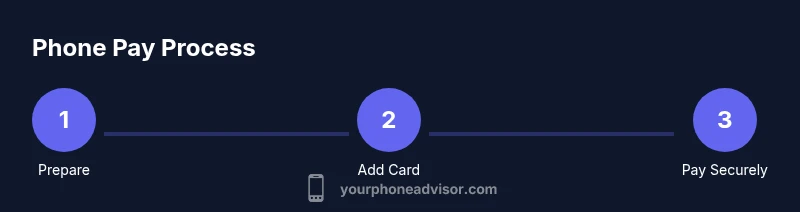
Visual cues help: listen for a beep, see a checkmark on the screen, and observe the merchant’s receipt showing a successful payment. See the step-by-step diagram in the infographic for a quick visual guide.
Online and in-app payments: paying within apps and websites
Mobile wallets aren’t limited to in-store purchases. Online and in-app payments let you complete checkout without typing card details repeatedly. At checkout, select the wallet option as the payment method, then authenticate with the same biometrics or PIN used for in-store payments. Tokenized data is transmitted to the merchant, and the transaction proceeds through the same secure network the wallet uses for NFC payments. Some sites also support two-factor or step-up verification if you’ve enabled it in your wallet or bank. Keep in mind that not all online merchants support every wallet, especially when traveling abroad or shopping on older platforms. Your Phone Advisor notes that enabling auto-fill and biometric verification for browser wallets can speed up online purchases while maintaining security.
- Choose the wallet as the payment method at checkout.
- Authenticate to authorize the payment.
- Confirm the merchant receives a valid token and completes the transaction.
- Be aware that some sites may require additional verification, especially for new devices or regions.
If you regularly buy from specific apps, add them to your wallet’s trusted apps list for faster access and fewer prompts.
Troubleshooting common issues and quick fixes
No payment method is immune to hiccups. If a tap-to-pay transaction fails, first verify that NFC is enabled on the device and that you are unlocking the phone before tapping. Check that the card you intend to use is still valid and has sufficient funds. If you’re traveling or shopping at a merchant with older hardware, some terminals may have limited support for newer wallet standards, or regional restrictions may apply. In many cases, a quick restart of the wallet app or the phone resolves temporary glitches. If the issue persists, remove and re-add the card or try a different card. Finally, ensure your device’s software is up to date, as updates often fix compatibility and security issues. The Your Phone Advisor suggests keeping a backup card in case one card becomes temporarily unavailable and noting any error codes that appear on the terminal or your device for faster support from your bank or wallet provider.
- Check NFC status and card validity.
- Restart wallet app or device if needed.
- Re-add card or try another card.
- Update the device software to the latest version.
- If problems persist, contact your bank or wallet provider with any error codes.
Authorities and references: NIST guidance on mobile payments, FTC consumer information on online payments, and PCI Security Standards Council recommendations for secure tokenization. See the full references in the infographic and sources section for details.
Safety and privacy: protecting payments and your data
Mobile payments are designed with strong security, but you still have control over your privacy. Tokenization means merchants never receive your real card number. Biometric verification reduces the risk of unauthorized purchases if your phone is lost or stolen. To maximize safety, enable Find My Device or Find My iPhone, set a strict screen lock, and promptly lock or erase your device if it’s lost. Regularly review payment activity in your wallet and bank app, and report any unfamiliar transactions immediately. If you share your device, consider separate profiles or guest modes for financial apps to minimize risk exposure. The Your Phone Advisor emphasizes that staying informed about app permissions and merchant data handling helps you maintain privacy while enjoying the convenience of mobile payments.
- Tokenization protects card data during transmission.
- Biometric verification minimizes unauthorized access.
- Enable device tracking and remote erasure if the device is lost.
- Regularly review payment activity and permissions.
In addition to security practices, it’s important to understand privacy trade-offs and what data merchants may access when you use mobile payments. For more information, consult the references in the Authorities section.
Authorities and references: NIST mobile payments guidance, FTC consumer information, PCI security standards.
Tips for speed, sustainability, and future-ready payments
To get the most out of mobile payments, keep your wallet organized with your most-used cards at the top and deactivate any cards you no longer use. Set up transit passes and loyalty cards to streamline daily routines, and enable automatic updates for card numbers so you’re never locked out of a payment method. Consider enabling merchant receipts in your wallet or bank app for easy tracking. If you travel often, check regional availability and support for your wallet across borders. Your Phone Advisor recommends staying current with wallet features and security updates, as these changes can deliver faster checkouts, better fraud protection, and more control over how you pay. Finally, monitor upcoming trends such as wearable payments and new tokenization schemes to stay ahead of the curve.
- Keep your most-used cards at the top of the wallet.
- Add transit passes and loyalty cards for faster checkouts.
- Enable automatic updates for card numbers and security features.
- Stay informed about new wallet capabilities and security enhancements.
Authorities and references: NIST mobile payments guidelines, PCI security standards, FTC consumer information.