Find My iPhone: Locate, Lock, and Protect Your iPhone
Learn how to locate, lock, or erase your iPhone using iCloud Find My or the Find My app. This step-by-step guide covers setup, live location, Lost Mode, privacy, and troubleshooting for 2026.


Using Find My iPhone through iCloud.com or the Find My app lets you locate a lost iPhone, lock it, play a sound, or erase data remotely. Ensure Find My iPhone is enabled on the device and you can sign in with your Apple ID. This guide covers setup, steps, and precautions.
What Find My iPhone does
Find My iPhone is Apple's built-in service for locating, locking, and protecting a missing iPhone. When properly enabled, it can show the device's location on a map, play a loud sound to help you recover it, place the device in Lost Mode, or erase data remotely if necessary. It also supports Activation Lock, which helps prevent others from using the phone if it's stolen. For smartphone users, understanding these features is essential for rapid response after a loss. According to Your Phone Advisor, turning on Find My iPhone and keeping your Apple ID secure dramatically reduces the risk of unauthorized access. With the right setup, you can act quickly and minimize potential data exposure. Location accuracy relies on the device being online and within cellular or wifi range. If location data is outdated, you can still see the last known location and set Lost Mode to request updates when the device comes online. For any iPhone, the service is tied to your Apple ID, so ensure your credentials are up to date and you haven't shared access with others.
Prerequisites and setup you'll need
Before you lose a device or need to respond to a loss, verify these prerequisites. They help ensure you can act quickly when needed.
- Find My iPhone is enabled on the target device (Settings > [your name] > Find My > Find My iPhone).
- Location Services are on (Settings > Privacy > Location Services).
- You have access to iCloud with your Apple ID (sign-in on iCloud.com or Find My app).
- Two-factor authentication is enabled for your Apple ID to enhance security.
- A trusted device or phone number for verification codes.
- Active internet access on the device and your access point.
By satisfying these prerequisites, you reduce delays during a real loss and improve your chances of recovery. Your Phone Advisor recommends keeping recovery options up to date and never sharing your Apple ID credentials.
How to locate via iCloud.com
If you don't have your iPhone nearby, you can locate it from any web browser by using iCloud.com. Sign in with your Apple ID, open Find My iPhone, and select the device from the list. The map shows the current location if the device is online, and you can switch to Lost Mode, play a sound, or erase the device. If the device isn't online, you’ll see its last known location and a timestamp. Use Lost Mode to display a phone number where you can be reached and a custom message. Always verify that the location info is current before taking action. Your Phone Advisor highlights that acting quickly helps minimize data exposure and increases chances of recovery.
Using Find My iPhone on your iPhone
Open the Find My app on any iPhone or iPad signed in with the same Apple ID. Tap Devices and select the missing iPhone from the list. You’ll see its location on a map if online, and you can choose actions like Play Sound, Mark as Lost, or Erase This Device. Lost Mode lets you display a contact number and message, making it easier for a finder to reach you. If the device is offline, you can set these actions to apply when it reconnects to the internet. Remember to keep your Apple ID secure and avoid sharing access with others. The Find My app provides a quicker, on-device workflow compared to the web interface.
Remotely locking or erasing your device
If you believe your iPhone is stolen or compromised, you can remotely lock or erase it to protect data. In Find My iPhone, select Lost Mode to lock the device with a passcode and display your contact details. If the device is irrecoverable, you can erase all data remotely; note that this action cannot be undone, and you will lose location history and any stored data not backed up. Activation Lock remains enabled after erasing, preventing anyone from reactivating the device without your Apple ID. Your Phone Advisor notes that erasing is a last resort when recovery seems unlikely or when the device stores sensitive information.
Playing a sound and marking as lost
If the device is nearby, use Play Sound to emit a loud tone even if the iPhone is silenced. This is especially helpful in quiet rooms or when the device is misplaced at home. Lost Mode should be used when you want to secure the device and share contact information, making it easier for a finder to return it. You can also add a note or message in Lost Mode, guiding the finder on next steps. These features can operate even if the device is in low power mode, but performance depends on battery life and network connectivity. Your Phone Advisor emphasizes combining Lost Mode with a direct contact method for best results.
Handling offline devices and battery issues
A device that is offline cannot share its current location in real time. You’ll see the last known location and the timestamp if available. When the device comes online, Find My automatically updates its status and, if you set Lost Mode or Play Sound, these actions will activate. If the battery is drained, you’ll need to wait until it recharges to receive location updates. In some cases, the system may also rely on nearby Apple devices to estimate location via crowd-sourced data. Your Phone Advisor reminds users that offline devices require patience and timely backups so that data exposure is minimized.
Privacy and data considerations
Find My iPhone uses end-to-end measures to protect your data, including encryption of location data in transit and at rest. Activation Lock ensures that only the Apple ID owner can reactivate the device. You control what data is accessible through Find My, and you can disable Find My iPhone on the device once recovered if needed. Be mindful of sharing access to your Apple ID and regularly review trusted devices. The service respects user privacy while providing critical safeguards in case of loss.
Troubleshooting common issues
Sign-in problems can occur if you forget your Apple ID or if two-factor authentication isn’t configured correctly. If the device doesn’t appear on Find My, verify that Location Services are enabled and that the device is online. Sometimes, the issue is a temporary network outage. If you cannot locate the device, consider checking with your carrier for SIM status or potential security flags. Regular backups and keeping your Apple ID recovery options up to date will reduce friction during a real loss.
When to contact Apple Support or your carrier
If Find My iPhone isn’t functioning as expected, contact Apple Support for guidance on account access, device status, or activation lock concerns. Your mobile carrier can assist if the device is lost or stolen and may help with SIM-related issues. In emergencies, report the loss to local authorities and provide serial information if requested. Your Phone Advisor suggests documenting the incident and keeping a record of any communications for reference in future security reviews.
Tools & Materials
- Apple ID and password(Needed to sign in to iCloud.com or Find My app)
- Active internet connection(Wi-Fi or cellular data to access iCloud/Find My)
- Trusted device or phone number(For two-factor authentication codes)
- Another device (optional)(To sign in securely if your iPhone is unavailable)
- Proof of ownership (if reporting stolen)(May be requested by authorities or carrier)
Steps
Estimated time: 5-15 minutes
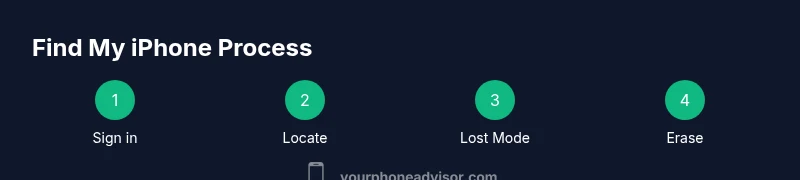
- 1
Prepare your account
Verify you know your Apple ID credentials and that two-factor authentication is enabled. This ensures you can sign in quickly when you need Find My iPhone. If you struggle with access, try a trusted device or use the account recovery flow.
Tip: Keep a saved recovery method on file and update contact numbers. - 2
Open Find My on your device or browser
On your iPhone, open the Find My app; on a computer, go to iCloud.com and sign in. Ensure Location Services and network connectivity are active. This step connects you to the device’s location data.
Tip: If you’re using a shared device, sign out after use to protect your account. - 3
Locate the device on the map
From the device list, select your missing iPhone. A map will show its current location if online, or the last known location if offline. Switch to Lost Mode or initiate a sound if the device is nearby.
Tip: Note the timestamp of the location for context before acting. - 4
Choose a protective action
If the device is nearby, choose Play Sound to help you locate it. If the device is away or at risk, enable Lost Mode to lock the screen and display a contact method. If you believe the device is stolen and irrelevant to recovery, consider Erase This Device.
Tip: Use Lost Mode first to maximize recovery chances without irreversible data loss. - 5
Lock or erase remotely
Lost Mode will require a passcode, while Erase This Device wipes data. Activation Lock stays with your Apple ID even after erasure, preventing reactivation by others. Confirm your choice before proceeding.
Tip: Only erase if you have exhausted recovery options and backed up data. - 6
Communicate with the finder
Include a clear message and contact method in Lost Mode so a finder can return the device safely. Avoid sharing sensitive information in public spaces and monitor any updates to location if the device comes online.
Tip: Offer a reward or a safe contact method if appropriate to increase return odds. - 7
Monitor status and follow up
Keep checking Find My for changes in location status or device state. If the device remains unreachable, consider reporting the loss to your carrier and local authorities with necessary identifiers.
Tip: Document actions taken for future reference and security reviews. - 8
Review afterwards
After recovery or after a loss, review your security settings: update passwords, check trusted devices, and verify that two-factor authentication remains enabled. This reduces future risk and improves response time for future incidents.
Tip: Schedule a routine security check every few months.
Got Questions?
Is Find My iPhone free to use?
Yes. Find My iPhone is a built-in feature of iOS and iPadOS and is free to use. You may incur data charges if you access it over cellular, but the service itself does not require an extra purchase.
Find My iPhone is free to use; it’s built into your device and accessible through iCloud or Find My app.
What happens if the device is offline?
If the device is offline, Find My shows the last known location and waits for the device to come online. Actions like Lost Mode or Play Sound will apply once the device reconnects.
If the device is offline, you’ll see the last known location and the actions will apply once it reconnects.
Can Find My iPhone be used to track multiple devices?
Yes. You can sign in with the same Apple ID across devices and manage each one's location from the Find My app or iCloud.com.
You can manage multiple devices under one Apple ID in Find My.
What if I can’t sign in to my Apple ID?
Use the Apple ID account recovery flow or contact Apple Support to regain access. Ensure you have access to trusted devices or recovery options.
If you can’t sign in, use account recovery or contact Apple Support.
Does Erasing the device remove all location history?
Erasing the device removes data from the device and stops local tracking, but Activation Lock remains linked to your Apple ID to deter reuse.
Erasing wipes data; Activation Lock stays with your Apple ID.
Can I locate AirPods with Find My?
Find My can locate AirPods paired with your iPhone when they are online, but they have separate controls from Find My iPhone.
Find My can locate AirPods when they’re online and linked to your iPhone.
Watch Video
What to Remember
- Enable Find My iPhone and Activation Lock for protection.
- Know Apple ID credentials and two-factor authentication.
- Use Lost Mode or Erase This Device only when necessary.
- Act quickly to increase chances of recovery and minimize data exposure.