How to Use a VPN on Your Phone: A Practical Guide
Learn how to use a VPN on iPhone or Android to protect data on mobile networks. Step-by-step setup, security tips, and common pitfalls explained by Your Phone Advisor.


You will learn how to set up and use a VPN on your phone to protect your data on public Wi‑Fi, secure your online activity, and browse with more privacy. This guide covers choosing a provider, installing the app, connecting to a server, and verifying your connection. No technical jargon—clear steps, safety tips, and common pitfalls.
What is a VPN on smartphone and why you should use one
A virtual private network (VPN) creates an encrypted tunnel between your smartphone and a remote server. When you use public Wi-Fi or untrusted networks, this tunnel helps protect your data from eavesdroppers, protects your login credentials, and hides your online activity from outsiders like advertisers or network operators. For most users, a mobile VPN is a practical layer of security that works in the background without requiring much technical knowledge. According to Your Phone Advisor, deploying a VPN on your phone is a smart step toward preserving privacy and improving security on the go. It’s important to note that a VPN does not make you invincible; it shifts risk rather than eliminates it by encrypting data in transit and masking your IP address. In combination with strong passwords, updated software, and mindful browsing habits, a VPN becomes part of a holistic mobile security strategy.
How VPNs protect your data on mobile devices
On a smartphone, data protection hinges on encryption, authentication, and traffic routing. A VPN encrypts your data before it leaves the device, so even if a rogue actor gains access to the network, they cannot read your information. It also routes traffic through a remote server, which hides your real IP address and makes it harder for trackers to follow you across sites and apps. This is particularly valuable on public networks, such as coffee shops or airports, where attackers often attempt to intercept connections. Your Phone Advisor notes that while encryption is strong, you should still employ other best practices like keeping the device unlocked only when necessary and enabling screen lock with a passcode or biometric. Remember that VPNs protect data in transit, not data stored on the device or the services you log into.
Choosing a VPN provider: features, privacy, speed, and cost
With hundreds of VPNs on the market, choosing the right provider is essential. Look for a clear no-logs policy, independent audits, and transparent privacy terms. Privacy-focused features, such as a kill switch, DNS leak protection, and split tunneling, can dramatically affect how safely you browse. Speed is another consideration: some servers are overloaded, which slows connections. Consider the provider’s server network (locations and latency), device support (iOS and Android), and the price. Your Phone Advisor recommends balancing price with privacy guarantees and performance. Free VPNs often monetize user data or show ads, so start with a reputable paid option if possible. Finally, check compatibility with your phone’s OS version and whether the provider supports additional devices you own.
How to install a VPN on iPhone (iOS)
- Open the App Store and search for the VPN provider’s official app. Install it and open the app. 2) Create an account or sign in if you already have one. Some providers offer a trial or a money-back guarantee. 3) Grant the necessary permissions requested by the app (configuration, VPN permissions, notifications). 4) In the app, choose a server location, ideally nearby for better speed, and tap Connect. The app will display a connected status and your IP should change. 5) In iOS, you may be prompted to allow VPN configuration; approve it. 6) Verify the connection by checking your IP or performing a quick data leak check. If the app includes a kill switch, enable it for extra protection.
How to install a VPN on Android
- Open the Google Play Store and locate the official app for your VPN provider. Install the app and launch it. 2) Sign in or create an account. Some providers offer a trial period or discount. 3) Allow the required permissions (VPN configuration, notification access). 4) In the app, pick a nearby server and press Connect. 5) If the app includes a built-in kill switch, enable it and consider turning on the Auto-Connect feature for uninterrupted protection. 6) Test the connection by visiting a site that shows your IP and location to confirm the VPN is active.
Configuring security settings for best privacy
Many VPN apps offer security features that you should enable by default. Turn on the kill switch, which blocks traffic if the VPN drops, to prevent data leaks. Enable DNS leak protection to ensure DNS requests aren’t sent outside the VPN tunnel. Consider choosing a secure protocol (WireGuard or OpenVPN are common options) if your provider offers a choice; newer protocols typically deliver better performance and security. Disable unused features such as split tunneling if you want all traffic to route through the VPN, or configure it to protect only sensitive apps if your privacy needs are more nuanced. Finally, set auto-connect to ensure your phone connects to the VPN whenever you join a new network, unless you have a reason to delay.
Testing and verifying your VPN connection
After connecting, test that your VPN is active. Use a site that shows your IP address and location to confirm it differs from your real address. Run a basic DNS leak test to ensure DNS requests aren’t leaking outside the VPN tunnel. If you notice leaks, recheck protocol and DNS settings in the app. Some providers offer built-in diagnostics—use them. Verify that the VPN remains connected when the device sleeps or when you switch networks. Regular tests help you catch issues early and keep your privacy posture strong.
Common issues and troubleshooting on mobile VPNs
Slow speeds are a frequent complaint and often result from server load, distance, or protocol choice. Try a closer server, switch protocol, or enable a lighter encryption profile if available. Connection failures can occur after OS updates; in that case, re-install the app or re-authenticate. Some apps may demand battery optimization settings to be disabled for persistent connections; ensure the VPN app isn’t put to sleep by power-saving modes. If you suspect a data leak, review DNS settings and use a dedicated DNS resolver from within the app. Finally, contact your provider's support if problems persist.
Legal considerations and best practices for mobile VPN use
VPN legality varies by country and by the purpose of use. In many places, using a VPN for privacy or legitimate remote access is allowed; in others, it may be restricted or monitored. Always stay compliant with local laws, employer or school policies, and terms of service when using a VPN. As part of best practices, keep your device updated, use strong authentication, and maintain awareness of which apps have permission to run in the background while a VPN is connected. A VPN is a powerful privacy tool when used responsibly and in combination with secure passwords and device protections.
Tools & Materials
- Smartphone (iPhone or Android)(Ensure it runs a recent OS version)
- Official VPN app(Download from App Store or Google Play)
- Active VPN account(Create or sign in to your provider account)
- Stable internet connection(Wi-Fi or cellular data works)
- Two-factor authentication (optional)(Adds extra security for the account)
- Payment method for paid plan(Some features require a paid tier)
Steps
Estimated time: 15-25 minutes
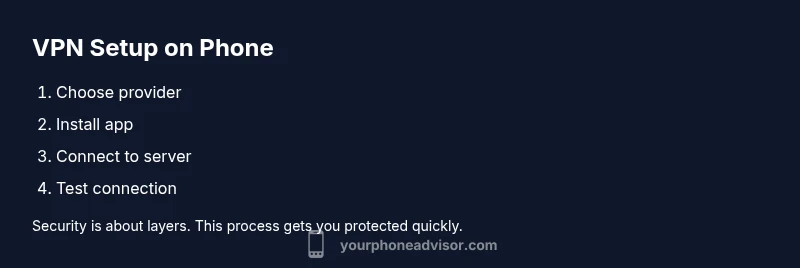
- 1
Choose a VPN provider
Research providers that offer strong privacy, transparent policies, and reliable performance. Compare no-logs commitments, audits, and supported platforms. Consider whether you need multi-device support and a trial period.
Tip: Prioritize a reputable company with an independent audit and a clear privacy policy. - 2
Install the VPN app
From the official store, download the provider’s app for your phone’s OS. Open the app and begin the signup flow or sign in if you already have an account.
Tip: Always download from the official store to avoid tampered apps. - 3
Create or sign in to your account
Enter your email and set up 2FA if offered. A strong password plus two-factor authentication greatly improves security.
Tip: Enable 2FA during or immediately after signup. - 4
Grant necessary permissions
Allow the app to configure VPN profiles and access notifications as required. This enables the VPN to run in the background.
Tip: Review requested permissions and only grant what is necessary. - 5
Choose a server and connect
Within the app, pick a nearby server for speed and a region that matches your privacy needs, then tap Connect.
Tip: If speed drops, switch to a closer server or a different protocol. - 6
Verify the connection
Check the app status, and visit an IP-check site to confirm your real IP is hidden. Run a DNS leak test to ensure DNS requests route via VPN.
Tip: If IP doesn’t change, disconnect and reconnect or switch servers. - 7
Enable kill switch and auto-connect
Turn on the kill switch if available, and enable auto-connect so the VPN starts automatically on new networks.
Tip: Kill switch protects you if the VPN drops unexpectedly. - 8
Maintain and monitor
Keep the app updated, review privacy settings, and periodically reassess your server choices for best balance of privacy and speed.
Tip: Regular checks help maintain privacy over time.
Got Questions?
Is it legal to use a VPN on a phone?
VPN legality varies by country and purpose. In many places it’s allowed for personal use, but some jurisdictions restrict or monitor VPN activity. Always check local laws and employer policies if applicable.
VPNs are legal in many places for personal use, but rules vary. Check local laws if you’re unsure.
Can I use a VPN on both Wi-Fi and mobile data?
Yes. A VPN protects traffic on both Wi-Fi and mobile networks once you connect to a server. Your privacy stays active across networks.
Yes, it works on both networks.
Will a VPN slow down my connection?
Some slowdown is common due to distance to the server and encryption overhead. Choosing nearby servers and lighter protocols can minimize impact.
It can affect speed; pick a nearby server and try a different protocol.
Do VPNs protect against malware?
VPNs primarily protect data in transit; they do not replace antivirus software or safe browsing habits. Use security software in addition to a VPN.
No, VPNs don’t block malware by themselves.
What is a kill switch and should I enable it?
A kill switch blocks all traffic if the VPN disconnects unexpectedly, preventing leaks. Enable it for stronger privacy.
Yes, enable the kill switch for protection if the VPN drops.
Are free VPNs safe?
Free VPNs often monetize data or inject ads. They may also have weaker encryption and privacy practices. Consider paid options for better protection.
Free VPNs can be riskier; paid options are generally safer.
Watch Video
What to Remember
- Choose a reputable provider with a transparent no-logs policy.
- Enable kill switch and DNS leak protection for stronger defense.
- Verify your IP shows a different location after connecting.
- Regularly test VPN performance and reselect servers to optimize speed.
- Rotate servers and stay aware of legal considerations for mobile VPN use.