How to Use My Phone as a Hotspot: A Practical Guide
Learn how to use my phone as a hotspot to share cellular data with devices. Step-by-step setup for Android and iPhone, plus security, data usage, and troubleshooting tips from Your Phone Advisor.


By the end of this guide, you will be able to turn your phone into a reliable hotspot for your laptop, tablet, or another device. You will learn the simplest Android and iPhone methods, what to enable in settings, and how to protect your connection. Before you start, confirm you have a data plan that supports tethering and know your network name and password.
What is a mobile hotspot and when to use it
A mobile hotspot turns your phone into a portable wireless access point, letting other devices connect to the internet using your cellular data. If you're searching for how to use my phone as a hotspot, you're in the right place. This approach is ideal when you're traveling, working in environments with limited Wi‑Fi, or during emergencies when traditional networks are unavailable. The concept is simple: your phone broadcasts a small Wi‑Fi network that any device can join with a password. The balance you’ll seek is convenience versus data usage and battery life. As you follow along, you’ll see practical tips from Your Phone Advisor to tether securely and efficiently.
According to Your Phone Advisor, leveraging a hotspot is a dependable contingency for staying connected when public networks are unreliable, provided you stay mindful of data use and security.
Android vs iPhone: setup basics
Both major platforms provide built‑in hotspot features, but the path to enable them differs slightly. On Android, open Settings, tap Network & Internet (or Connections), then Tethering & Portable Hotspot, and switch on Portable hotspot. On iPhone, go to Settings, Personal Hotspot, and toggle it on. In both cases, you’ll be asked to set an SSID (network name) and a password. If you want faster speeds, consider using 5 GHz where available, though some older devices may only support 2.4 GHz. The exact route can vary by manufacturer and Android version, so if you can’t locate the option, use the Settings search function for “hotspot” or “tethering.”
Security and privacy basics for hotspot use
Secure hotspot use starts with authentication. Always set a strong, unique password and avoid using the device’s default SSID. Use WPA2 or WPA3 encryption if possible, and disable SSID broadcasting only if you understand the privacy trade‑offs. Don’t leave the hotspot on longer than needed to reduce exposure to unauthorized users. Limit apps on the connected devices that might share content over the network, and keep your OS updated to patch hotspot vulnerabilities. Regularly review carrier settings that could influence tethering.
Data usage, speeds, and plan considerations
Hotspot data usage can surge quickly when several devices are connected or when streaming video, downloading large files, or engaging in cloud backups. Know your plan’s data cap and any tethering allowances to avoid surprises. Speed depends on your cellular signal, carrier network, and device capabilities; if you’re in a crowded area, speeds can dip. Test at different times and positions to find the most reliable signal. Some carriers throttle hotspot speeds or require a separate plan, so verify your policy and pricing before depending on tethering for critical work.
Troubleshooting common hotspot issues
If the hotspot isn’t visible on your other device, first ensure the hotspot is turned on and broadcasting the SSID. Double‑check the network name and password on the connecting device, and try forgetting and reconnecting to the network. If devices see the network but won’t connect, reboot both phones/computers and re‑enter credentials. Slow speeds can result from heavy device utilization or poor signal; start with a single connected device to establish a baseline, then gradually add more. For stubborn cases, try USB tethering or Bluetooth tethering, update the OS and carrier settings, or contact your provider for tethering support.
Tools & Materials
- Smartphone with active cellular data plan(Ensure data is enabled and your plan allows tethering)
- Connecting device (laptop/tablet/another phone)(Have it ready to test the hotspot connection)
- Charger or power source(Hotspot uses more battery; keep a charger handy)
- Strong password and unique SSID(Set during hotspot configuration to block unauthorized access)
Steps
Estimated time: 15-25 minutes
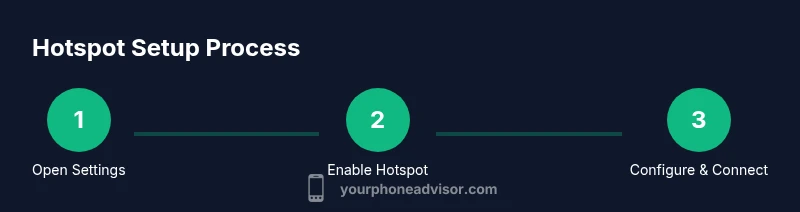
- 1
Open Settings
Launch your device's Settings app to access tethering controls. This foundational step unlocks the hotspot feature for both Android and iOS.
Tip: If you can’t find it, use the search tool in Settings and type 'hotspot' or 'tethering'. - 2
Enable the hotspot feature
Toggle on Portable hotspot (Android) or Personal Hotspot (iPhone). This creates the wireless network your devices will join.
Tip: On Android, you may see variations like 'Tethering' or 'Hotspot'—select the portable option. - 3
Configure network name and security
Set an identifiable SSID and a strong password. Choose WPA2 or WPA3 encryption if available.
Tip: Avoid default names; pick a unique name and a password of at least 12 characters with a mix of letters, numbers, and symbols. - 4
Choose band and security settings
If supported, select 5 GHz for speed or 2.4 GHz for longer range; ensure encryption is enabled.
Tip: 5 GHz offers higher speeds but shorter range; use 2.4 GHz for better wall penetration. - 5
Connect your device to the hotspot
On the other device, open Wi‑Fi settings, select your phone’s SSID, and enter the password. Confirm a working connection by loading a webpage.
Tip: If the network doesn’t appear, toggle the hotspot off and back on, or restart the connecting device. - 6
Test speed and monitor data usage
Run a quick speed check and observe data usage in Settings to avoid overages. Start with light tasks to verify stability.
Tip: Keep an eye on data consumption; hotspot data counts toward your plan’s cap. - 7
Disable hotspot when finished
Turn off the hotspot to save battery and data. Close the Settings screen or toggle the feature off.
Tip: Consider turning off hotspot when not in use to minimize security risk.
Got Questions?
Is hotspot the same as tethering?
Yes. Hotspot typically refers to the wireless access point created by your phone, while tethering is the broader term for sharing data via USB, Bluetooth, or Wi‑Fi. Most phones support all methods.
Hotspot and tethering basically refer to sharing your phone's data; you can connect wirelessly or by USB depending on the device.
How much data does hotspot use?
Hotspot data usage mirrors the activities you perform on connected devices. Streaming video consumes more data than browsing emails or documents.
Data use depends on activities like streaming; monitor your plan and adjust usage accordingly.
What if my carrier blocks tethering?
Some carriers require a tethering‑enabled plan or charge extra for hotspot use. Check your plan details or contact customer support to confirm.
Some providers restrict tethering; check your plan or talk to support if in doubt.
My hotspot isn’t visible on my other device. What now?
Ensure hotspot is enabled, SSID is broadcasting, and the password is correct. Restarting devices or toggling the hotspot can fix visibility issues.
Make sure the hotspot is on and the network name is broadcasting; restart if needed.
Should I keep hotspot on all the time?
No. Leaving it on drains battery and data quickly. Turn it off when not in use to save resources.
Only keep it on when you need it to save power and data.
Can I use USB tethering instead of Wi‑Fi?
Yes. USB tethering is a reliable alternative on many Android devices and some iPhone configurations, often using less battery than Wi‑Fi.
USB tethering can be more stable and battery‑friendly than wireless sharing.
Watch Video
What to Remember
- Enable hotspot only when needed and disable when not in use
- Secure connections with strong passwords and WPA2/3
- Monitor data usage to prevent overages
- Test with one device before sharing broadly
- Know your carrier policy on tethering