Where Is Phone Setting on iPhone 16: Quick Access Guide
Discover where to find the Settings app on iPhone 16 and learn quick ways to access essential options like connectivity, privacy, and display. This step-by-step guide helps you locate Settings via Home Screen, App Library, Spotlight, and Siri.


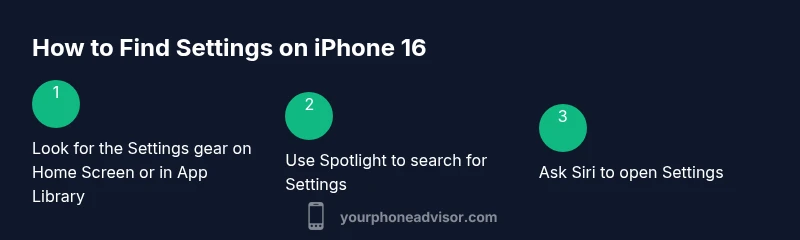
On iPhone 16, the Settings app is your entry point for most system choices. Open the Settings gear on the Home Screen or in the App Library. If you don’t see it, swipe down to use Spotlight search, then tap Settings. From there you’ll adjust connectivity, privacy, display, and more.
Where to find Settings on iPhone 16
If you're asking where is phone setting on iphone 16, start with the Settings icon—the gear symbol—on the Home Screen. This icon is the gateway to nearly every control, from Wi‑Fi to privacy. If the icon isn’t visible on the first page, remember that iPhone 16 supports an App Library. Swipe left through your Home Screen pages until you reach App Library, then locate the Settings icon in the app list. You can also use the built‑in search at the top of any Home Screen page: pull down, type “Settings,” and tap the result to open. For hands‑free access, ask Siri to open Settings. Once opened, you’ll see sections organized by topic, making it straightforward to reach the feature you want without hunting through menus.
Quick access methods: Spotlight, Search, and Siri
Beyond the obvious home‑screen icon, there are fast ways to reach Settings. Spotlight search (the magnifier) lets you type 'Settings' and launch it with a single tap. If you prefer voice, Siri can open Settings when activated. The App Library can also house Settings if you’ve hidden its home‑screen icon. This trio—home icon, Spotlight, and Siri—helps you reach Settings quickly in everyday use and is especially handy when the phone is in your bag or pocket.
Settings categories you’ll use most
Most users interact with a handful of core sections regularly. The top ones include Wi‑Fi and Bluetooth for connections, Display & Brightness for screen appearance, Privacy & Security for app permissions, Passwords & Accounts for sign‑in services, and Battery & Performance for power management. Accessibility options can also be essential for better navigation. Understanding these categories makes it faster to diagnose issues and tailor the device to your needs, rather than digging through layered menus.
Troubleshooting: missing Settings app or icons
If the Settings icon can’t be found, try a few safe fixes before panicking. First, reset the Home Screen layout to restore default icon positions: General → Transfer or Reset iPhone → Reset → Reset Home Screen Layout. This will not delete data, only rearrange icons. If the icon is still missing, check Screen Time restrictions: Settings → Screen Time → Content & Privacy Restrictions, and confirm that Settings is allowed. A simple restart can resolve transient glitches that hide or disable icons. If all else fails, sign out and back into your Apple ID or contact support for deeper issues.
Personalization: arranging fast access to Settings
You can improve speed by placing Settings in easy reach. Add a Settings shortcut to your Home Screen, or keep it in the Dock on the Home Screen for one‑tap access. Organize icons so that the most frequently used settings live on the first page. Consider enabling a Settings search widget or using Shortcuts to automate common tasks—like opening specific Settings panels with a single tap. The goal is to reduce friction when you need to adjust a preference.
Privacy and security basics within Settings
Security starts with understanding where settings live. You’ll often adjust privacy permissions under Privacy & Security, review account sign‑in methods under Passwords & Accounts, and manage app access under each app’s permissions. Regularly checking these sections helps protect data and maintain control over what apps can access. If you’re enabling two‑factor authentication, ensure the recovery options are up to date in the relevant Settings areas.
Accessibility and navigation tips for Settings
Accessibility features can affect how you reach Settings. If you have trouble reading small text or distinguishing icons, use Display & Brightness to adjust text size or bold text, and enable a larger font. VoiceOver and Zoom can help navigate Settings when visual access is limited. Remember, you can also ask Siri to open specific Settings panels, such as Settings > Privacy > Location Services, to save time when you know what you need.
What to do next: verify changes and stay organized
After locating Settings and making changes, verify that the new preferences are active by returning to the main Settings screen and checking the updated panel. If you frequently adjust certain options, consider creating Shortcuts to those panels or pinning Settings to your Home Screen for faster access. Regularly review privacy and security settings to maintain optimal device safety.
Tools & Materials
- iPhone 16 (iOS 20 or later)(Device should be on and unlocked; software up to date for best navigation features.)
- Home Screen access or App Library access(You should be able to browse icons or use App Library to locate Settings.)
- Siri enabled (optional)(Voice access can open Settings hands-free.)
- Stable internet (optional)(Not required for local Settings navigation but helpful for related tasks (iCloud, account sign‑in).)
Steps
Estimated time: 6-8 minutes
- 1
Locate the Settings icon
Inspect the Home Screen for the gear icon labeled Settings. If you don’t see it, swipe through pages or check the App Library for the Settings entry.
Tip: If you’re unsure where icons live, use a quick search by swiping down on the Home Screen. - 2
Open Settings from App Library
Open App Library and locate Settings by scrolling or using the search bar at the top of App Library; tap Settings to open.
Tip: You can drag the Settings icon back to the Home Screen for faster future access. - 3
Use Spotlight to locate Settings
From a Home Screen page, pull down to reveal Spotlight, type Settings, and tap the result to launch.
Tip: Spotlight can also expose specific Settings panels with a precise query, like 'Settings Wi‑Fi'. - 4
Ask Siri to open Settings
Activate Siri and say, 'Open Settings'. If asked, confirm the action to reach the app directly.
Tip: This is handy when your hands are full or you’re using the phone one‑handed. - 5
Create quick access to Settings
Add Settings to your Home Screen or Dock if your iPhone supports it, or create a Shortcuts shortcut to a specific panel.
Tip: Fast access reduces friction for frequent adjustments like toggling Wi‑Fi or adjusting brightness. - 6
If Settings still won’t open
Restart the device or reset the Home Screen layout from General > Transfer or Reset iPhone > Reset > Reset Home Screen Layout.
Tip: Avoid resetting other settings unless you’re sure; this targets only app arrangement.
Got Questions?
Where is the Settings icon on iPhone 16?
The Settings icon is the gear icon on the Home Screen. If it’s not visible, use App Library or Spotlight search to locate and open Settings.
The Settings app is the gear icon on your Home Screen. If you can't see it, try App Library or Spotlight search.
What should I do if I can’t find Settings after a software update?
Try restarting the iPhone, reset the Home Screen layout, or check Screen Time restrictions to ensure the Settings app is allowed to appear.
Restart your iPhone or reset the Home Screen layout if Settings is missing after an update.
Can I open Settings from Siri when the screen is locked?
Siri can open Settings in some situations, but you may need to unlock the device to access certain panels for security reasons.
Siri may open Settings, but unlocking the device can be required for some sections.
Is there a quick way to access specific Settings panels?
Yes. Use Spotlight to search for the panel (e.g., 'Settings Wi‑Fi') or create a Shortcuts action to open that panel directly.
Use Spotlight or Shortcuts to jump straight to a panel like Wi‑Fi.
Can I customize which icons appear on the Home Screen for quicker access to Settings?
You can move the Settings icon to a more accessible page or add a Dock shortcut where supported to speed up access.
Yes, you can reposition Settings on your Home Screen or Dock for faster access.
What is the best way to learn where each Settings category lives?
Familiarize yourself with the main categories (Wi‑Fi/Bluetooth, Display, Privacy, Accounts, Battery) and use Spotlight to jump directly to a panel when needed.
Get to know the main sections and use Spotlight to jump quickly to a panel.
Watch Video
What to Remember
- Open Settings quickly from Home Screen or Spotlight.
- Use Siri for hands‑free access when needed.
- Reset Home Screen Layout if icons vanish.
- Pin Settings to Dock for faster, repeat access.