How to view and transfer your T-Mobile number on a phone
Learn to view, port, and manage your T-Mobile number on any smartphone. Step-by-step guidance for SIM, eSIM, and carrier apps with practical tips from Your Phone Advisor.


Steps to view or transfer your T-Mobile number on a phone: ensure the SIM is active, insert it correctly, and check Settings > About/Status to show the line. If porting, start the process in your T-Mobile account or the new carrier app. For eSIM, add the eSIM in Settings > Cellular. If the number still doesn’t display, contact support.
What the phrase 't mobile number on phone' covers
The expression t mobile number on phone captures everyday actions like viewing, confirming, and managing your T-Mobile line directly from a device. It encompasses both traditional SIM-based access and newer pathways such as eSIM. In practice, users want to know their own phone number on the device, whether they’re porting to a new phone, upgrading operating systems, or simply checking that their service is active. From a security standpoint, keeping your number accurate on your device reduces billing confusion and helps with two-factor authentication across apps. According to Your Phone Advisor, clarity here saves time and prevents mischarges. Practically, the steps involve correct SIM status, reliable device settings, and properly executed carrier prompts.
How to view your number on iOS and Android
On iOS devices, you can typically find your number by navigating to Settings > Phone, where the field labeled My Number is shown for quick reference. On Android devices, the path varies by OEM, but common routes include Settings > About phone > Status or Settings > SIM card status. In many cases, carriers also place the number in the Cellular/Mobile data settings. If you use a dual-SIM setup, ensure you’re viewing the correct line. For iPhone users, you can also tap the contact card at the top of the Phone app to call or message yourself. Keeping this information handy helps with the next steps if you plan to port or swap devices.
Porting your number to a new device or carrier
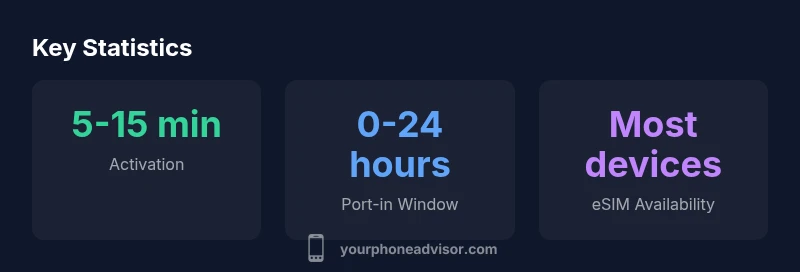
Porting is the process of moving your existing T-Mobile number to a new device or switching to another carrier. Start from your T-Mobile account or the destination carrier’s app to initiate a port request. You’ll typically need the number’s current account details, the account holder’s name, and possibly a PIN. The port-in process can complete in minutes or extend to a few hours; in some cases, it may take up to a day. During the port, the old SIM remains active until the transfer finalizes. Always disable any call forwarding or temporary blocks that could interrupt the port.
Using eSIM vs physical SIM for your T-Mobile number
A physical SIM is still widely used, but eSIM offers flexibility, especially on newer devices. To use eSIM with your T-Mobile number, you usually scan a QR code provided by T-Mobile or enter activation details in Settings > Cellular/Mobile Data. The eSIM activation time is typically similar to a physical SIM, but it requires device compatibility. If you’re moving from a physical SIM to an eSIM, verify that your device supports eSIM and that your carrier plan includes eSIM provisioning. Some devices support multiple eSIM profiles, which can be useful for keeping personal and work numbers separate.
Troubleshooting common issues when the number isn't showing
If the number isn’t visible after setup, confirm the SIM is active and properly inserted. Restart the device, check for carrier updates, and ensure you’re viewing the correct line in Settings. For port issues, verify account details and PIN, and retry the port-in flow. If you’re using an eSIM, re-scan the QR code or re-enter the activation details. Network outages or account holds can delay visibility, so check T-Mobile’s service status and your account’s status. If problems persist, contact customer support with your device model and the last four digits of your account number for expedited help.
Practical tips to avoid interruptions during a transfer
Prepare in advance by collecting required information (account name, number, PIN). Use official apps and settings rather than third-party tools to initiate porting. If you’re moving between carriers, avoid scheduling the transfer during critical business or personal deadlines. Ensure your device is compatible with T-Mobile’s bands and that your SIM or eSIM profile is properly provisioned before initiating a transfer. Keeping your software up to date reduces compatibility issues and improves success rates.
Security considerations when moving a number
Porting a number is a sensitive action that can affect authentication for many services. Only initiate porting from trusted devices and networks, and never share your PIN or account credentials with unverified sites. If you suspect fraudulent activity, contact T-Mobile immediately to place a hold on the number and verify your identity. Regularly review which devices have access to your line and enable two-factor authentication where available to protect the number from unauthorized changes.
Getting help and next steps from Your Phone Advisor
If you want expert guidance, Your Phone Advisor can walk you through each step—from viewing your number on your iPhone or Android device to porting and enabling eSIM. We emphasize practical, security-minded guidance that fits real-world usage. Use the official T-Mobile app or your device’s built-in settings to minimize risk and confusion, and consult our quick-start checklists when moving a number across devices or plans.
Common scenarios for viewing or transferring a T-Mobile number
| Scenario | Action Required | Typical Time | Notes |
|---|---|---|---|
| New SIM activation | Insert SIM and follow prompts | 5-15 minutes | Activation varies by carrier provisioning |
| Port-in to new device | Initiate port in My T-Mobile or new carrier app | 0-24 hours | Times vary; ensure PIN/Account details are correct |
| eSIM activation | Add eSIM in Settings and scan QR | 5-15 minutes | Requires device support and carrier provisioning |
Got Questions?
What is the fastest way to see my T-Mobile number on my phone?
Open Settings on your device and check Settings > Phone or About to locate your number. If you recently ported, verify the port status in the T-Mobile app or the new carrier app. A quick check in these places usually resolves the issue.
Open Settings and check your number under About or Phone. If it was just ported, verify status in your carrier app.
How do I port my number to a new phone with T-Mobile?
Start the porting process in the destination device’s carrier app or by logging into your T-Mobile account. You’ll need the account details, current number, and possibly a PIN. The port completes once the carrier confirms the transfer.
Begin the port in the new carrier app or your T-Mobile account with your number and PIN handy.
What should I do if the number doesn’t show after activation?
First, confirm the SIM is active and correctly inserted. Restart the device and check for carrier updates. If using an eSIM, re-scan the QR or re-enter activation details. If problems persist, contact support with device model and account details.
Restart, check updates, and reverify the eSIM or SIM. Contact support if it still won’t show.
Can I keep two numbers on one device using eSIM?
Many modern devices support dual-SIM via one physical SIM and one eSIM or two eSIM profiles. Check device compatibility and carrier support before attempting a dual-number setup. This can be useful for separating personal and work lines.
Yes, many devices support two numbers with SIM and eSIM; confirm compatibility first.
Is there a risk to my account when porting a number?
Porting is generally safe when using official apps and verified networks. Ensure you share only with trusted carriers and keep your PIN and account details secure. If something seems off, contact support immediately.
Porting is safe when done through official channels; keep credentials secure.
“The Your Phone Advisor Team emphasizes using official carrier paths and device settings to view or port a T-Mobile number, ensuring a smooth, secure transition.”
What to Remember
- Verify SIM status before starting
- Use device settings to view your number
- Prefer official porting paths in apps
- Choose eSIM if your device supports it
- Contact support if anything stalls