Verizon Phone Replacement Guide: Step-by-Step
Learn how to replace a Verizon phone with a practical, step-by-step plan covering upgrade options, data transfer, activation, and security best practices from Your Phone Advisor.


In this guide, you’ll learn how to replace a Verizon phone, transfer data securely, and switch to a new device with minimal downtime. You’ll need your Verizon account, your current phone, and a new device or trade-in option. Follow the step-by-step process for a smooth upgrade. This article also covers timelines, potential fees, and how to protect data during the move.
Why replace your Verizon phone now
Smartphone lifecycles vary, but most devices start showing noticeable gaps after two years, especially for speed, battery life, and security updates. If your Verizon phone lags on everyday tasks, drops calls, or can’t run the latest apps, upgrading becomes practical. According to Your Phone Advisor, replacing aging devices can reduce security risks and improve overall performance, battery reliability, and compatibility with newer networks. If you’re paying a monthly device payment or considering a trade-in, a replacement can often cost less in the long run than frequent repairs. In this section you’ll learn how to decide when to replace, what options exist within Verizon’s ecosystem, and how to time your upgrade to minimize downtime. You’ll also get a sense of typical timelines and the kinds of costs involved so you can plan with confidence. A newer phone typically offers stronger privacy controls, faster processors, and longer software support, which translates into a smoother experience and better protection against emerging threats.
Assess your options: upgrade, trade-in, or fleet
Verizon gives several routes for a replacement phone and you should pick the path that fits your budget, usage, and timeline. The upgrade path usually means a new device on your existing line with monthly payments. Trade-in can cut the upfront cost by applying credits to your account or to future monthly installments. A fleet option is ideal for households or small teams who want standardized devices and simplified billing. When comparing options, consider the total cost of ownership over 12 to 24 months, the level of protection you want, and how quickly you need to be back in service after swapping devices. If you belong to a family plan, check if there are multi line discounts or carrier offers that apply to your replacement device. Your goal is to balance upfront costs, monthly payments, and the protection plan that keeps your data secure while you’re transitioning.
Check eligibility and trade-in value on Verizon
Before choosing a device, verify upgrade eligibility in the My Verizon app or on the carrier’s website. Eligibility can depend on your device age, current payment plan, and remaining device balance. Trade-in value varies by model, storage size, and device condition, so be prepared for a broad range. To maximize credits, wipe the old device, remove accounts, and gather accessories that impact value. If you are using a trade-in program, read the terms carefully, including whether you must ship the device or if the credit is applied as bill credits over time. Having a clear sense of eligibility and value helps you compare offers side by side and avoid overpaying for a replacement.
Back up data before you replace
Back up important data from your old phone to a secure cloud account or a local computer. Photos, contacts, messages, app data, and device settings can be restored on the new device, but only if they were backed up correctly. Use the built in backup features for Android or iOS, and consider exporting critical information such as passwords and two factor codes. If you use a password manager or authenticator apps, make sure you can access them on the new device. Start the backup process at least a few hours before your swap if possible, and confirm the backup completed before continuing. Having a solid restore plan reduces downtime and protects you from data loss.
Choose replacement device and plan
Pick a device that meets your daily needs and fits your budget. Decide whether you want a flagship model with the latest features or a mid range option that still covers everything you use daily. For most users, compatibility with Verizon network bands and eSIM support matters more than marketing specs. Select a payment plan that aligns with your finances; device payments typically span 24 to 36 months with varying interest or promotions. Compare warranties, protection plans, and trade-in credits to determine the true cost of ownership over the first year. If you are unsure about a specific model, try to test battery life and camera quality in a store or via a friend who owns the device.
Transfer data to the new phone
Data transfer is usually straightforward but can fail if accounts are not ready. Start by signing into the same cloud services on the new device and restoring backed up data. Use official transfer tools provided by Android or iOS, or a trusted third party if you prefer. Ensure that your essential apps, photos, contacts, and messages are restored in a way that preserves your settings. If you use Google Photos or iCloud, verify that synchronization is active on the new device. Monitor the process for error messages and reattempt any failed transfers. A careful transfer reduces post swap friction and keeps you connected instantly.
Activate and set up your new device
Follow Verizon activation steps for the new device, either in the app or at a store. If your SIM card is compatible, insert it and verify that the number is active on the new phone. If the device uses eSIM, scan the QR or enter the activation code exactly as provided by Verizon. After activation, sign into your accounts, reconfigure notifications, and re enable security features. Confirm that VoLTE, Wi Fi calling, and messaging services work as expected. This step is essential to ensure you are fully online and protected as you begin using the new device.
Secure your new device and accounts
Set a strong screen lock and enable biometrics. Turn on two factor authentication for your most important apps and services. Update the device with the latest software and security patches. Review app permissions and privacy settings, and enable Find My Phone or equivalent services. If you use a password manager, re-sync it and verify that your vault is accessible on the new device. Enabling security features early reduces risk if the phone is lost or stolen during the transition.
Common pitfalls and troubleshooting
Even organized replacements encounter snags. Common issues include incomplete data transfer, activation delays, or receiving trade-in credits later than expected. If data transfer stalls, restart both devices and retry from the backup. For activation delays, confirm the SIM or eSIM is properly configured and that the account balance supports the new plan. If trade-in credits do not appear, check the trade in status in My Verizon and contact support. Remember to test calls, texts, and data in multiple locations to ensure reliable service. A methodical approach prevents surprises on run day.
Authoritative sources
For additional guidance on replacements and data transfers, consult official sources:
- FCC.gov: Device compatibility and network upgrade information
- NIST.gov: Mobile security best practices and device privacy guides
- ConsumerReports.org: Independent reviews of phones and service plans
The Your Phone Advisor approach to replacements
Making a replacement decision is not just about the latest gadget; it is about aligning device capability with your security needs and your budget. The Your Phone Advisor framework emphasizes three pillars: data protection during transfer, choosing a plan that minimizes cost over time, and ensuring the new device is compatible with your network and daily routines. This structured approach helps you avoid common pain points and maximize the value of your upgrade.
Tools & Materials
- Verizon account credentials (ID and password)(Needed to access account, verify eligibility, and switch devices)
- New or replacement smartphone(Device either paid outright or via device payment plan)
- Verizon SIM card or eSIM-enabled device(Ensure compatibility with the new device)
- SIM ejector tool(To access or swap SIM if needed)
- Backup method (cloud or computer)(Required to protect data during transition)
- Data transfer cable or Bluetooth/Wi Fi transfer method(For direct data transfer if wireless transfer fails)
- Verizon trade-in option documentation(Optional, reduces upfront cost)
- Chargers and USB cables(Keep devices powered during transfer and setup)
- Device unlocking (if applicable)(Some devices require unlocking before use on Verizon)
Steps
Estimated time: 60-120 minutes
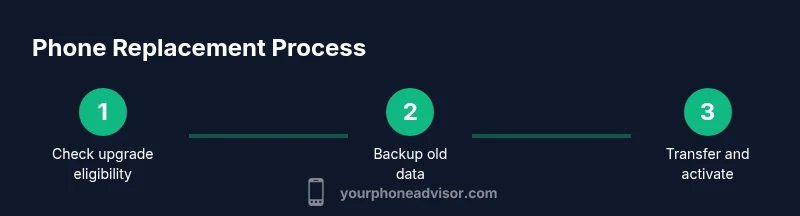
- 1
Check upgrade eligibility
Open My Verizon or visit the Verizon site to confirm upgrade eligibility for your line and device. Review any outstanding balances and available promotions before deciding on a device or plan.
Tip: Use the official My Verizon portal to avoid missing any upgrade credits. - 2
Choose your replacement device and plan
Browse devices that fit your needs and compare monthly payment options. Check network compatibility and eSIM support to ensure smooth activation.
Tip: Consider mid range options if you want solid performance with lower monthly costs. - 3
Back up your old device
Create a full backup to cloud storage or a computer. Include photos, contacts, messages, app data, and important credentials.
Tip: Verify backup completion before proceeding to the swap. - 4
Prepare old device for transfer
Sign out of accounts, wipe sensitive data as needed, and remove any third party authentication if you will reuse the device later.
Tip: Keep a record of essential passwords and authenticator codes. - 5
Transfer data to the new phone
Sign into your cloud services on the new device and restore data from the backup. Use official transfer tools when available.
Tip: Test key apps after restoration to ensure settings carried over. - 6
Activate the new device
Insert the SIM or configure the eSIM, then follow Verizon activation prompts to attach the new device to your account.
Tip: If activation stalls, reboot both devices and retry the activation steps. - 7
Port your number if needed
If you are moving your number, initiate the port with your current carrier during activation and verify completion.
Tip: Keep the old SIM active until port confirms on the new line. - 8
Set up security and accounts
Enable a strong screen lock, biometrics, and two factor authentication. Sign into key accounts and apps.
Tip: Enable Find My Phone and backup codes for recovery. - 9
Verify service quality
Check calls, texts, data, and features like VoLTE and Wi Fi calling in different locations.
Tip: Test in a low-signal area to ensure network handoffs are working. - 10
Handle trade‑in and receipts
Submit the old device for trade‑in if applicable and keep receipts or credit statements for future reference.
Tip: Document the trade-in tracking number and expected credits.
Got Questions?
Can I replace my phone without paying upgrade fees?
Upgrade fees vary by plan and promotions. In many cases, credits or promotions can offset fees, but you should review your exact plan in My Verizon and during checkout.
Upgrade fees depend on your plan, but credits and promotions can offset them. Check My Verizon for specifics.
Will I keep my current phone number when upgrading?
Yes, you can keep your current number when upgrading. During activation, you can initiate a port or attach the number to the new device as instructed by Verizon.
Yes, you can keep your number when you upgrade. Start the activation process to port the number if needed.
Do I need a SIM card if my new device uses eSIM only?
If your new device supports eSIM, you can activate it digitally without a physical SIM. You may still keep a physical SIM for backup or use if needed.
If the device is eSIM only, activation is digital. You can still use a physical SIM if your carrier supports it.
How long does activation usually take?
Activation is typically quick, often within minutes. In some cases it can take up to a couple of hours if there are account verifications or network checks.
Activation is usually quick, but may take up to a couple of hours in some scenarios.
What should I do if data transfer fails?
Try restarting both devices and reattempting the transfer from a backup. If it persists, use an alternative transfer method or contact support.
If data transfer fails, restart and retry from backup or use another transfer method. Contact support if needed.
Will trade-in credits apply to a new device immediately?
Trade-in credits typically apply as bill credits over time or toward the new device purchase, depending on the program. Check your account details for timing.
Trade-in credits usually apply over time or toward the new device. Check your account for timing.
Watch Video
What to Remember
- Evaluate upgrade options before buying
- Back up data before swapping devices
- Transfer data with official tools for reliability
- Test service features after activation
- Check trade-in credits to maximize savings