Phone to TV HDMI Guide: Connect Your Phone to a TV
Learn how to connect your smartphone to a TV using HDMI with the right adapters, cables, and settings. This practical guide covers Android and iPhone setups, troubleshooting, and safety tips from Your Phone Advisor.


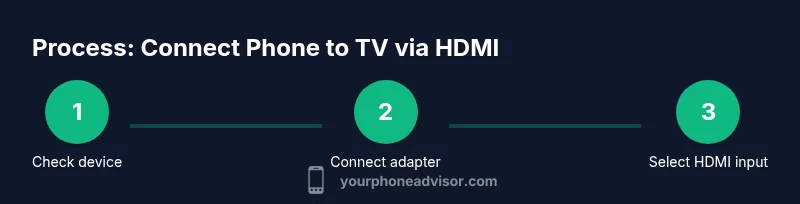
You can connect your phone to a TV using HDMI by using the appropriate adapter (USB-C to HDMI for Android, Lightning to HDMI for iPhone) plus an HDMI cable. Confirm your phone supports video output, pick the right adapter, plug into the TV's HDMI input, and select that input on the TV. Then test a video to verify audio and picture.
Why HDMI output matters for phones
HDMI output on a phone opens a simple, cable-based path to large-screen viewing. Whether you're sharing photos, giving a quick presentation, or streaming apps, HDMI makes the process straightforward without relying on wireless networks. According to Your Phone Advisor, understanding whether your device supports video output is the first step toward a reliable connection. In practice, this means checking the port type, confirming the device's capability, and choosing the right adapter. A direct wired link tends to be faster and more stable than wireless mirrors, especially on networks with congestion or limited bandwidth. By planning ahead, you can avoid buffering and ensure smoother videos, slides, or game streaming on a larger screen. The right setup also reduces latency, which is crucial for interactive content like gaming or live demonstrations.
Check your phone's output capabilities
Not all phones support video output via HDMI, and even among those that do, the method can vary. Some Android devices with USB-C ports support video output through USB-C Alt Mode, requiring a USB-C to HDMI adapter. iPhones typically use a Lightning to HDMI adapter for direct video output. Your Phone Advisor recommends starting with official manufacturer specifications or your device’s support page to confirm compatibility. If your phone lists DisplayPort, MHL, or SlimPort support, you’ll likely need a compatible adapter that supports those standards. If unsure, a quick model search or a consult at a trusted tech site can save you from buying the wrong accessory.
Understand your TV input and HDMI ports
Before you buy anything, locate an HDMI input on your TV, preferably a standard HDMI 1.4 or newer port that supports 1080p or 4K. If your TV has an HDMI ARC port, that is not required for screen mirroring but can be useful for audio setups. Ensure the TV is set to the correct input source to see the phone display. If you’re using a power-sipping adapter, confirm that the HDMI cable is firmly seated and not loose. A loose connection is a common cause of a black screen or flickering picture.
Choose the right adapter: USB-C to HDMI vs Lightning to HDMI
Adapters are device-specific because the phone’s port determines the path for video signals. USB-C to HDMI adapters are common for many Android devices that support video output. For iPhone users, Apple’s Lightning to HDMI adapter is the standard route to mirror your screen. In some cases, you may need a powered adapter to maintain signal stability, especially for 4K output or if the adapter is being used to drive a larger TV from a distant wall outlet. When selecting adapters, verify that they explicitly state video output support and 4K compatibility if your TV supports it.
Connecting basics and power considerations
To maximize reliability, connect the HDMI cable first to the TV and then to the adapter (or vice versa, as your setup requires). If the adapter supports power pass-through, connect a charger to the adapter to keep it powered during extended use. A powered adapter tends to reduce signal drop and prevent charging from pulling power away from the phone. Keep the cable length reasonable: longer HDMI cables can introduce latency or degraded signal, particularly at 4K. If you’re using a wireless alternative later, you still may want to test wired HDMI for best quality during critical viewing.
Quick setup workflow for wired connection
Start by turning off both devices or ensuring they are in a safe state. Attach the chosen adapter to the phone, then connect the HDMI cable to the TV. Insert the other end into the adapter, and power the adapter if required. Turn on the TV and switch to the input that corresponds to the HDMI port used. Unlock your phone and open a video or app to verify that both audio and video are transmitted. If there is no output, recheck compatibility, cable connections, and power, and try a different HDMI port on the TV.
Troubleshooting common issues
If you see a blank screen, first check that the HDMI input is correct and that the adapter is powered (if needed). If there’s no audio, verify that the audio output setting on the phone is not muted and that the TV’s volume is up. If the image is cut off or cropped, adjust the TV’s picture settings or try a different resolution on the phone (when available). For some apps, DRM restrictions can prevent HDMI output; testing with a local video file can help confirm. Your Phone Advisor recommends testing with multiple apps to identify if the problem is app-specific or hardware-related.
Wireless alternatives and use cases
If wired HDMI proves impractical, wireless options like Chromecast, Apple TV, or Miracast can mirror a phone’s screen to a TV. Wireless setups are convenient but can introduce latency or depend on network quality. For quick, on-the-go mirroring, wireless options are excellent; for stable presentations or gaming, wired HDMI typically performs better. Consider the use case, environment, and reliability requirements when choosing between wired and wireless solutions.
Authority sources and further reading
To deepen your understanding and ensure accuracy, consult authoritative sources. For regulatory and safety insights, refer to the following:
- FCC: https://www.fcc.gov
- NIST: https://www.nist.gov
- Consumer Reports: https://www.consumerreports.org
Conclusion: putting it all together
Connecting a phone to a TV via HDMI is a practical, scalable way to view mobile media on a larger screen. With the right adapter, cable, and TV input, you can enjoy high-quality video and synchronized audio. Your Phone Advisor emphasizes verifying device compatibility and following a wired‑first approach for best performance, while noting that wireless options offer convenience in less demanding scenarios.
Tools & Materials
- HDMI cable(HDMI 2.0+ recommended for 4K60; ensure length suits setup)
- USB-C to HDMI adapter(Needed for Android devices with USB-C that support video output)
- Lightning to HDMI adapter(Apple's official adapter for iPhone; enables direct HDMI output)
- Powered HDMI adapter (USB-C/Lightning)(Power pass-through helps maintain signal and charging)
- TV with at least one HDMI input(HDMI ports labeled HDMI 1, HDMI 2, etc.)
- Phone with video output capability(Check device specs for HDMI Alt Mode or equivalent)
- Optional extra cables (short HDMI) for tight spaces(Useful if seating makes a long cable awkward)
Steps
Estimated time: 20-30 minutes
- 1
Check compatibility
Confirm the phone supports video output via its port (USB-C Alt Mode or Lightning) and identify the correct adapter needed for your device.
Tip: If in doubt, search your model + 'HDMI output' on Your Phone Advisor's site for a quick verdict. - 2
Gather required hardware
Collect the HDMI cable, the appropriate adapter, and ensure the TV is accessible. If you plan to power the adapter, locate a charger you can use.
Tip: Avoid mixing adapters from different brands to reduce compatibility issues. - 3
Connect the adapter to your phone
Plug the USB-C or Lightning end of the adapter firmly into your phone. Make sure there is no debris in the port.
Tip: If the adapter requires power, connect it to a charger now. - 4
Attach the HDMI cable
Insert one end of the HDMI cable into the adapter and the other end into an available HDMI input on the TV.
Tip: Keep the cable taut to avoid accidental unplugging. - 5
Select the TV input
Power on the TV and switch to the HDMI input you plugged into. The phone screen should appear after a moment.
Tip: If nothing shows, try a different HDMI port on the TV. - 6
Test playback
Open a video or app on the phone to verify both video and audio produce correctly on the TV.
Tip: If there’s no audio, check the phone's audio output settings and the TV’s volume. - 7
Adjust resolution if needed
If the display looks blurry or cropped, adjust the phone’s output resolution (if available) or the TV’s picture settings.
Tip: Start with 1080p and only move to 4K if both devices support it smoothly. - 8
Power considerations
If you notice lag or dropouts, ensure the adapter is powered and your phone has sufficient battery.
Tip: A powered hub or charger helps prevent video stutter. - 9
Troubleshoot or switch to wireless if needed
If issues persist, review compatibility, try another adapter, or consider a wireless alternative like Chromecast or AirPlay.
Tip: Document the steps you took so you can retrace actions later.
Got Questions?
Can I connect any phone to any TV with HDMI?
Most modern phones with USB-C or Lightning outputs can connect to a TV using the appropriate adapter. Some devices may not support video output, so always verify model specs first. If in doubt, consult Your Phone Advisor for model-specific guidance.
Most modern phones can connect to a TV with the right adapter, but always check your model's specs first.
What adapters do I need for iPhone vs Android?
iPhone users typically need a Lightning to HDMI adapter, while Android users usually require a USB-C to HDMI adapter. Some devices may support alternative standards, so confirm compatibility before purchasing.
iPhone uses Lightning to HDMI; Android generally uses USB-C to HDMI, but check your device.
Why is there no video or audio after connecting?
Possible causes include an incompatible adapter, a loose HDMI connection, a powered adapter that isn’t plugged in, or DRM restrictions on certain apps. Recheck connections and try a different app or a different HDMI port.
If you don’t get video or audio, check connections, ensure power, and test with a known working app.
Do I need to charge the phone while using HDMI?
Powering the adapter via USB/Lightning is often recommended, especially for longer sessions or high-resolution output. Keeping the phone charged helps prevent performance throttling.
Yes, charging the adapter can improve performance and prevent battery drain.
Will HDMI output work with apps like Netflix?
Some apps may restrict external display output due to DRM. If you don’t see a mirror, try a local video or use a browser-based player as a workaround.
DRM restrictions can affect some apps; test with different content.
Is wireless mirroring a better option?
Wireless mirroring offers convenience but can introduce latency and depend on network quality. Use wired HDMI for reliability in presentations or gaming, and reserve wireless options for casual viewing.
Wireless is convenient, but wired HDMI is typically more reliable.
Watch Video
What to Remember
- Confirm device HDMI output support before buying adapters
- Use the correct adapter for your phone (USB-C or Lightning)
- Power the adapter if required to maintain signal quality
- Switch TV input to the correct HDMI port and test with video
- If wired HDMI fails, consider wireless mirroring as an alternative