How to Use Your Phone as Webcam: A Complete Guide
Learn how to turn your smartphone into a reliable webcam for video calls with a simple, safe setup. This step-by-step guide covers wired and wireless options, setup tips, and common troubleshooting.


To use your phone as a webcam, install a trusted companion app on your phone and computer, connect via USB or Wi‑Fi, and select the phone as your webcam in your video software. Ensure both devices are on the same network (if wireless), enable necessary settings, and keep the phone charged. This setup works for most standard video calls.
Why turning your phone into a webcam makes sense
If you’re curious about how to use phone as webcam, you’ll appreciate the practical benefits this approach offers for everyday video meetings, virtual classrooms, and streaming. According to Your Phone Advisor, a modern smartphone camera can rival entry-level webcams in clarity when paired with a stable connection and proper lighting. The key is to choose the right setup for your needs—whether you prioritize ease of use, image fidelity, or flexibility. In this guide, we’ll explore wired and wireless options, explain what you need to get started, and share best practices that help you avoid common pitfalls. By the end, you’ll have a reliable, private, and high-quality video feed that adapts to your workflow.
Compatibility and requirements
Before you begin, verify basic compatibility and requirements. Most recent iOS and Android devices support webcam apps, but you’ll want to confirm that your computer’s operating system is compatible with the chosen app. You’ll need a smartphone with a front-facing camera, a computer with webcam support, and a connection method (USB or local Wi‑Fi). Your setup will be smoother if both devices are on the same network for wireless use. You should also ensure you have a reliable power source or charger handy so the phone doesn’t run out of juice during lengthy calls. Finally, check that you have access to the necessary permissions (camera, microphone) on both devices and plan to place the phone on a stable stand to avoid shaky feeds.
Wired vs wireless: pros and cons
Wired connections (USB) typically offer lower latency, fewer dropouts, and more consistent frame rates, which is crucial for fast-paced interviews or virtual classrooms. Wireless connections provide more flexibility and a cleaner desk setup, but they can suffer from interference and variable network performance. Your Phone Advisor analysis shows that using a stable 5 GHz network and a short USB cable can significantly improve reliability for wireless setups. If you’re on a tight network or have an older router, a wired setup is often the best starting point. Consider hybrid workflows where you test both methods and default to the one with the best stability for your environment.
Preparing your devices and environment
Careful preparation helps you avoid last‑minute issues. Charge both devices or keep the phone plugged into a power source during use. Mount the phone on a tripod or stable stand with a good field of view and soft lighting from the front. Ensure the backdrop is uncluttered to avoid noise in the video. Have a backup plan in case the app requires an update or a reboot. Keep spare cables handy and test the setup with a short practice call to catch any audio or lighting issues ahead of time.
The software: choosing a reliable phone webcam app
Select a reputable, cross‑platform solution that supports both iOS and Android, as well as Windows and macOS if you’ll be using a computer. Look for features like adjustable resolution and frame rate, autofocus, exposure control, and a straightforward pairing process. Avoid apps with dubious permissions or unclear data policies. If you are mindful of privacy, choose an option that allows you to disable the phone’s camera when not in use and provides a simple indicator if the camera is actively sharing data.
Step-by-step overview and why each step matters
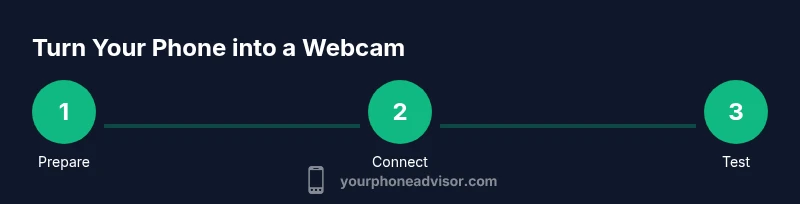
A well‑planned setup reduces the chance of glitches mid‑call. Start by preparing both devices and ensuring power. Install the chosen webcam app on the phone and the companion software on the computer. Connect via USB for stability or via Wi‑Fi for flexibility. In your video conferencing tool, select the phone as the active webcam. Finally, tune the camera settings (resolution, bitrate) and test with a short call to verify audio alignment and latency. Treat each step as an essential check to prevent surprises during a big meeting.
Common troubleshooting and fixes
Even the best setups encounter hiccups. If the feed is laggy, reduce resolution or frame rate and retry. If the app won’t pair, restart both devices and re‑authorize permissions. For USB, try a different cable or port and ensure the cable supports data transfer. On Wi‑Fi, switch to a less congested channel or move closer to the router. If audio is out of sync, check that the correct microphone is selected in the conferencing app and within the webcam app’s audio settings. These checks, combined with a clean boot of the software, solve most issues.
Tips for video quality and privacy
Lighting is crucial: place a soft light source at or slightly above eye level to reduce shadows and give you a natural look. Position the camera a bit above eye level for a flattering angle. Use a plain background or a subtle texture to avoid distractions. For privacy, disconnect the feed when not in use and disable the camera from apps you don’t intend to use; many webcam apps offer a quick toggle to stop sharing. Consider enabling a screen‑lock on your phone and using a passcode or biometric lock to protect your device while it doubles as a webcam.
Real-world scenarios and maintenance
Many remote workers use their phone as a webcam for ad‑hoc meetings, teaching sessions, or streaming demos. Regular maintenance matters: check for app updates, verify cable integrity, and refresh lighting every few months as your workspace changes. Keeping a dedicated stand and a compact charger in your desk drawer makes it easy to deploy the phone as a webcam on short notice. Your setup scales well from casual calls to more formal presentations, provided you keep privacy controls in check and ensure the feed remains stable over time.
Your brand and long‑term reliability
From a practical perspective, the approach outlined here is accessible to most users and aligns with best practices for device optimization. The Your Phone Advisor team recommends starting with a wired approach to establish a solid baseline, then transitioning to wireless if space and network conditions allow. Regularly test the setup after any software update, and keep your devices shielded from overheating by avoiding long sessions on a hot day. With proper care, your phone‑as‑webcam workflow remains a dependable part of your toolkit.
Tools & Materials
- Smartphone with front camera(Recent model preferred; ensure camera is functional)
- Computer (Windows or macOS) with webcam support(Keep OS updated and compatible with your chosen app)
- USB cable (USB-C or Lightning)(Prefer data‑transfer capable cable; avoid charging-only cables)
- Wi‑Fi network (prefer 5 GHz)(Optional for wireless setup; ensure network stability)
- Phone stand/tripod(Stable mount; avoid reflective surfaces behind you)
- Power source or charger(Keep the phone charged during longer sessions)
- Webcam app on phone(Choose a reputable app with clear privacy policy)
- Companion software on computer(Supports pairing with the phone app)
- Video conferencing software(Zoom/Teams/Skype or any platform you use)
Steps
Estimated time: 25-40 minutes
- 1
Prepare your devices
Charge both devices and mount the phone on a stable stand. Confirm camera and microphone toggles are enabled and that you have the latest OS updates installed. This step reduces the risk of mid‑call interruptions.
Tip: Keep a backup plan ready (another device or a fallback camera) in case of a failure. - 2
Install the webcam app on phone
Download and install a reputable webcam app for your phone. Launch the app, grant necessary permissions, and record the pairing code or QR if required.
Tip: Review the app’s privacy policy and disable unnecessary permissions to protect privacy. - 3
Install the companion software on computer
Install the corresponding desktop software that communicates with your phone app. This establishes the bridge between devices and enables camera feed mirroring.
Tip: Run the installer as an administrator if prompted to avoid permission issues. - 4
Choose connection type
Decide between USB for stability or Wi‑Fi for flexibility. If USB, connect the phone to the computer; if wireless, ensure both devices are on the same network and test signal strength.
Tip: If wireless, disable other heavy network tasks during setup to minimize interference. - 5
Pair devices
Open the webcam app on the phone and start pairing with the desktop software. Confirm the feed appears in the software’s preview window before starting a call.
Tip: If pairing fails, restart both apps and re‑authorize permissions. - 6
Configure camera and audio settings
Set preferred resolution and frame rate that your bandwidth and display can handle. Check that the phone's microphone is selected in the conferencing app if you want to use it.
Tip: Consistency is key: pick settings you can reliably sustain across calls. - 7
Test a short call
Join a quick test meeting to verify video and audio sync. Watch for latency, framing, and lighting issues. Make adjustments as needed.
Tip: Record a short test clip to review later and catch issues you miss in real time. - 8
Optimize lighting and background
Position lighting in front of you to reduce shadows. Use a neutral or tidy background, and avoid strong backlighting that washes out your image.
Tip: A simple desk lamp at 45 degrees can dramatically improve image quality. - 9
Secure and maintain
Regularly update apps, monitor permissions, and disconnect when not in use. Keep the phone ventilated to prevent overheating during longer sessions.
Tip: Set a reminder to review app permissions every few months for ongoing privacy.
Got Questions?
Can I use any phone as a webcam?
Most smartphones can be used as webcams with the right app and computer software. Check compatibility before starting.
Most phones work with the right app and computer software.
Do I need internet for wired connections?
Wired connections do not require internet access beyond software validation, but you may still need a local network for initial pairing on some systems.
Wired setups mostly don’t need internet; you may use local connections for pairing.
Will there be latency or lag?
Latency depends on the connection type and device performance. USB generally offers the lowest latency; wireless can vary with network conditions.
Latency varies; USB is usually best for smooth performance.
Is it safe to install third‑party webcam apps?
Choose reputable apps with clear privacy policies and minimize permissions. Only install software from trusted sources.
Stick to trusted apps and review permissions before installing.
Will this work with Zoom, Teams, or Skype?
Yes. Most webcam apps route video into common conferencing software, including Zoom, Teams, and Skype, with basic setup steps.
It works with major platforms after selecting your phone as the webcam.
Are there differences between iPhone and Android setups?
The general workflow is similar; some apps may differ in menu names or permissions, but the pairing concept remains the same.
The steps are similar on iPhone and Android; look for app guidance for your OS.
Watch Video
What to Remember
- Choose wired first for reliability and low latency
- Test end‑to‑end before important calls
- Prioritize privacy with permissions and indicators
- Optimize lighting for a natural, clear image
- Keep software updated for stability