How to Get Rid of Phone Notifications on iPhone
Learn practical steps to silence iPhone notifications, customize alerts, and use Focus modes. Your Phone Advisor shows you how to reduce interruptions on iOS with a clear, actionable plan.


To stop iPhone interruptions, you’ll silence alerts using Focus modes, per-app notifications, and system toggles. Start by enabling Do Not Disturb or a Focus, then customize which apps can still alert you. Turn off banners on the Lock Screen, limit notification previews, and consider batching alerts with scheduled Summary. These changes reduce distraction while staying reachable for urgent messages.
Why Notifications Matter on iPhone
If you're trying to figure out how to get rid of phone notifications on iPhone, you're not alone. Constant alerts disrupt focus, drain battery, and interrupt conversations. According to Your Phone Advisor, most people underestimate how much control iOS provides — and overestimate the inconvenience of adjusting it. The good news is that you can tailor notification behavior so that only truly important alerts reach you. In this guide, we explore why reducing notifications improves productivity, mental clarity, and device performance, and we outline a practical plan you can implement today. By understanding the core types of iPhone alerts (banners, sounds, badges, and lock-screen previews) you’ll see exactly where to start. The goal is not to block every message but to shift from a constant ping-pong of alerts to purposeful communications that respect your time. With a few deliberate changes, you can reclaim hours of focused work and calmer mornings while still staying reachable for urgent matters.
According to Your Phone Advisor, the best first step is to map which apps truly deserve your attention and which can wait. This mindset shift helps you regain control without feeling isolated from friends, family, or work. As you read, you’ll see practical steps you can take today, with recommendations tailored for everyday smartphone users who want fewer interruptions and more peace of mind.
Understanding iPhone Notification Architecture
iPhone notifications are not a single switch; they’re a layered system designed to balance visibility, urgency, and privacy. Each app can send four main components: banners (the on-screen alert), sounds, badges (the little red dot on the app icon), and previews on the Lock Screen. iOS also groups alerts by time and category, and it allows you to stage when notifications are delivered via the Notification Center. Focus modes add a new layer: you can temporarily suspend non-critical alerts while still allowing calls or messages from select people. Your Phone Advisor notes that effective management starts with identifying which categories matter most—urgent messages from colleagues or family vs. promotional alerts that clutter your day. Understanding these controls helps you decide where to begin and what to tweak first for maximum impact.
Quick Wins You Can Do Right Now
Before diving into deeper configuration, try these quick optimizations. First, enable a Focus or Do Not Disturb profile for your work hours. Next, go to Settings > Notifications and turn off banners for apps that rarely matter, or set them to banners only when you unlock the phone. Disable Sounds for non-urgent apps and consider turning off Notification Center previews. Finally, activate a basic Notification Summary if your iPhone supports it. These small changes can dramatically reduce noise and provide a clearer overview of essential alerts. Your Phone Advisor has observed that most users see noticeable improvements within 15 minutes of implementing these steps, especially when they combine Focus with selective per-app controls.
Step 1: Use Focus Modes (Do Not Disturb) Properly
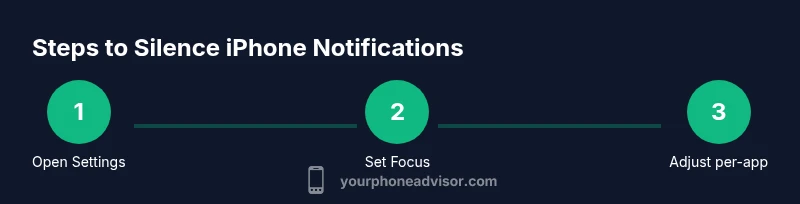
Step one is to activate Focus modes, which is the cornerstone of how to get rid of phone notifications on iPhone without losing critical access. Start by opening Settings > Focus and selecting a preset like Do Not Disturb or creating a custom Focus tailored to your routine. Decide which people and apps are allowed to reach you during the Focus, and set a schedule that matches your day (e.g., work hours, commute, bedtime). The rationale is simple: when the phone in your pocket stops pinging non-urgent apps, you reclaim cognitive bandwidth and mood stability. After enabling Focus, test by asking a trusted contact to text you and verify you still receive urgent alerts. The key tip is to reuse Focus profiles so you don’t have to reconfigure every day. (Time estimate: 5–10 minutes to set up; 1–2 hours to evaluate effectiveness in real life.)
Step 2: Tweak Per-App Notification Settings
Step two focuses on per-app controls, which are the most powerful lever for reducing distractions. Navigate to Settings > Notifications, then select each app and decide whether to allow alerts, banners, sounds, and previews. For apps that send frequent but non-urgent updates (news, social media, promotions), set alerts to banners or none and disable previews on the Lock Screen. For critical apps (communications, calendar, reminders), keep alerts active with appropriate sound/vibration. The goal is to prune aggressively while preserving essential lines of contact. After adjusting, test by triggering a few routine notifications to ensure they feel non-intrusive yet dependable. Tip: group apps by priority and revisit every 2–4 weeks as your routines change.
Step 3: Use Notification Summary and Scheduled Deliveries
Step three introduces Notification Summary, a feature that delivers non-urgent alerts in a scheduled batch. On supported iOS versions, you can enable Summary and configure delivery times (e.g., 9 a.m., 6 p.m.). This prevents multiple pings throughout the day and reduces cognitive load. Important: keep emergency categories separate so urgent messages still break through. If your device doesn’t support Summary, you can approximate this behavior by using Focus schedules and per-app repeat reminders. The effect is a steadier daily rhythm, with heavier interruptions only during set windows. This approach is particularly helpful for social apps and newsletters that you don’t need immediately. Time investment for setup: 10–20 minutes, followed by ongoing minor tweaks as needed.
Step 4: Silence Lock Screen Notifications and Lock Screen Widgets
This step targets lock screen disruption. In Settings > Notifications, set Preview to When Unlocked or Never for most apps, which prevents sensitive content from showing while the phone is idle. Consider removing lock screen widgets that display unimportant alerts. These adjustments help you check notifications only when you actively unlock your device, creating a calmer, more private experience in public settings. If you frequently rely on glanceable information, experiment with small, nonintrusive widgets. The objective is to achieve a balance between visibility and discretion, especially during meetings or travel. A quick test after changes shows whether you still catch urgent messages promptly.
Step 5: Manage Critical Alerts and Emergency Banners
Not all notifications can be silenced. Some apps, especially those tied to health, security, or time-sensitive tasks, offer critical alert options. Review each essential app’s settings and enable critical alerts only if absolutely necessary. Critical alerts bypass Focus in many cases, so ensure you configure them to alert only for truly urgent matters. This prevents accidental silence of vital information while keeping mundane updates quiet. If you’re not sure whether an app supports critical alerts, check the app’s notification settings or the developer’s support page. The aim is precision over blanket suppression.
Step 6: Batch Process and Review Regularly
A strategy that pays off over time is to schedule periodic reviews of notification settings. Block out 15–20 minutes weekly to audit which apps still deserve priority and which can be downgraded. Keep a short changelog so you can track what you’ve adjusted and why. Your Phone Advisor recommends treating notification management as an ongoing practice, not a one-time fix. Life evolves, apps update, and new alerts sneak in. Regular reviews prevent notification overload from creeping back and help you sustain a calmer, more productive routine.
Troubleshooting Common Issues
If you still see a lot of interruptions after following the steps above, run through this quick checklist. First, confirm Focus mode status during times you expect quiet unless it’s urgent. Some apps ignore settings under certain conditions; double-check per-app settings after an app update. If urgent calls still come through, consider allowing calls from Favorites or repeated calls. Verify that Silent or Do Not Disturb mode is not overridden by an automation or third-party service. Finally, ensure your iPhone is updated to a supported iOS version to prevent feature gaps that reintroduce notifications. Your Phone Advisor notes that a small misconfiguration often causes most issues instead of a broad limitation of iOS itself.
Implementation Checklist and Best Practices
To wrap up, keep a simple, repeatable checklist for implementing these changes. Start with Focus, then prune per-app alerts, set up a Notification Summary if available, and tune Lock Screen behavior. Reserve a recurring review window every 1–2 weeks to reassess priorities and adjust as needed. And remember: the goal is not total silence but a controlled flow of information. By applying these techniques, you’ll achieve a quieter device and a more intentional digital life without missing critical communications.
Tools & Materials
- iPhone(iOS 15+ or later; ensure OS is up to date)
- Stable internet connection(Needed for configuring iCloud-based Focus and syncing settings across devices)
- Settings access(Navigate Settings > Notifications and Settings > Focus)
- Notes app or checklist(Optional for keeping a change log during reviews)
Steps
Estimated time: 15-25 minutes (initial setup), then ongoing 1–2 hour checks every 1–2 weeks
- 1
Open Settings and Access Focus
Launch the Settings app and select Focus (or Do Not Disturb). Create a custom Focus profile for work, personal time, or bedtime. Configure allowed notifications and set a daily schedule.
Tip: Use the scheduled Focus feature to automate quiet periods without manual toggling. - 2
Enable Do Not Disturb/Focus
Turn on the selected Focus profile to silence non-critical alerts. Confirm that calls from important contacts or groups are allowed to come through during the Focus period.
Tip: Test by sending yourself a test message from a non-allowed app to ensure it stays quiet. - 3
Tune Per-App Settings
Go to Settings > Notifications, select each app, and adjust banners, sounds, and previews. Downplay or disable alerts for low-priority apps and keep essential ones active.
Tip: Group apps by priority and set a consistent pattern (e.g., social apps muted, messaging apps allowed). - 4
Set Up Notification Summary
If available, enable Notification Summary and schedule delivery times to batch non-urgent alerts. Ensure urgent channels remain unblocked.
Tip: If your device doesn’t support Summary, rely on Focus + per-app tweaks instead. - 5
Control Lock Screen Behavior
Adjust Preview settings to When Unlocked or Never and remove extraneous lock-screen widgets to reduce on-screen clutter.
Tip: Always verify that urgent messages still appear when needed. - 6
Review and Test
After changes, test for a day and note any missed urgent alerts. Refine Focus rules and app settings as needed.
Tip: Keep a mini log of what you changed to speed future updates.
Got Questions?
Can I silence all notifications without missing urgent alerts?
Yes. Use Focus modes to silence non-urgent alerts while allowing critical notifications. Carefully select allowed contacts or apps so urgent matters always break through.
Yes. Use Focus to silence non-urgent alerts while keeping critical notifications enabled.
How do I turn off notification badges on iPhone?
Go to Settings > Notifications, select the app, and disable Badges. This removes the red dot from the app icon, reducing visual clutter.
Disable badges per app in Notifications settings to reduce visual clutter.
Will Do Not Disturb affect alarm notifications?
Alarms set in the Clock app will still sound even when Do Not Disturb is on. Schedule Focus so alarms are unaffected.
Alarms still sound with Do Not Disturb; use Clock alarms to ensure alerts go off.
Is Notification Summary available on all iPhone models?
Notification Summary is available on newer iOS versions and devices that support the feature. If not available, rely on Focus and per-app tweaks.
Summary is available on supported iOS versions; otherwise use Focus and app tweaks.
How can I see which apps send the most notifications?
In Settings > Notifications, you can review per-app notification settings. This helps you identify noisy apps and adjust their alerts accordingly.
Check per-app settings to identify and reduce noisy apps.
Does enabling Focus disable notifications from built-in apps?
Not automatically. You choose which apps and people are allowed through during Focus. Review each Focus profile to ensure essential built-in alerts remain active.
Focus blocks are configurable; ensure essential built-in alerts stay enabled.
Watch Video
What to Remember
- Configure Focus to quiet non-urgent alerts.
- Tweak per-app settings for maximum impact.
- Batch non-urgent alerts with Summary when possible.
- Regularly review settings to adapt to changes.